
 Share
Share
 Print
Print
|
|
|
|
|


Inventory Levels Button, via P/N Master
Settings/ Update/ P/N Master/ Inventory Levels Button
This function can be used to set up Inventory levels per location for parts within the system (serialized or non-serialized categories).
Please refer to the Inventory Manual (Section “P/N Re-Order Level”) for additional related information.
Levels controlled are: purchase quantities, stock levels and re-order points.
From the P/N Master window, select the Inventory Levels  Button.
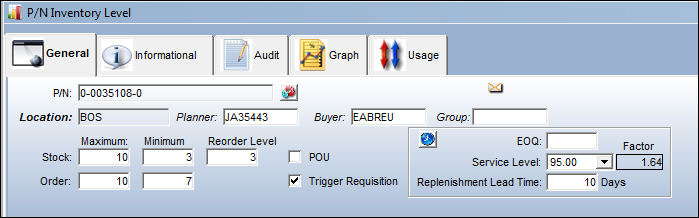
Enter/update the following information:
Release |
Field |
Function |
|
P/N |
The Part Number reference for the aircraft part. This is the Part Number to set levels for. |
|
Location |
The Location for maintenance events, inventory stores, orders, or training events. |
|
Planner |
The person responsible for material planning for this part. The Planner appears on the Requisition Prints as the "Requester". |
|
Buyer |
The person responsible for buying this part. The Buyer will also automatically appear in association with the part when the part is placed on a Requisition (via Requisition/Update/ Requisition/Requisition Detail/Optional Tab/Assign To field). |
|
Group |
The group responsible for buying this part. For information regarding how to set up a Group, refer to Buyer Group Explorer via Requisition, Explorer Menu, which can be found in the Requisition Training manual. Note: When the Import option is used, the Group field will auto populate with the Group specified in the import file. For additional information refer to the Import Button, via the Standard Button which can be found in the System Standard Training Manual.
|
|
Stock Maximum |
The maximum in stock quantity allowed. |
|
Stock Minimum |
The minimum in stock quantity required (Safety Stock). The minimum stock level can be used to report on items that require urgent action. |
|
Re-Order Level |
The Re-Order point for the Part. The Re-Order point is established so that the system can automatically create Requisitions for parts that have reached a certain stock quantity level. Purchasing action can then be considered. Please refer to the Inventory manual (section “P/N Re-Order Level”) for additional related information. The Re-Order Level |
|
Order Maximum |
The maximum quantity allowed on a Purchase Order. This information may appear on certain Prints. |
|
Order Minimum |
The minimum quantity allowed on a Purchase Order. |
|
POU checkbox |
Point Of Use. When this checkbox is selected, the system will validate against the location set up in the P/N Inventory Level, General tab when a P/N is being added to a Task Card or a Picklist. |
|
Trigger Requisition checkbox |
Select this checkbox to have Requisitions triggered by the system after the import process has been completed. |
|
Calculate Reorder Level |
Select this button to calculate the reorder level and EOQ once all criteria has been selected. This calculation can be done multiple times for optimal results. |
|
EOQ |
The “Economic Order Quantity” field is used to store a value that is calculated outside of the system. The value is usually calculated by materials managers and used to determine the quantity that is the optimum (lowest) total variable cost (unit costs that depend on volume) required to Order and hold inventory. The following switches are used to auto-populate the EOQ with the completion of P/N issue transactions:
|
|
Service Level % drop down
|
Select from one of the following Service Level percentages. This is the most acceptable Service Level which is defined by a companies business processes. This defaults to 95%. |
|
Factor |
The Service Level Factor. The Inverse Normal Distribution formula along with the selected Service Level % equals the Factor variable. (i.e. The Factor for a 95% Service Level = 1.64) |
|
Replenishment Lead Time |
The amount of time to have the part brought into the specified location. |
 To assign a Group via P/N Inventory Level, select into the field and select from the Drop Down Selection pop-up the desired group or create a new group by selecting the New
  button.
  button is used to reset the Re-Order Level based on past usage (the system automatically calculates this figure). This field triggers a Re-Order Level Requisition. Once the available parts in inventory are less than the value specified in the Re-Order Level field, a requisition will automatically be created. Please read the immediate text below this table for switches which affect the Re-Order Level.
  button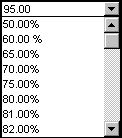
Please note the following switches:
 REOEAUTO (Re-Order Level Automatic Calculation After Issues) - Dynamic Re-Order point calculation is available by switching on the REOEAUTO switch to Yes. This will calculate re-Order point following each subsequent issue of a part (to take surges into account). The Poisson factor allocated on the main P/N window is used for this calculation (they are set up in the System Tran Code Explorer).
BOCRT - (Create Back Order For Parts Below Re-Order Level) - If set to Yes, the system will create Requisitions for Part Numbers that go below the re-Order level when reserving materials for a Work Order.
REORLOC (Re-Order Level, Order Computation Omit Location) - If set to Yes, the system will take the total sum of quantities; on Requisitions and Quantity available at the current Location, and on all Orders from all Locations. If the sum is less than the Reorder Level quantity (defined in Settings/Update/P/N/ Inventory Levels button), then the system will create a Requisition. If set to No, the system calculates the total sum per specific Location. If the sum is less than the Reorder Level for a specific Location, the system will create a Requisition for that specific location.
REORLOPO - (Re-Order Level Using Purchase Orders For Location) - If the REORLOPO switch is Yes when the REORLOC switch is set to No, only Purchase Orders (instead of all Order types) for each specific location will be considered.
Note: If entering this Inventory Level information for the first time, the system will create a Requisition upon save if the quantities that are currently in inventory do not meet Stock requirements. The quantity that appears on the Requisition will be equal to ([the greater value of either the Re-Order Level quantity, or the Minimum Stock quantity] + 1). Further, if the Minimum Stock field is set to '0', the Reorder Requisition will not be triggered.
Share
Print
|
©1997-2026 Trax USA Corp. All rights reserved. This manual may not be copied, photocopied, reproduced, translated, or converted to any electronic or machine-readable form, in whole or in part, without prior written approval from Trax USA Corp. |
 |