
 Share
Share
 Print
Print
|
|
|
|
|


The Work Order  button shows that the current planning element is associated to a Work Order. The Work Order will be associated to one aircraft. Multiple Work Orders can be assigned to a planning element. Additionally, the Work Order may be associated to several different planning elements.
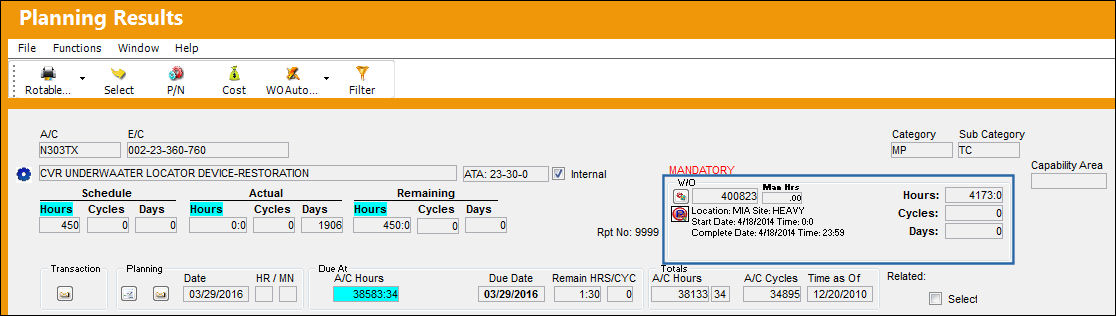
The following information/options are available in this window:
_____________________________________________________________________________________
Work Order button
Once a record has been assigned to a Work Order, the Work Order button will appear with the Work Order information on that record. When selected, the W/O pop-up window is displayed with the same functions as the Work Order via Production/Update/Work Order.
The Task Priority  button is only available in E3 and all later releases of TRAX.
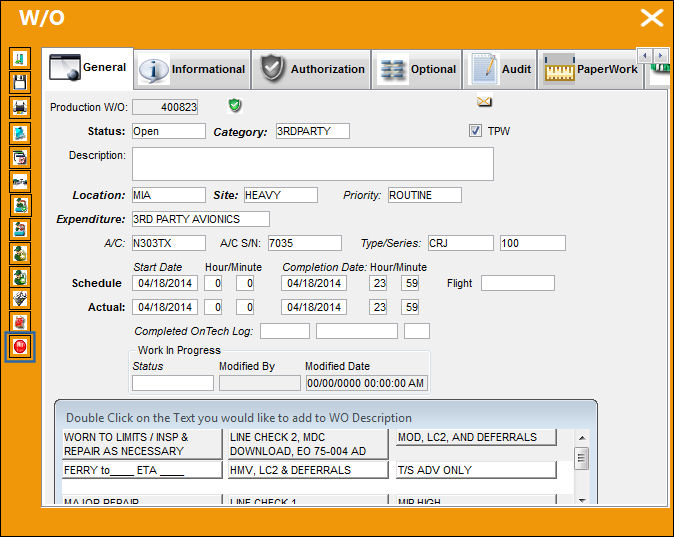
If the Work Order button is selected after a currently selected item has been assigned to a Work Order, the relevant list of Work Orders will appear for viewing. Use the Vertical scroll bar to view all records in the list. This information is view only.
Authorized  icon
icon
When the Authorized icon appears in green, this means that changes have been accepted. When the icon appears in gray, this means that changes are still pending authorization. For additional information regarding the fields and buttons in the Work Order window, refer to Work Order, which can be found in the Production Training manual.
Reservation Status Indicator  button
The display of the Reservation Status Indicator  button allows planners to see when a part(s) has been reserved (all/partial/none). For additional information, refer to the Reservation Status Indicator Button, via the A/C Planning Details of the Planning Training Manual.
Part Status Indicator  button
Select the Part Status Indicator button to display parts available in inventory, on order, or reserved for a particular location (partial/all/none). For additional information, refer to the Part Status Indicator Button, via A/C Planning Details which can be found in the Planning Training manual.
Location
The Location for maintenance events, inventory stores, orders, transactions, or training events.
Schedule Start Date/Time
The date/time that the work is scheduled to begin. The Start Date does not affect whether the Work Order may be deleted or not. However, if the work has been started, the Work Order may not be deleted.
Schedule Completion Date/Time
The date/time that the work is scheduled to be completed.
Work Order Remaining Time
The time remaining from the current date to the Work Order Start Date. For additional information, refer to the Work Order Remaining Time topic via A/C Planning Details of the Planning Training Manual.
_____________________________________________________________________________________
For planning purposes, users can be sent System Notifications when a Production Work Order schedule date or time is changed. For more information refer to the Production W/O Schedule Date/Time Change via the Settings Training Manual.
Share
Print
|
©1997-2026 Trax USA Corp. All rights reserved. This manual may not be copied, photocopied, reproduced, translated, or converted to any electronic or machine-readable form, in whole or in part, without prior written approval from Trax USA Corp. |
 |