 Download Online Help
 Print
|
|
|
|
|


Sites View
At the bottom half of the homepage, each 'Long Term Visit' Site containing a heavy check Work Order for the Location are displayed along with basic Aircraft information and pending labor requirements. These Sites can be selected to access detailed information.
The following screenshot is an example of the Sites View section of Production Control.
- Notice that there are three Sites listed - this is because the selected Location has three Sites that have the 'Long Term Visit Site' checkbox selected (via the Site Button of the Location Master).
- Each Site displays the current Work Order for the Aircraft currently located at that particular worksite. If there is currently not a W/O scheduled at one of these Sites, then the Site name and information will be greyed out and will contain the text, 'No Work Orders at this Time.' If there are multiple W/Os available for a site, then the W/O with the earliest scheduled start date is listed for this site.
From this section of the homepage, each Site contains a bird's-eye-view of the Labor requirements associated to the W/O's Task Card Items along with current part, tool, and engineering indicators (see below for more information on these indicators).
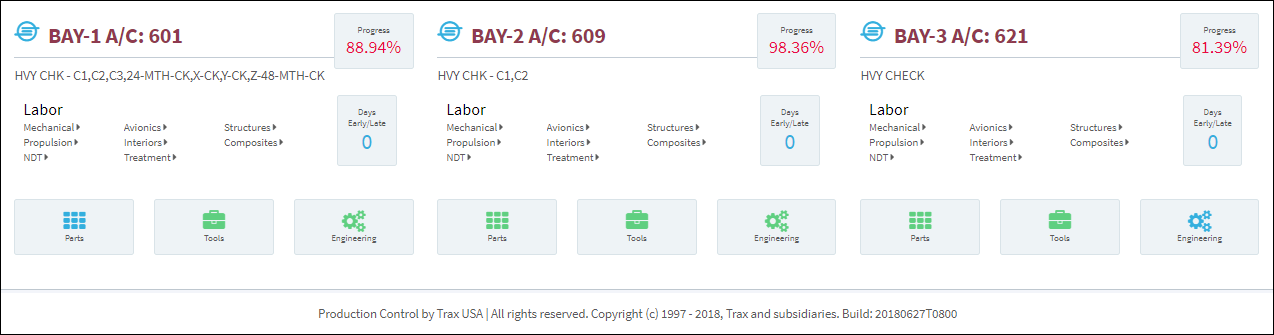
The Site Details section of the homepage contains the following W/O-specific icons and information for each applicable Site:
_________________________________________________________________________
Site information 
The blue line at the top of the subsection includes the Site name and the aircraft tail number that is located at the worksite. Users can click on the Site to access the Site's details window (see below for more information on the detail window).
Progress %
The percentage of completed work scheduled for that specific worksite for the day.
W/O Description
Under the Site and Aircraft information is the current Work Order's Description. The W/O number is listed in the details section (below).
Labor
Each Labor Category is listed in the middle of the Site subsection. When a W/O T/C Item is scheduled for the day that requires a Skill that is linked to one of these Skill Categories, that Skill Category will change color. The colors that these Categories change to quickly indicate the current assignment status. These at-a-glance color codes help production controllers plan worksite personnel accordingly.
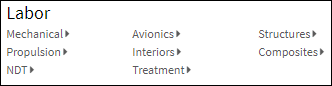
The labor color codes are as follows:
 - Less main Skill man hours assigned than Task/NRTC estimate hours assigned per day or TOO MANY resources have been assigned (greater that 120% required)
 - Same main Skill man hours assigned than Task/NRTC estimate hours assigned per day within 10%
 - MORE main Skill man hours assigned than Task/NRTC estimate hours assigned per day (119%)
Select Labor to access a pop-up window that includes the required Skills' schedule and assignment status.
Days Early/Late
Indicates the amount of days ahead of schedule or behind schedule, if any. If everything is on schedule, then the fields will read '0'. The days are also color-coded for quick reference.
- Greater than schedule end date/time - Equal to scheduled end date/time within 1 hour - Less than scheduled end date/time less than 1 hour
Parts  icon
The color of this icon indicates the availability status for all required parts on the day's W/O T/Cs. The Parts icon color codes are as follows:
- Parts' estimated delivery GREATER than scheduled outdate of the W/O - 3 days - Parts' estimated delivery LESS than scheduled outdate of the W/O - 3 days - Parts' estimated delivery LESS than scheduled outdate of the W/O - 5 days
Tools  icon
The color of this icon indicates the availability status for all required parts on the day's W/O T/Cs. The Parts icon color codes are as follows:
- Parts' estimated delivery GREATER than scheduled outdate of the W/O - 3 days - Parts' estimated delivery LESS than scheduled outdate of the W/O - 3 days - Parts' estimated delivery LESS than scheduled outdate of the W/O - 5 days
Engineering  icon
The color of this icon indicates the current status of the Engineering Requests linked to the W/O. The Engineering icon color codes are as follows:
- Engineering estimated delivery greater than the scheduled end date of the W/O - Engineering estimated delivery same as the scheduled end date of the W/O - Engineering estimated delivery less than the scheduled end date of the W/O
_________________________________________________________________________
For detailed information regarding a Site's W/O and tasks, click on a Site to access the details page. This detail window includes the Work Order schedule, Aircraft information, and W/O Task Card tabs (to the bottom of the window).
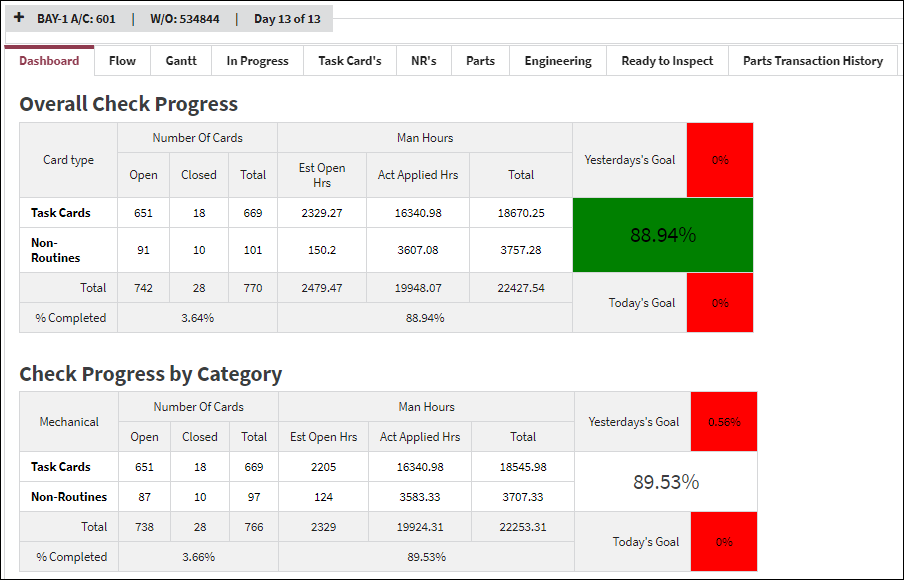
For more information on this window, refer to Sites View Details.
Download Online Help
Print
|
©1997-2018 Trax USA Corp. All rights reserved. This manual may not be copied, photocopied, reproduced, translated, or converted to any electronic or machine-readable form, in whole or in part, without prior written approval from Trax USA Corp. |
 |