
 Share
 Print
|
|
|
|
|


Tools Tab, via W/O (Planning Control)
The Tools tab lists all tools required for the W/O.
From this tab planners can see which tools are needed for each Task Card, the required quantity, and the availability status. Picklists and Requisitions for the required tools can be created by selecting the Picklist All  button.
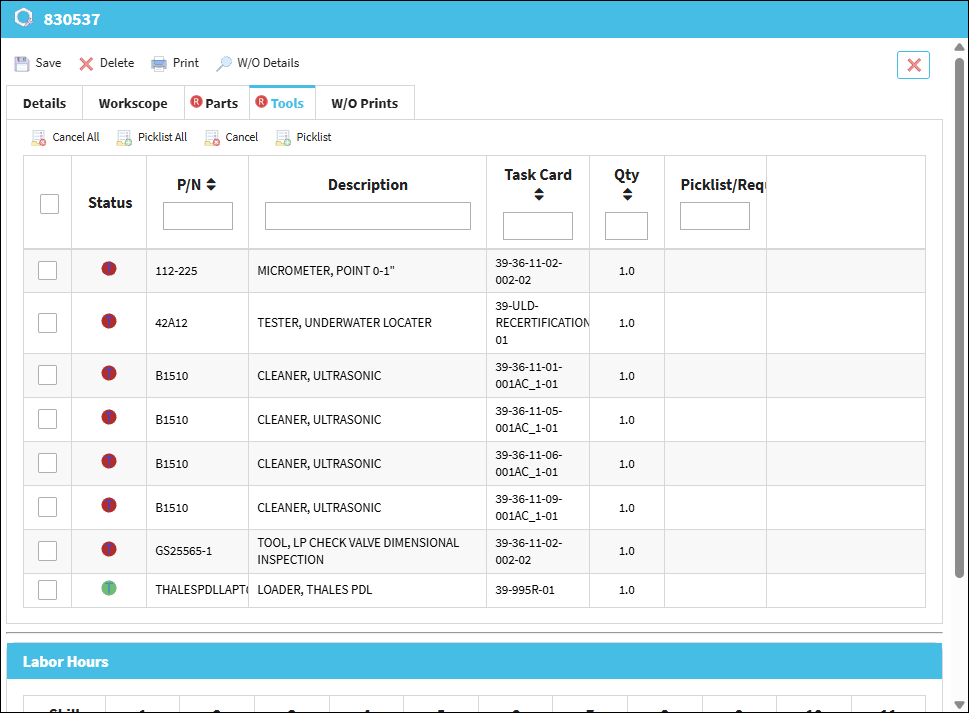
The following information/options are available in this window:
_____________________________________________________________________________________
Reservation Status Indicator 
The icon inside the Tools tab indicates the current reservation status for the W/O. This allows users to quickly see a Work Order's tool reservation status (all, partial, none, etc.).
Reservation Status  Indicator - All parts have been reserved for the Work Order.
Reservation Status  Indicator - Some parts have been reserved for the Work Order.
Reservation Status  Indicator - No parts have been reserved for the Work Order.
Reservation Status  Indicator - Task have been added to the original Work Order and parts have not yet been reserved for those tasks.
Tool Status Indicators
The tool's availability status in inventory.
Note: When the Picklist All button is selected and the Picklists/Requisitions are created, these icons will change to either Picklisted (if the tool is available) or Requested (if the tool is not available). See below for more information.
Tool Status  Indicator - The green status indicates that all tools required are available in inventory.
Tool Status  Indicator - The yellow status indicates that some, but not all tools are available in inventory.
Tool Status  Indicator - The red status indicates that no tools are available in inventory.
Cancel All  button
Select the Cancel button to cancel the Picklist/Requisition for the parts.
Note: Picklists/Requisitions will be automatically canceled when the associated Task Card is removed from the Work Order. For more information regarding Task Cards, refer to Task Cards Tab, via General Tab.
Picklist All button
Select the Picklist All button to create a Picklist/Requisition for all parts required for the W/O. A Picklist will be created for parts that are available; and a Requisition will be created for parts that are not available.
Note: When the Picklist All button is selected and the Picklists/Requisitions are created, these icons will change to either Picklisted (if the part is available) or Requested (if the part is not available). See below for more information.
Cancel Pick/Req button 
Select this button to cancel associated Picklists/Requisitions at the line item level.
Note: Picklists/Requisitions will be automatically canceled when the associated Task Card is removed from the Work Order. For more information regarding Task Cards, refer to Task Cards Tab, via General Tab.
Picklist button
Select the Picklist button to create a Picklist/Requisition for a part required for the W/O. A Picklist will be created for a part that is available; and a Requisition will be created for a part that is not available.
Note: When the Picklist button is selected and the Picklists/Requisitions is created, the icons will change to either Picklisted (if the part is available) or Requested (if the part is not available).
P/N
The Part Number reference for the aircraft part. This is the tool required for the task.
Description
The description of the part.
Task Card
The Task Card / Job Card that details the scheduled maintenance work.
Qty
The quantity of items/parts required.
Picklist/Requisition
The created Picklist/Requisition's number will be displayed in the Status field. See below.
Note: Requisitions created this way will inherit the W/O's company. If the W/O does not have a specified company, the requisition will inherit the corresponding A/C's owner company.
_____________________________________________________________________________________
Select the Picklist All button to create a Picklist/Requisition for all parts required for the W/O. A Picklist will be created for parts that are available; and a Requisition will be created for parts that are not available.
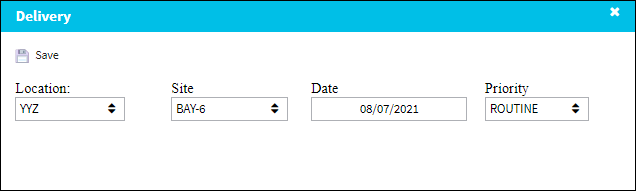
When selected, the Delivery window pops up. This window is used to configure the Picklist and/or Requisition that will be created for the required tools. The Location, Site, and Date are populated by default based on the W/O; the Priority field must be specified manually. Select the Save  button when ready.
Once created, the Picklist or Requisition number will listed in the Picklist/Requisition column to the right.
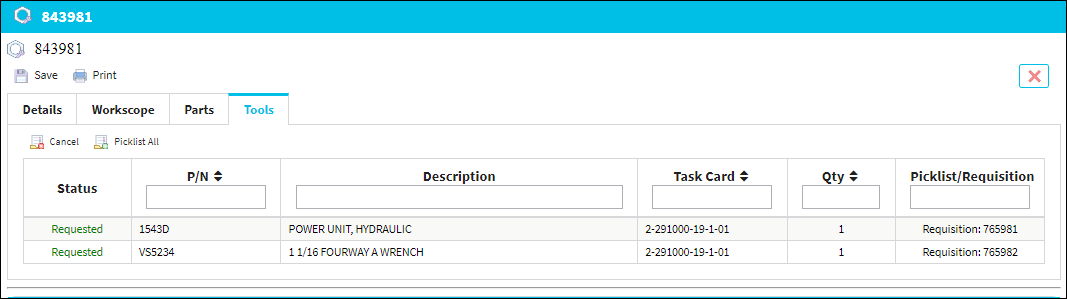
Select the Cancel button to cancel the Picklist/Requisition for the tools.
Share
Print
|
©1997-2026 Trax USA Corp. All rights reserved. This manual may not be copied, photocopied, reproduced, translated, or converted to any electronic or machine-readable form, in whole or in part, without prior written approval from Trax USA Corp. |
 |