
 Share
 Print
|
|
|
|
|


Due List, via Planning Control
The Due List tab lists all maintenance events that are coming due (as opposed to tasks that are already due/overdue in the Dashboard's Due List). Users can specify which aircraft, specific due date, and the maintenance events they want to see (Defects, E/Cs, P/N E/Cs, P/N Controls, and/or scheduled Work Orders). Maintenance events can be added to new or existing Work Orders.
1. Filter for Maintenance Events
2. Review Aircraft filters
3. Review Due Items
4. Assign Items to a Work Order
 Note: Planning Control is enhanced to support multiple browser tabs, allowing users to open and work with multiple Planning Control sessions simultaneously. Each browser tab maintains its own independent state, enabling planners to run, compare, and analyze multiple planning queries side by side without losing context or reloading filters. This significantly improves efficiency when reviewing and comparing Due List and Interactive Planning windows.
1. Filter for Maintenance Events
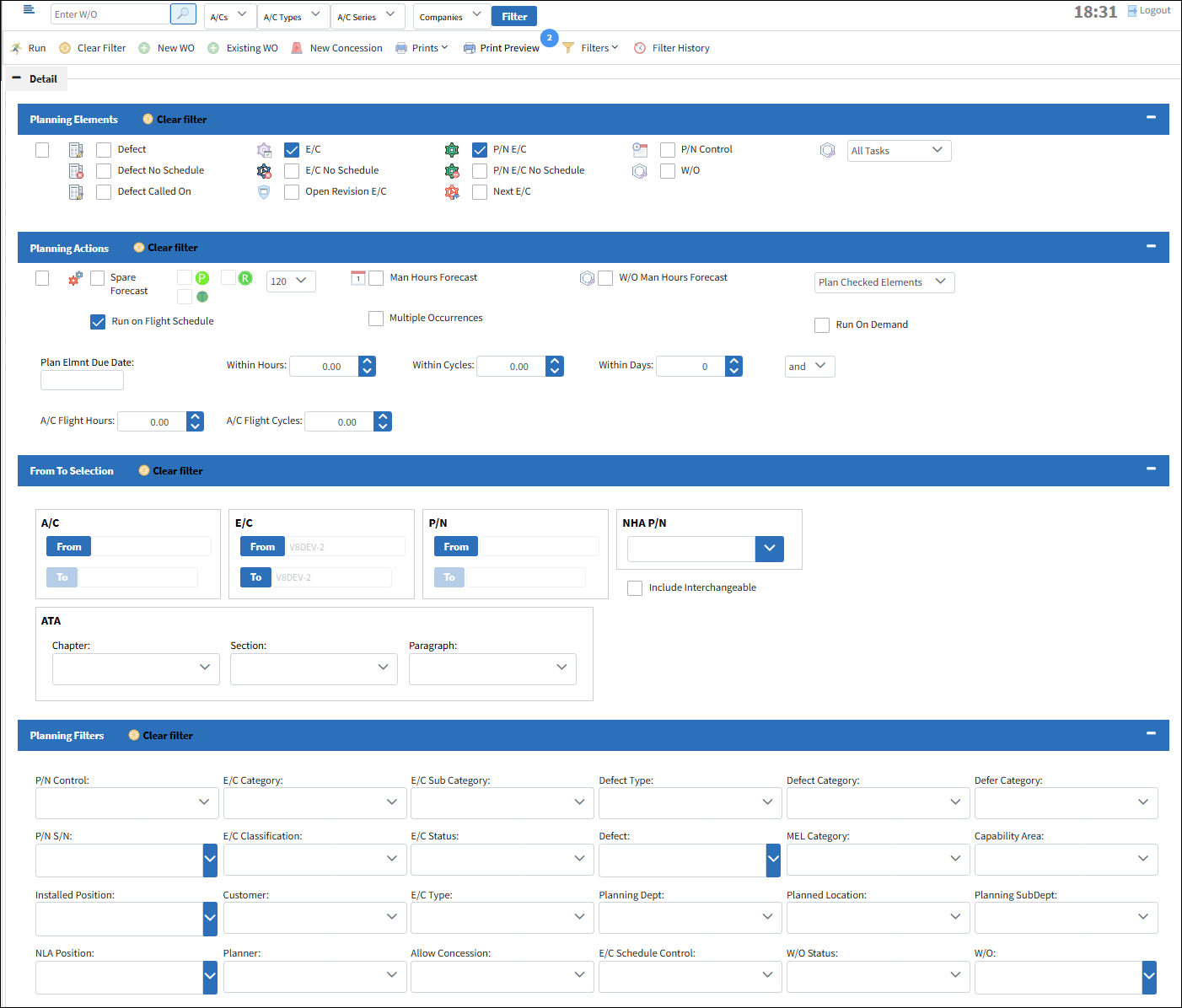
Select the filters for the query through the following sections.
 Note: This window is security-controlled via Planning Control/ Update/ Due List. For more information refer to the Security Explorer, via the System Administration Training Manual.
The following filters are available:
_____________________________________________________________________________________
Planning Elements
Clear Filter  Button - Select this button to clear all filter selections in the Planning Elements section. This will return the Planning Elements section to the default filter configuration for the user.
Select All checkbox - Select this checkbox to select or deselect the following checkboxes at once: Defect, E/C, P/N E/C, and P/N Control (below).
Defect checkbox - Select this checkbox to filter by Defect Reports.
Note: The Planning Query forecasts factors in Flight Schedules when generating a forecast for open Defects against a particular A/C. Forecasts will be based upon a Flight Schedule. Once that Flight Schedule is surpassed, the forecast will then be based on the time the planning is run in calculation with the Schedule.
E/C checkbox - Select this checkbox to filter by E/C.
P/N E/C checkbox - Select this checkbox to filter by P/N E/C.
P/N Control checkbox - Select this checkbox to filter by P/N Control (i.e. TSO, REP, HYDRO).
Planned WO checkbox - Select to include maintenance items in the query that have already been linked on a Work Order.
Note: The Planned W/O checkbox has been renamed to the Tasks checkbox. Selecting the Tasks checkbox will cycle through three different states: All Tasks, Packaged Tasks, and Unpackaged Tasks.
All Tasks (deselected) - The default option and will display all tasks.
Packaged Tasks (check mark) - Will only display tasks that are assigned to a W/O.
Unpackaged Tasks ('x') - Will only display tasks that are not assigned to a W/O.
Defect No Schedule checkbox - Select this checkbox to filter by Defects with No Schedule.
E/C No Schedule checkbox - Select this checkbox to filter by E/C No Schedule. Examples of No-Schedule E/Cs are: company convenience, do at next shop visit, etc.
Note: When the switch  CHILDECNOSCH is set to Yes, Child E/Cs without schedules will appear in the Planning Results. For more information, refer to CHILDECNOSCH in the Planning Training Manual.
P/N E/C No Schedule checkbox - Select this checkbox to filter by P/N E/Cs without a schedule. Examples of No-Schedule E/Cs are: company convenience, do at next shop visit, etc.
W/O checkbox - Select this checkbox to filter by Work Order.
Defect Called On checkbox - Select this checkbox to filter by Defect Called On. When selected, those Defects which are controlled by an E/C will appear in the planning query results. This option allows the user to see all Defects that have been deferred onto an E/C. The E/C schedule will be inherited by the Deferred Defect.
Open Revision E/C checkbox - Select this checkbox to only show E/Cs that are in open revision.
Next E/C checkbox - Select this checkbox to view all linked E/Cs coming due as of the To Date entered.
Planning Actions
Clear Filter Button - Select this button to clear all filter selections in the Planning Actions section. This will return the Planning Actions section to the default filter configuration for the user.
Select All checkbox - Select this checkbox to select or deselect the following checkboxes at once: Spare Forecast, Man Hours Forecast, and W/O Man Hours Forecast (below).
Spare Forecast checkbox - If checked, the Part Availability icon appears next to all items in the Due List results that require parts from inventory to be accomplished. The Part Availability icon appears in one of three colors to indicate the current availability of the part (i.e., Available  , Partial
 , or Unavailable
 ). If the Spares Forecast checkbox is not selected, the Part Availability icon does not appear in the Due List results.
 Note: The Spare Forecast checkbox must be selected for the Spare, Tools, and Reservation checkbox filters to be enabled. When selected, these checkboxes change the corresponding icon (Part Availability, Tool Availability, or Reservation Status) next to each checkbox. Users can click the Part, Tool, or W/O Reservation checkbox/icons to select the status they want to filter by. These checkboxes operate in an OR relationship. When checked, a Part Availability icon and/or Tool Availability icon appears next to all items in the Due List results that require parts from inventory to be accomplished. The Part Availability or Tool Availability icon appears in one of three colors to indicate the current availability (see below for details). If the Spare Forecast checkbox is not selected, these icons do not appear in the Due List results.

Note: The Spare Forecast checkbox can be configured to be selected by default. This default functionality is controlled by Planning Switch PLNDLDFSPFCST. For more information refer to PLNDLDFSPFCST in the Planning Switch training manual.
Spare checkbox - When selected, only tasks that have the required quantity of parts are displayed.
Note: The Spare checkbox allows users to filter the query by Part Availability Status (i.e., Available , Partial , or Unavailable ).
Tool checkbox - When selected, only tasks that have the required quantity of tools will be displayed.
Note: The Tool checkbox allows users to filter the query by Tool Availability Status (i.e., Available  , Partial
 , or Unavailable
 ).
Reservation checkbox - The Reservation checkbox allows users to filter the query by W/O Reservation Status (i.e., Reserved  , Partially Reserved
 , None Reserved
 , or Tasks Added None Reserved
 ).
Day dropdown - When the Spare Forecast checkbox is selected, the Days drop-down menu appears, allowing the user to select the number of days to forecast the availability of spares required for maintenance. If the number of days is not specified, the forecast will account for the entire duration of the query. This option allows the planner to limit the amount of data being queried to the near future. Limiting the spares forecast allows for the query to run more efficiently.
Man Hours Forecast checkbox - Select this checkbox to generate a forecast of required Man Hours. These hours are pulled from the Task Card(s) related to the Planning elements. The calculated Man Hours include all MECH, INSP, and DUPLICATE INSP hours associated with the Task Cad(s).
W/O Man Hours Forecast checkbox - Select this checkbox to generate a forecast of required W/O Man Hours which includes Non-Routines. The calculated Man Hours include all MECH, INSP, and DUPLICATE INSP hours associated with the Task Card(s) and Non-Routine Task Card(s).
Elements checkboxes - This checkbox controls the tasks (E/Cs, P/N E/Cs, P/N Controls, Defects) that are displayed based on whether or not they have the Plan checkbox selected. There are three options. The text of the checkbox changes depending on the selection:
Plan Checked Elements checkbox - Displays tasks that have the Plan checkbox selected.
Plan Un-checked Elements checkbox - Displays tasks that do not have the Plan checkbox selected.
All Elements checkbox - Displays both tasks that have the Plan checkbox selected and tasks that do not have the Plan checkbox selected.
Run Using Flight Schedule checkbox - When selected, the forecast is based on a flight schedule. Once that flight schedule is surpassed, the forecast is then based on the time the planning is run in calculation with the schedule.
Note: This field is controlled by Switch GLBLDUEDATECALC. For more information, refer to GLBLDUEDATECALC in the Planning Training Manual.
Run on Mean checkbox - When selected, the forecast is based on the mean hours/cycles.
Note: This field is controlled by Switch GLBLDUEDATECALC. For more information, refer to GLBLDUEDATECALC in the Planning Training Manual.
Calculate Multiple Occurrences for the Next checkbox - Select this checkbox to calculate the number of occurrences for a planning element within the indicated time span. This function queries every due date that falls within the selected time span for each queried record. For example, if you query an E/C for a 12-month time span, every due date for that E/C within the next 12 months is displayed. However, if the first due date occurs outside the specified time span for any queried record, only that first occurrence is displayed. For example, if the first due date for an E/C occurs in 13 months but the parameter was set to 12 months, only that first occurrence in 13 months is displayed.

Multiple Occurrences Number of Months - With the Multiple Occurrences checkbox selected, the user can query for multiple occurrences of a maintenance event in 12 month intervals (i.e 12, 24, 36 etc.).
Time Span Number - Enter the number of years, months, weeks, or days for which the occurrence calculation applies.
Time Span drop-down - Select this drop-down to specify the time span in years, months, weeks, or days to forecast multiple occurrences. Use the field to the left of the drop-down to enter the number of years, months, weeks, or days for the forecast. Note that the Multiple Occurrences for the Next checkbox must be selected.
And/Or Operator - Select the And/Or operator to specify how multiple occurrences should be calculated based on the time span and the occurrence count.
And option: Calculates occurrences based on both the time span and the occurrence count.
Or option: Calculates occurrences that meet either the time span or the occurrence count.
Occurrence Count - The number of occurrences to display. For more information, refer to Last Occurrence.
Run On Demand checkbox - When selected, instead of relying solely on the Live Planning functionality, the up-to-the-minute planning elements are queried from the database. While Live Planning utilizes a mix of the last saved data for different records (such as E/C updates, Installations/Removals, etc.) and scheduled data updates (such as daily flight closing intervals, scheduled database jobs, etc.), running the planning query 'on demand' forces the system to query the latest data for all queried records/filters in this window. One example where this option may be useful is when querying Deferred Defects that are time-sensitive, as opposed to purely date-sensitive.
Plan Elmnt Due Date checkbox - The Planning query only returns planning element items that are due before the date entered in this field.
Within Hours / Cycles / Days - The Planning Query only returns maintenance events that have a Remaining Schedule that is less than or equal to the specified number of Hours/Cycles/Days.
And / Or - Select 'And' to search for any Planning Elements which meet all search criteria. Select 'Or' to search for any Planning Elements which meet any search criteria. (i.e. Within Hours, Cycles and/or Days). Utilizing the 'Or' selection with the 'Within Days' functionality looks at the due date/current date, not just the remaining days of an E/C.
A/C Flight Hours - The number of aircraft daily utilization (mean) hours used to override the set-up mean hours for this search of the A/C Planning Query. This allows planners to forecast if an aircraft route were to change, what were to be coming due sooner as a result.
A/C Flight Cycles - The number of aircraft daily utilization (mean) cycles used to override the set-up mean cycles for this search of the A/C Planning Query.
From To Selection
Clear Filter Button - Select this button to clear all filter selections in the From To Selection section. This returns the From To Selection section to the default filter configuration for the user.
A/C (From / To) - Select the From button to select the Aircraft(s) to query. When the selection window opens, select a range of A/Cs to search (From / To). Filters can be used to search for A/Cs using the A/C and A/C Type/Series. Note: Only two selections can be applied to search for range.As a result, the selected A/Cs (and all A/Cs in between) are listed in the query results.
E/C (From / To) - Select the From button to choose the Engineering Control(s) associated to the records being queried. When the selection window opens, filters can be used to search for E/Cs using the E/C field and/or the E/C Description. Multiple E/Cs can be chosen.
P/N (From / To) - Select the From button to choose the Part Number(s) associated to the records being queried. When the selection window opens, filters can be used to search for P/Ns using the P/N field and/or the P/N Description. Multiple P/Ns can be chosen.
NHA P/N - The part’s Next Higher Assembly P/N (if applicable).
ATA (Chapter / Section / Paragraph) - The Air Transport Association Chapter, Section, and Paragraph numbers associated to the part.
Note: Users can select multiple Chapters, Sections, and/or Paragraphs.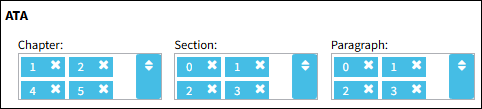
Include Interchangeable checkbox - Select the Include Interchangeable P/N History checkbox to query for main and interchangeable P/Ns. If the Include Interchangeable P/N History checkbox is de-selected, then only the main P/N appears in the query results.
Planning Filters
Note: Multiple options can be selected for each filter available in the Planning Filters section.
Clear Filter Button - Select this button to clear all filter selections in the Planning Filters section. This returns the Planning Filters section to the default filter configuration for the user.
P/N Control - Enter the Part Number Control for the forecast request.
E/C Category - Select an E/C Category to filter the query.
E/C Sub Category - Enter the Engineering Control Classification Sub Category for the forecast request.
Defect Type - Select a Defect Type to filter the query.
Defect Category - Select a Defect Category to filter the query.
Defer Category - Enter the Defer Category for the forecast request.
P/N S/N - Select a Serial Number to filter the query.
E/C Classification - Select an E/C Classification to filter the query.
E/C Status - Select an E/C Status to filter the query.
Defect - Select a Defect number ID to filter the query.
MEL Category - Select an MEL Category to filter the query.
Capability Area - Select a Capability Area to filter the query.
Installed Position - Select an Installed Position to filter the query.
Customer - Select the Customer associated to the records being queried.
E/C Type - Select an E/C Type to filter the query.
Planning Dept  - The Planning Department Code to assist the Planning department in filtering and planning tasks. The Planning Department is entered via the Engineering Control, Other tab in the core system.
Planned Location - Select a Planned Location to filter the query.
Planning Sub-Dept - The Planning Sub Department code to assist the Planning department in filtering and planning tasks. The Planning Sub-Department is entered via the Engineering Control, Other tab in the core system.
NLA Position - The position of the Next Lower Assembly.
Planner - Select the Planner's name from the Employee Master. The Planner's name must be entered into the Planner field of the A/C Master, Optional 2 Tab.
Allow Concession - Use the Allow Concession drop-down to filter the query by one or more of the following options: Allow Concession, Allow Concession with QA Approval Only, and Do Not Allow Concession. Then select the checkboxes for all applicable options.
E/C Schedule Control - Select the E/C Schedule Control drop-down to filter the query by Child and/or Parent E/Cs. If the Parent E/C checkbox is selected, only Parent E/Cs are displayed. If the Child E/C checkbox is selected, only Child E/Cs are displayed. If both options are selected, both Parent and Child E/Cs are displayed. If no selection is made, all E/Cs are displayed, including those without a Called-on setup.
W/O Status - Select a W/O Status to filter the query.
W/O - Select a W/O to filter the query.
Concession Flag  checkbox - Select this checkbox to query for Defects that have been granted concessions.
ETOPS - Select the ETOPS 3-Position Filter checkbox to sort records by those maintenance tasks which affect the aircraft's ETOPS airworthiness and reliability qualification status. Check/Select to sort by ETOPS only, Select "X" to exclude ETOPS tasks or leave the checkbox unselected to include both ETOPS and non-ETOPS maintenance tasks.
Note: The ETOPS filter/sort checkbox is a capability available in eMRO version 7
Plan Date Overdue checkbox - When the Plan Date Overdue checkbox is selected, the query retrieves planning elements (e.g., E/Cs, Defects, etc.) with a Due Date earlier than the Plan Date.
W/O Start Date Overdue - When the W/O Start Date Overdue checkbox is selected, the query retrieves W/Os with Due Date earlier than the W/O Start Date.
A/C Company checkbox - Select the Company Filter checkbox and the system only retrieves E/Cs that share the same company as the aircraft selected in the A/C drop down.
Note: This is useful when an E/C is set up for one company and is effective and tracking on an A/C that belongs to a different company; the checkbox allows the user to run a fleet due list and isolate the results for a specific company. For example, E/C 1-2-3 has been set up for company A. E/C 1-2-3 is effective to A/C 001, however A/C 001 belongs to company B. If the user runs a fleet due list for A/C 001 and does not select the Company Filter checkbox, E/C 1-2-3 appears in the results. If the user runs a fleet due list for A/C 001 and selects the Company Filter, because the system will only retrieve records for the company of the A/C entered, E/C 1-2-3 does not appear in the results.
Note: For more information, refer to the Multi Company Functionality.
Description - Enter an E/C description to filter the query.
Advance Filter  button
The advance filter button allows users to create and apply specific filter criteria that can then be saved for future uses. For more information, refer to Advance Filter Button, via Due List Window.
Sort By
The Sort By field allows users to organize due items by:
- Due Date
- A/C
- Installed Position
- Schedule Date
- Remaining FH (Flight Hours)
- Remaining FC (Flight Cycles)
- Remaining Days
Order By
The Order By field allows users to organize W/O records by earliest or latest.
 Note: Planning elements are sorted from oldest to newest by their respective Due At (date and time) by default.
Paginator
The paginator defines the number of records displayed per page depending on the selection (e.g., 50, 100, etc.).
Note: When the switch PLNDUELISTALL is set to Yes, the All option is enabled for the Paginator in the Planning Control Due List window. When set to No, the All option is not enabled for the Paginator in the Planning Control Due List window. For more information, refer to PLNDUELISTALL in the Planning Training Manual.
_____________________________________________________________________________________
2. Review Aircraft filters
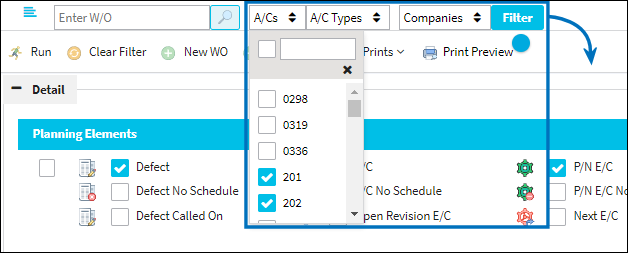
Verify the Aircraft, A/C Types, and/or Companies selected for the Query then select the Filter button in the Configurations Toolbar.
3. Review Due Items
Select the Run  button when ready to query the due items for the aircraft. The Planning Results are displayed at the bottom of the window.
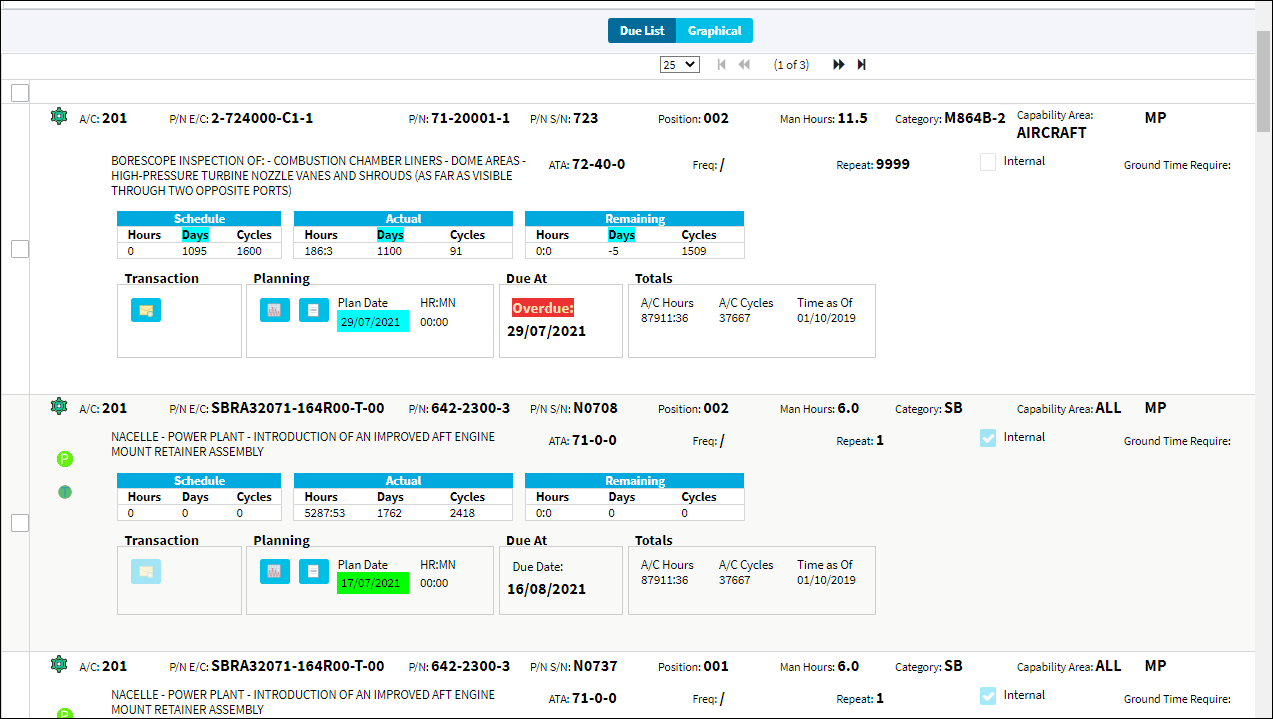
The results include various types of information depending on the types of records being displayed. For more information refer to Planning Results, via Due List Window.
4. Assign Items to a Work Order
To link one or more a pending maintenance item from the results section to a Work Order, select the item or items to be linked to a Work Order. Then select from the following two W/O options:
- Add the item to a new W/O by selecting the New W/O button.
- Add the item to an existing W/O by selecting the Existing W/O button.
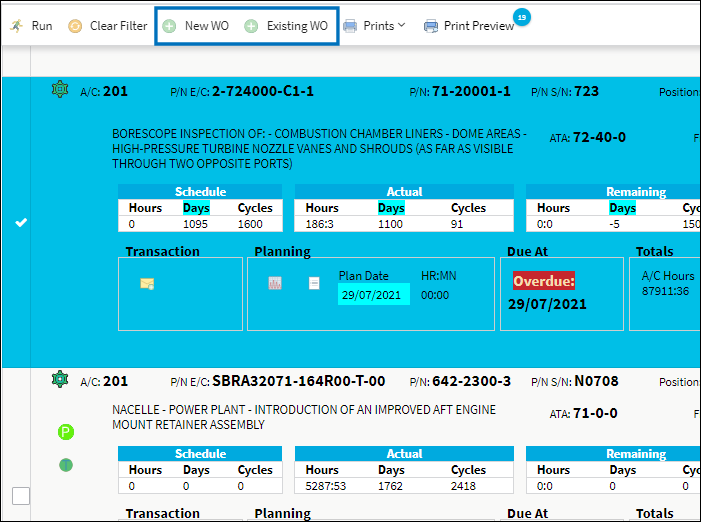
Note: Keep in mind that multiple items (E/Cs, P/N E/Cs, Defects, P/N Controls) can be selected and linked to the same W/O.
Share
Print
|
©1997-2026 Trax USA Corp. All rights reserved. This manual may not be copied, photocopied, reproduced, translated, or converted to any electronic or machine-readable form, in whole or in part, without prior written approval from Trax USA Corp. |
 |