
 Share
 Print
|
|
|
|
|


Advance Filter Button, via Due List

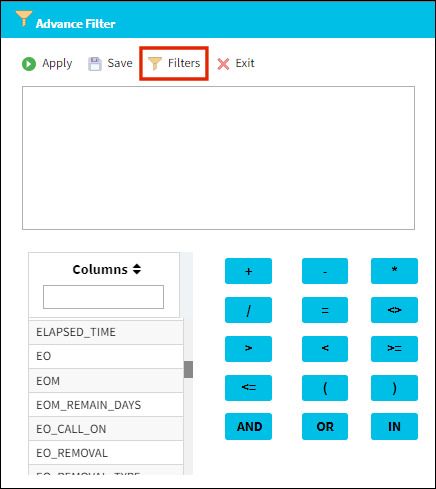
The Advance Filter  button allows users to create and apply specific filter criteria that can then be saved for future uses.
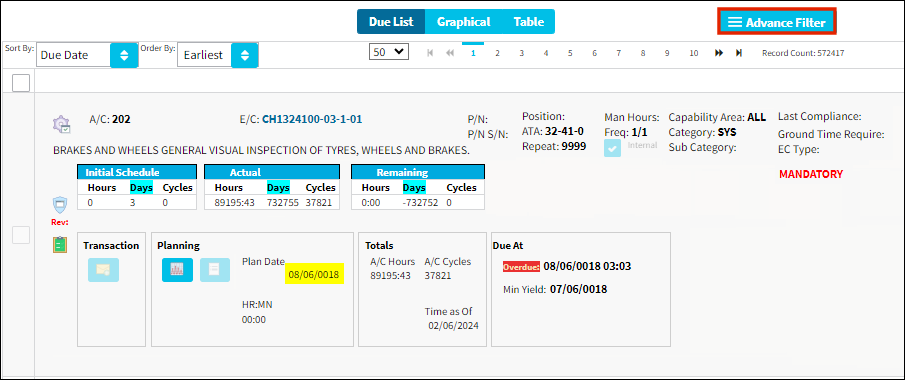
Select the Advance Filter button to prompt the Advance Filter pop up window.
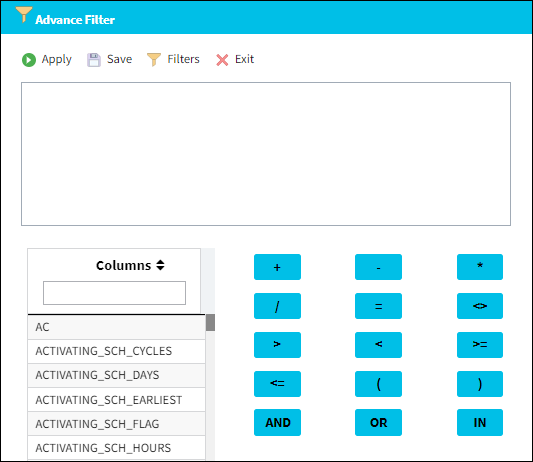
The following information/options are available in this window:
_____________________________________________________________________________________
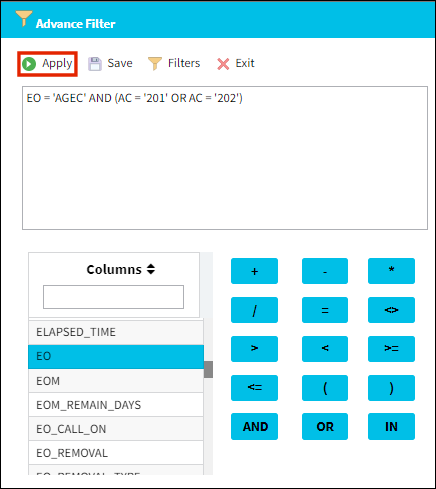
Apply  button
Select this button to apply the current filter to the results in the Due List window.
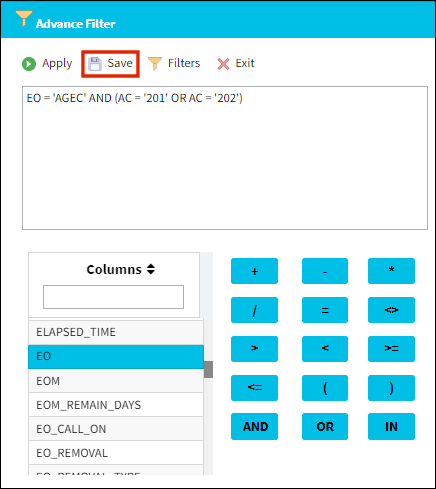
Save  button
Select this button to save the created filter to the pre-existing filters list.
Filters  button
Select this button to access the list of the pre-existing filters in the system. The pre-existing filters accessed via this button can be selected and then applied via the Apply button.
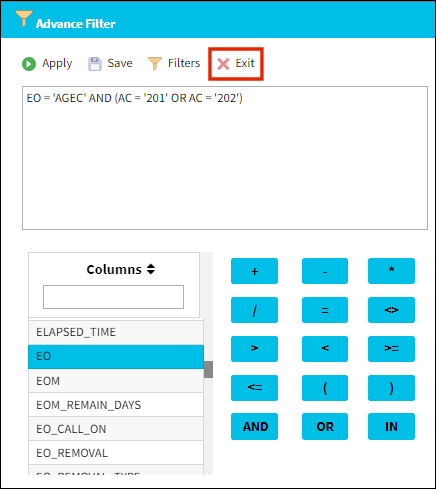
Exit  button
Select this button to exit Advance Filter pop up window.
Columns
This field details the columns that can be filtered in the Due List window. Select a column from the list to select it as the target of the filter that is being created.
Expression buttons
The expression buttons are used to establish the filter parameters as it relates to the targeted column(s). For instance, select > to indicate that the the value in the targeted column should be greater than a specific amount.
_____________________________________________________________________________________
Creating an Advance Filter
To create an Advance Filter, select the Advance Filter button in the Due List window.
Select the appropriate column that is to be filtered.
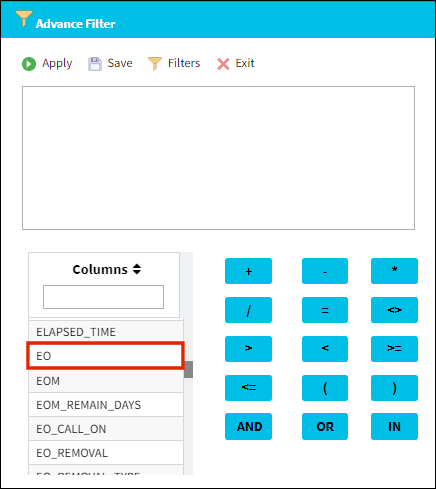
Once the column is selected, use the Expression buttons to complete the filter formula.
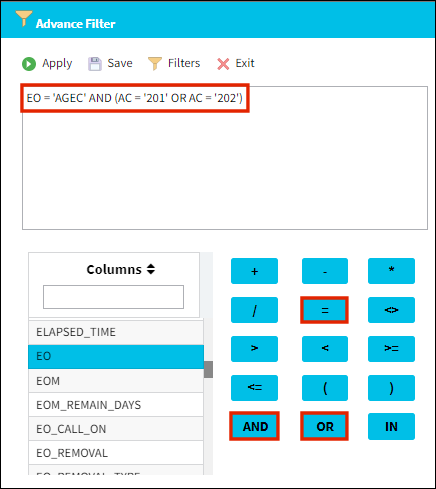
Select the the Apply button to apply the filter formula to the current results in the Due List window.
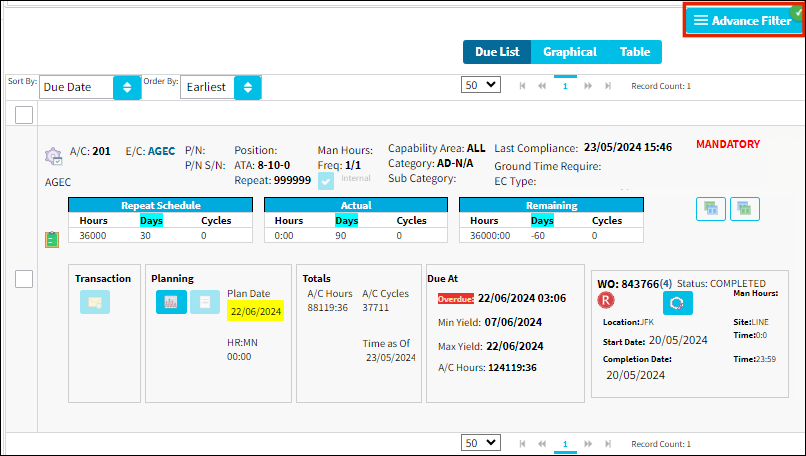
Once the filter is applied, an indicator will appear on the Advance Filter button.
Select the Save button to save the formula as a selectable filter for future uses.
Select the Exit button to exit the Advance Filter pop up window.
Selecting an Advance Filter
To select an Advance Filter, select the Advance Filter button in the Due List window.
Select the Filters button.
A list of saved Advance Filters is displayed. Select the desired Advance Filter.
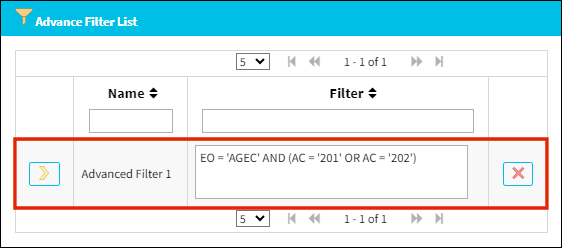
The corresponding formula filter is populated in the dialog box.
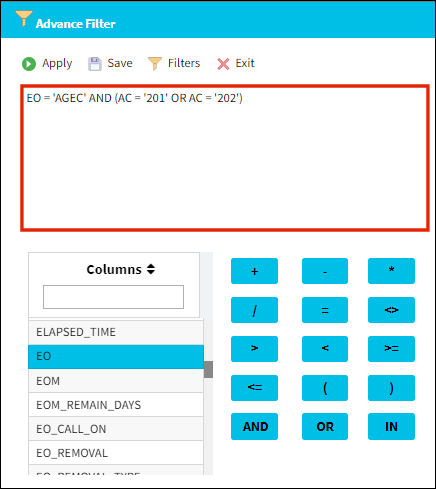
Select the Apply button to apply it to the current results in the Due List window.
An indicator appears on the Advance Filter button to inform the user that an Advance Filter has been applied.
Share
Print
|
©1997-2026 Trax USA Corp. All rights reserved. This manual may not be copied, photocopied, reproduced, translated, or converted to any electronic or machine-readable form, in whole or in part, without prior written approval from Trax USA Corp. |
 |