
 Share
 Print
|
|
|
|
|


W/O Flag, via Due List
The Work Order flag indicates that the current planning element is associated to a Work Order. The Work Order will be associated to one aircraft. Multiple Work Orders can be assigned to a planning element. Additionally, the Work Order may be associated to several different planning elements.
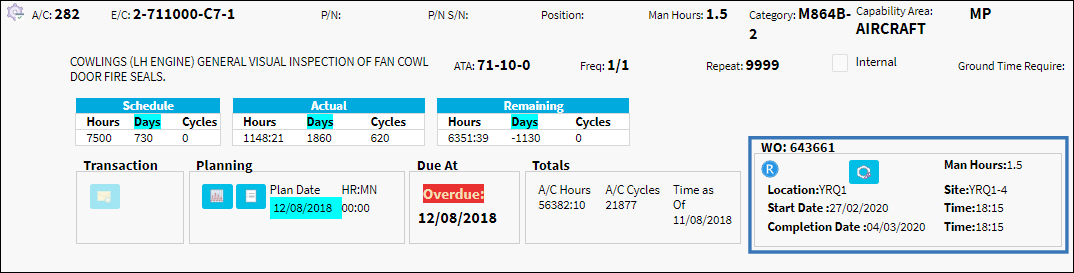
 Note: The Schedule/Actual/Remaining section does not appear for Work Orders; only the Remaining section is shown for W/O planning elements. Additionally, the 'Remaining' section was renamed to 'Work Scope Remaining', which applies exclusively to W/O planning elements.
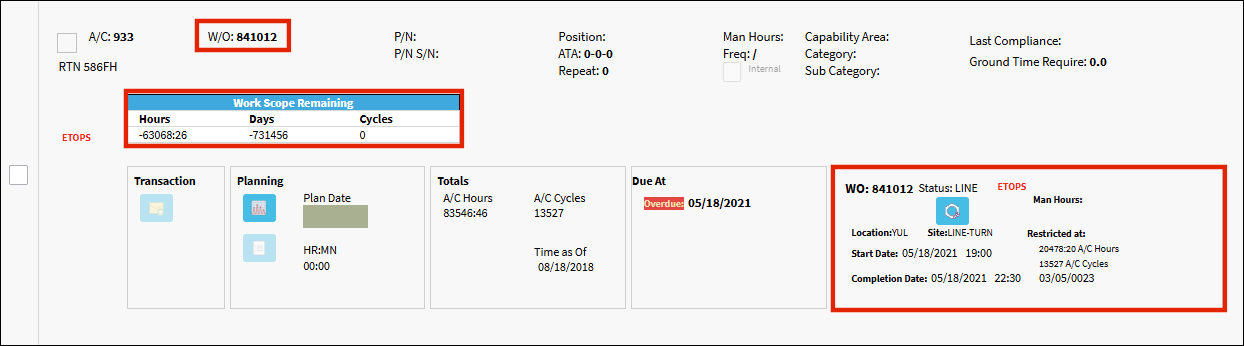
The following information/options are available in this window:
_____________________________________________________________________________________
W/O
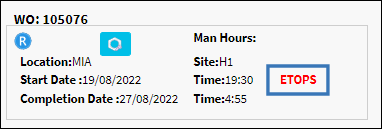
The Work Order used to categorize, manage, and schedule work requirements for aircraft maintenance. If the planning element is overdue, the W/O field will be highlighted in red. If a planning element is linked to two or more Work Orders a number will appear beside the W/O field. The W/O displayed is the one with the closest Scheduled Start Date.
 Note: The Work Order will be highlighted in red if the Due At date is earlier than the W/O's Start Date.
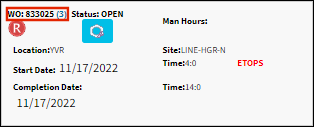
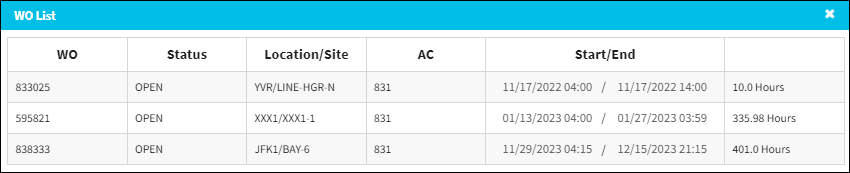
To view a list of W/Os tied to a planning element, select the number hyperlink adjacent to the W/O number.
Note: The Work Order list will display W/Os in hierarchical order with the one with the closest Scheduled Start Date listed first.
W/O  button
Once a record has been assigned to a Work Order, the Work Order button will appear with the Work Order information on that record. When selected, the W/O pop-up window is displayed with the same functions as the Work Order via Production/Update/Work Order. For more information, refer to the W/O button.
Reservation Status Indicator  button
The display of the Reservation Status Indicator button allows planners to see when a part(s) has been reserved (all/partial/none). For additional information, refer to the Reservation Status Indicator button.
Part Status Indicator  button
Select the Part Status Indicator button to display parts available in inventory, on order, or reserved for a particular location (partial/all/none). For additional information, refer to the Part Status Indicator button.
Man Hours
The number of Man Hours needed to complete the applicable tasks. The Hours displayed will include all MECH, INSP, and DUPLICATE INSP hours associated with the tasks.
Location
The Location for maintenance events, inventory stores, orders, transactions, or training events.
Site
The Site where the work is to be carried out (if applicable).
Schedule Start Date/Time
The date/time that the work is scheduled to begin. The Start Date does not affect whether the Work Order may be deleted or not. However, if the work has been started, the Work Order may not be deleted.
Schedule Completion Date/Time
The date/time that the work is scheduled to be completed.
ETOPS Designation
The ETOPS designation Indicates that the the W/O maintenance procedure contains a task or tasks that affect the aircraft’s ETOPS airworthiness and reliability qualification status.
Restricted At
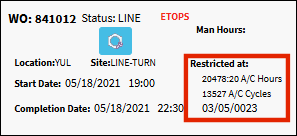
The Restricted At field displays the Due At A/C Cycles or Hours for the planning element in the W/O with the earliest schedule.
_____________________________________________________________________________________
Share
Print
|
©1997-2026 Trax USA Corp. All rights reserved. This manual may not be copied, photocopied, reproduced, translated, or converted to any electronic or machine-readable form, in whole or in part, without prior written approval from Trax USA Corp. |
 |