
 Share
 Print
|
|
|
|
|


Part Status Indicator Button, via Due List
The Part Status Indicator  button displays parts available in inventory, on order, or reserved for a particular location (partial/all/none).
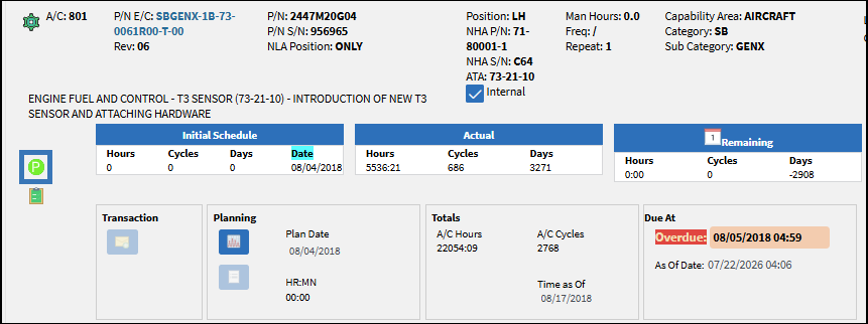
Note Planning always shows requirements of the same part as if being replaced for P/N Controls.
Note Parts are not reserved for P/N Controls unless a Task Card is attached to that part.
The Part Status Indicator colors indicate the current availability of the part.
_____________________________________________________________________________________
Part Status Indicator
The green status icon indicates that all spares required are available in inventory.
Part Status  Indicator
The yellow status icon indicates that some, but not all spares are available in inventory.
Part Status  Indicator
The red status icon indicates that no spares are available in inventory.
_____________________________________________________________________________________
 Parts/Tool Table Window
Select the Part Status Indicator button to open the Parts/Tools Table window. The table provides the applicable P/Ns with a summary of the P/N description, quantity required, due date, and other information. Select the arrow icon to expand and view further information per P/N.
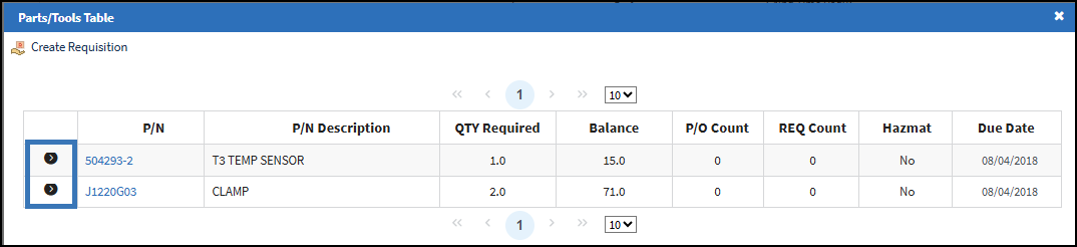
When expanded, other information such as available inventory and open requisitions appear. Refer to the table below for field descriptions. Select the P/N hyperlink to access the P/N Inventory Summary window (see section below).
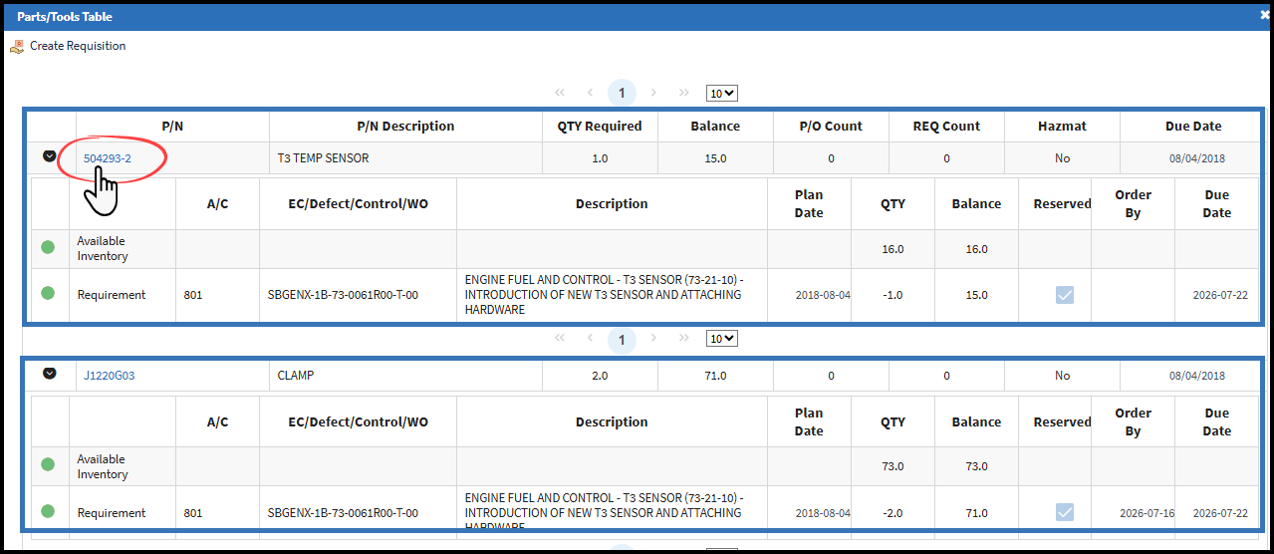
The following information/options are available in this window:
_____________________________________________________________________________________
P/N Level
All parts that are required for the maintenance event are listed here.
P/N - The Part Number reference for the aircraft part. Additionally, when the P/N hyperlink is selected, a window pops up showing location-specific availability. See the P/N Inventory Summary section below.
P/N Description - The description of the part.
QTY Required - The Quantity of the Requirement, Order, or Requisition. The quantity shows negative when more are required than are available, requisitioned or on order.
Balance - The remaining Stock Balance after taking all relevant values into consideration.
P/O Count - The amount of current Purchase Orders for the part.
REQ Count - The amount of current Requisitions for the part.
Hazmat - This indicates if the part is defined as hazardous via the P/N Master, Inventory Tab.
Due Date - The date the maintenance is due.
Detail Level
Each part can be expanded by selecting the drop down button to general availability details.
Status Indicator - The color code to indicate if the P/N is available.
Available Inventory - The quantity of inventory that is currently available (including items awaiting receiving inspection).
Requirement - The Detail of the pre-load requirement.
Open Requisitions - This column displays any open requisitions/orders for the P/N.
A/C - The individual aircraft tail number.
EC/Defect/Control/WO - Indicates the type of task.
Description - The description of the task.
Plan Date - If an Open Order or Requisition is linked to the line item, then the Plan Date is the Order's Delivery Date or the Requisition's Required Date. If there is no open Order or Requisition, then the Plan Date is the current date.
QTY - The Quantity of the Requirement, Order, or Requisition. The quantity shows negative when more are required than are available, requisitioned or on order.
Balance - The remaining Stock Balance after taking all relevant values into consideration.
Reserved - Indicates whether or not a part is reserved. The Reserve status is set in the Task Card P/N window.
Order By - Order By is the Due Date + Average Lead Days.
Due Date - The Due Date of the planning element.
Create Requisition  button
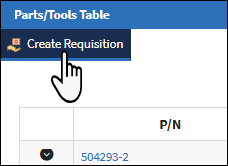
Select the Create Requisition button on the top-left section of the Parts/Tools Table to create a Requisition for all required parts. Refer to the section below for details.
_____________________________________________________________________________________
P/N Inventory Summary Window
When a P/N (hyperlink) is selected in the Parts/Tools table (above), the P/N Inventory Summary popup window opens showing the selected parts and the locations where there is inventory for the part. Exit this window to return to the Parts/Tools window.
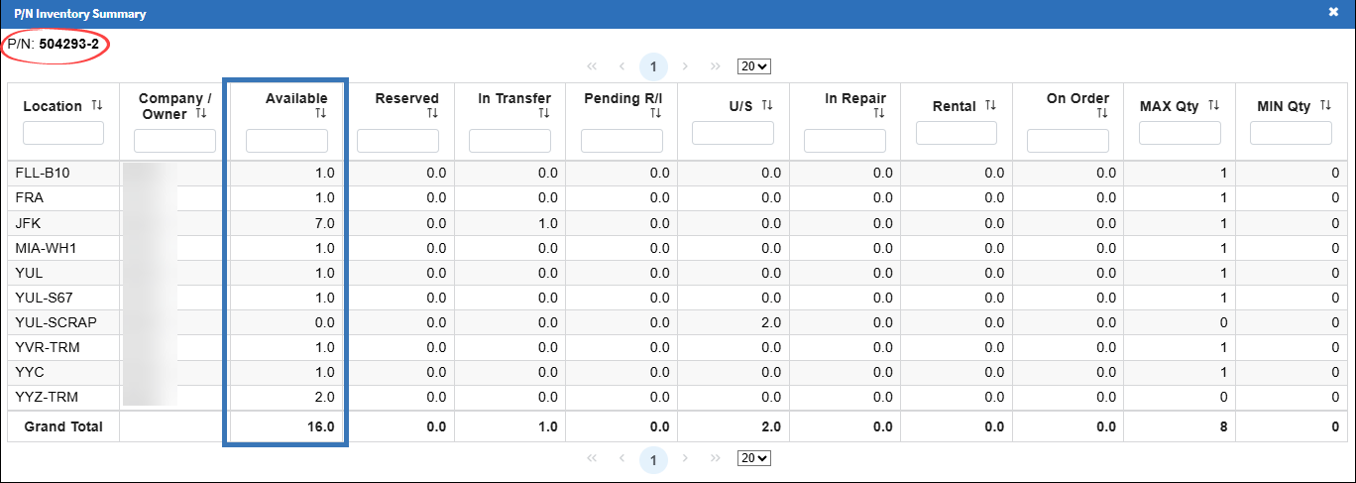
The following information/options are available in this window:
_____________________________________________________________________________________
P/N - The selected part number. The Part Number reference for the aircraft part.
Location - The location where inventory is available.
Company/Owner - The company owning the inventory.
Reserved - The number of parts reserved in inventory.
In Transfer- The number of parts in transfer.
Pending R/I - The number of parts in pending required inspection.
U/S - The number of parts that are unservicable.
In Repair - The number of parts in repair.
Rental- The number of parts rented.
On Order - The number of parts ordered.
MAX Qty - The maximum number of parts, if applicable, at the specified location.
MIN Qty - The minimum number of parts, if applicable, at the specified location.
_____________________________________________________________________________________
Create Requisition
On the Parts/Tools window, hover over to select the Create Requisition button to create a requisition for all required parts.
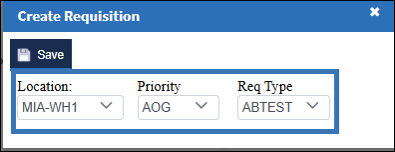
The Create Requisition popup window opens. Select the Location, Priority, and Req Type from the respective dropdown menus. Click Save to create a requisition.
Part Requirements
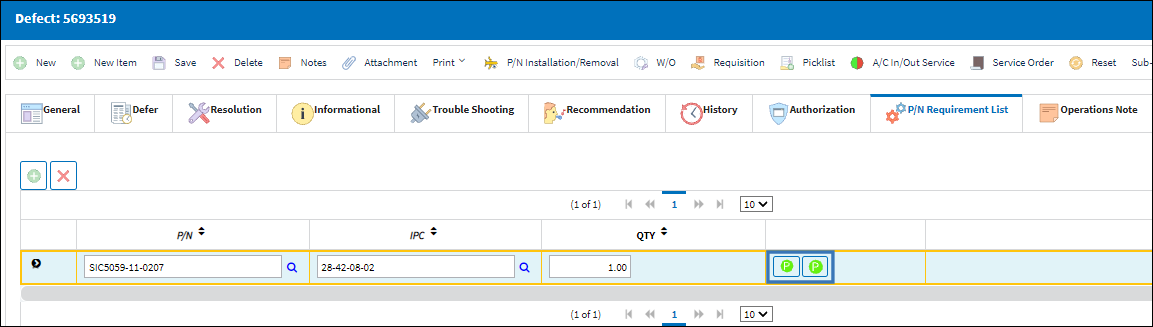
The Part Status Indicator button appears when material requirements exist for the maintenance event (E/Cs or Defect Reports).
Notice a material requirement exists for this Defect Report through the Defect Report window in the P/N Requirement List tab. The required P/N quantity is available so the Part Status Indicator button displays the green indicator.
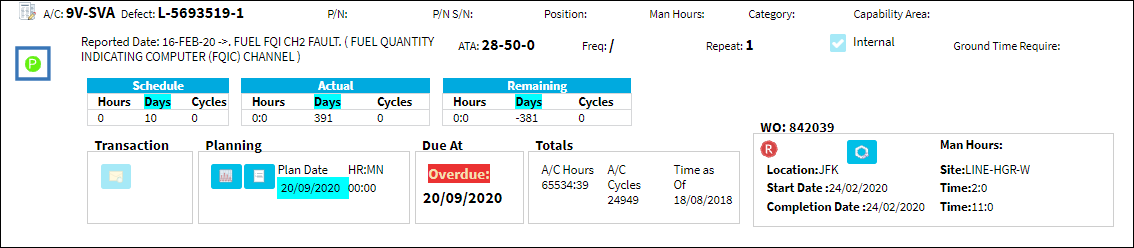
When Defects are queried through Planning Control via the Fleet Due List tab the Part Status Indicator button also displays the green indicator.
Share
Print
|
©1997-2026 Trax USA Corp. All rights reserved. This manual may not be copied, photocopied, reproduced, translated, or converted to any electronic or machine-readable form, in whole or in part, without prior written approval from Trax USA Corp. |
 |