
 Share
 Print
|
|
|
|
|


New W/O Button, via Planning Control
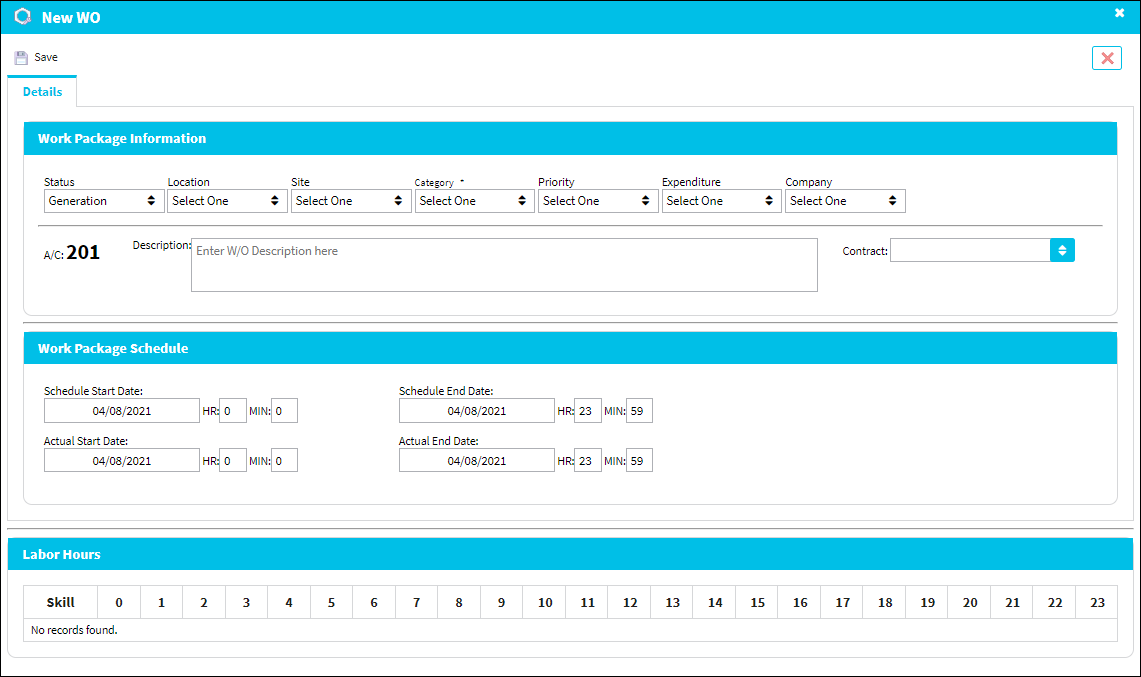
Select the New W/O button to create a new Work Order. When selected, the new W/O window pops up. Enter all necessary information then click the Save  button.
From the New Work Order pop-up window, many of the fields are auto-populated based on the scenario in which the New W/O button was selected.
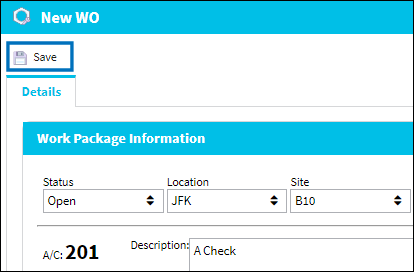
Select the Save  button to create the W/O.
 Note: Users can use the delete
 button to delete the W/O. This button is security controlled via Security Explorer/Planning Control/Update/W/O Delete.
Note: The W/O's Task Card count has been added to the Delete Confirmation window. This window is accessed through the Delete  button. For more information, refer to the Delete button, via Standard Buttons.
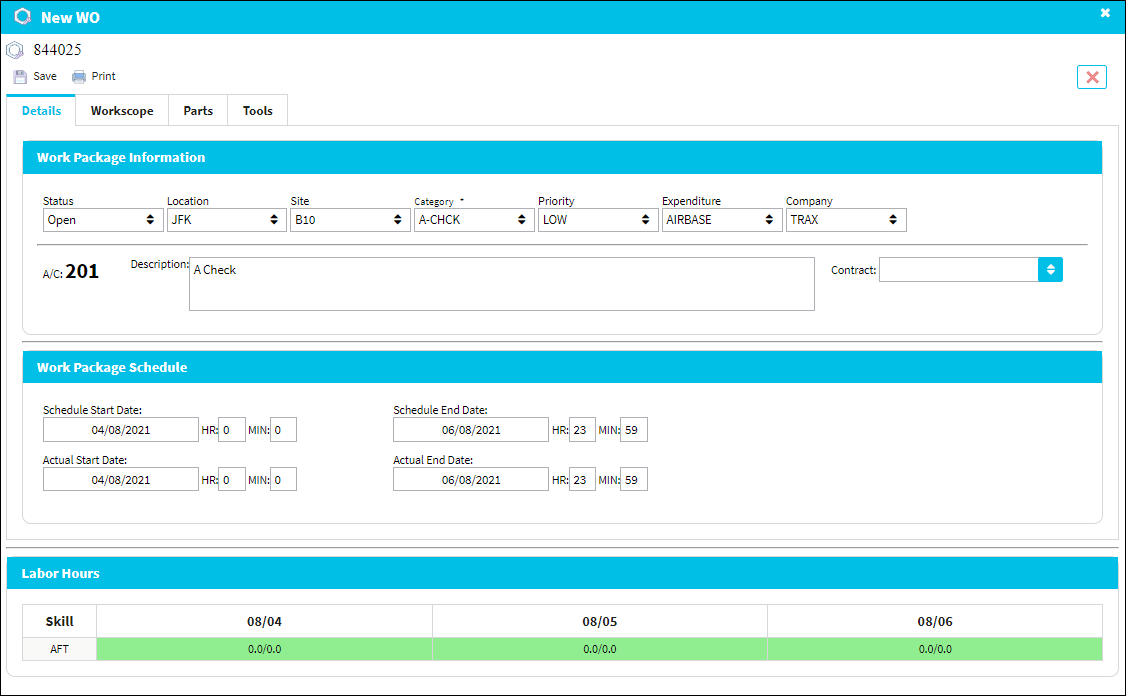
Once the W/O is saved, the Work Order number is listed at the top and following tabs become available:
- Details tab - contains the W/O's general information (such as Location, schedule, etc.)
- Workscope tab - lists all maintenance items assigned to the W/O
- Parts tab - lists all parts required for the W/O and their availability
- Tools tab - lists all tools required for the W/O
- Labor Hours section - contains an overview of the Labor availability for the W/O
- W/O Prints Tab - lists all prints associated with the W/O
W/O Details Button
Additionally, once the W/O is saved, the user has access to the W/O details button.
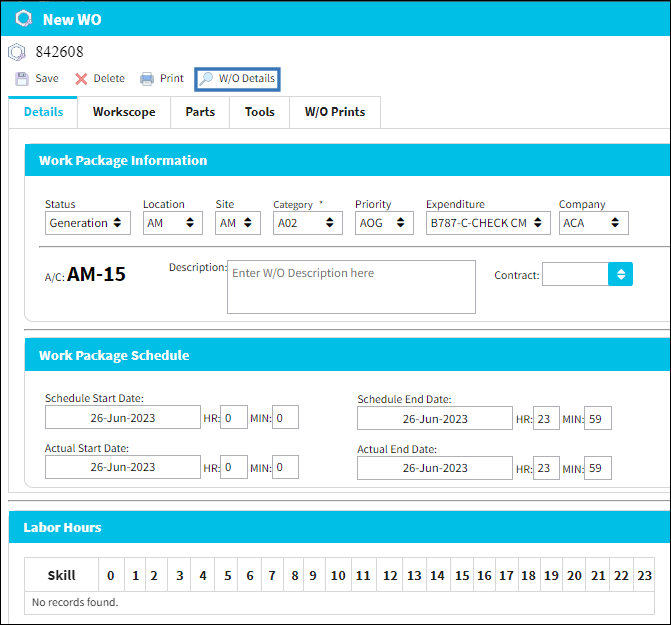
When selected, this button prompts a pop up window that displays a streamlined version of the W/O Management window.
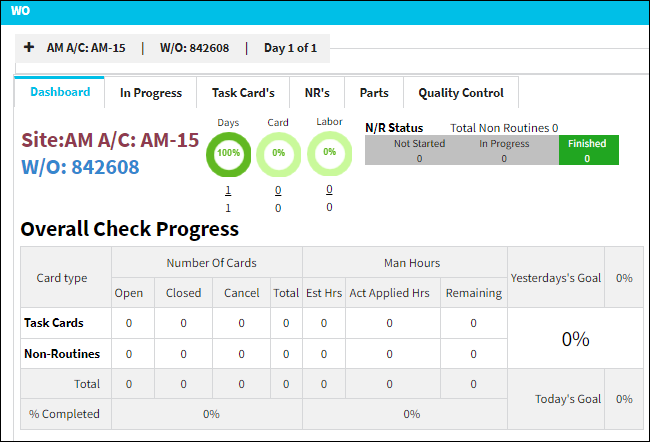
For more information on the tabs displayed in the pop up window, refer to W/O Details Button.
Share
Print
|
©1997-2026 Trax USA Corp. All rights reserved. This manual may not be copied, photocopied, reproduced, translated, or converted to any electronic or machine-readable form, in whole or in part, without prior written approval from Trax USA Corp. |
 |