
 Share
 Print
|
|
|
|
|


Workscope Tab, via W/O (Planning Control)
The Workscope tab lists all maintenance items assigned to the W/O.
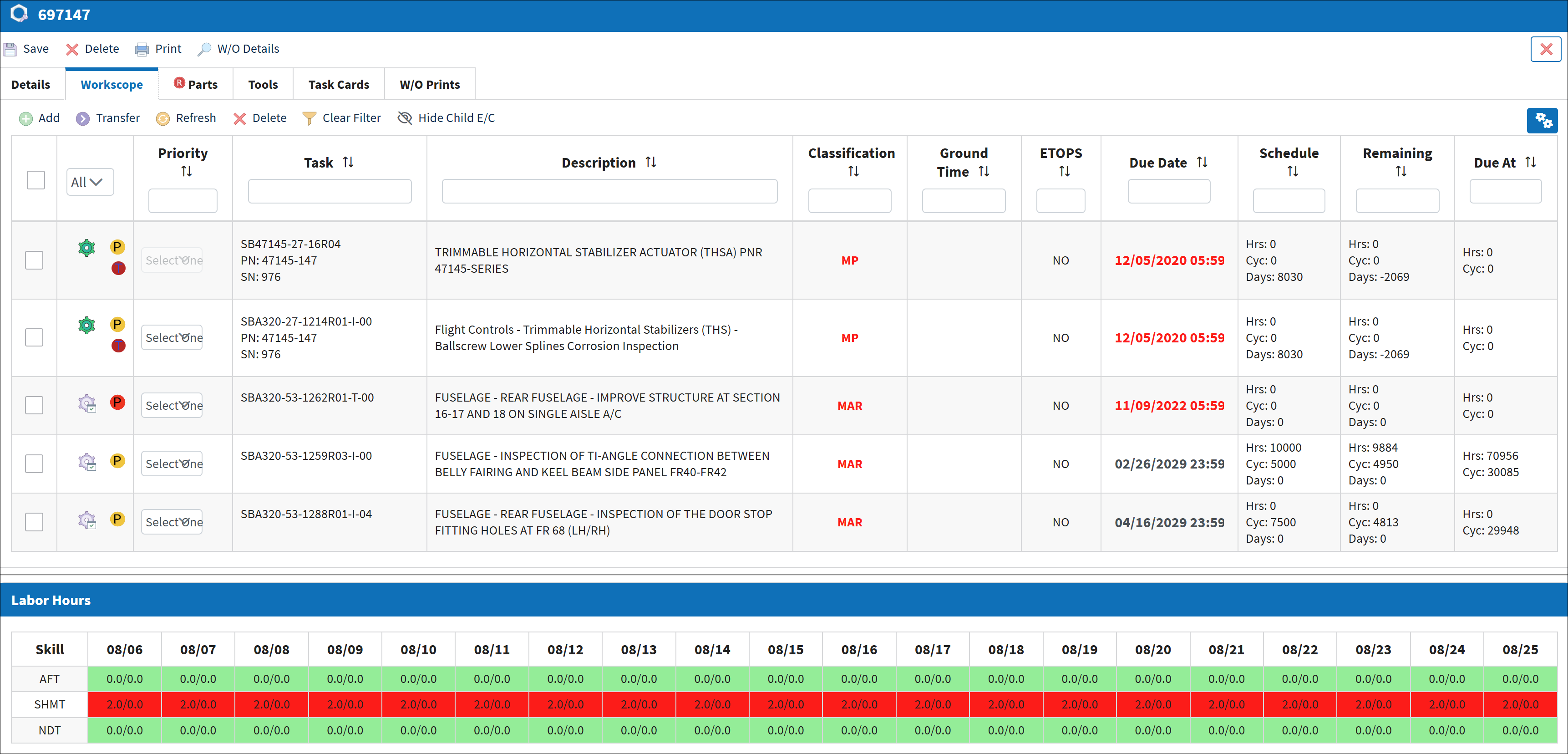
 Note: Planning Control prompts a hard warning when multiple of the same defects are added to a W/O.
The following information/options are available in this window:
_____________________________________________________________________________________
Add  button
Select the Add button to add additional maintenance events to the current W/O.
Transfer  button
Select this button to transfer tasks from one W/O to another.
Note: This button is security controlled via Security Explorer/Planning Control/Update/W/O Task Transfer.
 Note: When transferring an E/C (Task) to another W/O, a confirmation window opens prompting the user to confirm the transfer. Once transferred, the E/C (Task) is removed from the current W/O.
Refresh  button
Select the Refresh button to refresh the information in this window.
Delete  button
Select the Delete button to unassign the selected maintenance event(s) from the assigned W/O.
Note: This button is security controlled via Security Explorer/Planning Control/Update/W/O Engineering Order Delete.
Clear Filter  button
Select to clear all filters applied to the Workscope window.
Hide Child E/C  button
Select to hide the child E/Cs. The button is replaced by the Show Child E/C  button.
Show Child E/C button
Select to show the child E/Cs. The button is replaced by the Hide Child E/C button.
Selection checkbox
Click this to select an individual maintenance event.
Maintenance Type
The type of maintenance event: E/C  , P/N E/C
 , Defect Reports
 , and P/N Controls
 .
Spare 

 indicator
Click to open the Parts/Tools Table window, which populates with the relevant parts.
Part Status indicator - The green status icon indicates that all spares required are available in inventory.
Part Status indicator - The yellow status icon indicates that some, but not all spares are available in inventory.
Part Status indicator - The red status icon indicates that no spares are available in inventory.
Tool 
 indicator
Click to open the Parts/Tools Table window, which populates with the relevant tools.
Tool Status indicator - The green status indicates that all tools required are available in inventory.
Tool Status indicator - The red status indicates that no tools are available in inventory.
Priority
Planners can specify the priority of the maintenance event.
Task
The maintenance event that is due and must be scheduled on a W/O. These include Defects, E/Cs, P/N E/Cs, and P/N Controls. The task's description is listed when applicable. When a P/N E/C is listed here, the related P/N and S/N are listed in this field below the P/N E/C.
Description
The main description of the E/C, P/N E/C, Defect Report, or P/N Control.
ETOPS
The maintenance procedure affects the aircraft's ETOPS airworthiness and reliability qualification status when set to Yes. This column allows the user to sort tasks by ETOPS status.
Due Date
The date that the maintenance item was due.
Note: The specific due time is listed along with the Due Date (to the right of the date).
Schedule
The schedule hours/cycles/days of the maintenance item.
Remaining
The time remaining on the item's schedule before it is due. The figures include flight hours/cycles and days. Maintenance events that are overdue are negative (example: '-2').
Remaining radio buttons - The Remaining Radio buttons appear in a drop-down window when the Remaining field is selected. The user can select a Radio button to filter for Hours, Cycles, and Days in the Remaining field.
Due At
The schedule of Hours/Cycles/Days intervals where the maintenance item is due.
Due At Radio buttons - The Due At radio buttons appear in a drop-down window when the Due At field is selected. The user can select a Radio button to filter for Hours and Cycles in the Due At field.
_____________________________________________________________________________________
Select the Save  button to save any changes to the W/O.
Share
Print
|
©1997-2026 Trax USA Corp. All rights reserved. This manual may not be copied, photocopied, reproduced, translated, or converted to any electronic or machine-readable form, in whole or in part, without prior written approval from Trax USA Corp. |
 |