
 Share
 Print
|
|
|
|
|


Concession Registry, via Planning Control

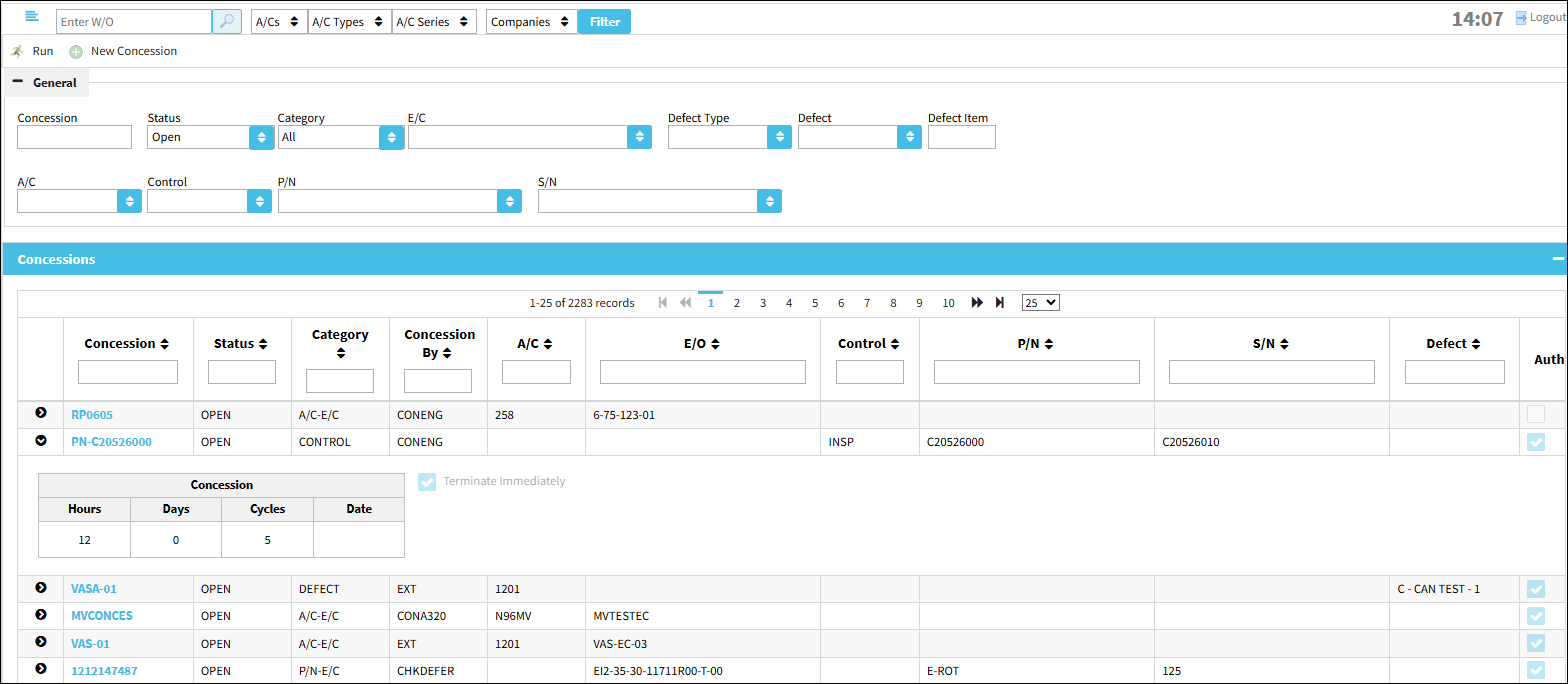
This window allows users create new Concessions (by selecting the New Concession  button) or to to find existing Concessions (by selecting the Run
 button).
A Concession is a granted extension that will increase the schedule limitation for the specific item as per Company and Aviation Authority requirements. Concessions can be created for A/C E/C, P/N E/C, P/N Control, and Defect Reports. Where a concession is applied to a repetitive inspection, once the inspection has been carried out, the concession limitation will be removed (subtracted) from the next occurrence of the inspection.
Note: For example, if a 20 hour concession is applied to a 200 hour inspection, the inspection will be due at 220 hours. Once an inspection is carried out at 220 hours, the next inspection will be due 180 hours later (not 200 hours). Furthermore, if the inspection was performed at 12 hours into the 20 hour concession (at 212 hours), the next inspection will be due 188 hours later (not 200). For information on the options in the detail level, refer to Concession Registry Detail.
 Note: This window is security-controlled via Planning Control/ Update/ Concession. For more information refer to the Security Explorer via the System Administration module.
The following information/options are available in this window:
_____________________________________________________________________________________
Run button
Select to search for existing Concessions. The Concessions that meet the search criteria (see fields below) will be displayed in the search results in the bottom of the window.
New Concession button
Select to create a Concession for a maintenance item, such as an E/C, P/N E/C, P/N Control, or Defect Report. For more information refer to the New Concession Button.
Search Fields/Filters
Concession - The tracking reference number for the concession. The system automatically creates this reference number that cannot be changed.
Status - The status of the Concession Registry.
Category - The Category of the Concession.
E/C - The Engineering Control that specifies aircraft or component scheduled maintenance intervals.
Defect Type - The type of defect found on the aircraft (for example, Pilot Report, MX Report).
Defect - The defect number (or log book number).
Defect Item - The defect log item number.
A/C - The individual aircraft tail number.
Control - Control, related to the P/N.
P/N - The Part Number of the Concession Registry that was used on the Work Order.
S/N - The Serial Number that was used on the Work Order.
Search Results
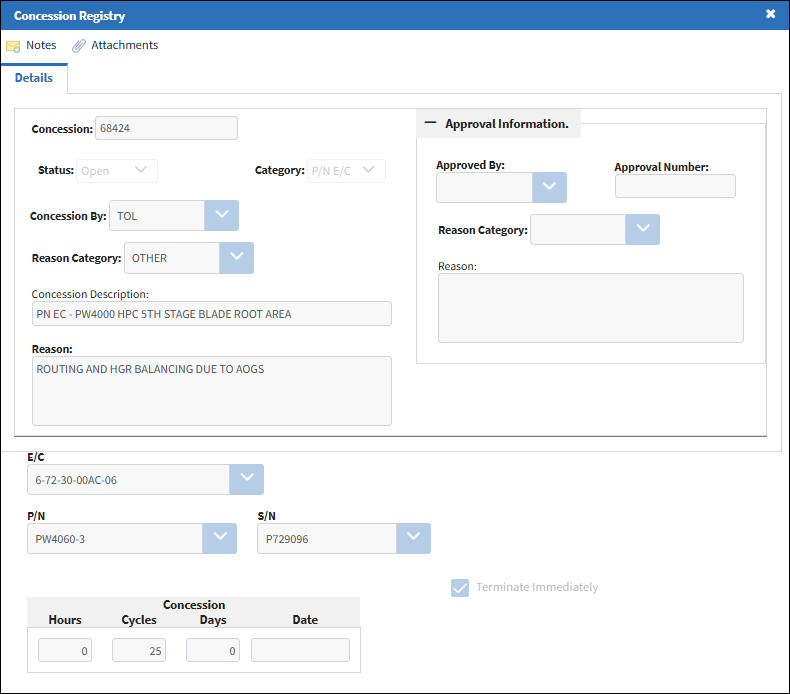
Concession - The Concession number of the Concession Registry being authorized. When the blue Concession link is selected, the Concession Registry window pops up with more detail (see below).
Status - The status of the Concession Registry.
Category - The type of concession being applied.
A/C E/C - Aircraft Engineering Control (i.e. A-Check).
P/N E/C - Part Number Engineering Control (i.e. Engine Inspection).
Control - Part Number Controls (i.e. Slide removal for Overhaul).
Defect - Deferred Defect extension of due time.
Concession By - The party that approved the concession (i.e. QA Dept, FAA). The pre-defined itemsare presented in the pop up window. Additionally, authorization steps and procedures may be defined. For additional information, see System Transaction Codes.
A/C - The individual aircraft tail number.
E/O - The Engineering Control that specifies aircraft or component scheduled maintenance intervals.
Control - Control, related to the P/N.
P/N - The Part Number linked to the Concession.
S/N - The Serial Number linked to the Concession.
Defect - The defect number (or log book number).
Authorization (Auth) checkbox - Indicates if authorization has been approved.
Expand button - Select to see the following details for the selected Concession.
Concession (Hours / Cycles / Days / Date) - The concession time limit (multiple parameters can be applied). Enter the appropriate time for the Concession (Hours/Cycles/Days/Date). If the user enters zero for all fields and attempts to save, the system displays the following soft warning. If 'No' is selected, the user is taken back to the above window to enter values other than zero. Select 'Yes' to continue. The Save prompt appears and the user can save the Concession successfully. The Concession can then be released for authorization. If the user selects 'No' to the soft warning, then no other steps are required and the user is taken back to the Concession Registry, General tab where changes can be made to the Concession Registry.
Terminate Immediately checkbox - Where a concession is applied to a repetitive inspection, once the inspection has been carried out, the concession limitation will be removed. The next occurrence of the inspection will occur as it would have originally (before any concession was granted). For example, if you apply a 20 hour concession to a 200 hour inspection, it will be due at 220 hours. Once you carry out the inspection (at 220 hours), the next inspection will be due 180 hours (not 200 hours). Check the Terminate Immediately checkbox so that the system WILL NOT subtract the concession hours from the next occurrence of the repetitive inspection.
_____________________________________________________________________________________
When the blue Concession link is selected from the table, the Concession Registry window pops up in query mode.
Share
Print
|
©1997-2026 Trax USA Corp. All rights reserved. This manual may not be copied, photocopied, reproduced, translated, or converted to any electronic or machine-readable form, in whole or in part, without prior written approval from Trax USA Corp. |
 |