
 Share
 Print
|
|
|
|
|


Interactive Planner, via Planning Control
The Interactive Planner tab shows flights and Work Orders for each aircraft in an interactive calendar display. Existing W/Os can have their schedules altered or re-assigned to a different aircraft simply by dragging the W/O around in the calendar grid. The amount of information displayed can be changed on the fly. New W/Os can be created from here as well.
A W/O will appear as 'Red' in the interactive planner for many reasons such as Overdue Maintenance Items, insufficient Man Hours, a difference in W/O location compared to the A/C landing location, and if the W/O Schedule or Ground Time is greater than that A/C's available ground time. For more information refer to the A/C Discrepancy checkbox below.
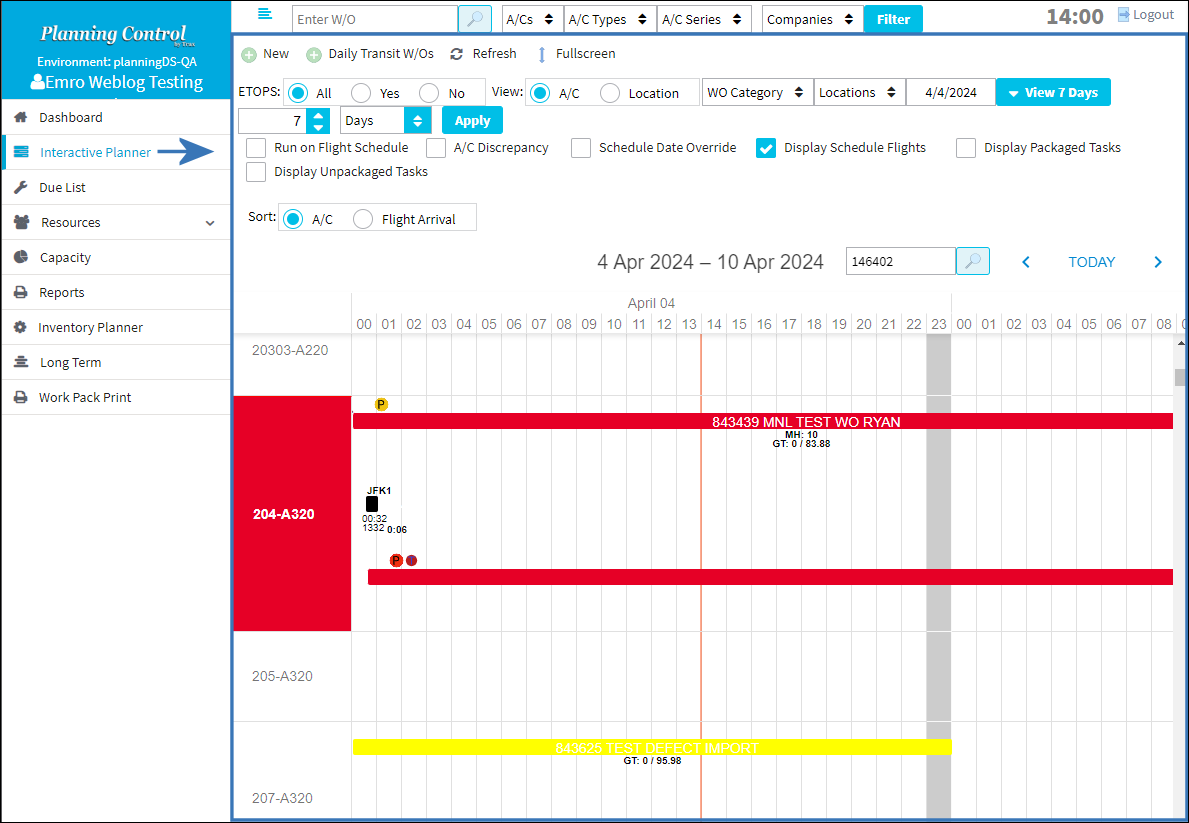
 Note: This window is security-controlled via Planning Control/ Update/ Interactive Planner. For more information refer to the Security Explorer, via the System Administration Training Manual.
 Note: Aircraft selected in the A/C dropdown in the top toolbar will appear in the Interactive Planner, even if the A/C does not presently have any LivePlan records in the database.
 Note: The Interactive Planner will only display the destination of flights whose duration is greater than two hours.
Note: Planning Control is enhanced to support multiple browser tabs, allowing users to open and work with multiple Planning Control sessions simultaneously. Each browser tab maintains its own independent state, enabling planners to run, compare, and analyze multiple planning queries side by side without losing context or reloading filters. This significantly improves efficiency when reviewing and comparing Due List and Interactive Planning windows.
The following information/options are available in this window:
_____________________________________________________________________________________
New  button
Select to create a new Work Order record, then click a spot on the calendar view to drop the new planning event. The New W/O window will then pop up. For more information, refer to the New button.
Daily Transit W/O button
This button is used to create Transit W/Os for all scheduled flights of a selected date. For more information, refer to Daily Transit W/O button, via Interactive Planner Window.
Note: This button only appears if switch  WOTRANSITCHECK is set to Yes. For more information, refer to WOTRANSITCHECK in the Planning Training Manual.
Refresh  button
Select this button to refresh the window.
Full-Screen button
Select to make the Interactive Planner view full-screen.
Run Using Flight Schedule checkbox
When selected, the forecast will be based upon a flight schedule. Once that flight schedule is surpassed, the forecast will then become based on the time the planning is run in calculation with the schedule.
Note: This field is controlled by Switch GLBLDUEDATECALC. For more information, refer to GLBLDUEDATECALC in the Planning Training Manual.
Run on Mean checkbox
When selected, the forecast will be based upon the mean hours/cycles.
Note: This field is controlled by Switch GLBLDUEDATECALC. For more information, refer to GLBLDUEDATECALC in the Planning Training Manual.
A/C Discrepancy checkbox
Select this checkbox to only display 'Red' Work Orders.
Note: A W/O will appear as 'Red' in the interactive planner for many reasons such as Overdue Maintenance Items, insufficient Man Hours, a difference in W/O location compared to the A/C landing location, and if the W/O Schedule or Ground Time is greater than that A/C's available ground time.
Schedule Date Override checkbox 
Select this checkbox to override the Schedule Date for an Overdue Work Order. If this checkbox is not selected, the Schedule Date for an overdue Work Order cannot be overridden or moved.
Display Schedule Flights checkbox
Select the Display Schedule Flights checkbox to show scheduled flights for each aircraft.
Display Packaged Tasks checkbox
Select the Display Packaged Tasks checkbox to show tasks (e.g., Defects and Engineering Controls) assigned to a Work Order.
Display Unpackaged Tasks checkbox
Select the Display Unpackaged Tasks checkbox to show tasks (e.g., Defects, Controls, and Engineering Controls) that are not assigned to a Work Order.
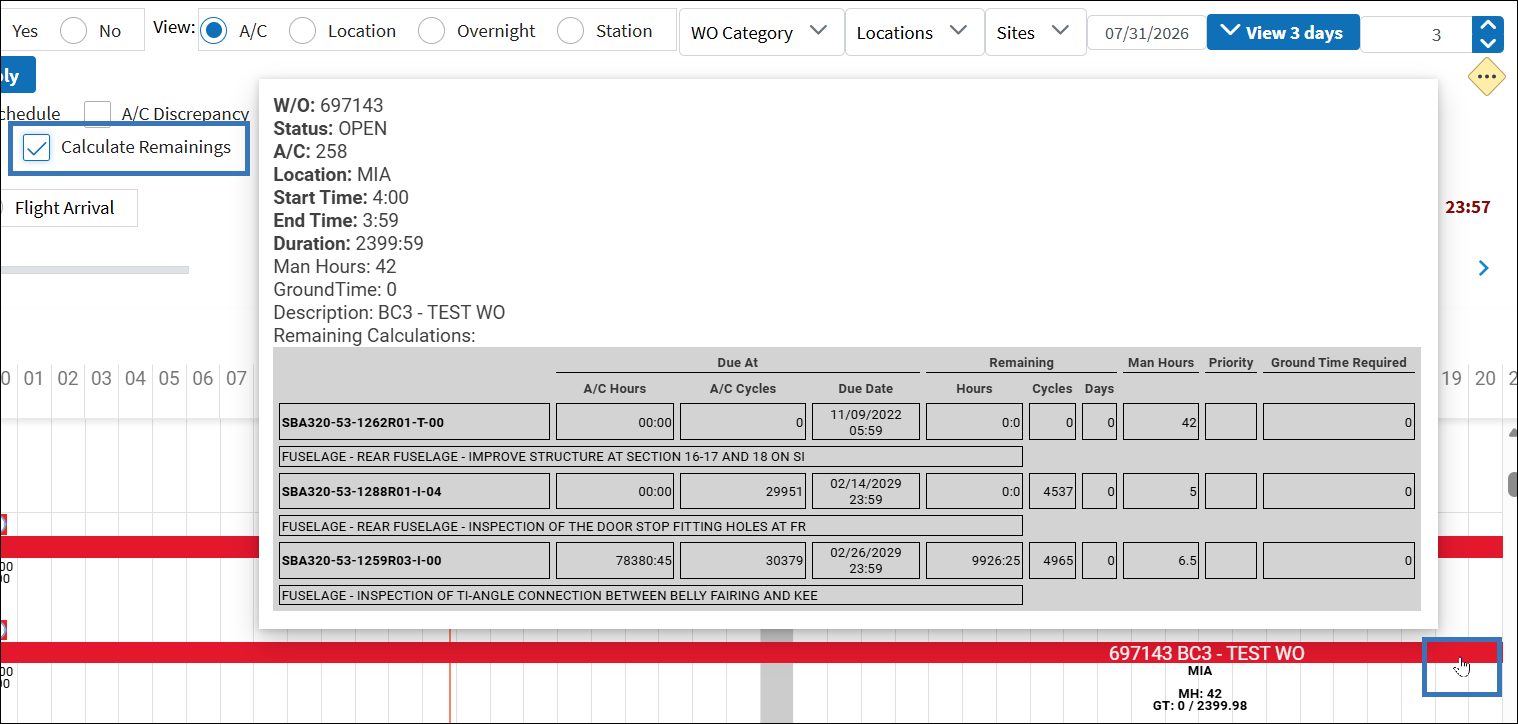
Calculate Remainings checkbox 
Selecting this checkbox modifies the Work Order Hoverbox that appears when hovering over a Work Order. The hoverbox will display Remaining Calculations for the maintenance events linked to the Work Order (E/Cs, P/N E/Cs, etc.) in addition to the default information.
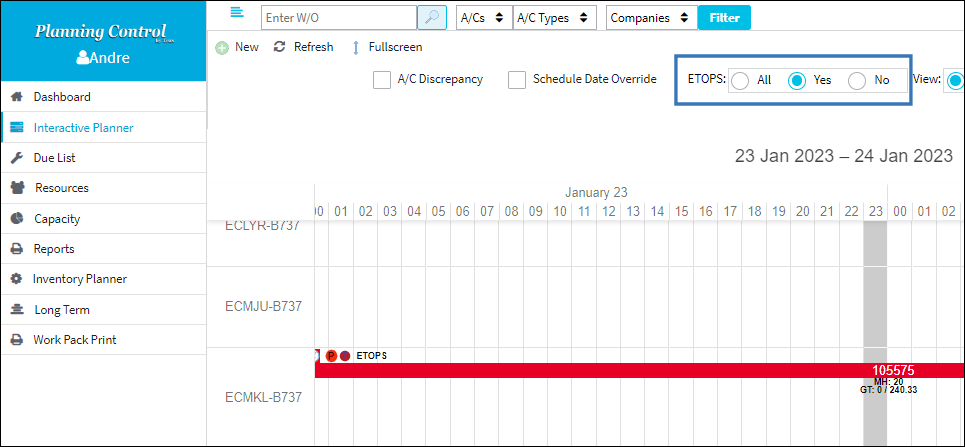
ETOPS radio buttons
All radio button - Select to display all W/Os, irrespective ETOPS status.
Yes radio button - Select to display only those W/Os which affect the aircraft or part number ETOPS qualification status.
NO radio button - Select to display only those W/Os which are not classified/nor affect the aircraft or part number ETOPS qualification status.
View radio buttons
The View radio buttons are used to sort the Interactive Planner view by Aircraft or Location.
A/C radio button - Select to display W/Os grouped by Aircraft.
Location radio button - Select to display W/Os grouped by Location. This works in conjunction with the Location drop down (below).
Overnight radio button - Select to display W/Os and/or bases that have aircraft with an overnight designation.
Station radio button - Select to display aircrafts that have an overnight designation.
W/O Category drop down
Select to filter the Interactive Planner view by the selected W/O Category.
Note: Multiple Work Order categories can be selected at once.
Sort radio buttons
The Sort radio buttons are used to sort the Interactive Planner view by sections.
A/C radio button - Select to sort sections by A/C.
Flight Arrival radio button - Select to sort sections by flight arrival time.
Station Flight Arrival radio button - Select to sort sections by a flight's arrival station in alphabetical order.
Location drop down
Select to filter the Interactive Planner view by the selected Location(s). This works in conjunction with the Location radio button (above).
Sites drop down
Select to filter the Interactive Planner view by the selected Site(s).
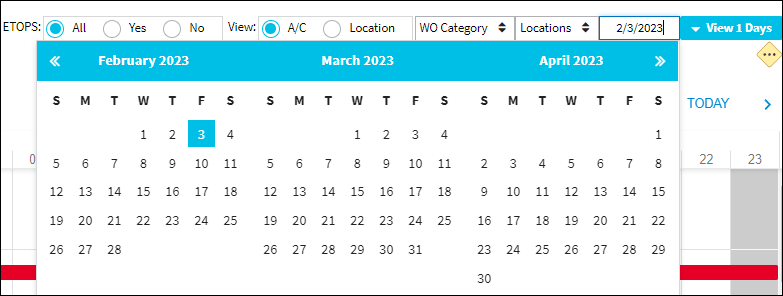
Calendar
Allows users to determine the starting date displayed in the Interactive Planner view. The time frame displayed will begin from the Date selected in the Calendar.
View drop down
Select to indicate the time frame (e.g., 1 day, 15 days, 1 month) displayed in the Interactive Planner view.
Time Frame drop downs
Use the drop down to filter the records based on an inputted Time Frame. Use the first drop down to establish an applicable integer and the second drop down to select a viable time value (i.e Days, Weeks, Months, and Years). Lastly, select the apply button to implement the time frame.

Refresh Rate Control
The refresh rate control is used to control the amount of time (in minutes) it takes for the Interactive Planner to refresh. Users can enter a value in the field or use the corresponding arrow buttons to set the Refresh Rate timer. Once a number is populated, a countdown will be displayed alongside it.
Note: When the switch INTPLANRR is set to Yes, the Refresh Rate for the Planning Control Interactive Planner is determined by the Config Number of the switch (in minutes). Note that the minimum Refresh Rate configuration is 5 minutes. For more information, refer to INTPLANRR in the Planning Training Manual.

Task Priority  button
Select this button to set customized days for Priorities currently planned via the Interactive Planner.
Note: This button is controlled by Switch AUTOTSKPRIORITY. For more information, refer to AUTOTSKPRIORITY in the Planning Training Manual.
W/O Search bar
The W/O search bar is used to find a W/O in the Interactive Planner window, which then opens a pop-up window that displays the Details, Workscope, Parts, Tools, and W/O Print information for the applicable W/O. For more information on the W/O pop-up, refer to New W/O button.
Date Bar
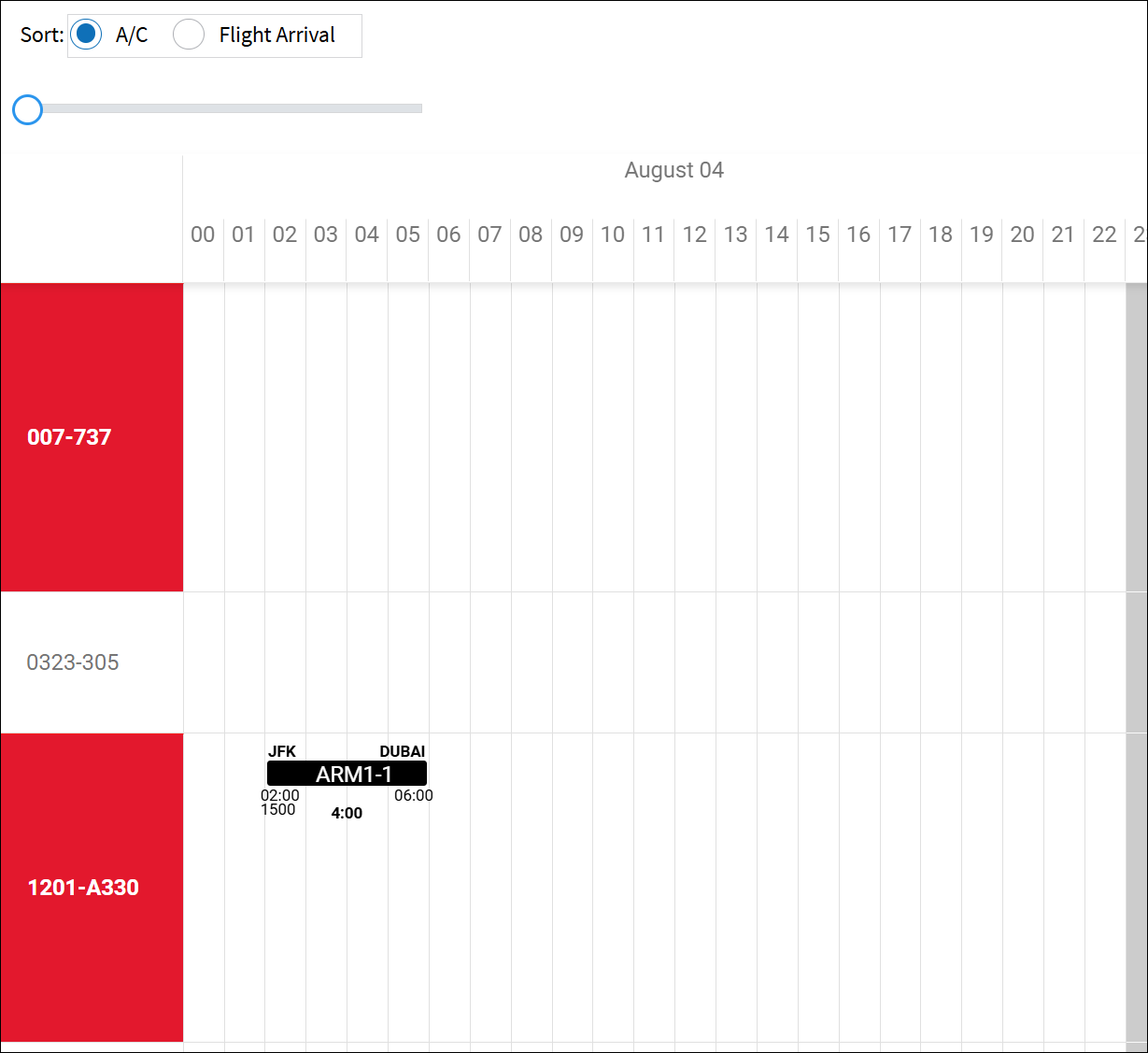
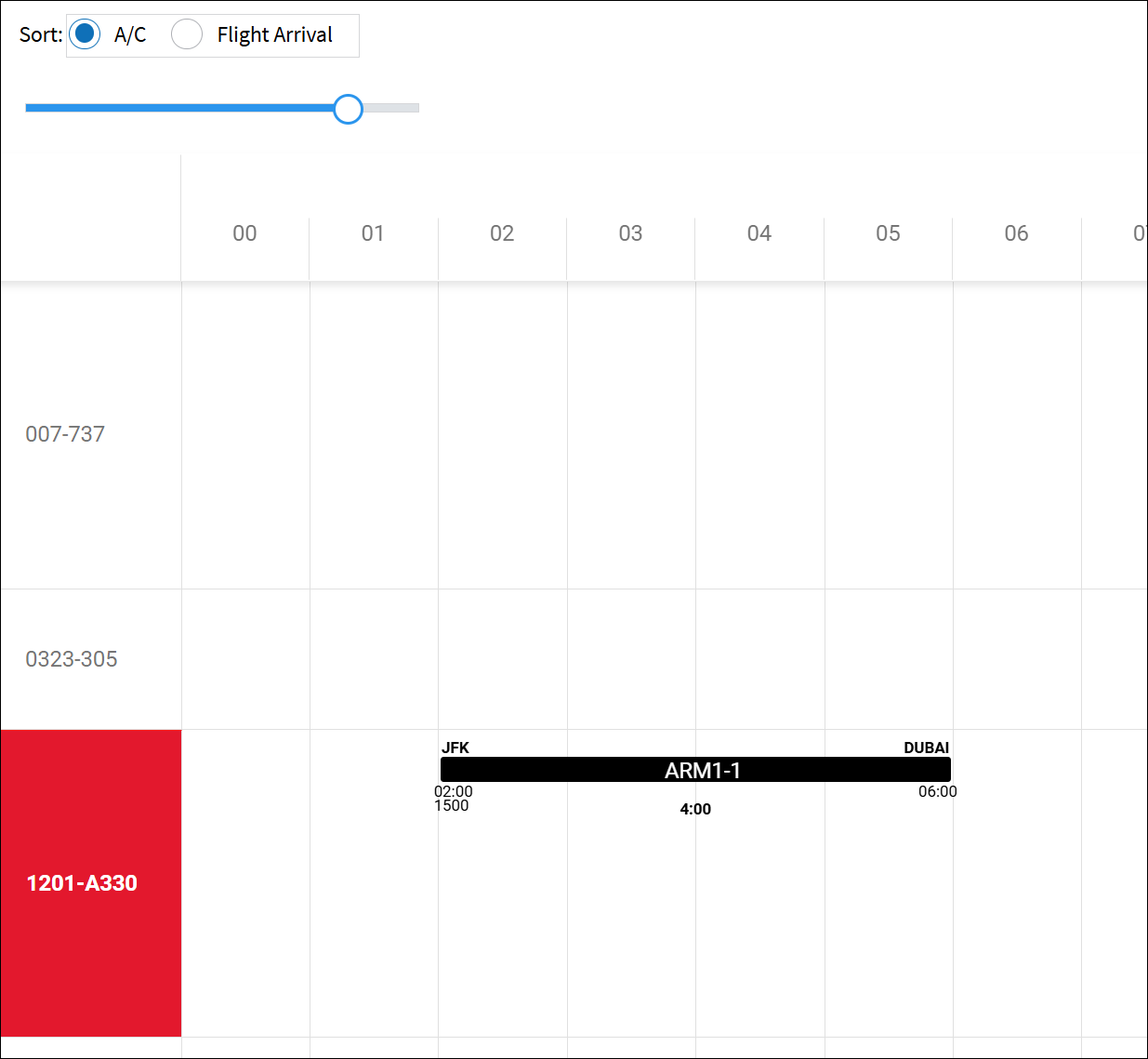
By sliding the date bar left or right, the user can change the range of times being viewed.
In the following example, the widest range of dates and times is selected by sliding the slider all the way left.
In the next example, a narrower range of times has been selected by sliding the slider to the right.
W/O Indicators
Overdue, Parts, and/or Tool icons will appear alongside W/Os that contain that appropriate information. Selecting an icon will display the W/O pop-up. For more information on the W/O pop-up, refer to New W/O button.

Overdue  icon - The system will consider all schedule parameters, including but not limited to, Flight Hours, Flight Cycles, and Flight Days when determining the overdue status of flight records and their associated E/Cs. An overdue flight record will be displayed as red with an accompanying clock icon.
Note: Non-Schedule E/Cs will not be taken into consideration when calculating overdue flight records.
Parts  icon - Indicates the current status of Parts associated with the W/O.
Tool  icon - Indicates that Tools have been registered against the W/O.
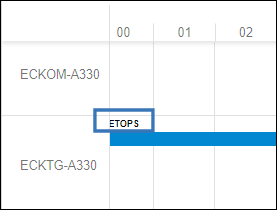
ETOPS - ETOPS designator over event bar image indicates that ETOPS tasks or parts are associated with the W/O.
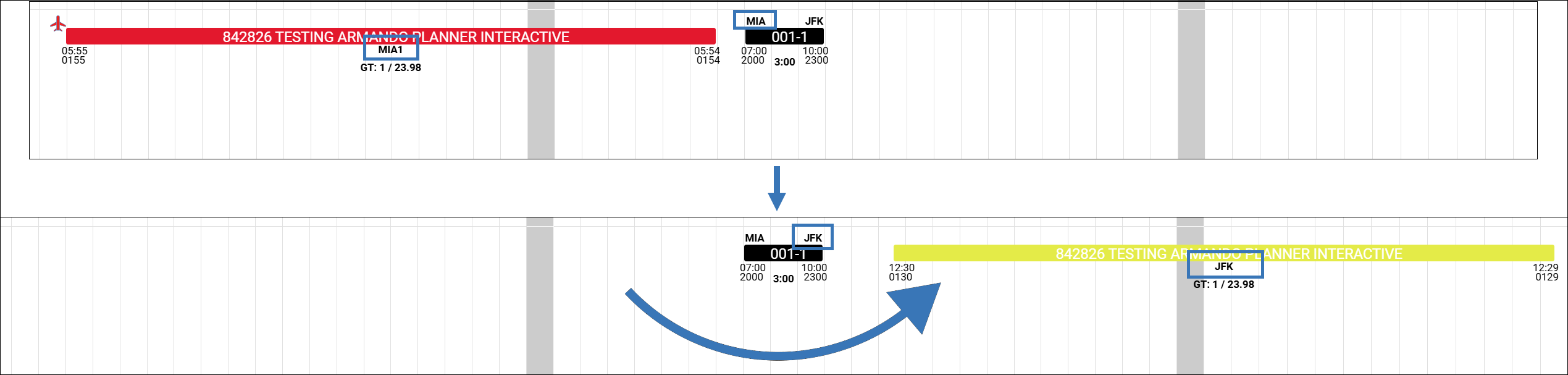
Dragging and dropping a work order within the planner to a date and time subsequent to a flight will cause the work order location to update and match the arrival location of that most recent scheduled flight. If any picklists or requisitions were created in the previous location, they will be canceled automatically.
Current Date Indicator
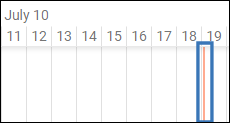
A red line bisects the Interactive Planner view indicating the current date.
Defect  Icon
Indicates that there is a Defect associated with the A/C. Hover over the Defect icon to view the Defect, Description, and W/O. This icon is visible when the Display Packaged Tasks and/or the Display Unpackaged Tasks checkboxes are selected. Select the Defect icon to view the Defect Detail window.
Defect  icon - Indicates that the defect has been packaged into a W/O.
Defect icon - Indicates that the defect is not overdue and has not packaged into a W/O.
Defect  icon - Indicates that the defect is overdue.
E/C  Icon
Indicates that there is a Engineering Control associated with the A/C. Hover over the E/C icon to view the E/C, P/N, S/N, and Description. This icon is visible when the Display Packaged Tasks and/or the Display Unpackaged Tasks checkboxes are selected. Select the E/C icon to view the E/C Detail window.
E/C  icon - Indicates that the E/C has been packaged into a W/O.
E/C icon - Indicates that the E/C is not overdue and has not packaged into a W/O.
E/C  icon - Indicates that the E/C is overdue.
P/N E/C  icon
Indicates that there is a Part Number Engineering Control associated with the A/C. Hover over the P/N E/C icon to view the E/C, P/N, S/N, and Description. This icon is visible when the Display Packaged Tasks and/or the Display Unpackaged Tasks checkboxes are selected. Select the P/N E/C icon to view the E/C Detail window.
P/N E/C  icon - Indicates that the P/N E/C has been packaged into a W/O.
P/N E/C icon - Indicates that the P/N E/C is not overdue and has not packaged into a W/O.
P/N E/C  icon - Indicates that the P/N E/C is overdue.
Control  Icon
Indicates that there is a Control associated with the A/C. Hover over the Control icon to view the Control, P/N, S/N, and Description. This icon is only available when the Display Unpackaged Tasks checkbox is selected.
Note: The Control Icon has been changed to the P/N Control  icon.
P/N Control  icon - Indicates that the P/N Control has been packaged into a W/O.
P/N Control icon - Indicates that the P/N Control is not overdue and has not packaged into a W/O.
P/N Control  icon - Indicates that the P/N Control is overdue.
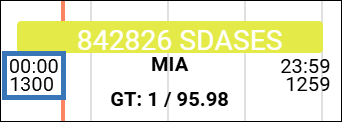
Work Order Scheduled Start Time
The scheduled start time appears in both local and Zulu time.
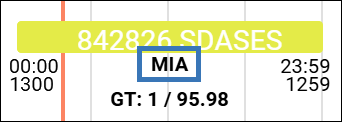
Work Order Location
The location of the work order is displayed.
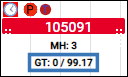
Man Hour Indicator
This indicator displays the Man Hours for linked T/C Item with the longest amount of Man Hours. Selecting the hours will display the W/O pop-up. For more information on the W/O pop-up, refer to New W/O button.
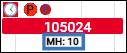
Note: Man Hours will not be calculated in the Interactive Planner Window if the Exclude Man Hours from Interactive Planner checkbox is selected in eMRO. For more information, refer to Work Order Detail, Optional Tab via the Production Module.
Ground Time Indicator
Ground Time entered on a Work Order and/or associated with an Aircraft will appear alongside it in the Interactive Planner window. Selecting the hours will display the W/O pop-up. For more information on the W/O pop-up, refer to New W/O button.
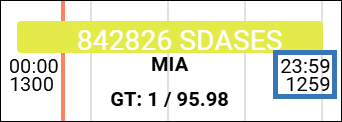
Work Order Scheduled End Time
The scheduled end time appears in both local and Zulu time.
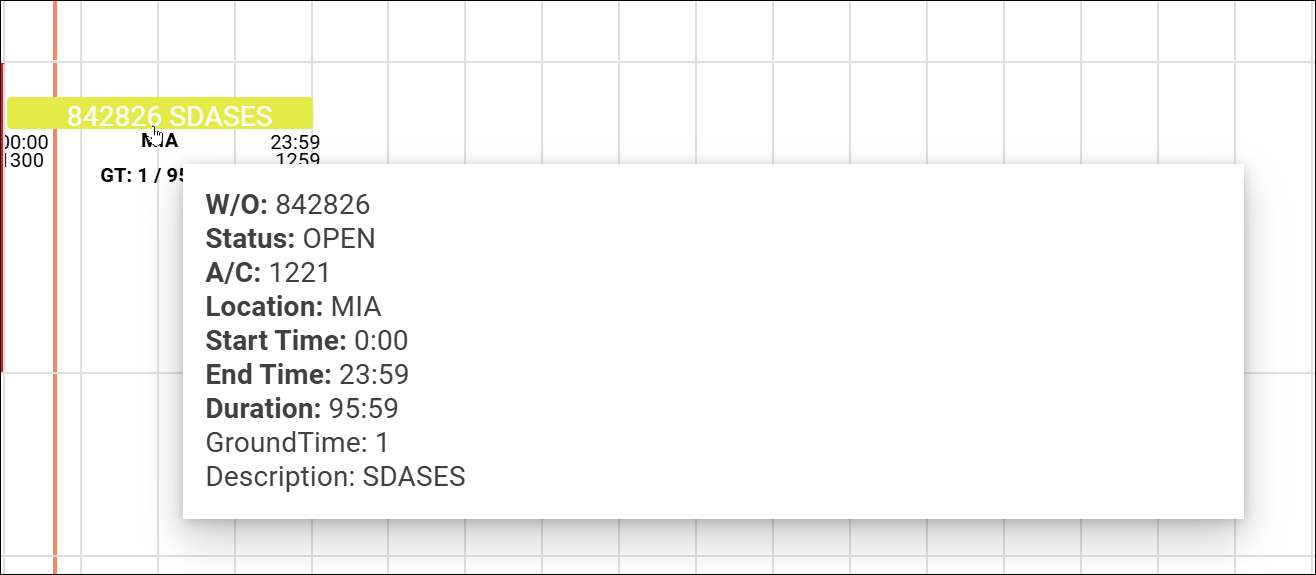
Work Order Hoverbox
Hovering the cursor over a work order causes a work order details hoverbox to appear. The hoverbox has the following details: W/O; Status; A/C; Location; Start Time; End Time; Duration; Ground Time; Description. If the Calculate Remainings checkbox is selected, Remaining Calculations will also appear. (See above.)
_____________________________________________________________________________________
Share
Print
|
©1997-2026 Trax USA Corp. All rights reserved. This manual may not be copied, photocopied, reproduced, translated, or converted to any electronic or machine-readable form, in whole or in part, without prior written approval from Trax USA Corp. |
 |