
 Share
 Print
|
|
|
|
|


New button, via Interactive Planner
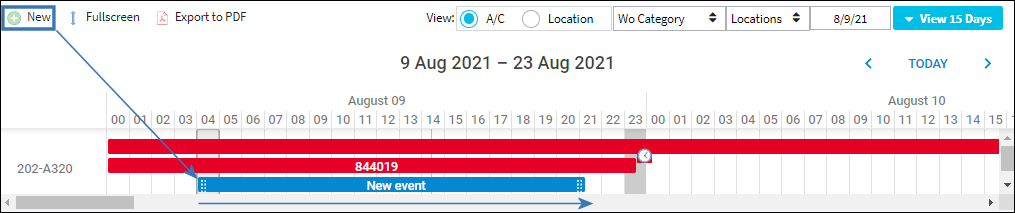
From the Interactive Planner window select the New  button to create a new Work Order.
Once selected, click a spot on the calendar view to drop and drag the new planning event. The New W/O window will then pop up.
From the New Work Order pop-up window, many of the fields are auto-populated based on the scenario in which the New button was selected.
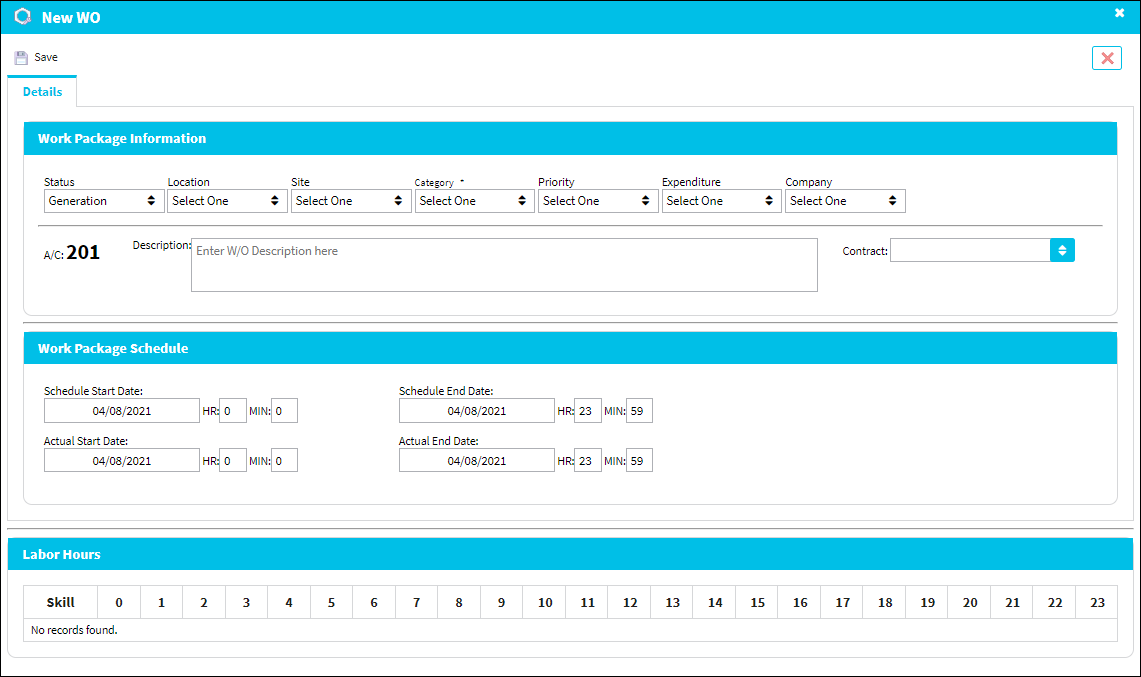
Select the Save  button to create the W/O.
Once the W/O is saved, the Work Order number is listed at the top and the W/O tabs become available.
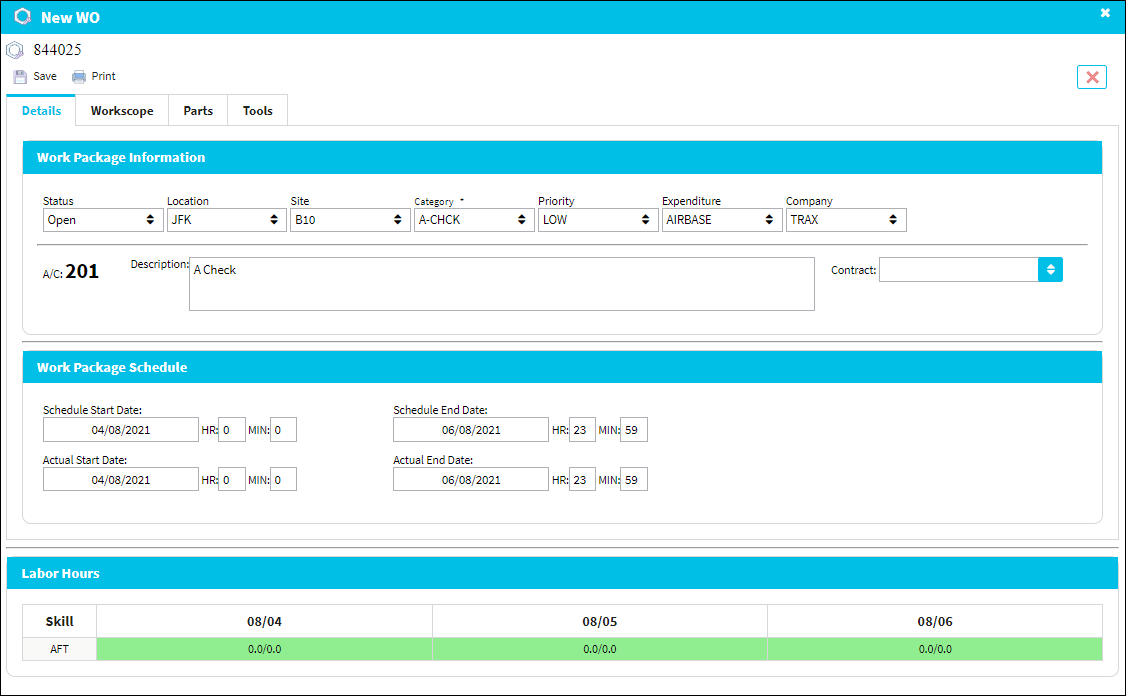
The following tabs are available:
W/O Details Button 
Additionally, once the W/O is saved, the user has access to the W/O Details  button.
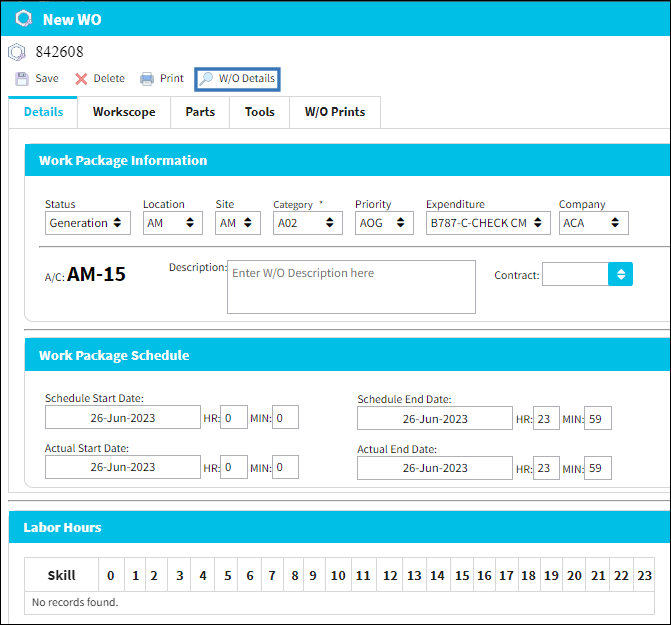
When selected, this button prompts the W/O Details window.
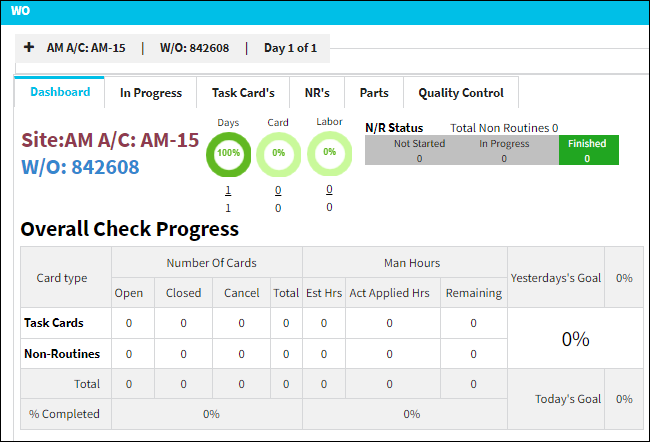
For more information on the tabs displayed in the pop up window, refer to W/O Details button.
Share
Print
|
©1997-2026 Trax USA Corp. All rights reserved. This manual may not be copied, photocopied, reproduced, translated, or converted to any electronic or machine-readable form, in whole or in part, without prior written approval from Trax USA Corp. |
 |