
 Share
 Print
|
|
|
|
|


Switches from Other Modules that Affect Planning Control
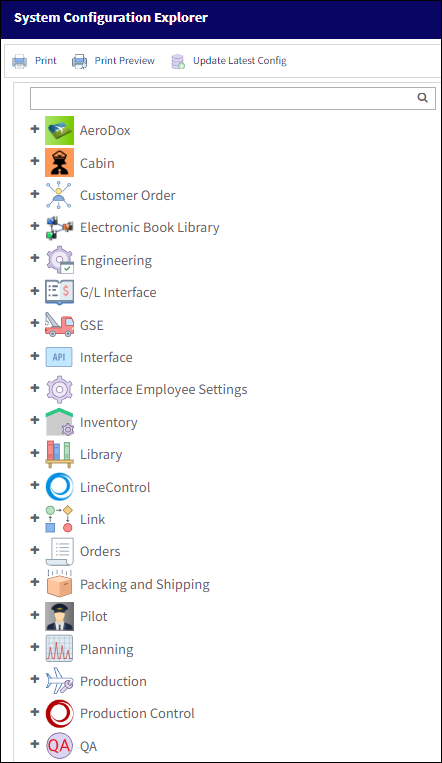
The following switches from other eMobility or eMRO/TRAX app modules affect functionality related to the Planning Control app. Each module/app contains its own set of switches which can be configured via System/ Explorer/ System Transaction Configuration in the TRAX/eMRO core application.
Note: Some switch functionality may be limited to operators using eMRO.
The following switches are compatible with the Planning Control application:
_____________________________________________________________________________________
ACROLAVG
When set to Yes, a Rolling Average is calculated for the mean hours and cycles calculation that is generated via the A/C Schedule Flight and uses the switch’s Config Number to determine the length of it to be applied. When set to No, a Rolling Average is not calculated for the mean hours and cycles calculation that is generated via the A/C Schedule Flight. For more information, refer to ACROLAVG in the Planning Training Manual.
AUTOTSKPRIORITY 
When set to Yes, the Task Priority  button will be available within the Interactive Planner. When set to No, the Task Priority button will not be available. For more information, refer to AUTOTSKPRIORITY in the Planning Training Manual.
CHILDECNOSCH
When set to Yes, Child E/Cs without schedules will appear in the Planning Results. When set to No, Child E/Cs without schedules will not appear in the Planning Results.
DEFAULTSHORTAGEPRNT
When the switch  DEFAULTSHORTAGEPRNT is set to Yes and a picklist is being created, the Shortage Print Only checkbox will be selected by default in Planning Control. When set to No and a picklist is being created, the Shortage Print Only checkbox will be deselected by default in Planning Control. For more information, refer to the Parts tab or DEFAULTSHORTAGEPRNT in the eMRO Planning Switches training manual.
GLBLDUEDATECALC
If set to Yes, the Run Mean Hours checkbox will appear in the Inventory Planner and Due List windows. If set to No, the Run on Flight Schedule checkbox will appear in the Inventory Planner and Due List windows. For more information, refer to GLBLDUEDATECALC in the Planning Training Manual.
INTPLANRR
When the switch INTPLANRR is set to Yes, the Refresh Rate for the Planning Control Interactive Planner is determined by the Config Number of the switch (in minutes). Note that the minimum Refresh Rate configuration is 5 minutes. For more information, refer to INTPLANRR in the Planning Training Manual.
LOCDFTWHR
When set to Yes, the Default Warehouse field will be available in the Location Master General tab, Location Site General tab, and W/O Detail General tab in the system. When set to No, the default warehouse field will not be available in the system. For more information, refer to LOCDFTWHR in the Settings Training Manual.
PCHIDEMHONIP
When set to Yes, the Man Hours indicator will be hidden from the Interactive Planner's timeline and will not cause red warnings on events. When set to No, the Man Hours indicator is visible in the Interactive Planner's timeline and will cause red warnings for Man Hours on events.
PLNDUELISTALL 
When the switch PLNDUELISTALL is set to Yes, the All option is enabled for the Paginator in the Planning Control Due List window. When set to No, the All option is not enabled for the Paginator in the Planning Control Due List window. For more information, refer to PLNDUELISTALL in the Planning Training Manual.
PN_EC_INSTDAYS
When set to Yes, in the Engineering Control, Schedule tab, three options are available from the Calendar Days drop down (Yes, No, No Fly) and the planning forecast calculates the E/C's due date based on the selection made. With this switch setting the Calendar Days drop down will default to No. When set to No, only two options are available from the Calendar Days drop down (Yes, No Fly) and the planning forecast calculates the E/C's due date based on the selection made. With this switch setting the Calendar Days drop down will default to Yes. For more information, refer to PN_EC_INSTDAYS in the Planning Training Manual.
RMVPLNDATEHL
When set to Yes, the Plan Date will not be highlighted yellow in the Due List. When set to No, the Plan Date will be highlighted yellow in the Due List. For more information, refer to RMVPLNDATEHL in the Planning Training Manual.
SESSIONTIMEOUT
When the switch SESSIONTIMEOUT is set to Yes, the number entered in the Config Number field dictates how long, in minutes, a user can remain inactive before the session expires. The maximum configurable session before the system times out is 480 minutes. When set to No, the number entered in the Config Number field does not affect the user's session. In this case, the system defaults the session timeout to 20 minutes. This switch applies to the Customer Portal, eContent Control, Line Control, Planning Control, Production Control, Shop Control, Visual Check apps. For more information, refer to SESSIONTIMEOUT in the System Administration Training Manual.
SHOWDUEDT
When set to Yes, the Due At field will display hours/minutes alongside the date in the Planning Control Due List window. When set to No, the Due At section will only display the date in the Planning Control Due List window. For more information, refer to SHOWDUEDT in the Planning Training Manual.
TCCRSITEM
When set to Yes, all Task Cards added to a W/O will contain an automatically created last Item with a Sort Order 999 and a predefined Item Text (a CRS) taken from the switch's Config Other field. Additional Configurations can be set using the switch's Config Number field. This final Item will be created automatically once the T/C is saved to the W/O. When set to No, Task Cards added to a W/O will not contain an automatically created last Item. For more information, refer to TCCRSITEM in the Production Training Manual.
WOATHREL
When set to Yes, authorization must be completed upon creating Work Orders, and the Priority field is mandatory. When set to No, authorization is not necessary to be completed upon creating Work Orders, and the Priority field is not mandatory. For more information, refer to WOATHREL in the Production Training Manual.
WOSTATGEN
When set to Yes, the Status of new Work Orders will default to Generation. When set to No, the Status of new Work Orders will default to Open. For more information, refer to WOSTATGEN in the Production Training Manual.
WOTCSCHDOVERWRITE
When set to Yes and a Work Order's Work Package Schedule is changed, the system will overwrite the Schedule Start/End Date of the existing W/O Task Card(s) with the Work Order's Schedule Start/End Date. When set to No and a Work Order's Work Package Schedule is changed, the system will not overwrite the Schedule Start/End Date of the existing W/O Task Card(s) with the Work Order's Schedule Start/End Date. For more information, refer to WOTCSCHDOVERWRITE in the Planning Training Manual.
WOTRANSITCHECK
When set to Yes, the system will automatically schedule and update Transit Work Orders. Additionally the Daily Transit W/O  button becomes available in Planning Control. When set to No, the system will not automatically schedule or update existing Transit Work Orders. Furthermore, the Daily Transit W/O button will not be available in Planning Control. For more information, refer to WOTRANSITCHECK in the Planning Training Manual.
YIELDCHECK
When set to Yes, the Planning Control app will prevent an Engineering Control from being added to a Work Order if the E/C's Min Yield Date is before the W/O's Start Date. When set to No, the Planning Control app will prompt a soft warning if an Engineering Control being added to a Work Order has a Min Yield Date that is before the W/O's Start Date. For more information, refer to YIELDCHECK in the Planning Training Manual.
_____________________________________________________________________________________
Share
Print
|
©1997-2026 Trax USA Corp. All rights reserved. This manual may not be copied, photocopied, reproduced, translated, or converted to any electronic or machine-readable form, in whole or in part, without prior written approval from Trax USA Corp. |
 |