
 Share
 Print
|
|
|
|
|


Open Defects Panel, via A/C Controller Panel (v8.1)
The Open Defects Panel lists all Open Defects in the system.
Note: The Open Defects Panel has been renamed to the Deferred Defects Panel.
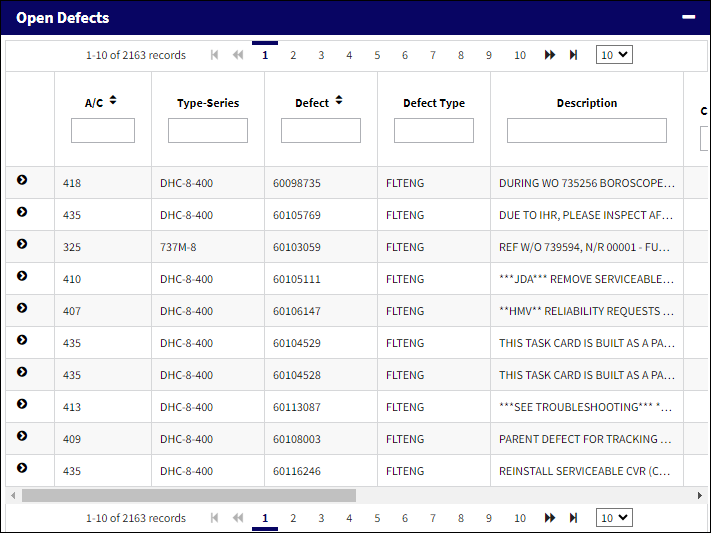
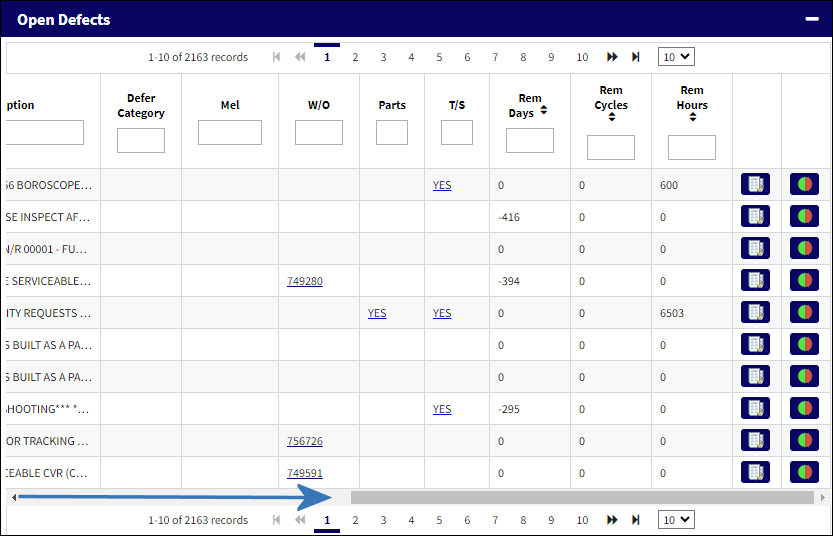
 Note: When a Defect is selected from the Deferred Defects section, additional information related to the defect will be displayed in the A/C Detail Panel. For more information, refer to the A/C Detail Panel, via A/C Controller Panel in the Technical Records Training Module.
The following information/options are available in this window:
_____________________________________________________________________________________
Expand  button
Click to see more information for the Aircraft. Click it again to collapse the expanded information.
A/C
The individual aircraft tail number.
Type-Series
The Aircraft Type and Series/Fleet assignment.
Defect
The defect number (or log book number).
Defect Type
The type of defect found on the aircraft (for example, Pilot Report, MX Report).
Defect Description
The description of the defect which describes the problem found or notes the service being performed.
Defer Category
The Defect Report's Category Code.
MEL
The Minimum Equipment List number linked to the Defect.
W/O
The W/O Number associated with the defect. Users can select the W/O number to view the W/O in greater detail. For more information, refer to W/O Detail via the Production manual.
Parts
Indicates if Parts are associated with the Defect record. If the Defect record has associated Parts, YES will appear in the Parts column. The Parts column will remain blank if there aren't any associated Parts. Users can select the YES hyperlink to view the Parts information in greater detail.
Troubleshooting
Indicates if Troubleshooting information has been entered against the Defect record. If Troubleshooting information is available, YES will appear in the Troubleshooting column. The column will remain blank if there isn't any Troubleshooting information. Users can select the YES hyperlink to view the Troubleshooting information in greater detail.
Remaining Days/Cycles/Hours
The remaining days, cycles, and hours posted against the aircraft.
Due Date
The date the defect is due.
Defect  button
Select this button to access a detailed view of the Defect record. For more information, refer to Defect Report Detail.
A/C Out of Service  button
Select this button view the A/C Out of Service pop up window. For more information, refer to OOS button, via A/C Controller Panel.
_____________________________________________________________________________________
Parts Pop Up Window
The Parts pop up window is displayed when a user selects the YES in the Parts column. The following information is available in this pop up window.
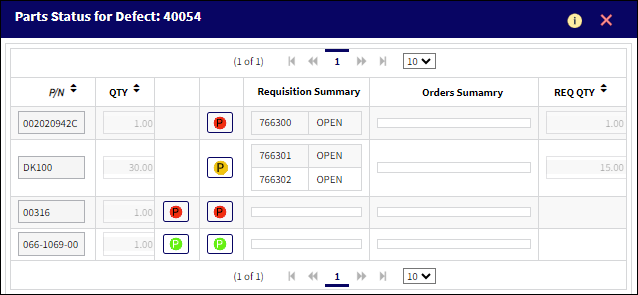
The following information/options are available in this window:
_____________________________________________________________________________________
P/N
The Part Number reference for the aircraft part.
QTY
The amount of the P/N currently available in the system.
Spares/All Spares  button
Select this button to view the P/N's inventory information via the P/N Inventory Summary window. For more information, refer to P/N Inventory Summary via the Planning manual.
Requisition Summary
Details the P/N's associated Requisition Number and its Status.
Orders Summary
Details the Orders associated with the P/N.
REQ QTY
The amount of the P/N required by the Defect.
_____________________________________________________________________________________
Troubleshooting Pop Up Window
The Troubleshooting pop up window is displayed when a user selects the YES in the Troubleshooting column.
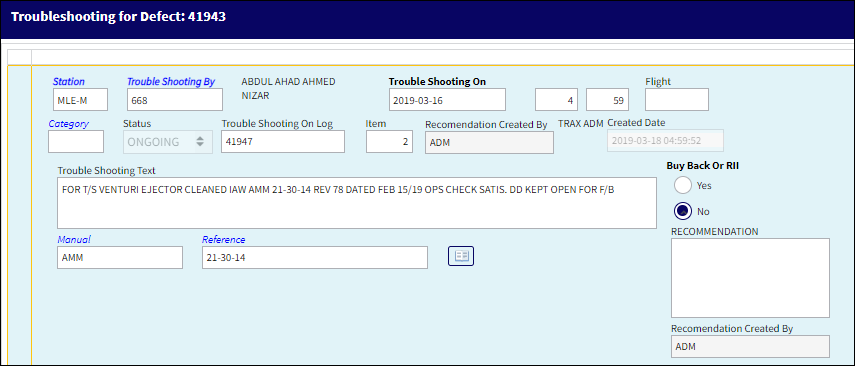
The information displayed in this pop up window mirrors the data in the Troubleshooting Tab of the initial Defect Report. For more information, refer to Defect Report Detail, Troubleshooting Tab.
Share
Print
|
©1997-2026 Trax USA Corp. All rights reserved. This manual may not be copied, photocopied, reproduced, translated, or converted to any electronic or machine-readable form, in whole or in part, without prior written approval from Trax USA Corp. |
 |