
 Share
 Print
|
|
|
|
|


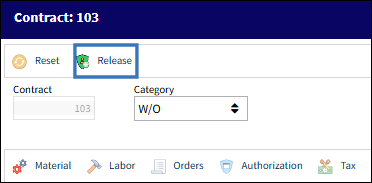
Once the Contract is ready to be authorized, click the Release  button. Doing so will release the contract for authorization. Once authorized and in open status, the Customer Contract cannot be edited unless a new revision is opened.
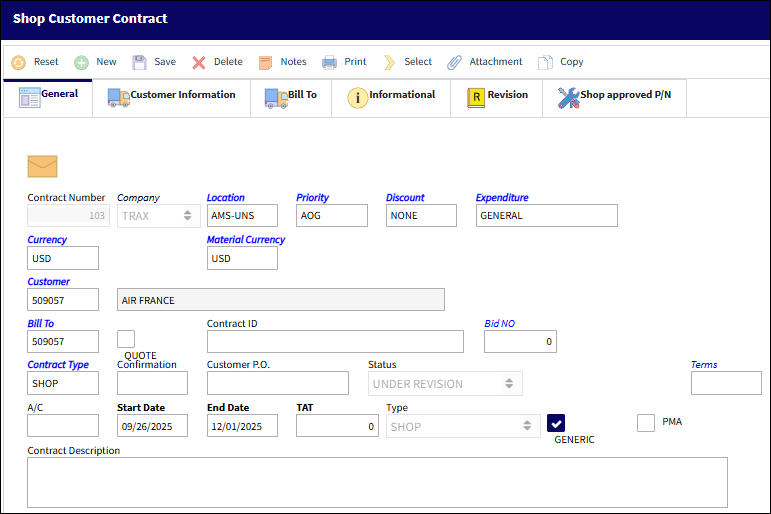
The following Customer Contract is in 'Under Revision' status. Select into the detail of the contract.
From the Customer Contract Detail, select the Release  button.
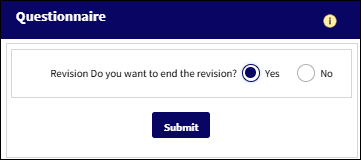
The following prompt appears asking the user if they would like to end the revision. Select 'Yes' to end the revision.
The Customer Invoice Contract Re-Post window appears displaying any Work Orders associated to the current contract. If you would like to apply this revision of the contract to these Work Orders, select 'Yes'. If not, select 'No' to exit the window.
For more information about Re-Posting a contract, refer the the Customer Invoice Contract Re-Post topic.
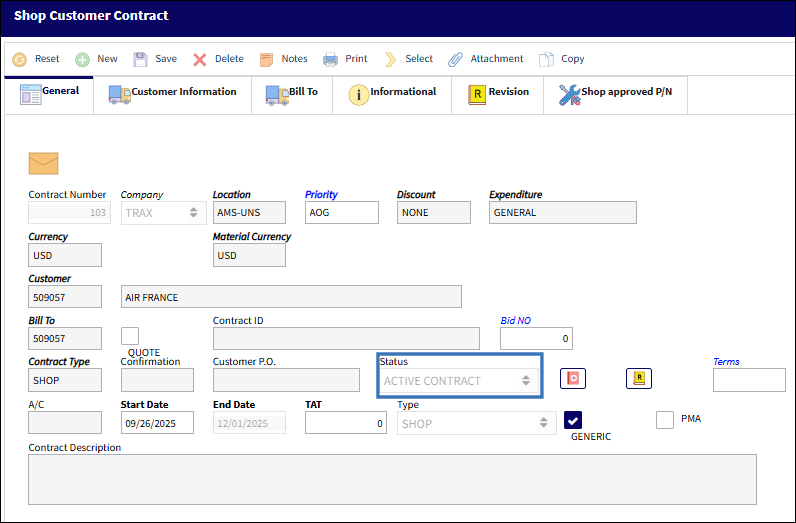
From the Customer Contract Header, select the Reset  button.
The status of the contract is updated to 'Active Contract' and it can now be linked to a Third Party Work Order.
Share
Print
|
©1997-2026 Trax USA Corp. All rights reserved. This manual may not be copied, photocopied, reproduced, translated, or converted to any electronic or machine-readable form, in whole or in part, without prior written approval from Trax USA Corp. |
 |