 Download Online Help
 Print
|
|
|
|
|


Manual Compliance can be conducted for a specific Aircraft Engineering Control through selecting the desired record from the Engineering Manual Compliance window, accessed through the A/C  button.
The system displays the Engineering Manual Compliance window as shown below.
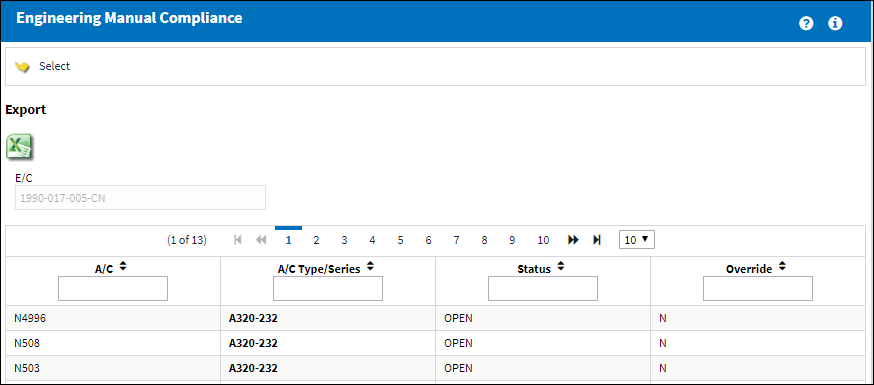
Note: With the proper security, the Status of the Engineering Manual Compliance for the individual records will be cascaded and reflected from the Status of the E/C.
 The feature mentioned above is security controlled via the Security Explorer/ Engineering/ Update/ Engineering Control/ E/C Allow All Status Cascade - Individual. For additional information, refer to the Security Explorer, via the System Administration Training Manual.
Select the aircraft tail number you wish to enter the compliance for. Click on the Select  button to display the Engineering Manual Compliance Detail.
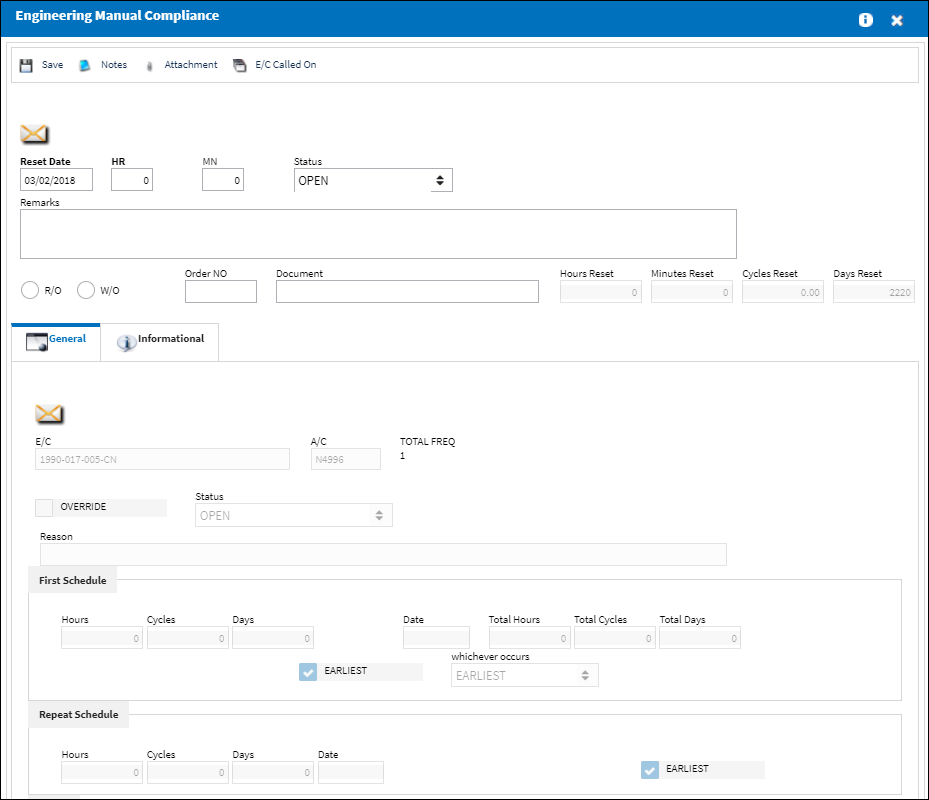
Within the Engineering Manual Compliance Detail for the A/C E/C, the Compliance information can be populated at the top.
The following options/information is available in this window:
_________________________________________________________________________
Reset Date
If the Compliance is via a Repair Order, the Compliance information can be manually entered in Repair Order Receiving. If this is a Manual Compliance, it is the Reset Date that was entered.
Hrs/Min
The time at which this E/C was complied with through the Work Order (Production or Shop) being Closed or the Repair Order being received.
Status
The current status of the E/C Compliance (i.e. Open, Cancel, Terminate, etc.).
Remarks
Any general remarks about the compliance event.
R/O or W/O
If the E/C was complied with on a Repair Order or a Work Order.
Order No
The relevant Repair or Work Order Number the E/C was complied against.
Document
The Document information entered in Manual Compliance.
Hours/Minutes/Cycles/Days Reset
E/C hours/cycles/days at time of reset.
_________________________________________________________________________
General information regarding the A/C E/C can be viewed and/or edited, as needed, through the following tabs and buttons:
Engineering Manual Compliance (A/C) |
Engineering Manual Compliance (A/C) |
|
|
|
 Save button


If the user enters a Reset Date prior to the current effective date of the E/C for the aircraft (or P/N S/N), the system will only write a historical record and update the completed NO., however the Effective Date will not change. If the user enters a date after the current effective date, the system will write a history record and change the effective date of the item. If the user changes the status to Terminated, Cancel or N/A, the system will make the repeat number equal to the completed number. This will terminate the E/C and it will no longer appear in the Planning query option.
The compliance record for the E/C is written upon saving the record. The user can edit/amend/delete previously created compliance records if required.
Download Online Help
Print
|
©1997-2018 Trax USA Corp. All rights reserved. This manual may not be copied, photocopied, reproduced, translated, or converted to any electronic or machine-readable form, in whole or in part, without prior written approval from Trax USA Corp. |
 |