 Download Online Help
 Print
|
|
|
|
|


The Task Card Control function allows the user view linked Task Cards to an E/C.
Just as E/Cs have their own setup configuration and requirements, Task Cards have their own configuration and requirements as well.
When an E/C is added to the Work Order, the Task Cards attached to that E/C will be automatically brought into the Work Order also at the same time, based on the configuration of the Task Card. For example, if A/C Effectivity is switched 'On' for the Task Cards, only Task Cards with the same Effectivity as the aircraft listed on the Work Order will be copied.
Switch  ECTCLINK controls how E/Cs and Task Cards are linked in the system. If this switch is set to No, the E/C-T/C link will work either way. The user can modify E/C-T/C links via revisions to E/Cs or T/Cs from either the Engineering Control window or Task Card control window. If this switch is set to Yes, modifications to E/C-T/C links will be modified by default from the Task Card control window. If this switch is set to Yes and the Config Other field contains EC, then engineering links will only be modified from the E/C-T/C control window.
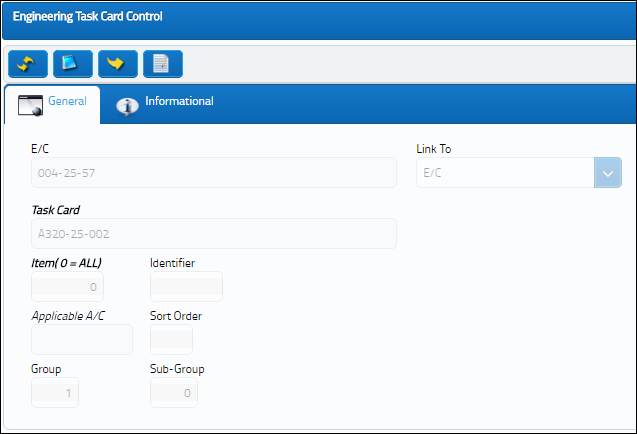
The following options/information is available in this window:
_________________________________________________________________________
E/C
The Engineering Control that specifies aircraft or component scheduled maintenance intervals. Engineering Control that the Task Card(s) will be linked to.
Linked To
Control that is going to be linked to original E/C.
Task Card
The Task Card / Job Card that details the scheduled maintenance work. In the Task Card field, specify the Task Card that will be attached to the E/C.
Item (0 = ALL)
The user can specify the item on the Task Card to be added to the E/C, if necessary. This allows for the creation of a dynamic Task Card applied to a fleet or type/series with various job card instruction items applied to selected type/series or A/C tail numbers. If no item number is specified, the default value of “0” will appear and all items on the Task Card will be added.
Identifier
This is a unique identification number applied to item effectivity. When item effectivity is revised, deleted, re-sequenced, this identifier value acts as an audit.
Applicable A/C
Enter the A/C that this Task Card will be effective to. If left blank, the Task Card will be effective to all aircraft that the E/C is effective to.
Note: When Production Switch ADDECNOT is set to No, even if the Task Card linked to the E/C has Aircraft effectivity to the Work Order's Aircraft but this 'Applicable A/C' field is not the same as the W/O's Aircraft, then the Task Card will not be added to the Work Order when the E/C is linked. The E/C Task Card's 'Applicable A/C' field will override the Task Card's aircraft effectivity when the Task Card is linked to a Work Order through this E/C linkage. For more information refer to Switch ADDECNOT via the Production Switches Manual.
Sort Order
Allows the user to specify which order the Task Card will print in a work package. These sequence numbers are sorted according to their numeric values. If there is more than one Task Card containing a Sort Order, all Sort Order numbers will be compared with one another, so that they print in the sequence.
Group
Groups allows the user to create a template that will be used to automatically create complex Work Orders based on parameters set up using the Group and Sub-Group fields.
Sub-Group
Sub-Groups allow the user the option to further expand the relationships between Groups by creating Groups within Groups. Essentially, Work Orders within Work Orders.
Note: For information regarding Groups and Subgroups, refer to the topic About Group and Sub-Group, via Engineering Task Card Control.
_________________________________________________________________________
Download Online Help
Print
|
©1997-2018 Trax USA Corp. All rights reserved. This manual may not be copied, photocopied, reproduced, translated, or converted to any electronic or machine-readable form, in whole or in part, without prior written approval from Trax USA Corp. |
 |