 Download Online Help
 Print
|
|
|
|
|


The A/C  button allows the user to setup aircraft effectivity for the Engineering Control. Effectivity can be setup for the entire aircraft type/series or for individual A/C tail numbers. The aircraft that appears in the window for a user's selection depends on how the security access is configured at the aircraft level in Security Explorer.
Note: The Yes/No and Config Other field settings of switch ECVIAREV will determine if changes can be made to the E/C effectivity outside of the E/C revision process.
A/C Control - Multi Company: Depending on the company entered in the E/C company field, only those aircraft with the same G/L company (via the A/C Master, Other 1 tab) will appear in the Engineering Control effectivity window. For more information refer to the Multi Company Functionality.
From the Engineering Control window, select the A/C CTL button and the following window appears:
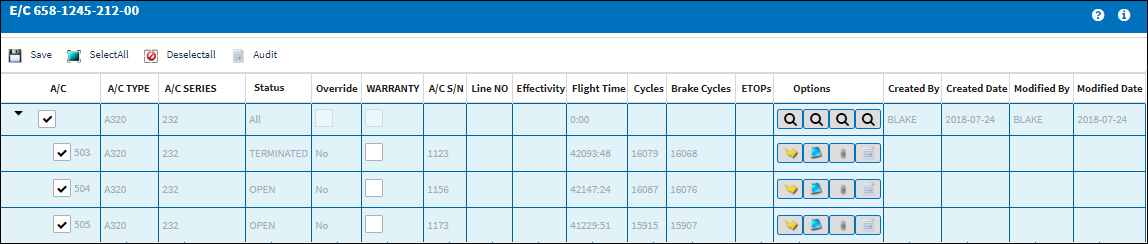
The following options/information is available in this window:
_________________________________________________________________________
E/C
The Engineering Control that specifies aircraft or component scheduled maintenance intervals. This is the Engineering Control having aircraft effectivity applied.
Select All  / Deselect All
 button
Use these buttons to select all fleets (including every aircraft) or to deselect all fleets.
Expand  / Collapse
 buttons
Use these buttons to view all of a fleet's aircraft or to hide all of a fleet's aircraft. Once expanded, individual aircraft can be selected or deselected for effectivity.
A/C  checkbox
The checkbox at the A/C Type/Series level indicates that at least one aircraft in the fleet is effective to the E/C. A selected A/C checkbox indicates that the aircraft is effective to the E/C.
A/C Type / A/C Series
The aircraft Type and Series / Fleet assignment.
Status
The current E/C status for the Aircraft. The status at the A/C Type/Series level identifies effectivity towards the fleet as All or Partially.
Override checkbox
This field indicates whether or not the E/C schedule has been overridden. To view and/or override the E/C's schedule, select into the record. For more information refer to the Engineering Effectivity Override (A/C E/C), via Engineering Control Buttons.
Warranty checkbox
This will show as selected to indicate that warranty information is applied for a particular tail number of this A/C Type/Series.
A/C S/N
The Aircraft's Serial Number which is provided by the manufacturer. This serial number is like a registration number, but it is not dependent on a country code and therefore never changes.
Line No
A number provided by the manufacturer that works like a serial number. Some TraxDocs assign effectivity via this line number.
Effectivity
This field provided by the manufacturer and functions like a Line Number, only it is specific to engineering effectivity (like a reference to Service Bulletins, for example). It is entered through the A/C Master and is only informational.
Flight Time
The current number of accumulated aircraft Flight Hours and Minutes as of the current Time As Of date.
Cycles
The current number of accumulated Aircraft Cycles as of the current Time As Of date.
Brake Cycles
The current number of accumulated Aircraft Brake Cycles as of the current Time As Of date.
ETOPS
Indicates that this E/C is ETOPS rated with an extended range allotted to the aircraft.
Options buttons
The following buttons are available:
Range EC Eff button - This option allows the user to apply effectivity to aircraft tail numbers under the same A/C Type/Series by using ranges based on the serial number, line number, variable number or SGML Designator of the aircraft. Select this button to access the Engineering Control Range window. For additional information, refer to the Range EC Eff Button, via Engineering Control of the Engineering - E/C Training Manual.
Range Status button - Select this button to allow the user to apply a Status to all effective A/Cs or multiple A/Cs under the same A/C Type/Series. They can be updated/changed by creating a range for A/C, S/N, Line, Variable No, SGML Designator, or IPC.SGML Designator, or IPC. For additional information, refer to the Range Status Button, via Engineering Control Buttons of the Engineering - E/C Training Manuals.
Range Warr Eff button - Select this button to access the Warranty Range window. This window allows the user to apply effectivity to an aircraft by using the serial number, line number, variable number or SGML Designator of the aircraft. For additional information, refer to the Range Warranty Effectivity Button, via Engineering Control Buttons of the Engineering - E/C Training Manuals.
Range Sched button - Select this button to allow the user to apply a Schedule to all effective A/Cs or multiple A/Cs under the same A/C Type/Series. They can be updated/changed by creating a range for A/C, S/N, Line, Variable No, SGML Designator, or IPC.SGML Designator, or IPC. For additional information, refer to the Range Schedule Button, via Engineering Control Buttons of the Engineering - E/C Training Manuals.
The following buttons also become available for each individual Aircraft:
Select button - Select this button to open the Engineering Effectivity Override window. For more information , refer to the Engineering Effectivity Override (A/C E/C).
Notes button - Select this button to enter any notes that will be associated with the currently selected record. For more information, refer to the Notes Button, via A/C E/C Effectivity.
Attachment button - Select this button to add an image(s) as an attachment to the currently selected record. For more information, refer to the Attachment Button, via A/C E/C Effectivity.
Effectivity Audit button - Select this button to view an audit trail of all Aircraft Effectivity changes made to the currently selected E/C. For more information, refer to the Effectivity Audit Button, via A/C E/C Effectivity.
Created By
The user who created the record.
Created Date
The date the record was created.
Modified By
The user who last modified the record.
Modified Date
The date the record was last modified.
_________________________________________________________________________
The Audit  button provides a trail of A/C Effectivity.
Download Online Help
Print
|
©1997-2018 Trax USA Corp. All rights reserved. This manual may not be copied, photocopied, reproduced, translated, or converted to any electronic or machine-readable form, in whole or in part, without prior written approval from Trax USA Corp. |
 |