
 Share
Share
 Print
Print
|
|
|
|
|


Surplus Sales - Generating and Uploading WPL P/N Catalogs

In order to make surplus inventory available for purchase on the World Part Locator marketplace, a P/N Catalog needs to be generated then uploaded to the cloud. The P/N Catalog is composed of various records with Unit Sell prices and Lead Days for each item. Each catalog record is generated for a specific P/N with the same Condition and Location.
The following process is an overview of the steps to take to create WPL P/N Catalog records.
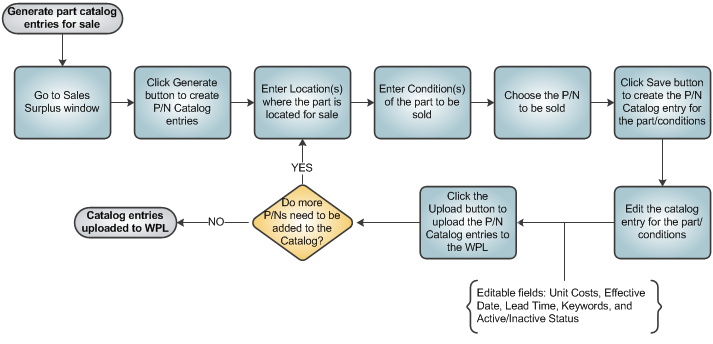
1. Filter for the P/N Catalog Records
From the Surplus Sales window, P/N Catalog records are created by selecting the Generate  button. Once selected, the Surplus Sales Generation window appears as follows.
Users must specify a P/N, one or more Locations, and one or more Conditions. P/N Catalog records will be generated based on the availability for the part in those Locations and in those Conditions. Once the Location, Condition, and P/N are entered, select the Save  button.
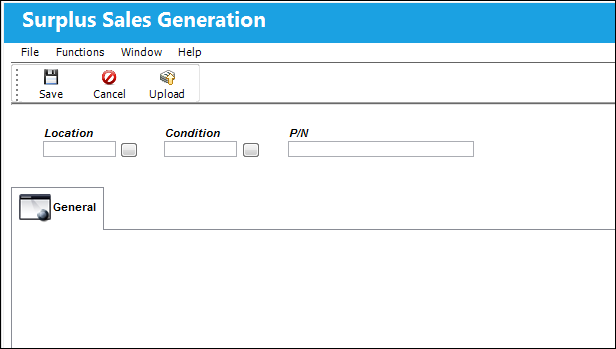
The following fields are available to create P/N Catalog records.
_____________________________________________________________________________________
Location
The Location for maintenance events, inventory stores, orders, transactions, or training events. The window will query for the specified P/N and Condition(s) that are available in the Location(s) entered in this field. All available parts that have the specified Condition(s) will be part of the P/N Catalog records.
Select Multi Locations button - Select this button to choose multiple Locations for the window to compile parts from. Individual Locations can be selected or all Locations can be selected by clicking the Select All button. Once all selections have been made, click on the Select  button. If multiple selections are made, the Location field will be greyed out.
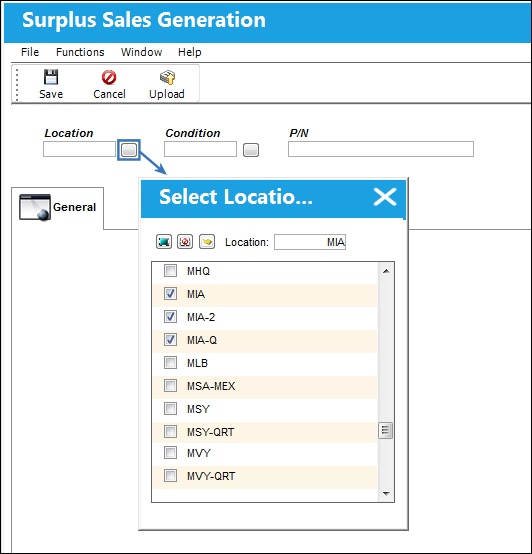
Condition
The condition of the part being sold. The window will query for the specified P/N and Location(s) that contain the Condition(s) entered in this field. All available parts that have the specified Condition(s) will be part of the P/N Catalog records.
Select Multi Conditions button - Select this button to choose multiple Conditions for the window to compile parts from. Individual Conditions can be selected or all Conditions can be selected by clicking the Select All button. Once all selections have been made, click on the Select button. If multiple selections are made, the Condition field will be greyed out. (See the Select Multi Selections above for an example of what this pop-up window looks like.)
P/N
The Part Number reference for the aircraft part. This is the part that will be queried through the Location(s) specified and in the Condition(s) specified.
_____________________________________________________________________________________
2. Generate the P/N Catalog Records
Once the Location, Condition, and P/N are entered, select the Save button to generate the P/N Catalog records.
The P/N Catalog records are listed as follows. Each record is grouped by Location and Condition. Users can edit this information prior to uploading the records to the WPL cloud. See below.
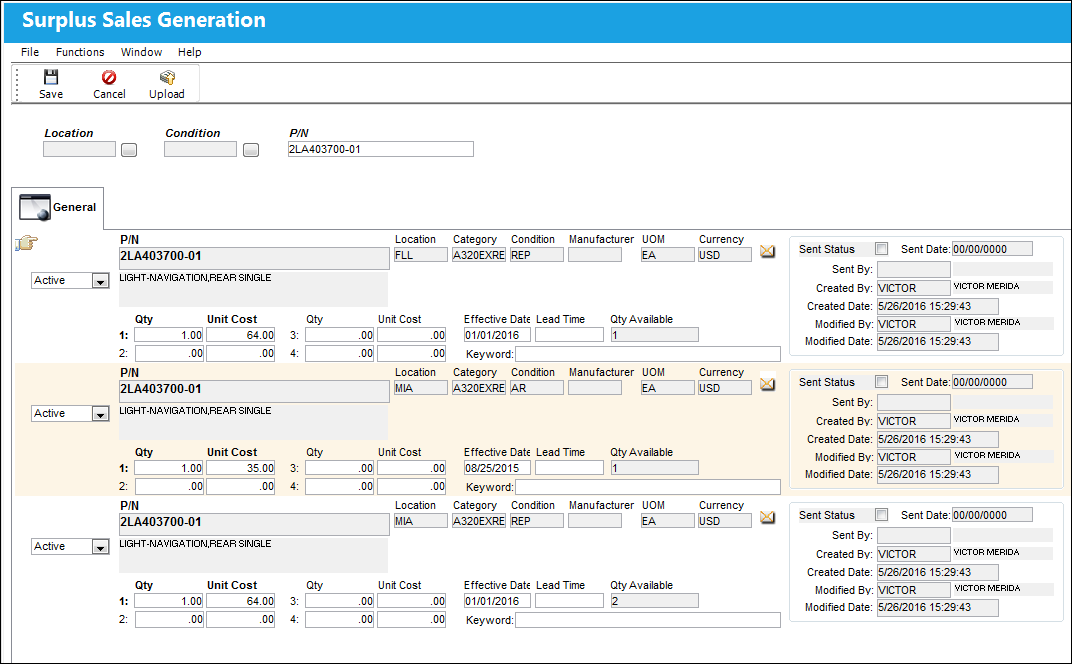
For following fields are displayed for the P/N Catalog records. Several fields can be edited prior to uploading (i.e., Status, Unit Costs, Effective Date, Lead Time, and Keywords).
_____________________________________________________________________________________
Status dropdown
Indicates whether the P/N Catalog entry is currently active or inactive in the World Part Locator. When 'Active', the entry is available for purchase in the World Part Locator. When 'Inactive', the entry is not visible in the WPL and therefore not available for purchase. (Catalog entries can be made 'inactive' for various reasons, like if the part is out of stock. The part can be made 'active' again once stock is replenished.) This field can be edited manually from the Surplus Sales window or from the Surplus Sales Generation window.
P/N
The Part Number reference for the aircraft part. The part's description is also included. This is the part that will be available for purchase in the World Part Locator.
Location
The Location for maintenance events, inventory stores, orders, transactions, or training events. This is the location where the part is available for sale.
Category
The category of the part as defined in Settings/ Explorer/ System Transaction Code Explorer/ Settings/ P/N Category (e.g. Rotable, Consumable, Repairable) and entered for the particular part in the P/N Master.
Condition
The condition of the part being sold.
Manufacturer
The Manufacturer or main Vendor for this part.
UOM
The unit of measurement for the part. For instance, 'EA' means that the Quantity and Unit Cost is for each individual part.
Currency
The currency for the part being sold.
Qty / Unit Cost
This section allows vendors to specify different pricing options depending on the quantity being bought. This creates an incentive for the customer to purchase a greater quantity. (For example, the unit cost for '1' part may be '15.00'. But as an incentive to purchase a larger quantity, the cost of buying '3' parts can be '13.00' instead of '15.00'.) This information is defaulted from the P/N Sell window. These fields can be edited manually specifically for the WPL.
Qty 1 - The minimum quantity required to be purchased in order for Cost 1 to be in effect.
Unit Cost 1 - The unit cost for the part when Quantity 1 is purchased.
Qty 2 - The minimum quantity required to be purchased in order for Cost 2 to be in effect.
Unit Cost 2 - The unit cost for the part when Quantity 2 is purchased.
Qty 3 - The minimum quantity required to be purchased in order for Cost 3 to be in effect.
Unit Cost 3 - The unit cost for the part when Quantity 3 is purchased.
Qty 4 - The minimum quantity required to be purchased in order for Cost 4 to be in effect.
Unit Cost 4 - The unit cost for the part when Quantity 4 is purchased.
Effective Date
The date that the Unit Sell record for the Condition is in effect. This information is defaulted from the P/N Sell window. This field can be edited manually specifically for the WPL.
Lead Time
The number of days specified by the vendor between the part's purchase date and the delivery date. This information is defaulted from the P/N Sell window. This field can be edited manually specifically for the WPL.
Qty Available
The amount of parts available for sale in the specific Location and in the specific Condition.
Keywords
These are keywords added by the vendor that will help customers search for the parts they need. This field can be edited manually.
WPL Interface Information
Sent Status checkbox - A selected checkbox indicates that the entry has been sent as a message to the WPL interface.
Sent Date - The date that the interface message was sent.
Sent By - The user who sent the interface message.
Created By - The user who created the interface message.
Created Date - The date the interface message was created.
Modified By - The user who last modified the interface message.
Modified Date - The date that the interface message was last modified.
_____________________________________________________________________________________
Users can select the Cancel  button to make all of the catalog records currently displayed in this window 'Inactive'.
3. Upload the P/N Catalog Entry to the WPL Cloud
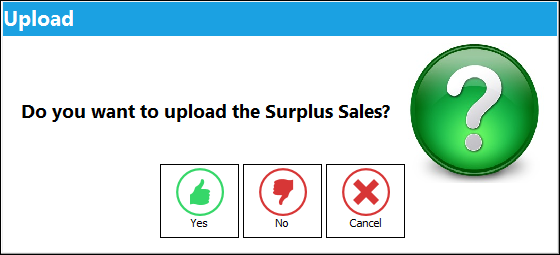
Once the P/N Catalog records have been generated and edited as required, select the Upload  button to add the P/N Catalog records to the World Part Locator cloud. Select Yes to upload the records. Once the records are uploaded to the cloud, the records that are 'Active' will be available for purchase by customers.
After being generated, all P/N Catalog records can be edited/managed from the main Surplus Sales window.
Share
Print
|
©1997-2026 Trax USA Corp. All rights reserved. This manual may not be copied, photocopied, reproduced, translated, or converted to any electronic or machine-readable form, in whole or in part, without prior written approval from Trax USA Corp. |
 |