
 Share
Share
 Print
Print
|
|
|
|
|


Surplus Sales - Managing WPL P/N Catalogs

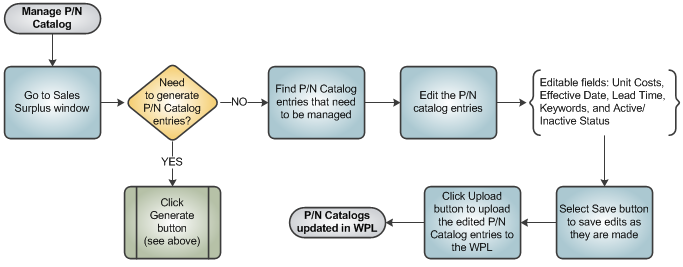
As P/N Catalog records are generated for the World Part Locator, the data in the records can be managed from the main Surplus Sales window. Users can search for the records they wish to access and make edits to the information (i.e., Status, Unit Costs, Effective Date, Lead Time, and Keywords). The edits can be saved as they are made. Then when ready, the records can be re-uploaded to the WPL cloud.
The following process is an overview of the steps to take to manage WPL P/N Catalog records.
To view the records, enter the data in the Search fields at the top of the window then select the Find  button. The results are displayed to the bottom of the window. The results can be edited as necessary.
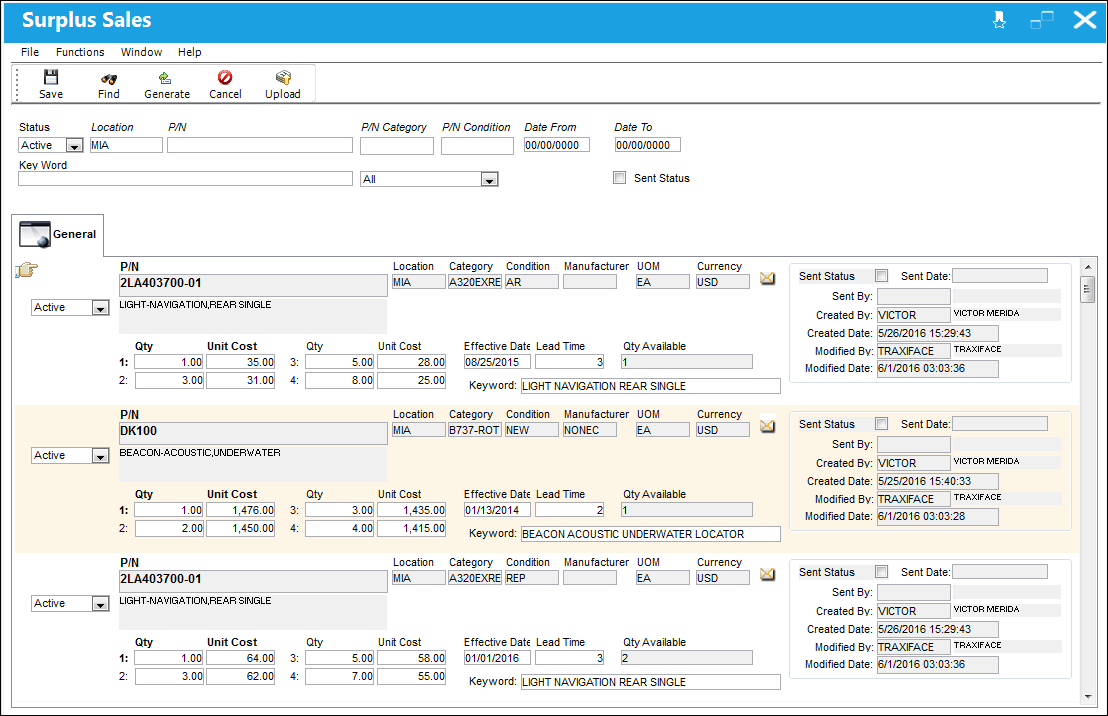
The following Search fields are available at the top of the window.
_____________________________________________________________________________________
Status dropdown
Indicates whether the P/N Catalog entry is currently active or inactive in the World Part Locator. When 'Active', the entry is available for purchase in the World Part Locator. When 'Inactive', the entry is not visible in the WPL and therefore not available for purchase. (Catalog entries can be made 'inactive' for various reasons, like if the part is out of stock. The part can be made 'active' again once stock is replenished.) This field can be edited manually from the Surplus Sales window or from the Surplus Sales Generation window.
Users can search for records that are Active, Inactive, or ALL records.
Location
The Location for maintenance events, inventory stores, orders, transactions, or training events. This is the location where the part is available for sale.
P/N
The Part Number reference for the aircraft part. This is the part that's for sale.
P/N Category
The category of the part as defined in Settings/ Explorer/ System Transaction Code Explorer/ Settings/ P/N Category (e.g. Rotable, Consumable, Repairable) and entered for the particular part in the P/N Master.
P/N Condition
The condition of the part being sold.
Date From - To
A time period to query for Effective Dates: The date that the Unit Sell record for the Condition is in effect.
Key Word
These are keywords added by the vendor that will help customers search for the parts they need. This field can be edited manually.
Inventory Type dropdown
Select one of the following Inventory Types:
- All Inventory
- Maintenance Inventory
- General Inventory
- GSE Inventory
Sent Status checkbox
Select to search only for records that have been sent as a message to the WPL interface.
_____________________________________________________________________________________
Window Options
The Results section contains the same information as in the Surplus Sales Generation window. The following fields can be edited: Active/Inactive Status drop down, Unit Costs, Effective Date, Lead Time, and Keywords.
- As information is edited, users can select the Save
 button to save their edits.
 - Once the P/N Catalog records are ready to be re-uploaded to the cloud, select the Upload
 button. Select Yes to upload the records. Once the records are uploaded to the cloud, the records that are 'Active' will be available for purchase by customers.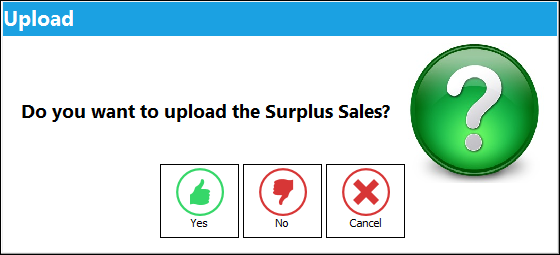
- Users can select the Cancel
 button to make all of the catalog records currently displayed in this window 'Inactive'. These records will not be displayed in the WPL marketplace and will therefore not be available for purchase.
 - To add more records to the P/N Catalog, select the Generate
 button. For more information refer to the Surplus Sales Generation window.
Automated Functionality
Because inventory levels fluctuate often, a TRAX Database Job called 'Surplus_Sales_Upload' runs daily (at 3:00 am) to update the available quantity of parts in the WPL P/N Catalog. The job queries the Parts in the specific Conditions and at the specific Locations that have been generated in the P/N Catalog then updates part availabilities in the WPL marketplace. This job ensures that the part availability is accurate in the World Part Locator. For more information refer to the TRAX Database Jobs window via the System Administration module.
After a part/condition record is added to the P/N Catalog in the Surplus Sales window, whenever an edit is made to the part/condition record in P/N Sell window the Surplus Sales Generation pop-up window will appear with the edits made to the part/condition record. This pop-up window prompts users to update the WPL P/N Catalog record as soon as the P/N Sell information for the part/condition is updated. For more information refer to Surplus Sales Generation, via the Sell Button.
Share
Print
|
©1997-2026 Trax USA Corp. All rights reserved. This manual may not be copied, photocopied, reproduced, translated, or converted to any electronic or machine-readable form, in whole or in part, without prior written approval from Trax USA Corp. |
 |