
 Share
Share
 Print
Print
|
|
|
|
|


Surplus Sales - Processing WPL Sales Orders

As parts are purchased by customers (other TRAX operators) through the World Part Locator (in their databases), Sales Orders are created automatically.
Once a Sales Order is created, a System Notification is sent with information regarding the WPL order. The S/O is initially set to 'Pending Review' until the order is reviewed and accepted. Once accepted, the S/O goes to 'Open' status and the S/O Picklist reservation is prompted.
The following process is an overview of the steps to take to manage WPL Sales Orders.
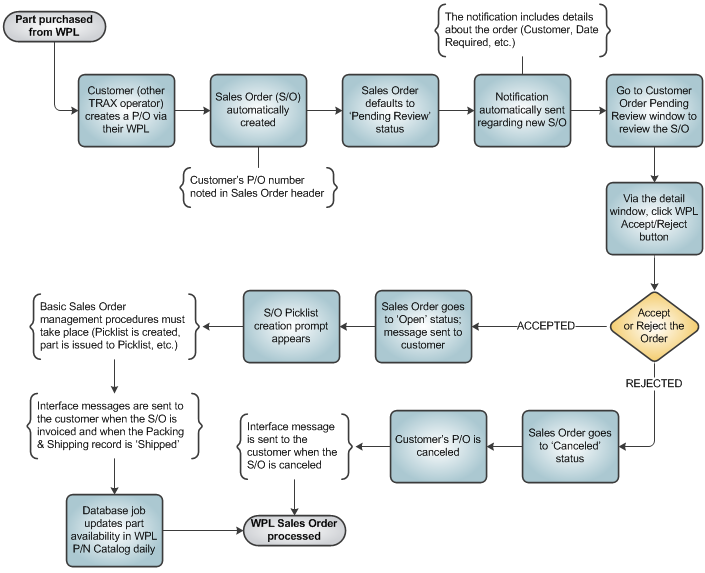
Once an order is placed for a part being sold on the marketplace, a system notification called 'SURPLUS SALES ORDER NOTIFICATION' is sent informing the necessary user(s) the that a new WPL S/O has been created. This notification provides the user with details regarding the WPL order.
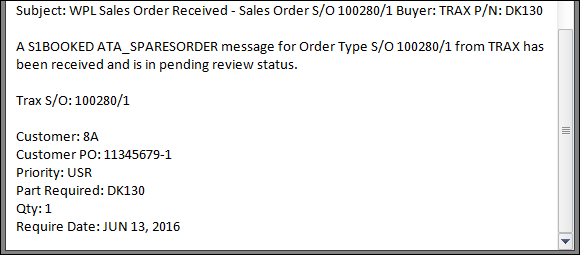
For more information refer to System Notification via the Settings module.
The Customer Order is automatically created when the customer places the order. But before accessing the S/O, it must be reviewed and accepted via the Customer Order Pending Review window. This window contains a header and detail level with the same information as found in the main Customer Orders window. This level of information is provided from this window in order for the user to accept of reject the S/O.
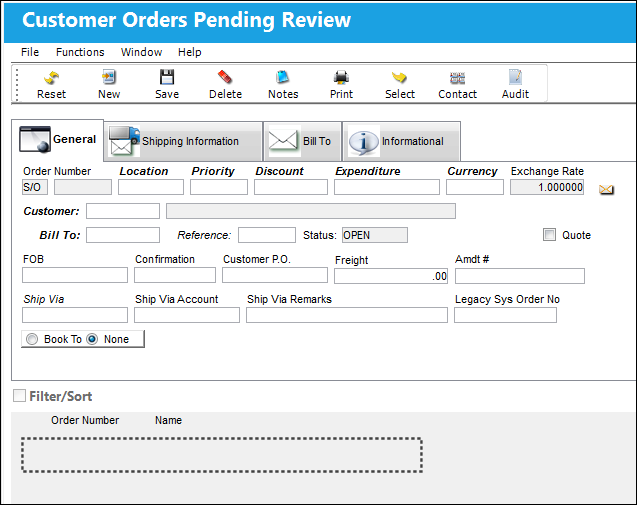
The header window appears as follows. Notice that the order is in 'PENDINGREV' Status (indicating the it is pending review) and that the customer's P/O number is listed as well.
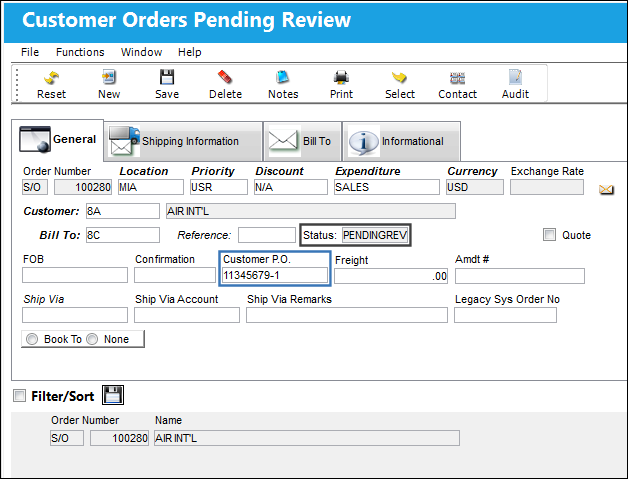
For more information on the fields available in this window, refer to Customer Orders Pending Review via the Customer Orders module.
The detail window appears as follows. Select the WPL Accept/Reject  button to accept or reject the order.
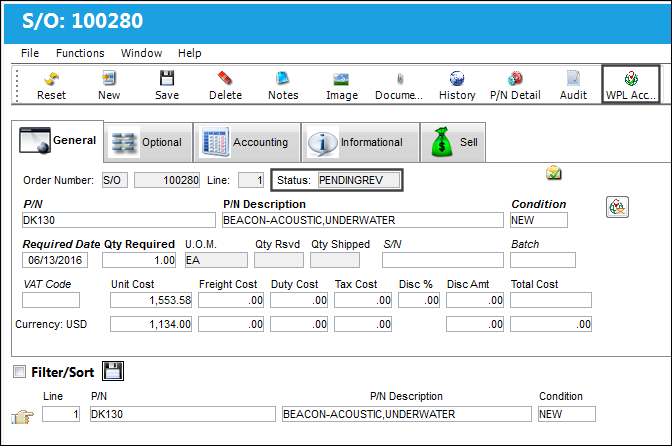
When selected, the WPL Sales Accept/Reject window appears. Users can add remarks and select the Accept or Reject radio buttons. Select the Send Message  button to submit the acceptance or rejection of the order.
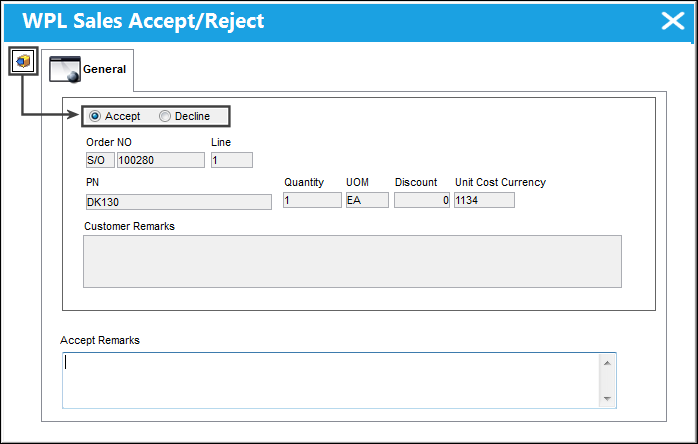
S/O is Accepted or Rejected:
- Accepted: The S/O goes to 'OPEN' Status and can be accessed via the main Customer Orders window. The customer is sent a message via the WPL interface. The Picklist creation option is prompted. See below.
- Rejected: The S/O goes to 'CANCELED' Status and the customer is notified via the WPL interface.
When the S/O is accepted, the Create P/N Reservation (Picklist) option is prompted.
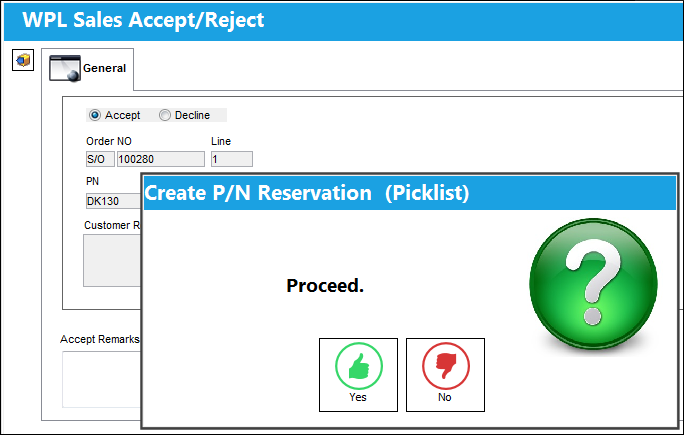
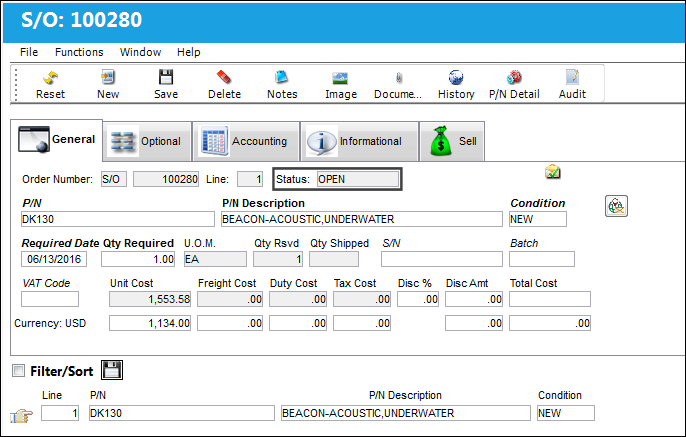
Whether or not the Picklist is created (above), the S/O goes to Open status.
Notice the accepted S/O is not listed in the Customer Orders Pending Review window.
Instead, the order is listed in the main Customer Orders window.
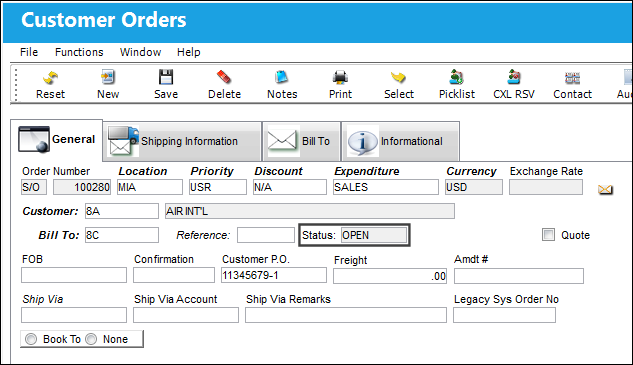
To fulfill the Customer Order, the classic TRAX functionality must be followed (the S/O must be reserved to a Picklist, the part must be issued to that Picklist, etc.). As this process is taken, messages are sent to the Customer via the WPL interface. For more information on this portion of the process refer to Surplus Sales - Completing WPL Sales Orders.
Automated Functionality: TRAX Database Jobs
As Sales Orders are created for parts sold in the WPL marketplace, part availability must be updated regularly. Because inventory levels fluctuate often, a TRAX Database Job called 'Surplus_Sales_Upload' runs daily (at 3:00 am) to update the available quantity of parts in the WPL P/N Catalog. The job queries the Parts in the specific Conditions and at the specific Locations that have been generated in the P/N Catalog then updates part availabilities in the WPL marketplace. This job ensures that the part availability is accurate in the World Part Locator. For more information refer to the TRAX Database Jobs window via the System Administration module.
Share
Print
|
©1997-2026 Trax USA Corp. All rights reserved. This manual may not be copied, photocopied, reproduced, translated, or converted to any electronic or machine-readable form, in whole or in part, without prior written approval from Trax USA Corp. |
 |