
 Share
Share
 Print
Print
|
|
|
|
|


Shop W/O Closing Post Completion
The Shop W/O Post Completion window is used to change the status of Shop Work Orders from Post Completed to Closed. Only Shop W/Os in a Post Completed status will appear in this window.
Before changing the Shop W/O status to Closed, it is important that all unused material issued to the W/O has been returned to stock (RTS) crediting the W/O, and other W/O Actuals have been reviewed. Once the Shop W/O’s status is changed from Post Completed to Closed, all the G/L expense accounts will be updated accordingly from the Shop W/O's WIP account, and unused material can no longer be the RTS crediting the W/O.
The Post Completion process is set up through Production Switch  WOPOSTCM. This window is only applicable when this switch is set to Yes.
When Switch WOPOSTCM Config Number field is greater than zero and a user opens the W/O Closing Post Completion window, the system counts back from the current date the number of days entered in the Config Number field and changes all W/Os in a Post Completed status to Closed.
 Note: In Version 15, switch WOPOSTCM must be set to Yes because the No setting is no longer supported. Work Order Statuses will only go from 'Completed' to 'Post Completed', and not from 'Completed' directly to 'Closed'.
For more information how to change the status of a W/O to Post Completed, refer to the Shop W/O Task Card, Close W/O button or the Shop W/O Closing window.
 Parts that were issued to the Work Order can be returned to stock even after the W/O is in Closed status. For more information refer to the Batch in Inventory Audit (via the Return to Stock button) in the Inventory Training Manual.
In the Shop W/O Post Completion window, enter search criteria to find specific Shop W/Os or select the Find  button and the system will retrieve all W/Os in a Post Completed status.
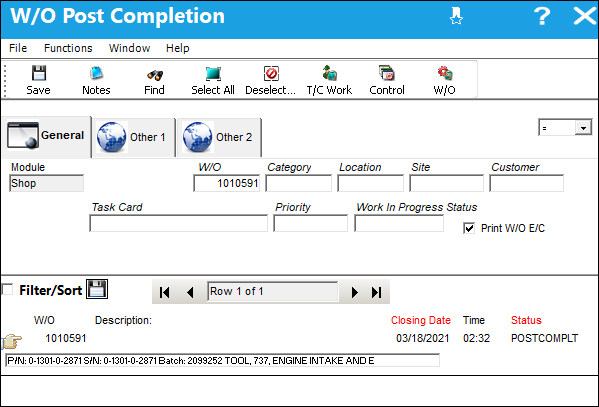
Select the Shop W/Os that need to be Closed and select the Save  button.
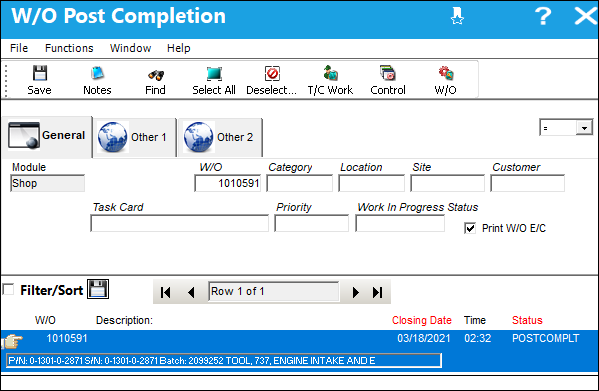
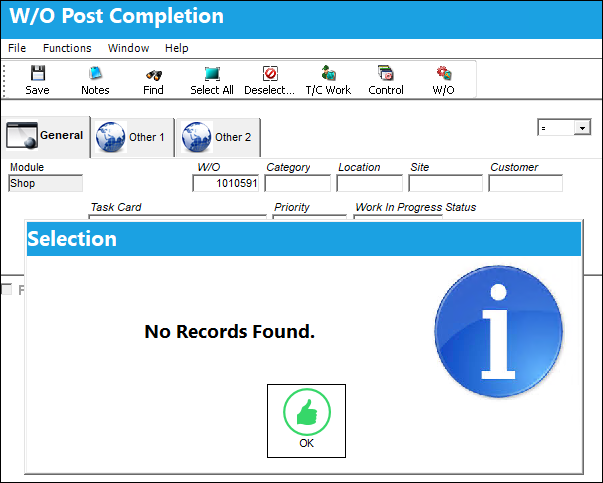
The Shop W/O status in now Closed and no longer available in the Shop W/O Post Completion window.
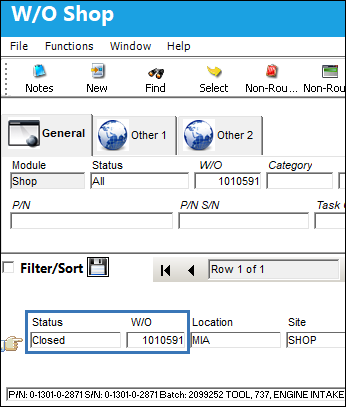
Query the Shop W/O from the W/O Shop window and the W/O status is Closed.
The following buttons offer additional functionality:
- Notes Button
- T/C Work Button
- Control Button
- W/O Button
Share
Print
|
©1997-2026 Trax USA Corp. All rights reserved. This manual may not be copied, photocopied, reproduced, translated, or converted to any electronic or machine-readable form, in whole or in part, without prior written approval from Trax USA Corp. |
 |