
 Share
Share
 Print
Print
|
|
|
|
|


Shop W/O Task Card and Non-Routine Search
The Shop W/O Task Card and Non-Routine Search window allows users to directly search for specific Shop W/O Task Cards, routine and/or non-routine, without going first through the Shop Work Order window. This search window includes both Shop W/O and Task Card specific search fields to help streamline the searching process. When selected, the window opens as follows:
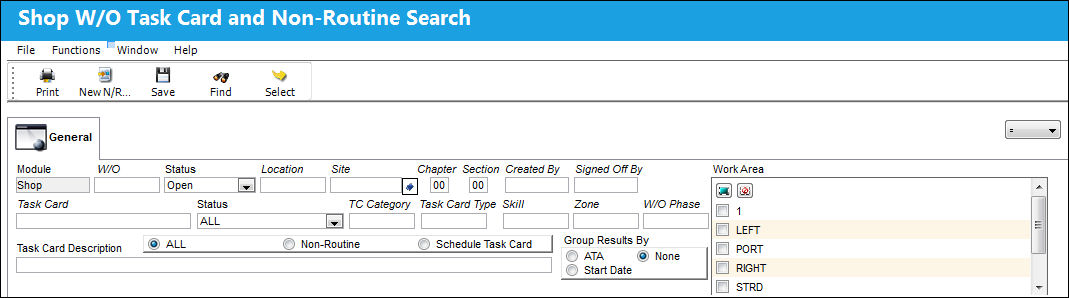
This functionality was designed as specified by a TRAX customer. The procedures intended through this functionality are part of their customized program and therefore cannot be modified by any other TRAX customer.
 This window is security-controlled via Shop/ Update/ Shop W/O Task Card and Non-Routine Search. For more information refer to the Security Explorer via the System Administration Training Manual.
The following information/options are available in this window:
_____________________________________________________________________________________
Module
The module where the Work Orders exist. The options are either Production or Shop. Shop W/Os would be searched for in the Shop module. This field defaults to the module the window was accessed through; only W/Os for that module can be searched for.
W/O
The Work Order used to categorize, manage, and schedule work requirements for aircraft maintenance.
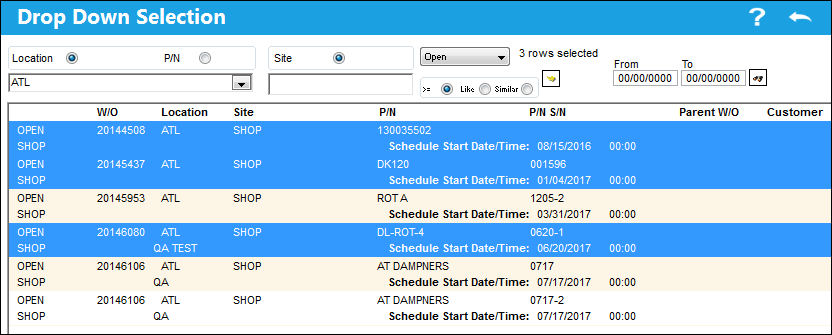
W/O Status drop-down
Once all Shop W/Os are selected, they are listed under the Task Card Description field:
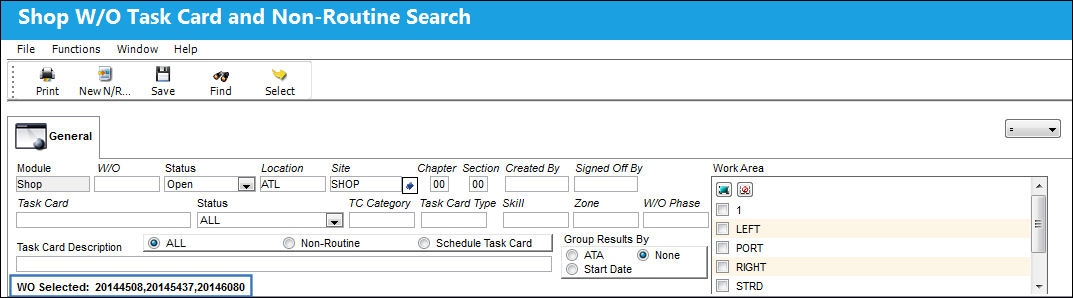
The current status of the Shop Work Order being queried. The options are ALL, Open, Completed, Closed, Hold, Line, Generation, Post Completed, and Pre/Auth. By default the status is set to Open.
Location
The Location for maintenance events, inventory stores, orders, transactions, or training events. This field defaults to the Location field of the signed-on user via their employee record in the Employee Master. For more information refer to the Employee Master, General Tab via the Settings Training Manual.
The Location field cannot be edited unless users have security access. The field is security-controlled via Shop/ Update/ Shop W/O Task Card and Non-Routine Search/ Shop W/O Task Card and Non-Routine Search Location. For more information refer to the Security Explorer via the System Administration Training Manual.
Site
The Site where the work is to be carried out (if applicable).
Multi Site Select  button
Allows users to select multiple Sites for the selected Location. When selected, a drop-down window appears listing all of the Location's Sites. Users can select multiple or all Sites listed. Once multiple Sites are selected, the Site field is grayed out.
Chapter/Section
ATA Chapter and Section reference.
Created By
The user who created the record.
Signed Off By
The lead who approved the work.
Task Card
The Task Card / Job Card that details the scheduled maintenance work.
Task Card Status drop-down
The current Status of the desired W/O Task Card. The options are Open, Closed, Hold, Defer, Cancel, On Condition, Delayed, ALL, Rejected, Pending, Creator Authorized, Lead Mechanic Authorized, Pending Inspection, Pending Deferral, Draft, and InProgress. By default, this field is set to ALL.
TC Category
The Task Card's Category, as defined in Task Card Category transaction code via the Engineering Transaction Codes. Task Card Authorization Steps are defined in System Transaction Codes by Task Card Category.
Task Card Type
The Task Card Type, as defined in the Transaction Code. This code can be used to sort and locate Task Cards.
Skill
The Skill of the Employee performing the task.
Zone
The Zone area for the Task Card.
W/O Phase
The particular phase of the work flow that this particular card pertains to.
Task Card Type radio buttons
Allows users to select from Non-Routine, Scheduled, or All available W/O Task Cards. By default this is set to 'ALL.'
Task Card Description
Users can search for text that is included in the Shop W/O Task Card Descriptions. (This works as a 'like' search; the text does not need to be exact to what is detailed in the Shop W/O Task Card Description.)
Group Results By radio buttons
Groups search results by their ATA, Start Date, or neither ('NONE,' which is selected by default).
Work Area
Allows users to move Task Cards along with the progress of the check. This field is controlled via the Production System Transaction Code 'W/O Area.'
_____________________________________________________________________________________
Once all desired search criteria has been entered, select the Find  button. The results appear as follows:
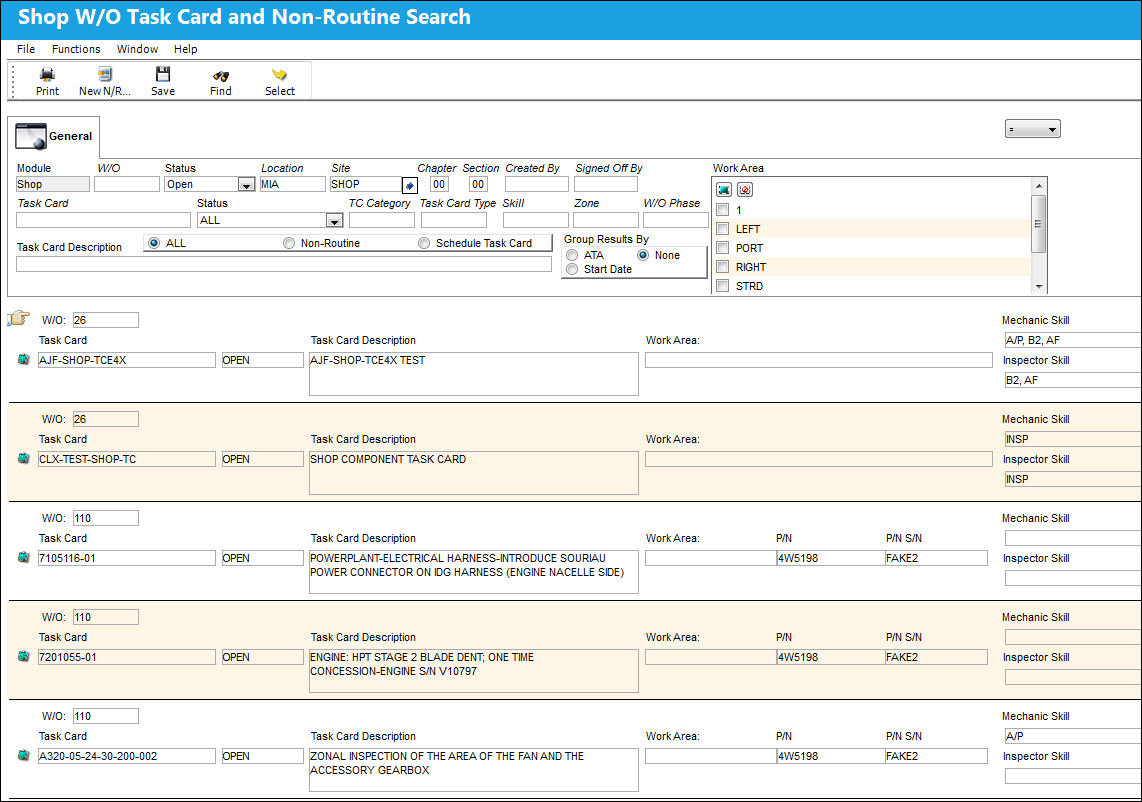
The following fields are available in the results area:
_____________________________________________________________________________________
W/O
The Work Order used to categorize, manage, and schedule work requirements for aircraft maintenance.
A/C
The individual aircraft tail number.
Task Card
The Task Card / Job Card that details the scheduled maintenance work. Routine Task Cards will contain this  icon, while Non Routine Task Cards contain this
  icon.
icon.
Status
The current Status of the desired W/O Task Card. The options are Open, Closed, Hold, Defer, Cancel, On Condition, Delayed, ALL, Rejected, Pending, Creator Authorized, Lead Mechanic Authorized, Pending Inspection, Pending Deferral, Draft, and InProgress.
Unlock button
Allows users to unlock a Shop W/O T/C that has been locked by a user. Non-Routine Task Cards are automatically locked when accessed by a user. The red text next to this button indicates who the user is that is working on the Shop W/O T/C. When a locked Shop W/O T/C is selected, the following prompt prevent blocks the user from working on the locked Shop W/O T/C.
This button is security-controlled via Production/ Update/ W/O/ W/O Task Card Item UnLock. For more information refer to the Security Explorer via the System Administration Training Manual.
Task Card Description
The description of the Task Card.
Work Area
Allows users to move Task Cards along with the progress of the check. This field is controlled via the Production System Transaction Code 'W/O Area.'
This field can be updated manually directly from the search result field. Users are able to update the specific work area by right clicking into the Work Area field and selecting from the list that appears in the Drop Down Selection pop-up.
This field is security-controlled via Shop/ Update/ Shop W/O Task Card and Non-Routine Search/ Shop W/O Task Card and Non-Routine Search Work Area. For more information refer to the Security Explorer via the System Administration Training Manual.
P/N
The Part Number reference for the aircraft part.
P/N S/N
The Serial Number for the specific serialized part.
Mechanic Skill
The Skill required by the Mechanic to complete the required work.
Inspector Skill
The Skill required by the Inspector to complete the required work.
Created By
The user who created the record.
_____________________________________________________________________________________
When users select into a scheduled Task Card from this window, they are sent to the Shop W/O Task Card window. For more information, refer to the Shop W/O Task Card, General Tab via the Production Training Manual.
From this window, the following buttons are available for functionality:
- Print Button
- New N/R Express Button
- Save Button
Share
Print
|
©1997-2026 Trax USA Corp. All rights reserved. This manual may not be copied, photocopied, reproduced, translated, or converted to any electronic or machine-readable form, in whole or in part, without prior written approval from Trax USA Corp. |
 |