
 Share
Share
 Print
Print
|
|
|
|
|


Currency Setup
Setup with Switches:
You must have the proper currency exchange information set up to use the G/L Interface module. Company Default Currency and Secondary Currency are specified in the System Transaction Configuration option:
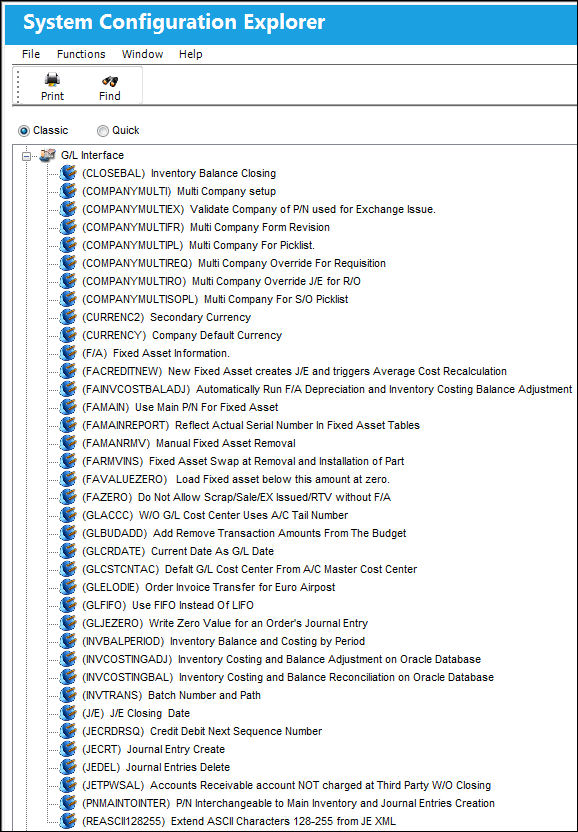
 Warning: Once set and the system is operational, these switches should not be changed without first referring to the software developers (as a database update may be required).
Setup with Transaction Codes:
Regular currency codes and rates may be entered on the system using the System Transaction Code Explorer (Settings Menu). Go to Settings / Explorer / System Transaction Code. Double click on G/L Interface. Double click Currency.
Select the Currency item and right click to create a new record or update an existing one.
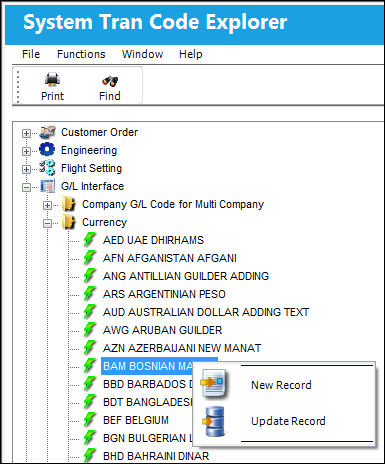
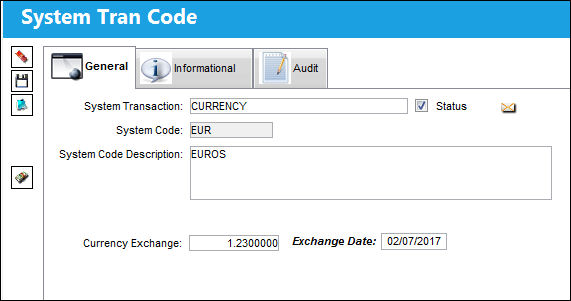
The detail window contains the currency code, description and the currency exchange rate.
The rate is the conversion from local currency to the quoted currency.
In the example below, 1 Euro equals 1.23 of the local currency (USD).
There is no limit to the number of currencies that can be entered into the system.
The rates can be updated as often as required.
The History  button is used to view the history of exchange rates for this particular exchange code. All changes to the exchange rate are logged and are available for viewing here.
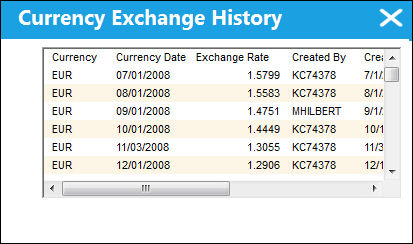
All pertinent information regarding the change is displayed on this list.
Share
Print
|
©1997-2026 Trax USA Corp. All rights reserved. This manual may not be copied, photocopied, reproduced, translated, or converted to any electronic or machine-readable form, in whole or in part, without prior written approval from Trax USA Corp. |
 |