
 Share
Share
 Print
Print
|
|
|
|
|


Since many orders are based on a requisition entered and processed earlier, users can link an Order to a Requisition by selecting the Req/Order  button. TRAX displays the following search selection screen:
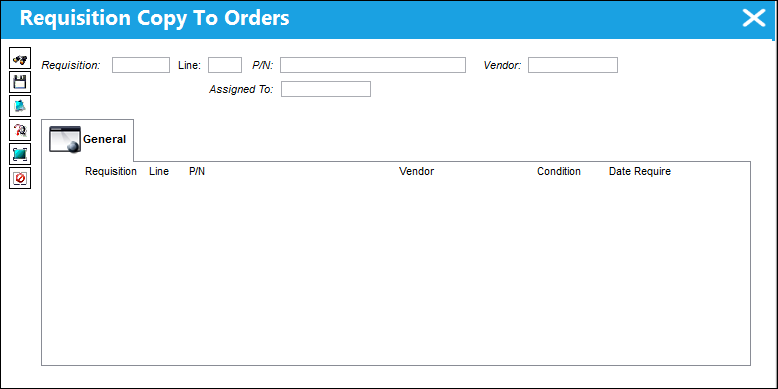
The following information/options are available in this window:
_____________________________________________________________________________________
Requisition
List of required parts for either a maintenance item or for restocking.
Line
Line Item of the Requisition.
P/N
The Part Number reference for the aircraft part.
Vendor
The system code for the service/part provider.
Assign To
User assigned to the Requisition.
_____________________________________________________________________________________
Enter the any of the above search criteria and select the Find  button.
The data matching your search selection will appear below.
Select the requisition you require by selecting the item, de-select by clicking again.
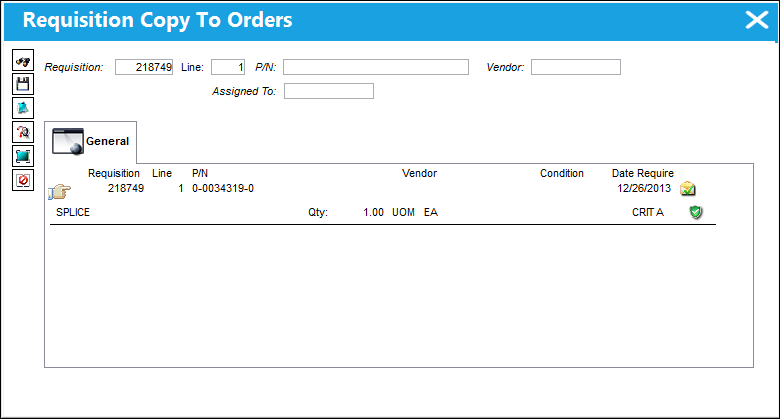
If authorization is required, the Requisition Authorization option must be used by someone with the relevant financial authority. Once the Requisition is authorized user will be able to attach the document to the order. For additional information, please refer to the Requisition Training Manual.
Once you have selected your required requisition, select the Save  button. The information from the quote (if entered) will also be brought into the order. Any of the order required fields are missing the system will request for their entry to complete the save. Additional information can be entered according to requirements. Lines can be added to the order as required (there is no limit to the number that can be added).
Once all the Orders information has been entered, exit.
If the order requires authorization by a user that has a “higher” security clearance (i.e. the order was created by a user who has exceeded the authorization limit, see the TRAX Setting Training Manual, Authorization section for additional information), the system will then ask if you want to release the order for authorization.
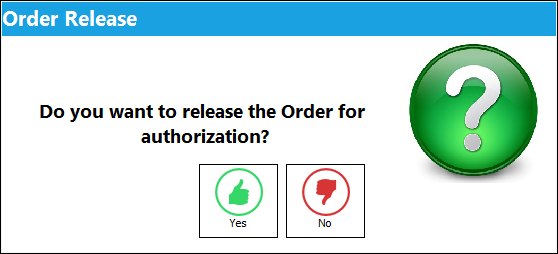
For Purchase Orders, this order authorization prompt will appear once the P/O detail window is exited, not after each individual Requisition is saved.
Choose 'Yes' to release to authorization.
The Order Authorization option must now be used by someone with the relevant financial authority.
Please refer to the Order Authorization section for additional information regarding the Order Authorization option.
The Repair Order Print will appear:
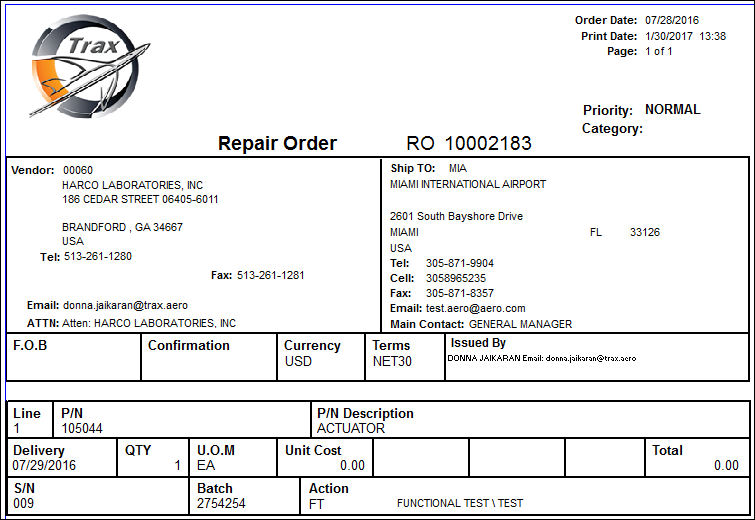
The user has the option of printing (Print  button) or e-mailing (E-mail
  button) this document.
Share
Print
|
©1997-2026 Trax USA Corp. All rights reserved. This manual may not be copied, photocopied, reproduced, translated, or converted to any electronic or machine-readable form, in whole or in part, without prior written approval from Trax USA Corp. |
 |