
 Share
Share
 Print
Print
|
|
|
|
|


Navigation Panel

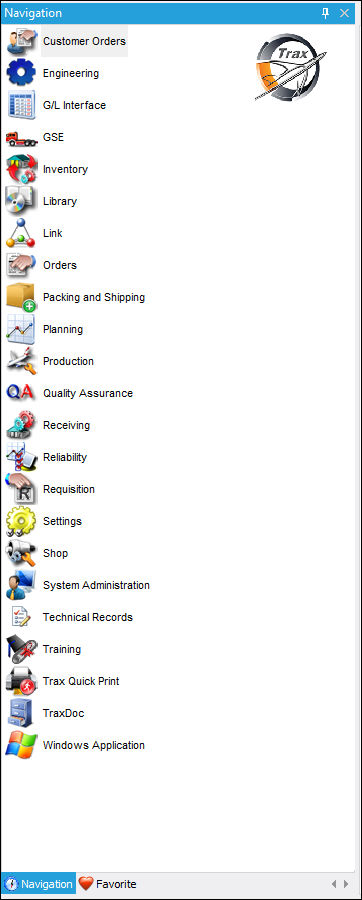
The Version 12.5 Navigation Panel opens up along with the Dashboard upon logging into TRAX. It is located on the left hand side of the application's framework. This panel remains open throughout the use of the application and stands as a reference point when opening different windows in the system. The Navigation Panel can be closed by selecting the Exit  button, and pinned to the workspace by selecting the Pin
  button. Both options are located on the upper right hand side of the panel. Select the scroll bar to access all modules available in the system.
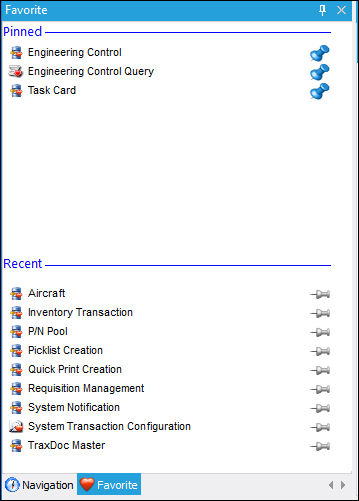
Favorites tab
In the Navigation Panel, the Favorites tab provides two separate sections. The Pinned section designates all windows that the user specifies as a 'Favorite' and therefore pins to the Favorites panel. The Recent section on the lower half of the panel specifies all windows the user has recently visited. The Pin and Unpin buttons have been added to the Favorites panel. These allow the user to remove windows from the Favorites panel by selecting the Remove From Favorites  button located to the right of the window. To add windows to your favorites, select the Add To Favorites
  button.
The user is able to add to the Favorite menu by selecting the Add to Favorite button located at the top right of all windows in the application. For more information, refer to Add to Favorite Button, via System Standards Manual.
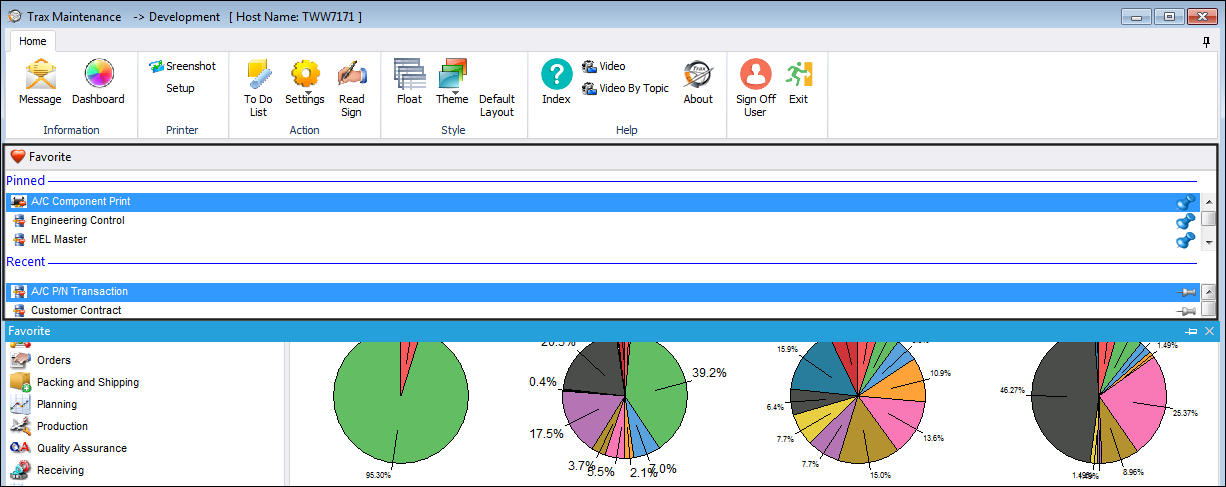
In addition, the user is able to move the Favorite menu to a different location on their workspace.
Share
Print
|
©1997-2026 Trax USA Corp. All rights reserved. This manual may not be copied, photocopied, reproduced, translated, or converted to any electronic or machine-readable form, in whole or in part, without prior written approval from Trax USA Corp. |
 |