
 Share
Share
 Print
Print
|
|
|
|
|


JBU Custom Dashboard
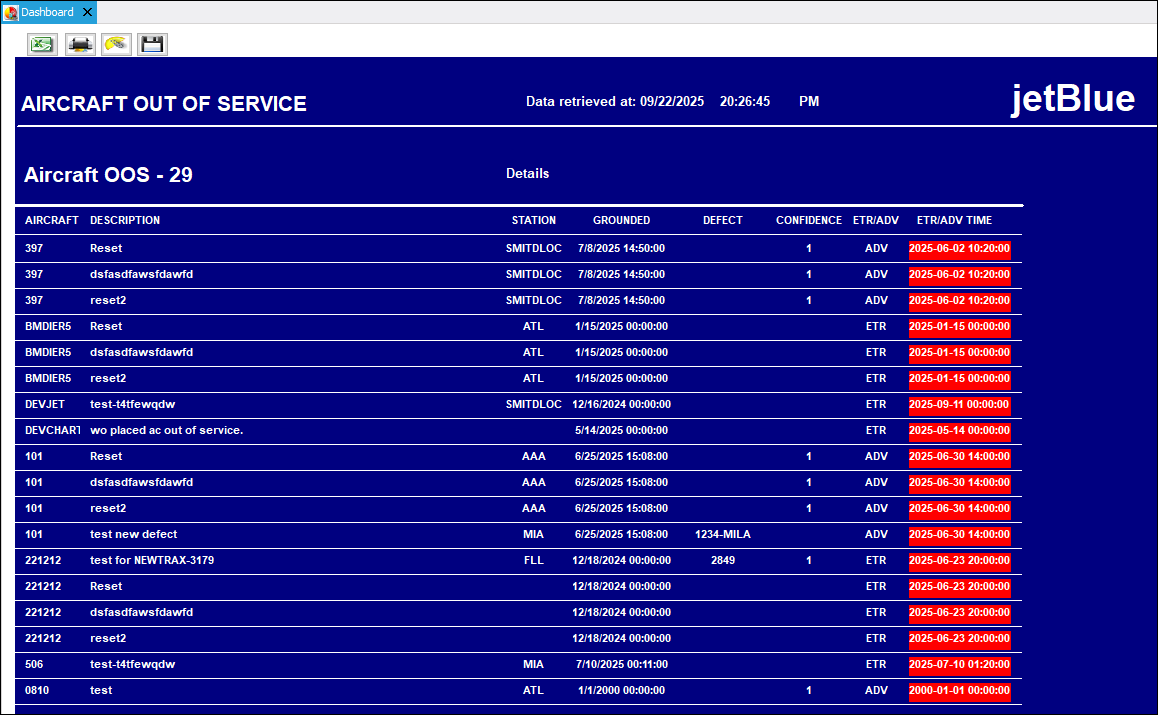
When the user first logs in to trax, they will be taken to the Dashboard. The dashboard displays a list of the current Out of Service Aircraft. The dashboard provides the time this information most recently updated. The user has the ability to sort and filter for specific aircraft data in the table below, as well as permanently save desired filters.
Note: This window is customer specific and is not available to all operators.
The following information/options are available in this window:
_____________________________________________________________________________________
Aircraft Out of Service
The date and time that the aircraft went out of service for required maintenance.
Excel button
The Excel  button is available via many of the Import From File windows throughout the system and allows the user to access an excel spreadsheet with the columns already populated. For more information, refer to the Excel Button via Standard Buttons in the System Standards Training Manual.
Print button
Select the Print  button to activate the print functionality (this may be a report or print of the current screen.) For more information, refer to the Print button, via Standard button in the System Standards Training Manual.
Email button
Select the E-mail  button to send the currently selected document to an email recipient. For more information, refer to the Email button, via the System Standards Training Manual.
Save button
Select the Save  button to save entered or changed information. A message box will appear to allow confirmation of save. Select 'OK' to save the record or 'Cancel' to delete it. The information in the record will be saved. For more information, refer to the Save button via the System Standards Training Manual.
OOS
The date and time that the aircraft when out of service for required maintenance.
Aircraft
The individual aircraft tail number.
Description
The description of the A/C.
Station
The station at which the aircraft is placed Out of Service.
Grounded
The date ans rime at which the aircraft was grounded.
Defect
The defect number (or log book number).
Confidence
This is a System Trans code used to the establish the confidence level in which the A/C will be put back into service within the time specified. This field is not available when the aircraft is In Service.
ETR/ADV
The date and time that the aircraft will be back in service. These fields are not available when the aircraft is In Service.
ETR/ADV Time
The date and time that the discrepancy was reported. The default is the time that the Defect Report is being created and can be edited as required.
Yellow  - When the ETR/ADV time is within one hour of the present time, the time will be highlighted in Yellow.
Red  - When the ETR/ADV time has surpassed the present time, the time will be highlighted in Red.
_____________________________________________________________________________________
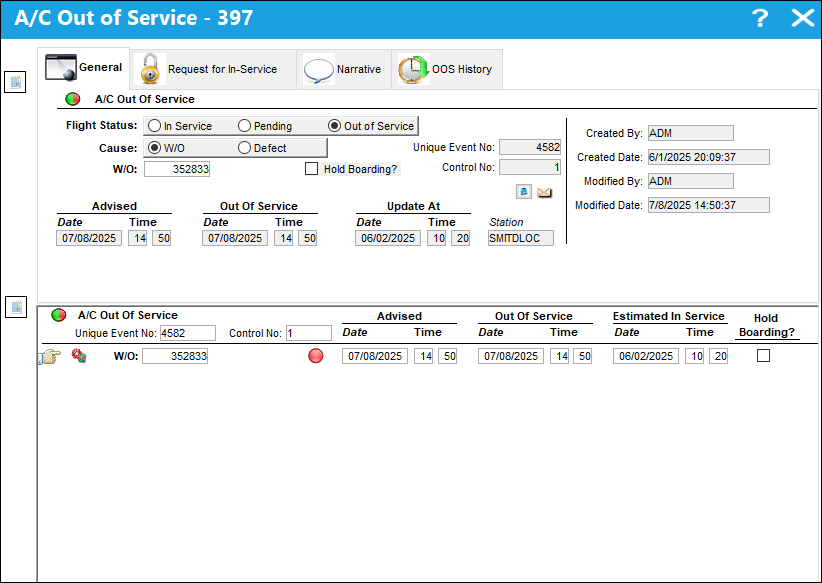
The user can double click on a line item to open the A/C Out of Service window to view or modify existing data. For more information, refer to the A/C In/Out of Service Button, via Defect Report in the Technical Records Training Manual. A selected line item is highlighted in light blue.
Share
Print
|
©1997-2026 Trax USA Corp. All rights reserved. This manual may not be copied, photocopied, reproduced, translated, or converted to any electronic or machine-readable form, in whole or in part, without prior written approval from Trax USA Corp. |
 |