
 Share
Share
 Print
Print
|
|
|
|
|


NONE is the default TRAX Editor. Users may enter alphanumerical text only. The NONE Editor does not allow for rich text editing such as bold, underline, italics, or any font or color options.
Go to Engineering/Update/Task Card.
Select the New  button. Enter the mandatory Task Card information in the General Tab. Select the Optional 1 Tab.
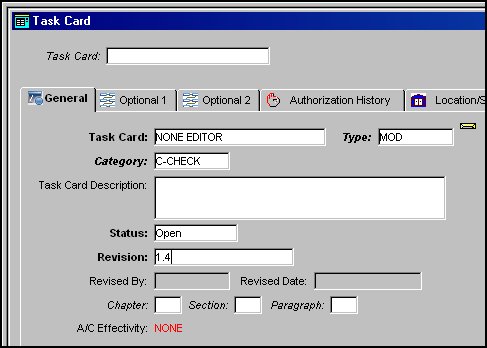
Populate all mandatory information. Be sure that the desired Editor is selected (i.e. NONE) before saving the Task Card.
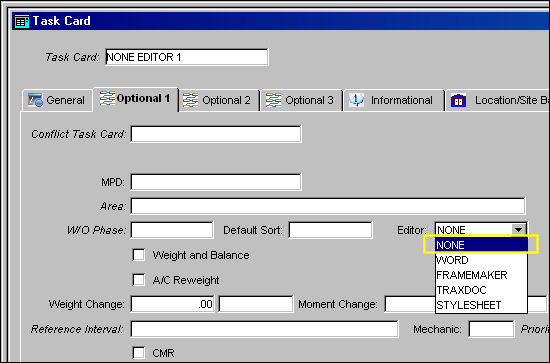
Select the Save  button. The Save prompt will appear. Select OK. The Editor field will be grayed out, therefore locking the Editor selection. Select the Task Card Item
  button. When the NONE Editor is selected, the Task Card Item Window will appear as shown below. Enter the appropriate Task Card item instructions.
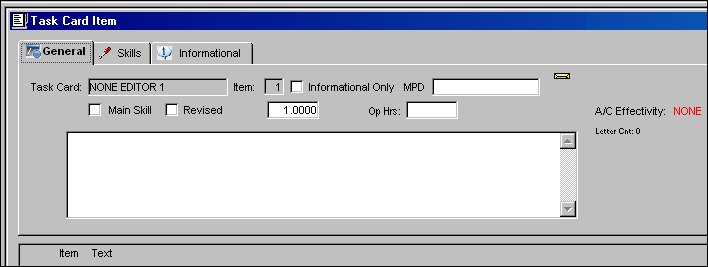
The following information/options are available in this window:
_____________________________________________________________________________________
Task Card
The Task Card / Job Card that details the scheduled maintenance work.
Item
The item number required to accomplish a Task Card.
Informational Only checkbox
Select if this item is for an informational step only (no labor required). When selected, the Main Skill checkbox will be removed from this window.
MPD
The Maintenance Planning Document reference for this Task Card.
Main Skill checkbox
Select this checkbox if this is the primary skill of the Task Card. The user can then organize the Task Cards by primary skill (using filter and sort functionality via the related modules such as Production Work Orders.)
 TCMSMAN - When set to Yes, the main skill for a Task Card Item is mandatory. The system will not allow you to exit the Task Card item window without the Main Skill checkbox selected.
Revised checkbox
If the item has been revised selecting this checkbox would flag the Task Card item with a revision bar on the left of the item on the Task Card print when printed out. For additional information refer to Switch RMVRVBAR via the Engineering Switches Manual.
Note: If a customer requires this functionality, it must be indicated on their customized Task Card print modification requests.
- RMVRVBR - When set to Yes, the Revised checkbox (via Engineering/ Update/Task Card/Items button) will be unchecked once a Revision is applied to the Task Card.
Item Text
This field is used for the description of the item (i.e., the actual work instructions required for the completion of the Task Card item).
Note: The Text field may not appear if another editor other than 'None' is selected against the Task Card or defaulted via Switch TCEDITOR.
A/C  Effectivity
The record will display an alert message that indicates how Effectivity has been set up. If all aircraft are effective, "ALL" will be displayed on the General Tab of the Task Card and on the Task Card Item window. If some aircraft are effective, "PARTIALLY" will be displayed. If no aircraft are effective, "NONE" will be displayed. If A/C Effectivity is set to 'All' and the currently logged in user only has security access to specific aircraft, Effectivity will display as 'Partial'.
- TCITMEFF - When set to Yes, the system will allow specific Task Card Items to be effective to the aircraft. If set to No, application of A/C Effectivity is not required.
Note: When set to Yes, the user must apply A/C Effectivity for each item. Only Task Card items effective to the aircraft on the Work Order will appear on the Work Order.
Op Hours
Operation Hours.
Letter Ct:
Number of characters in item text field (maximum 5000).
_____________________________________________________________________________________
Select the Skills Tab and populate all mandatory fields. Select the Save button. The Save Prompt will appear. Select OK.
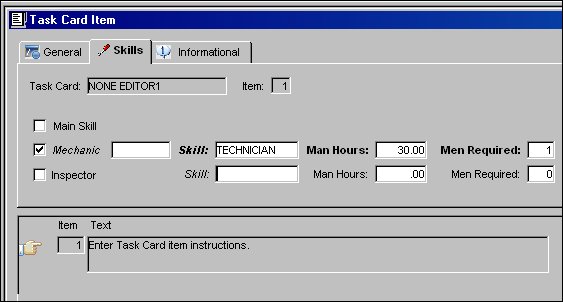
Repeat above instructions as needed to create multiple Task Card items.
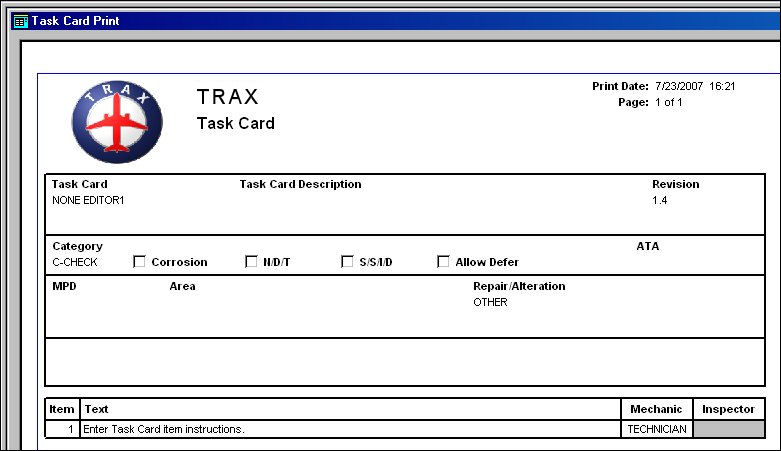
Select the Print  button to view the Task Card print.
TRAX displays the Task Card Print as follows:
Share
Print
|
©1997-2026 Trax USA Corp. All rights reserved. This manual may not be copied, photocopied, reproduced, translated, or converted to any electronic or machine-readable form, in whole or in part, without prior written approval from Trax USA Corp. |
 |