
 Share
Share
 Print
Print
|
|
|
|
|


The W/O Shop Detail window is accessed by selecting a W/O from the Shop Work Order Header.
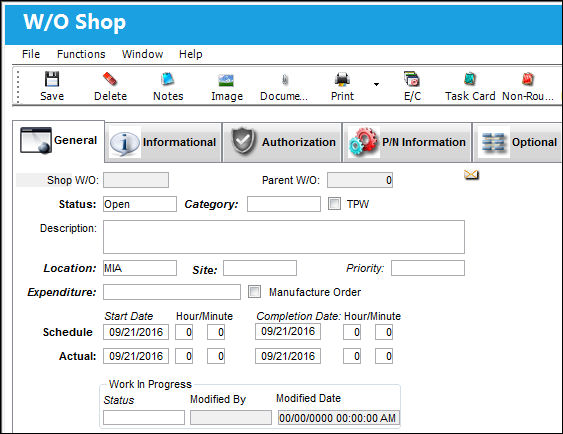
The following information/options are available in this window:
_____________________________________________________________________________________
Shop W/O
The Shop Work Order reference number.
Parent W/O
If this Shop W/O acts as a “child” to a parent Shop W/O, that parent Shop W/O should appear here. For more information on how to create parent/child W/O relationships, please refer to the Change The Parent Work Order button section of the Productions manual.
Re-Open  button
Select this button to re-open a Post-Completed W/O. Upon selecting the Re-Open button, the Notes window will appear, where the user must enter a note before the W/O can be re-opened. Entering a note will automatically change the W/O to Open Status. Any compliances written when the W/O was Post-Completed will be unchanged. Additionally, the compliances of new E/Cs added to the W/O will be written when the W/O is Post-Completed again.
 Note: This button is security-controlled via Security Explorer/ Production/ W/O/ W/O Status Edit. For more information refer to the Security Explorer via the System Administration Training Manual. Users with security to the Re-Open button will override the setting of the Production switch
  PPCWOFBR.
Re-Open Notes  button - Once a W/O has changed to Open Status by using the Re-Open button, the Re-Open Notes button will appear next to the W/O number. From here, users can view, edit, or add notes against the W/O record in the Note Pad window. Users without security to the Re-Open button can only view notes in the Note Pad window.
Status
The status of the Shop Work Order.
Closed - Shop W/O is closed, no updates allowed.
Open - If Shop W/O is Open, and a rotable is issued and later returned, the system will force the user to do a Work Order Credit, which may not be the correct transaction.
Completed - Shop W/O is completed but not closed, updates are allowed.
Hold - Shop W/O is on Hold, no updates allowed, but not closed.
Line - Shop W/O is for Line Maintenance Issues only (items returned will not require Credit Work Order). Because it is necessary for material to be issued to a Shop W/O on the system, some companies prefer to use specific W/O's for this purpose. A Shop W/O could be created for every aircraft turn around but this may cause an unacceptable administrative burden. For the purposes of creating Shop W/O's with material requirements, it is possible to select the Line status rather than Open status (when creating the new Work Order). The Line status will allow rotable parts to be issued to the Shop W/O and later returned U/S (if removed at a later time). For additional information, please refer to the Shop W/O closing section regarding closing Line Work Orders.
Generation - Shop W/O is in the process of being created.
Category
The Shop Work Order Category.
Third Party checkbox
If the Shop Work Order is for a Third Party, then the Third Party Flag should be selected. The system will automatically ask for customer details following Save.
 With the TPW checkbox selected, it is mandatory to link a Customer Contract. Not doing so will not allow for the Third Party Shop Work Order to be saved.
Description
The description of the Shop Work Order.
Location
The Location for maintenance events, inventory stores, orders, transactions, or training events.
Site
The Site where the work is to be carried out (if applicable).
Priority
The priority of the Work Order (e.g., Urgent).
Expenditure
The Expenditure Code for the Shop W/O. This code relates to the financial side of the Shop W/O. This is a reference to the matrix of financial Account numbers that the Shop Work Order will send data to. See G/L Interface manual for additional information.
Manufacture Order checkbox 
Select to indicate a Manufacture Order. The Manufacture Order serves as a way to track the fabrication of parts in the company's shops. By selecting this checkbox a Manufacture Order will be automatically created and authorized.
G/L Company
This field is only available when the Manufacture Order checkbox is selected and G/L Interface Switch COMPANYMULTI is set to 'Yes.' This feature is part of the Multi-Company Shop functionality. The associated parent company code is entered into this field. For more information regarding the Multi-Company functionality refer to Switch COMPANYMULTI via the G/L Interface Switches Manual.
A/C
The Aircraft for the Shop W/O. If work is for non-aircraft work, this field can be left blank.
A/C S/N
The Aircraft's Serial Number which is provided by the manufacturer. This serial number is like a registration number, but it is not dependent on a country code and therefore never changes.
Schedule
The scheduled start and completion date/time for implementing the Work Order.
Schedule Start Date
The date/time that the work is scheduled to begin. The Start Date does not affect whether the Work Order may be deleted or not. However, if the work has been started, the Work Order may not be deleted.
Completion Date
The date/time that the work is scheduled to be completed.
Flight
Allows mechanics working on Shop W/O to identify which flight (gate) the A/C will be arriving at.
Actual
The actual start and completion date/time for implementing the Work Order.
Actual Start Date
The date that the W/O is actually started. This may differ from the previously scheduled date. If work has been started, this date cannot be deleted.
Completed On Tech Log
Allows entry of a defect number related to the closing of the Work Order.
Shop W/O Description Phrases
Users can select from a listing of commonly used descriptive phrases to populate the Description field. These are optional and are intended to facilitate the data entry process. Description phrases are controlled through the W/O Shop Description Pre-defined Phrases transaction code via Settings/Explorer/System Transaction Code.
This transaction code is security-controlled via Settings/Explorer/System Transaction Code/W/O Shop Description Pre-defined Phrase in the Security Explorer. For more information refer to the Security Explorer via the System Administration Training Manual.
_____________________________________________________________________________________
Share
Print
|
©1997-2026 Trax USA Corp. All rights reserved. This manual may not be copied, photocopied, reproduced, translated, or converted to any electronic or machine-readable form, in whole or in part, without prior written approval from Trax USA Corp. |
 |