
 Share
Share
 Print
Print
|
|
|
|
|


Select the Part Status Indicator button to display parts available in inventory, on order, or reserved for a particular location (partial/all/none).
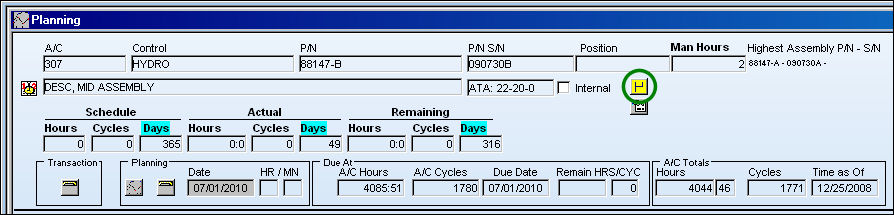
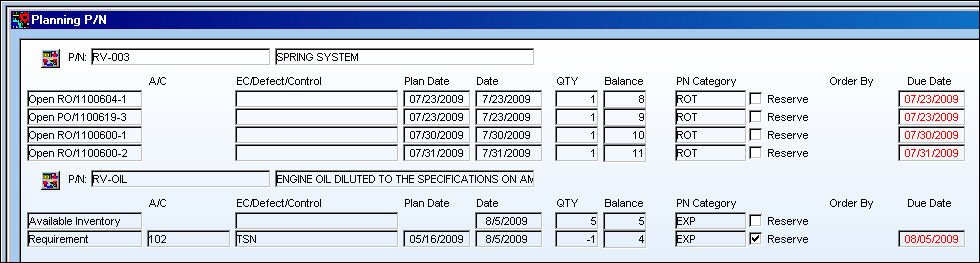
All available parts and related information are displayed below:
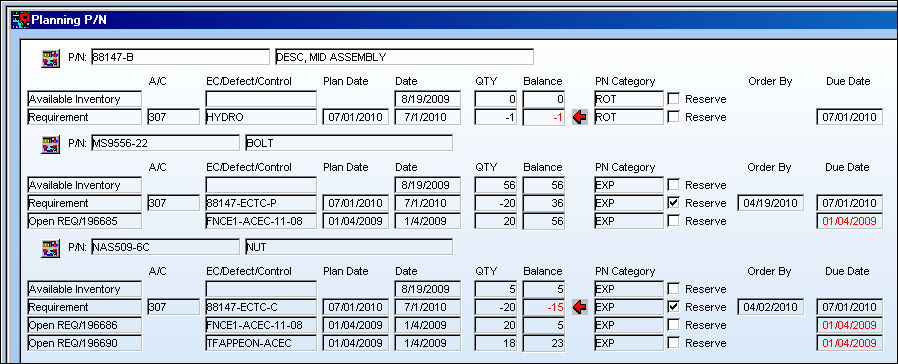
The following information/options are available in this window:
_____________________________________________________________________________________
Part Status Indicator  button
The green status icon indicates that all spares required are available in inventory.
Part Status Indicator  button
The yellow status icon indicates that some, but not all spares are available in inventory.
Part Status Indicator  button
The red status icon indicates that no spares are available in inventory.
_____________________________________________________________________________________
Planning will always show that it requires the same part as if it were being replaced for P/N Controls.
Parts will not be reserved for P/N Controls unless a Task Card is attached to that part.
Part Requirements:
When selecting the Part Status Indicator button, TRAX now reflects all Part requirements set up in the P/N Control window.
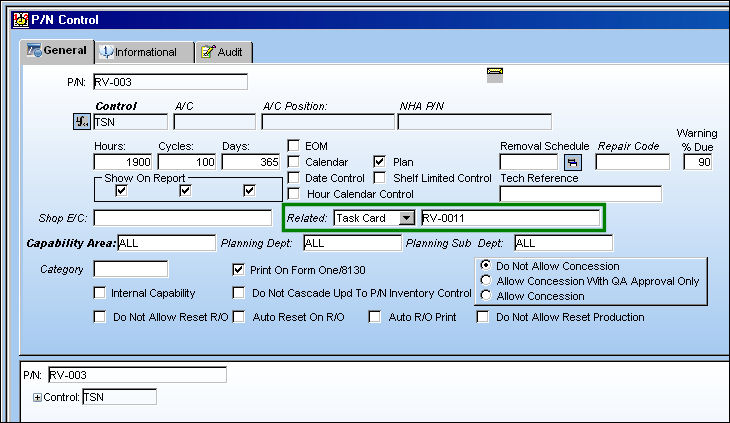
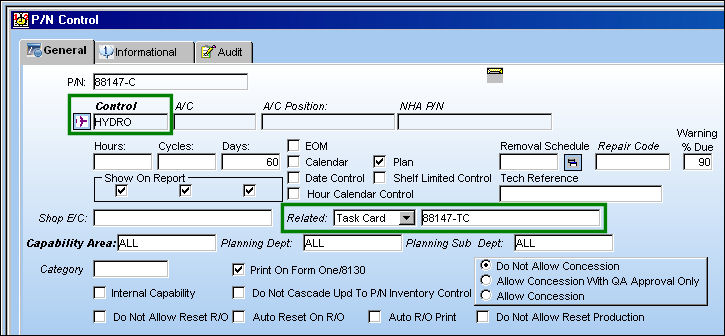
The following Control has Task Cards associated to it:
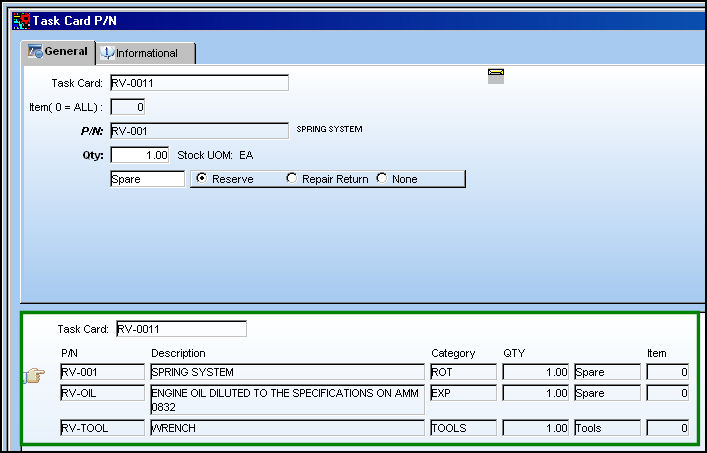
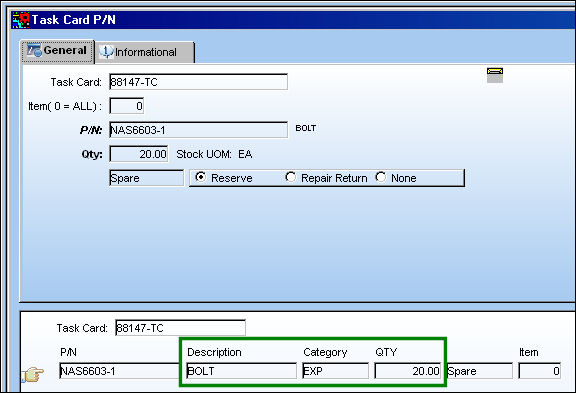
The following parts are associated to the Task Card:
From the Planning Detail window, select the Part Status Indicator button.
TRAX displays the following:
Related Task Card and E/C Display:
The following Hydro P/N Control for P/N 88147-C has the following related Task Card attached to it:
The Related Task Card has a P/N Requirement of 20 bolts:
Go to Planning/Query/A/C Planning Query
Run the A/C Planning Query for the following P/N Control:
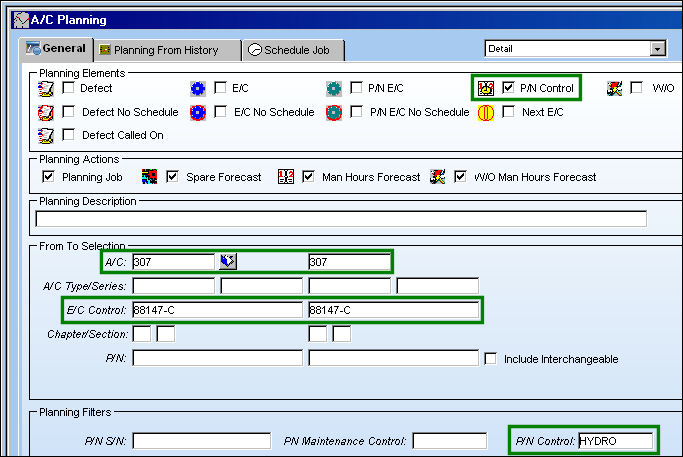
When the planning results appear, select the Part Status Indicator button.
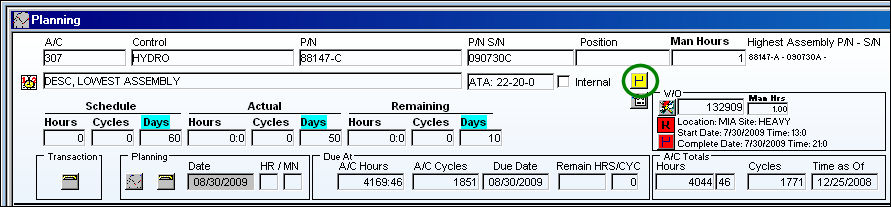
The results illustrate that the P/N Requirement takes into consideration the bolt from the Related Task Card:
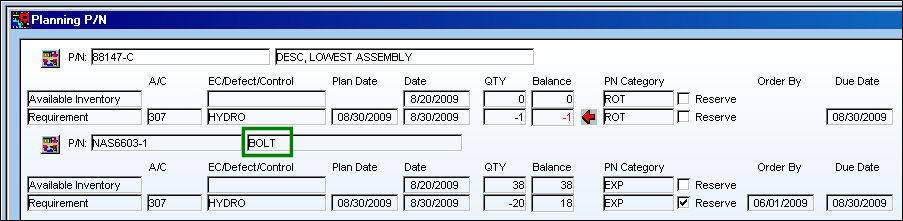
The above function also works the same way for a Related E/C.
Share
Print
|
©1997-2026 Trax USA Corp. All rights reserved. This manual may not be copied, photocopied, reproduced, translated, or converted to any electronic or machine-readable form, in whole or in part, without prior written approval from Trax USA Corp. |
 |