
 Share
Share
 Print
Print
|
|
|
|
|


A/C Planning (Highest Assembly View), General Tab
The Highest Assembly View displays the A/C-related information that meets the specified search parameters with the first due Next Highest Assembly, or NHA, for a part.
The NHA must have a P/N Control or E/C.
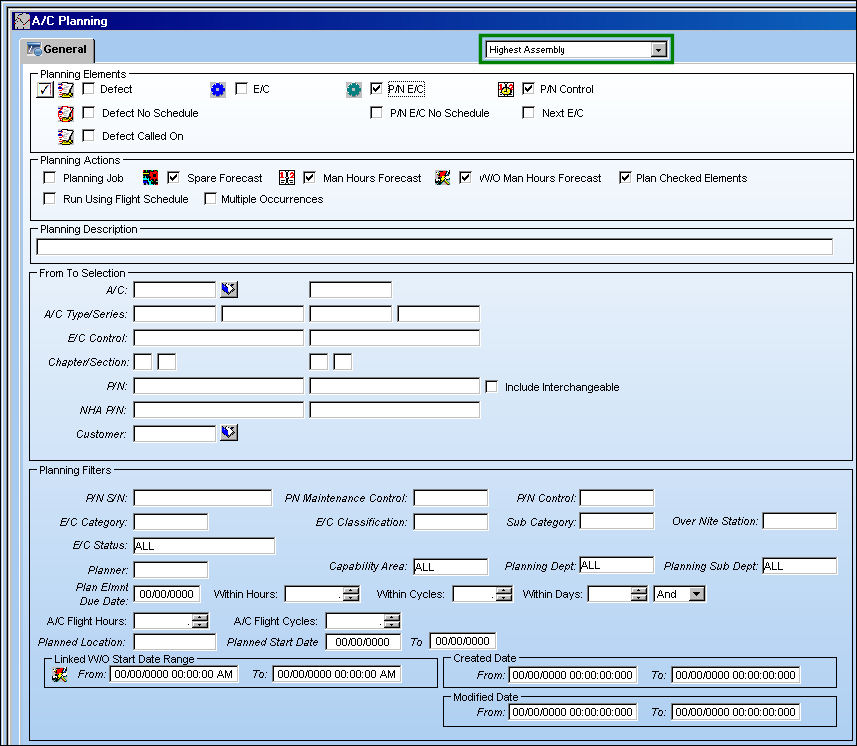
From the A/C Planning Query window, select the Highest Assembly View. Enter all necessary search criteria, as described below, and click on the Find  button.
Additional information for relevant features can be found through the following:
Planning Elements:
The following information/options are available in this window:
_____________________________________________________________________________________
Select Tasks  button
Select this button to select the following checkboxes:
- Defect
- E/C
- P/N E/C
- P/N Control
Defect checkbox
Select this checkbox to filter by Defect Reports.
If this checkbox is selected, the system displays the Defect Type, Defect Category, Defer Category, MEL radio button, CDL radio button, GMM radio button, ALL radio button, Terminating Defect checkbox, and Defect Interval drop down in the Planning Filters section.
Defect No Schedule checkbox
Select this checkbox to filter by Defects with No Schedule.
If this checkbox is selected, the system displays the Defect Type, Defect Category, Defer Category, MEL radio button, CDL radio button, GMM radio button, ALL radio button, Terminating Defect checkbox, and Defect Interval drop down in the Planning Filters section.
Defect Called On checkbox
Select this checkbox to filter by Defect Called On. When selected, those Defects which are controlled by an E/C will appear in the planning query results. This option allows the user to see all Defects that have been deferred onto an E/C. The E/C schedule will be inherited by the Deferred Defect.
If this checkbox is selected, the system displays the Defect Type, Defect Category, Defer Category, MEL radio button, CDL radio button, GMM radio button, ALL radio button, Terminating Defect checkbox, and Defect Interval drop down in the Planning Filters section.
E/C checkbox
Select this checkbox to filter by E/C.
If this checkbox is selected, the system displays the E/C Classification and Sub Category fields in the Planning Filters section.
P/N E/C checkbox
Select this checkbox to filter by P/N E/C.
If this checkbox is selected, the system displays the P/N fields in the From To Selection section and the P/N S/N, P/N Sub Category, E/C Classification, and Sub Category fields in the Planning Filters section.
P/N E/C No Schedule checkbox
Select this checkbox to filter by P/N E/Cs without a schedule. Examples of No-Schedule E/Cs are: company convenience, do at next shop visit, etc.
If this checkbox is selected, the system displays the P/N fields in the From To Selection section and the P/N S/N, P/N Sub Category, E/C Classification, and Sub Category fields in the Planning Filters section.
P/N Control checkbox
Select this checkbox to filter by P/N Control (i.e. TSO, REP, HYDRO).
If this checkbox is selected, the system displays the P/N fields in the From To Selection section and the P/N S/N, PN Maint Control, P/N Control, and P/N Sub Category fields in the Planning Filters section.
Next E/C checkbox
Select this checkbox to view all linked E/Cs coming due as of the To Date entered.
To Date - This field only appears when the Next E/C checkbox is selected. Enter the To Date of linked E/Cs coming due.
W/O checkbox
Select this checkbox to filter by Work Order.
If this checkbox is selected, the system displays the W/O Location, Linked W/O Start Date Range, and W/O Schedule Start Date/Time Range fields in the Planning Filters section.
_____________________________________________________________________________________
Planning Actions:
The following information/options are available in this window:
_____________________________________________________________________________________
Deselect Actions  button
Selecting this button will deselect the following checkboxes:
- Spare Forecast days
- Man Hours Forecast
- W/O Man Hours Forecast
Planning Job checkbox
Select the Planning Jobs checkbox to call on the following configuration switch:
-
 PLNJOBACNO - (Activate Planning Job and set the number of task that will be done concurrently). If set to Yes, the A/C Tasks are processed simultaneously up to the number set in the Config Number field. In the case below, the Config Number is set to 8, therefore up to 8 of the A/C selected Tasks are processed in parallel. If set to No, A/C Tasks are processed separately one at a time. This checkbox has been removed in TRAX Version 11 and all later releases.
Selecting this checkbox also places the planning job in the Planning History tab.
- PLNHISTML - (Determine Planning History Time Limit). If set to Yes, the user can use the Config Number field to determine the limit for the Planning History records. The Config Number field is set to 1 hour. If set the No, the Planning History records will default to 8 hours and the Planning Jobs in the Planning History Tab will remain in the Planning From History tab for 8 hours.
Whether this checkbox is selected or deselected, Planning will no longer run parallel with TRAX Database Jobs, but will still run independently from TRAX.
Spare Forecast checkbox
If checked, a P/N icon will appear next to all items in the A/C Planning Query results if they require parts from inventory in order to be accomplished. The P/N icon will appear in any of three colors to indicate the current availability of the part. Green will display if all parts required are available in inventory. Yellow will display if some, but not all parts are available in inventory. Red will display if no parts are available in inventory. If unchecked, the P/N icon will not appear.
Days drop down - When the Spare Forecast checkbox is selected, the Days drop-down menu appears, allowing the user to select the number of days to forecast the availability of spares required for maintenance. If the number of days is not specified, the forecast will account for the entire duration of the query. This option allows the planner to limit the amount of data being queried to the near future. Limiting the spares forecast allows for the query to run more efficiently.
Man Hours Forecast checkbox
Select this checkbox to generate a forecast of required Man Hours. These hours are pulled from the Task Card(s) related to the Planning elements.
W/O Man Hours Forecast checkbox
Select this checkbox to generate a forecast of required W/O Man Hours which includes Non-Routines.
Elements checkbox
This checkbox has three different settings:
Plan Checked Elements - Will display tasks that have the Plan checkbox selected.
ALL Elements - Choose this option to query for Defects, E/Cs or P/N Controls that have their respective Plan checkbox either selected or not selected.
Plan Un-checked Elements - Choose this option to query for Defects, E/Cs or P/N Controls that have their respective Plan checkbox not selected.
The outcome of the selection/de-selection of the above three checkboxes will depend on the setting of the Plan checkbox (i.e. Plan, Plan E/C, Plan Defect) for the planning elements. The system will default to the Plan Checked Elements checkbox.
Users must have security to access this checkbox.
Run Using Flight Schedule checkbox
When selected, the forecast will be based upon a flight schedule. Once that flight schedule is surpassed, the forecast will then become based on the time the planning is run in calculation with the schedule.
- PLNAUTO7D - (Activate Seven Day Forecast automatically at set interval.) - If set to Yes, this switch will activate the Seven Day Forecast window in the Interactive Planner. It will also automatically set a Planning Job to forecast the tasks for the next seven days. If set to No, the Seven Day Forecast will not be activated.
This option should only be used with the Interactive When selected, the forecast will be based upon a flight schedule. Once that flight schedule is surpassed, the forecast will then become based on the time the planning is run in calculation with the schedule.Planner View.
Multiple Occurrences checkbox
Select this checkbox to calculate the number of occurrences for a planning element within the indicated time span. This function queries every due date that falls within the selected time span for each queried record. For example, if you query an E/C for a 12-month time span, every due date for that E/C within the next 12 months will be displayed. However, if the first due date occurs outside the specified time span for any queried record, only that first occurrence will be displayed. For example, if the first due date for an E/C occurs in 13 months but the parameter was set to 12 months, only that first occurrence in 13 months will be displayed.
If this checkbox is selected, the W/O, Defect No Schedule, E/C No Schedule, P/N E/C No Schedule, and Defect Called On checkboxes are removed from the Planning Elements section and the Plan Elmn Due Date, Within Hours, Within Cycles, Within Days, and And/Or drop down options are removed from the Planning Actions section. Additionally, the checkbox becomes the Calculate Multiple Occurrences for the Next (number of) Months option.
Calculate Multiple Occurrences for the Next (number of) Months - With the Multiple Occurrences checkbox selected, the user can query for multiple occurrences of a maintenance event in 12 month intervals (i.e 12, 24, 36 etc.).
Run in Background
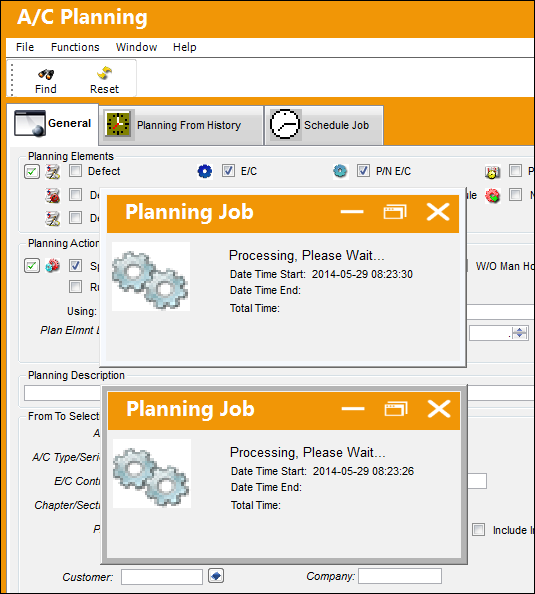
Select this checkbox to have one or multiple planning queries run in the background.
Plan Element Due Date
The Planning query will only return planning element items that are due before the date entered in this field.
Within Hours/Cycles/Days
The Planning Query will only return maintenance events that have a Remaining Schedule that is less than or equal to the specified number of Hours/Cycles/Days.
And/Or drop down
Select 'And' to search for any Planning Elements which meet all search criteria. Select 'Or' to search for any Planning Elements which meet any search criteria. (i.e. Within Hours, Cycles and/or Days). Utilizing the 'Or' selection with the 'Within Days' functionality looks at the due date/current date, not just the remaining days of an E/C.
_____________________________________________________________________________________
Planning Description:
The following information/options are available in this window:
_____________________________________________________________________________________
Planning Description
Enter a description of the planning maintenance job the user will run.
_____________________________________________________________________________________
From To Selection:
The following information/options are available in this window:
_____________________________________________________________________________________
A/C
Enter the From-To aircraft tail number range for the forecast request. For additional information regarding Aircraft, please refer to the A/C Master, General Tab via the Settings Training Manual.
Select A/C  button
Select this button to access a drop down selection of aircraft to select from and filter by. Select the Select All  button to select all A/C. Select the Deselect All button to deselect all A/C. Click on the Select
  button to select the marked A/C.
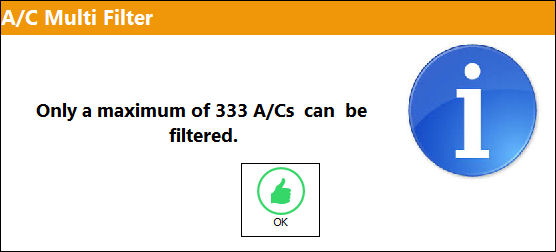
If the number of A/Cs selected exceeds the maximum number, the following information box will appear:
A/C Type/Series
Enter the From-To aircraft type/series range for the forecast request. For additional information regarding A/C Type/Series, please refer to the A/C Type Series, General Tab via the Settings Training Manual.
E/C Control
Enter the From-To E/C range for the forecast request. For additional information regarding the E/C Control, please refer to the Engineering Control, General Tab via the Engineering - E/C Training Manual.
Select E/C button 
Select this button to access a drop down selection of E/C's to select from and filter by. Multiple E/Cs may be selected. The number of selected E/C's shown above, will display next to the E/C Control field. Select the Select All button to select all E/Cs. Select the Deselect All button to deselect all E/Cs. Click on the Select button to select marked E/Cs.
Chapter / Section
Enter the ATA Chapter/Section range for the forecast request. For additional information, refer to ATA Specifications via the Settings Training manual.
P/N
The Part Number reference for the aircraft part. Enter the From-To part number range for the forecast request.
Include Interchangeable checkbox
Select this checkbox to include interchangeable parts in the query. If checkbox is selected, both Main and Interchangeable P/N E/Cs will appear in the query. From the Drop Down Selection window, select the P/N Interchangeable  button. The Interchangeable P/Ns are displayed. Select an Interchangeable P/N. The Interchangeable P/N will be populated in the P/N field in the A/C Planning Query window. If the checkbox is deselected, only the Main P/N E/C will appear in the query.
Customer
The Customer field allows users to search for results related to the selected Customers. This field is mapped to the Customers listed via the Settings/Update/A/C Master, Other 1 tab.
Select Customer button
Select this button to access a drop down selection of customers to select from and filter by. Select the Select All button to select all Customers. Select the Deselect All button to deselect all Customers. Click on the Select button to select the marked Customer(s).
Company
The Company used to auto generate the E/C reference. For additional information regarding the Company field, please refer to the Engineering Control, General Tab via the Engineering - E/C Training Manual.
This field only appears when the G/L Interface switch COMPANYMULTI is set to 'Yes'. For more information see the G/L Interface Switch COMPANYMULTI via the G/L Interface Switches Manual.
_____________________________________________________________________________________
Planning Filters:
The following information/options are available in this window:
_____________________________________________________________________________________
P/N S/N
The Serial Number for the specific serialized part. Enter the Part Number/Serial Number for the forecast request.
PN Maintenance Control
Enter the Part Number Maintenance Control for the forecast request. This specifies how the part will be controlled with regard to maintenance. The Part Maintenance Control code (i.e. Hard Time, On Condition). This is used in reporting and analysis. This information is being pulled from the P/N Master. For additional information refer to the P/N Master, Technical Engineering Tab via the Settings Training manual.
P/N Control
Enter the Part Number Control for the forecast request. For additional information regarding P/N Controls, refer to the P/N Control Button via the Settings Training manual.
P/N Sub Category
Enter the Sub-Category of the Part. For additional information, refer to the P/N Master, General Tab, via the P/N Master of the Settings Training Manual.
E/C Category
Enter the Engineering Control Category for the forecast request. For additional information regarding the E/C Category, refer to the Engineering Control, General Tab section of the Engineering - E/C Training manual.
E/C Classification
Enter the Engineering Control Classification for the forecast request. For additional information regarding the E/C Control Classification, refer to the Engineering Control, General Tab section of the Engineering - E/C Training manual.
Sub Category
Enter the Engineering Control Classification Sub Category for the forecast request. For additional information regarding the E/C Classification and Sub Category fields, refer to the Engineering Control, General Tab via the Engineering - E/C Training manual.
Over Night Station
Over Night Station Code. For additional information regarding the Over Night Station, refer to the A/C Master, Optional 2 Tab via the Aircraft section in the Settings Training Manual.
E/C Status
Enter the Engineering Control Status for the forecast request. For additional information regarding these statuses refer to the Engineering Control, General Tab via the Engineering - E/C Training manual.
Defect Type
The type of defect found on the aircraft (for example, Pilot Report, MX Report). For additional information, refer to the Defect Type Transaction Code, via the Technical Records Transaction Code Manual.
Defect Category
The Defect Report's Category Code.
Defer Category
Enter the Defer Category for the forecast request.
Planner
Select the Planner's name from the Employee Master. The Planner's name must be entered into the Planner field of the A/C Master, Optional 2 Tab. For more information regarding the Planner Field, refer to the A/C Master Optional 2 Tab via Aircraft Master section of the Settings Training Manual.
Capability Area
The capability area identifies where a maintenance task can be accomplished in association with the customer's internal capabilities (e.g., a particular E/C can only be accomplished during a heavy maintenance visit at a heavy maintenance capable Site). The capability area can be assigned for E/Cs, P/N Controls, and Defect Reports. However, a maintenance task with any Capability Area can be scheduled on Work Orders at Sites that have their Capability Area set to 'ALL'. The Capability Area can also be used as a filter in planning when scheduling maintenance events. For more information, refer to the Capability Area via the Planning Transaction Code Training Manual.
Planning Department
The Planning Department Code to assist the Planning department in filtering and planning tasks.
When a code is entered into this field, the results for that specific code will be included in the planning query as well as results registered to department: 'ALL.' For example, if department 'HANGAR' is entered in this field, all E/Cs with department 'HANGAR' will be included in the query results along with all E/Cs with department 'ALL,' since an E/C that is related to 'ALL' departments is also related to department 'HANGAR.'
When Switch PLANDEPT is set to Yes, the Planning Dept and Planning Sub Dept fields become mandatory in the following windows: P/N Control, Engineering Control/ Other tab, Defect Report/ Defer tab. When set to No, the Planning Dept and Planning Sub Dept fields are not mandatory. For more information, refer to Switch PLANDEPT via the Planning Switches Training Manual.
Planning Sub Department
The Planning Sub Department code to assist the Planning department in filtering and planning tasks.
When a code is entered into this field, the results for that specific code will be included in the planning query as well as results registered to department: 'ALL.' For example, if department 'HANGAR' is entered in this field, all E/Cs with department 'HANGAR' will be included in the query results along with all E/Cs with department 'ALL,' since an E/C that is related to 'ALL' departments is also related to department 'HANGAR.'
When Switch PLANDEPT is set to Yes, the Planning Dept and Planning Sub Dept fields become mandatory in the following windows: P/N Control, Engineering Control/ Other tab, Defect Report/ Defer tab. When set to No, the Planning Dept and Planning Sub Dept fields are not mandatory. For more information, refer to Switch PLANDEPT via the Planning Switches Training Manual.
A/C Flight Hours
The number of aircraft daily utilization (mean) hours that will be used to override the set-up mean hours for this search of the A/C Planning Query. This allows planners to forecast if an aircraft route were to change, what were to be coming due sooner as a result.
A/C Flight Cycles
The number of aircraft daily utilization (mean) cycles that will be used to override the set-up mean cycles for this search of the A/C Planning Query.
MEL / CDL / GMM / ALL radio buttons 
Select one of the radio buttons to filter for a specific deferral category or ALL deferral categories.
Terminating Defect checkbox
Enter the Defect that will be terminated after compliance for the forecast request.
Planned Location
This is used with the Planned section in the Planning Detail. Enter the Planned location. This is used in conjunction with the Planning Transaction button in the Planning results window.
Planned Start Date / To
Planning section in the Planning Detail. This is used with the Work Order Planning Element. Enter the Planned Start Date (From-To range). This is used in conjunction with the Planning Transaction button in the Planning results window.
W/O Location
Enter the location of the Work Order for the forecast request.
Defect Interval drop down
Distinguishes if ALL, Repeated, or One Time Defects are included for the forecast request.
Linked W/O Start Date Range
Enter the Linked W/O Start Date (From - To) range for the forecast request.
W/O Schedule Start Date / Time Range
Enter the Schedule Start Date/Time (From - To) range of the Work Order for the forecast request.
Created Date (Range)
Enter the Creation Date (From - To) range of the Work Order for the forecast request.
Modified Date (Range)
Enter the Modified Date (From - To) range of the Work Order for the forecast request.
_____________________________________________________________________________________
Run Multiple Planning Queries:
Users can now run multiple planning queries at the same time. This allows for more efficient planning as users do not have to wait for one job to be completed before beginning a new job.
 Share
Print
Share
Print
|
©1997-2026 Trax USA Corp. All rights reserved. This manual may not be copied, photocopied, reproduced, translated, or converted to any electronic or machine-readable form, in whole or in part, without prior written approval from Trax USA Corp. |
 |