
 Share
Share
 Print
Print
|
|
|
|
|


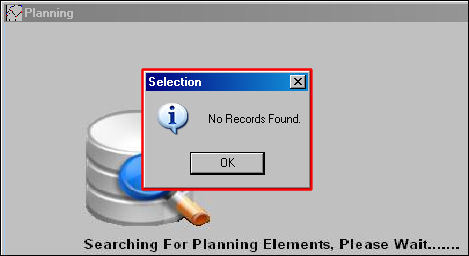
Planning Query - No Records Found
When running the Planning Query and the 'No Records Found' error appears, check that the below criteria is met depending on the specifics of the query.
Checklist Categories:
- Engineering Controls
- Defects
- P/N Controls
- Additional Troubleshooting
Engineering Controls (Aircraft E/Cs and/or Part Number E/Cs):
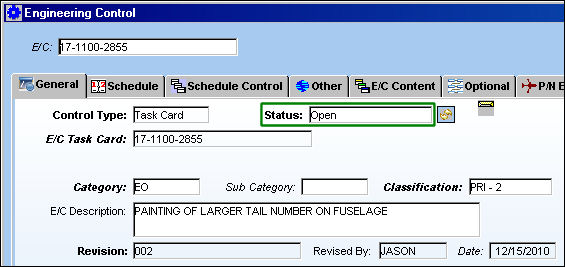
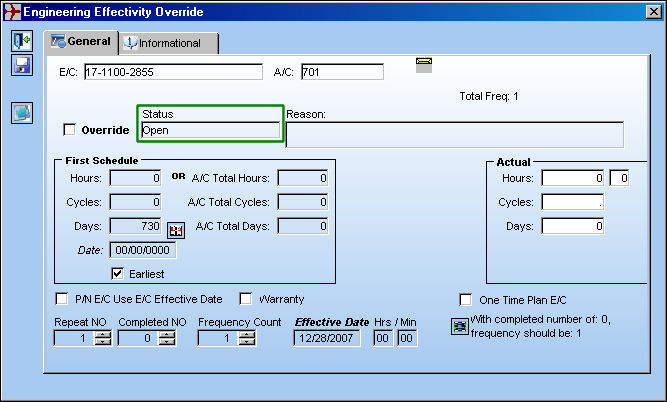
1. Engineering Control Status must be 'Open' or 'Pending'. Make sure this is also true at the A/C Effectivity level or P/N Effectivity level as well.
E/C Status:
A/C E/C Status:
P/N E/C Status:
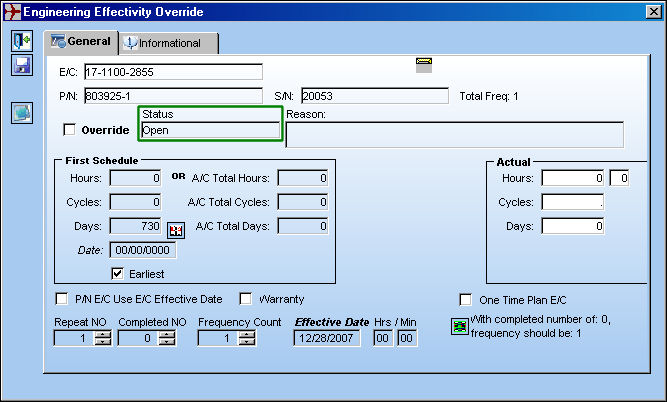
For more information refer to the Engineering Control, General Tab, the A/C Tail Number Effectivity Override Button, and the Override Button, Engineering Effectivity Override (P/N E/C) via the Engineering Training Manual.
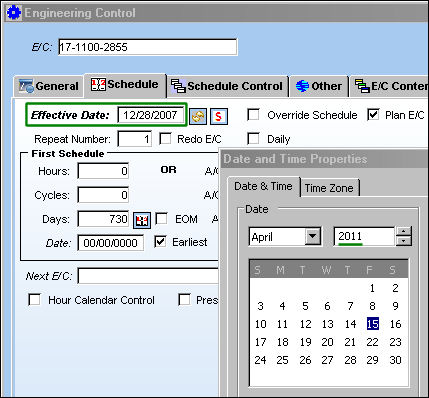
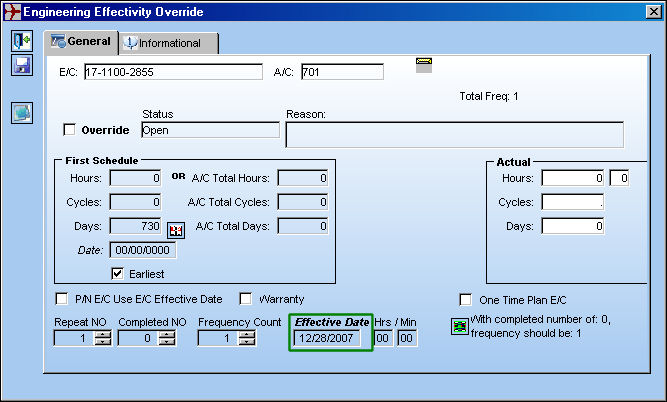
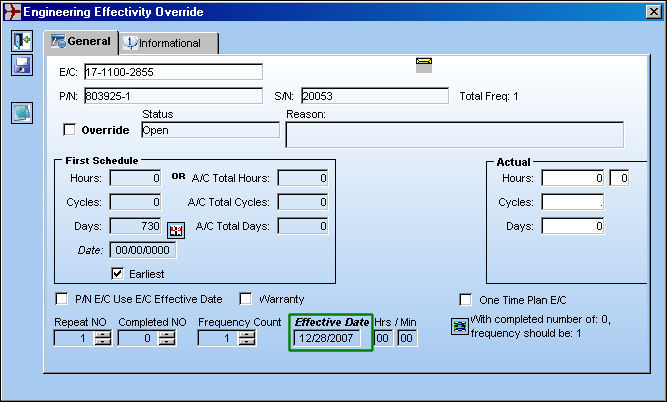
2. The E/C's Effective Date must be prior to or equal to the current date that the Planning Query is run. Make sure that this is the case at the A/C Effectivity level or P/N Effectivity level as well.
E/C Effective Date:
A/C E/C Effective Date:
P/N E/C Effective Date:
For more information refer to the Engineering Control, Schedule Tab, the A/C Tail Number Effectivity Override Button, and the Override Button, Engineering Effectivity Override (P/N E/C) via the Engineering Training Manual.
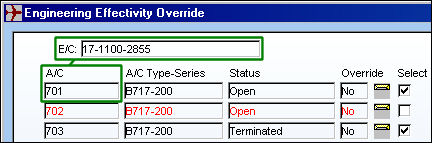
3. The Engineering Control must have its effectivity applied to either the Aircraft or the P/N Serial Number being queried.
A/C E/C EFfectivity:
P/N E/C Effectivity:
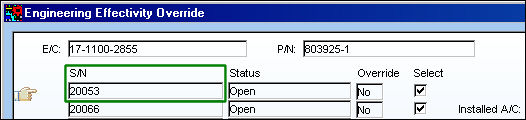
For more information refer to the Override Button (via the A/C Control Button) and the Override Button (via the P/N Control Button) via the Engineering Training Manual.
4. The Engineering Control's Plan E/C checkbox must be selected in the Engineering Control, Schedule Tab.
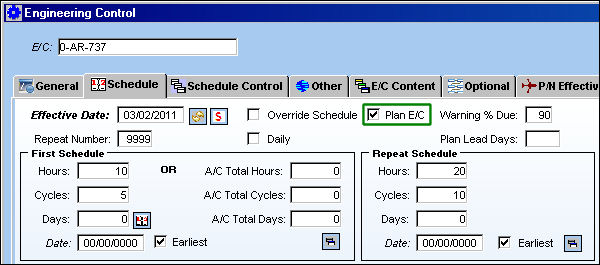
For more information refer to the Engineering Control, Schedule Tab via the Engineering Training Manual.
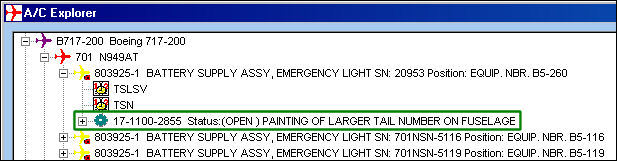
5. In regards to the P/N E/C, the part must be installed on the aircraft being queried for all Planning Views with the exception of the Inventory Planner view.
6. P/N E/Cs can have a First Schedule composed of A/C Total Hours, Cycles or Days.
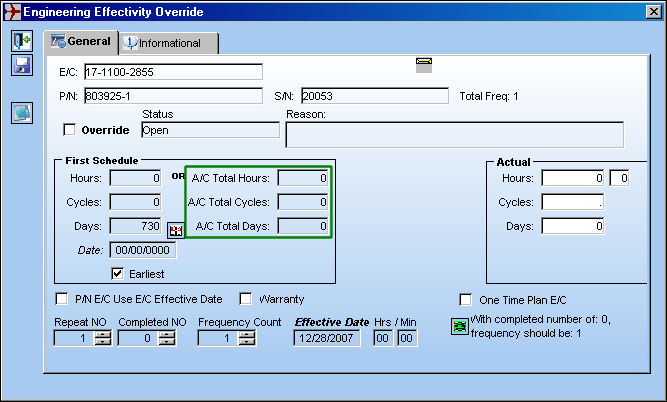
For more information refer to the Override Button, Engineering Effectivity Override (P/N E/C) via the Engineering Training Manual.
7. If the E/C does not have a defined schedule and is not dependent on another E/C for its schedule, the E/C No Schedule and/or P/N E/C No Schedule checkbox must be selected in the Planning Elements selection area of the Planning Query.
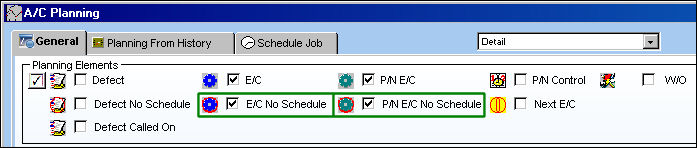
For more information refer to the A/C Planning Query Search Criteria, General Tab via the Planning Training Manual.
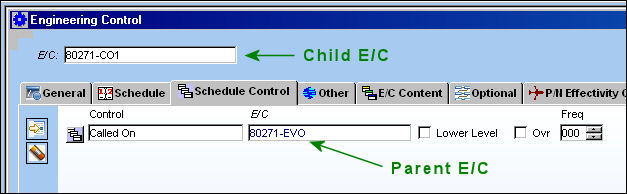
8. Child E/Cs (even if they have a schedule), will not appear in the Planning Query.
Defects:
1. Defect must be deferred with a schedule defined in the Defect Report Detail, Defer Tab.
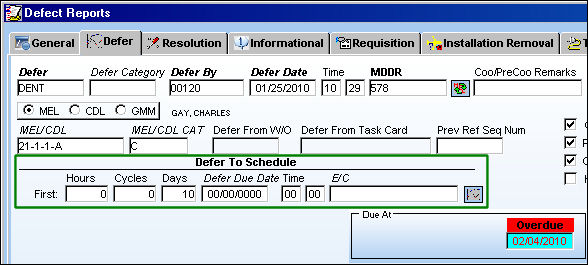
For more information refer to the Defect Report Detail, Defer Tab via the Technical Records Training Manual.
2. The Defect must have the Plan Defect checkbox selected in the Defect Report Detail, Defer Tab.
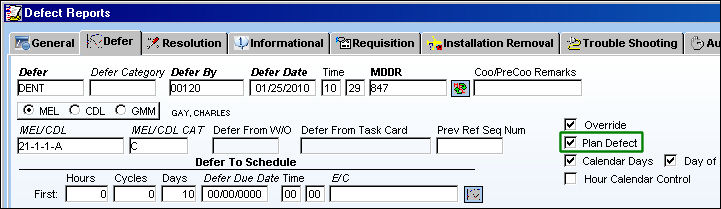
For more information refer to the Defect Report Detail, Defer Tab via the Technical Records Training Manual.
3. If the Defect is dependent on another Defect's schedule, the Defect Called On checkbox must be selected in the Planning Query and the Called On Defect must be entered in the Defect Reports Detail, Defer Tab.
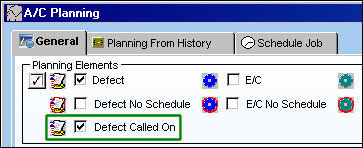
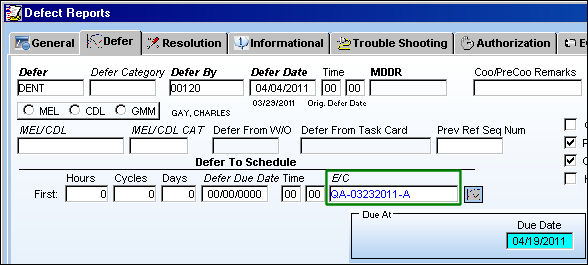
For more information refer to the A/C Planning Query Search Criteria, General Tab via the Planning Training Manual and the Defect Report Detail, Defer Tab via the Technical Records Training Manual.
4. If the Defect does not have a defined schedule and is not dependent on another Defect for its schedule, the Defect No Schedule checkbox must be selected in the Planning Elements selection area of the Planning Query.
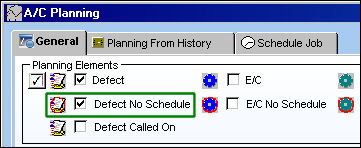
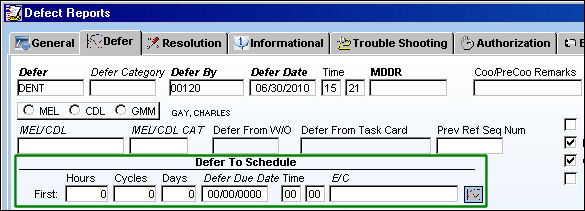
For more information refer to the A/C Planning Query Search Criteria, General Tab via the Planning Training Manual and the Defect Report Detail, Defer Tab via the Technical Records Training Manual.
P/N Controls:
1. The P/N Control must have a defined schedule against the Part Number Serial Number.
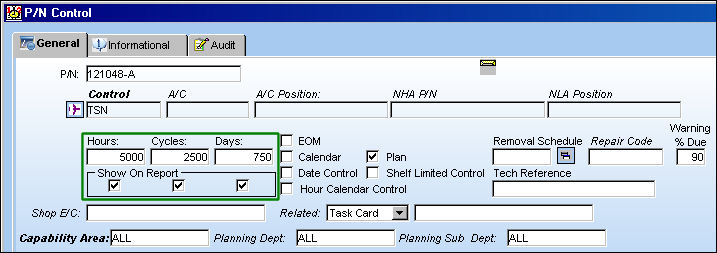
For more information refer to the P/N Control Button via the Settings Training Manual.
2. The P/N Control must have the Plan checkbox selected in the P/N Control window.
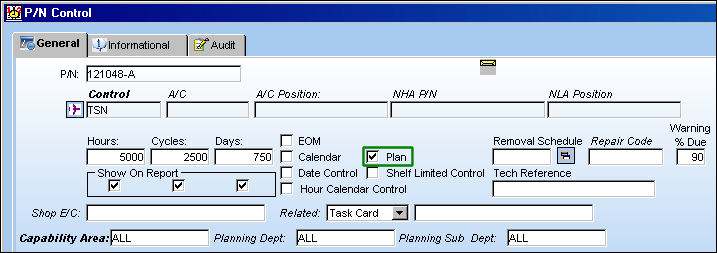
For more information refer to the P/N Control Button via the Settings Training Manual.
3. The part number must be installed against the aircraft for all Planning Views with the exception of the Inventory Planner view.
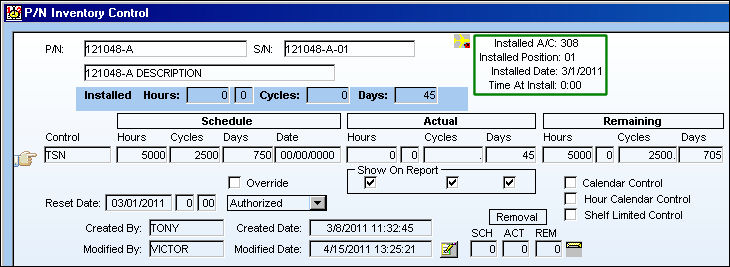
For more information on the above window refer to the Control Button (via the Inventory Transaction Detail) via the Inventory Training Manual.
If all of the above appears to be in order, then try one of the following:
1. Make sure that the Aircraft has defined Mean Hours:
a. Make sure that the Aircraft has the required Mean Times defined in the A/C Schedule Flight or Aircraft Schedule Flight Daily window based on the configuration of Technical Records Switch  AC/SCHED.
Switch set to Yes:
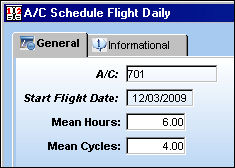
Switch set to No:
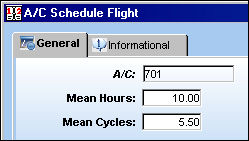
For more information refer to the A/C Schedule Flight and the A/C Schedule Flight Daily via the Planning Training Manual as well as Switch AC/SCHED via the Technical Records Switches Manual.
b. When Planning switch ACROLAVG is set to Yes, if the Rolling Average in the A/C Schedule Flight window is not a whole number (i.e. 0.94 flight hours or 0.10 flight cycles) then the Mean Hours and Cycles must be entered using whole numbers and the Override Rolling Average checkbox must be selected for that aircraft.
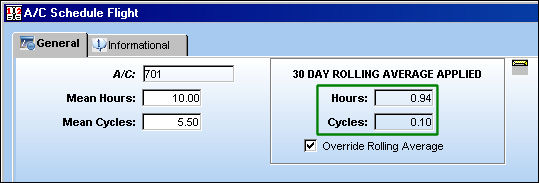
For more information refer to the A/C Schedule Flight via the Technical Records Training Manual and Switch ACROLAVG via the Planning Switches Manual.
2. Make sure that at least one Planning Element is selected in the Planning Query window.
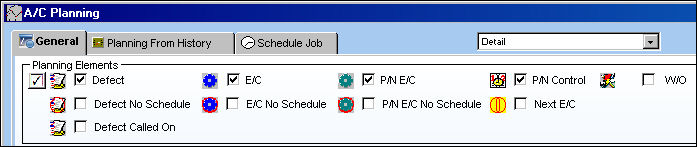
For more information refer to the A/C Planning Query Search Criteria, General Tab via the Planning Training Manual.
3. If the Planning Query is being run for a new aircraft, make sure that the A/C Flight Closing has been run for that aircraft at least once before.
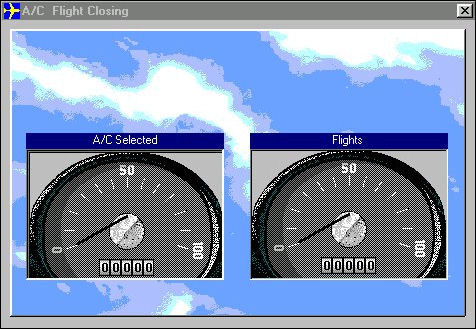
For more information refer to the A/C Actual Flights Closing via the Technical Records Training Manual.
Share
Print
|
©1997-2026 Trax USA Corp. All rights reserved. This manual may not be copied, photocopied, reproduced, translated, or converted to any electronic or machine-readable form, in whole or in part, without prior written approval from Trax USA Corp. |
 |