
 Share
Share
 Print
Print
|
|
|
|
|


Select the Planning Info  button to view the A/C Planning Transaction Window. From this pop-up window, the Planned Start Date is defaulted from the Due Date or the date as defined as the Planning Lead Days on the record's Engineering Control, Schedule tab. The user can override this Planned Date as required. For example, if a C-Check is coming due in April, 2017 and an A-Check is scheduled for May, 2017, the user may override the Planned Date to May 2017 to have both the A-Check and C-Check completed. This way, the aircraft is not down twice in two months.
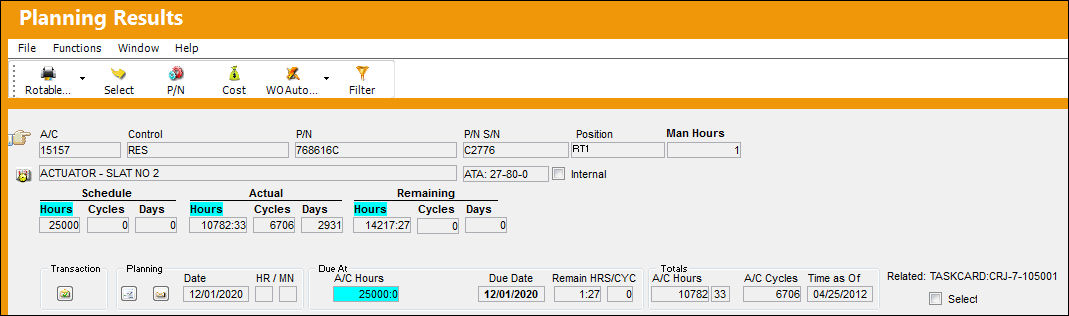
Notice that the Planned Start Date is defaulted from the Due Date or the date as defined as the Planning Lead Days on the Engineering Control, Schedule Tab of the Planning Element Item. The user can override this Planned Date as required. For example, if a C-Check is coming due in April, 2009 and an A-Check is scheduled for May, 2009, the user may override the Planned Date to May, 2009 to have both the A-Check and C-Check completed. This way, the aircraft is not down twice in two months.
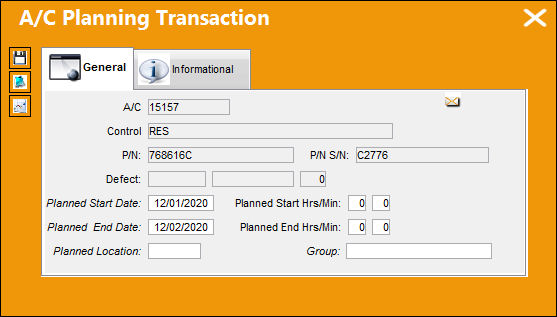
The following information/options are available in this window:
_____________________________________________________________________________________
A/C
The individual aircraft tail number.
Control
A schedule that lets a mechanic know when a part needs to be removed for repair, inspection, etc.
P/N
The Part Number reference for the aircraft part.
P/N S/N
The Serial Number for the specific serialized part.
Defect
The defect number (or log book number).
Planned Start Date
This is used with the Work Order Planning Element. Enter the W/O Planned Start Date.
The Planned Start Date must be populated before the user can save any changes in the A/C Planning Transaction window. If the field is null (00/00/0000) the user will receive the following error:
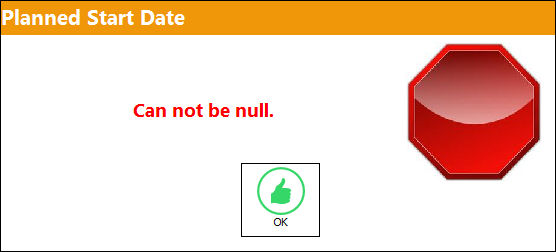
Planned End Date
This is used with the Work Order Planning Element. Enter the W/O Planned End Date.
The Planned End Date must be populated before the user can save any changes in the A/C Planning Transaction window. If the field is null (00/00/0000) the user will receive the following error:
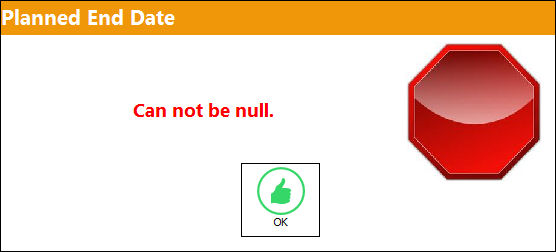
Planned Start Hrs/Min
This is used with the Work Order Planning Element. Enter the W/O Planned Start Hrs/Min.
Planned End Hrs/Min
This is used with the Work Order Planning Element. Enter the W/O Planned End Hrs/Min.
Planned Location
The location in which the Work Order is going to take place.
Group
Select the shift group from the drop down menu to work on the planned item.
_____________________________________________________________________________________
The Reset To Due Date  button is also available in this window for additional functionality.
Verify that all of the information in the above window is correct.
Select the Save  button.
Select the Notes  button to add or review any related notes. Select the Save button. The Save prompt will appear. Select OK.
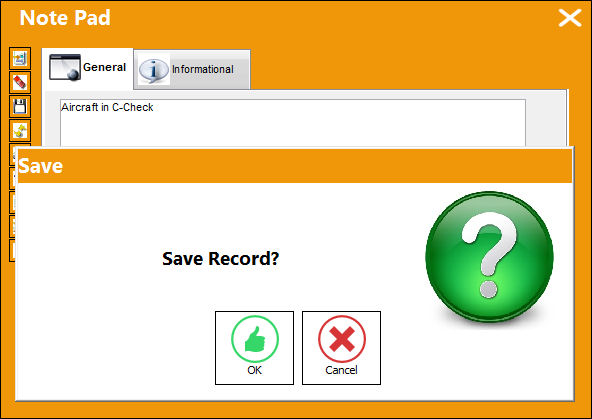
The Note is added to the Planning Event. Select the Save button and Exit the Window.
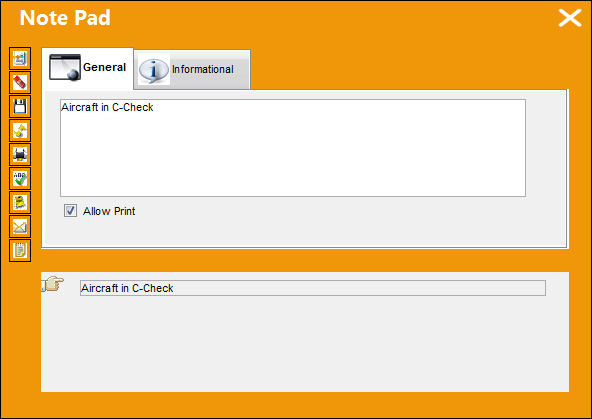
The Note has been added, as seen on the Planning Notification button.
The color of the Planning Date field will change based on the Planning Transaction Condition Codes via the Planning Transaction code manual.
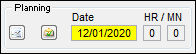
The Planned Date, and any associated notes that are created with the Notes button, will be cleared once the Work Order associated with the planned item is 'Closed' or manually complied with.
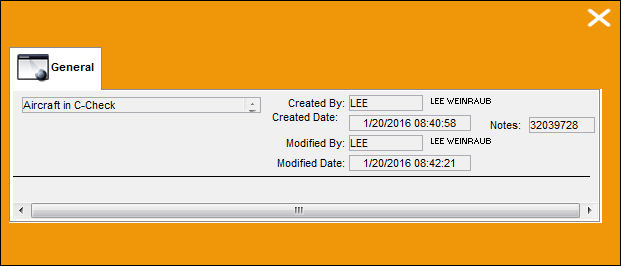
Select the Planning Notification button to view notes related to Planning.
Share
Print
|
©1997-2026 Trax USA Corp. All rights reserved. This manual may not be copied, photocopied, reproduced, translated, or converted to any electronic or machine-readable form, in whole or in part, without prior written approval from Trax USA Corp. |
 |