
 Share
Share
 Print
Print
|
|
|
|
|


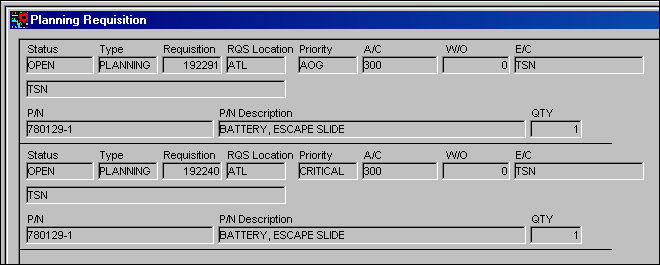
Select the Requisition  button to view any open requisitions for part number requirements associated to this maintenance event.
The Requisition button does not appear if there are no parts requirements associated to the maintenance event.

TRAX displays the following Requisition Window below:
A part cannot be reserved unless it has been set up on the Task Card P/N Window of the Task Card or it has been defined using the P/N button on the Task Card.
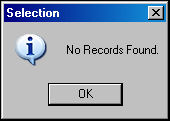
If no requisitions are associated to the maintenance event, the following pop-up will appear:
Share
Print
|
©1997-2026 Trax USA Corp. All rights reserved. This manual may not be copied, photocopied, reproduced, translated, or converted to any electronic or machine-readable form, in whole or in part, without prior written approval from Trax USA Corp. |
 |