
 Share
Share
 Print
Print
|
|
|
|
|


The Import MEL option is used to quickly import customer MELs which may not exist in your TRAX Settings MEL Master DB. This option allows the vendor to receive or create a digital file listing these MELs and related information for the import and quick creation of the MELs.
The MEL Import option works as an initial load feature, meaning that MEL records can only be imported once. If the MEL already exists, any additional information entered via the import will not be imported. An exceptions report will list these MELs and state that they cannot be re-imported.
First, the user must prepare the file. For information regarding how to prepare the import file, refer to Preparing File For Import, via the Import Button of the System Standards Training Manual.
Criteria for MEL Master Import file:
Column Name |
Data Type |
Limitation |
Path |
|---|---|---|---|
A/C Type This field is mandatory. |
Alphanumeric |
10 |
Settings/ Update/ MEL Master |
A/C Series This field is mandatory. |
Alphanumeric |
10 |
Settings/ Update/ MEL Master |
MEL Number This field is mandatory. |
Alphanumeric |
16 |
Settings/ Update/ MEL Master |
MEL Sub radio button |
Alphanumeric |
3 |
Settings/ Update/ MEL Master |
Mel/CAT |
Alphanumeric |
8 |
Settings/ Update/ MEL Master |
Restriction Operation checkbox |
Alphanumeric |
1 |
Settings/ Update/ MEL Master |
Restriction Maintenance checkbox |
Alphanumeric |
1 |
Settings/ Update/ MEL Master |
MEL/CDL First Schedule (Hours) |
Numeric |
5 |
Settings/ Update/ MEL Master |
MEL/CDL First Schedule (Cycles) |
Numeric |
5 |
Settings/ Update/ MEL Master |
MEL/CDL First Schedule (Days) |
Numeric |
5 |
Settings/ Update/ MEL Master |
Description |
Alphanumeric |
4000 |
Settings/ Update/ MEL Master |
ETOPS Restriction checkbox |
Alphanumeric |
1 |
Settings/ Update/ MEL Master |
Calendar Days checkbox |
Alphanumeric |
1 |
Settings/ Update/ MEL Master |
Revision |
Alphanumeric |
8 |
Settings/ Update/ MEL Master |
Chapter |
Numeric |
2 |
Settings/ Update/ MEL Master |
Section |
Numeric |
2 |
Settings/ Update/ MEL Master |
Paragraph |
Numeric |
2 |
Settings/ Update/ MEL Master |
Defer Category |
Alphanumeric |
8 |
Settings/ Update/ MEL Master |
Cat Rating |
Alphanumeric |
10 |
Settings/ Update/ MEL Master |
RVSM checkbox |
Alphanumeric |
1 |
Settings/ Update/ MEL Master |
RVSM Flight Level Start |
Numeric |
4 |
Settings/ Update/ MEL Master |
RVSM Flight Level End |
Numeric |
4 |
Settings/ Update/ MEL Master |
Repeat Number |
Numeric |
6 |
Settings/ Update/ MEL Master |
Override checkbox |
Alphanumeric |
1 |
Settings/ Update/ MEL Master |
ECTM checkbox |
Alphanumeric |
1 |
Settings/ Update/ MEL Master |
MEL/CDL Repeat Schedule (Hours) |
Numeric |
5 |
Settings/ Update/ MEL Master |
MEL/CDL Repeat Schedule (Cycles) |
Numeric |
5 |
Settings/ Update/ MEL Master |
MEL/CDL Repeat Schedule (Days) |
Numeric |
5 |
Settings/ Update/ MEL Master |
Pax. Con Restriction checkbox |
Alphanumeric |
1 |
Settings/ Update/ MEL Master |
Hour Calendar Control checkbox |
Alphanumeric |
1 |
Settings/ Update/ MEL Master |
Day of Discovery checkbox |
Alphanumeric |
1 |
Settings/ Update/ MEL Master |
Autoland Restriction checkbox |
Alphanumeric |
1 |
Settings/ Update/ MEL Master |
Elementary Work checkbox |
Alphanumeric |
1 |
Settings/ Update/ MEL Master |

Go to Settings/ Update/ MEL Master. Select the Import  button.
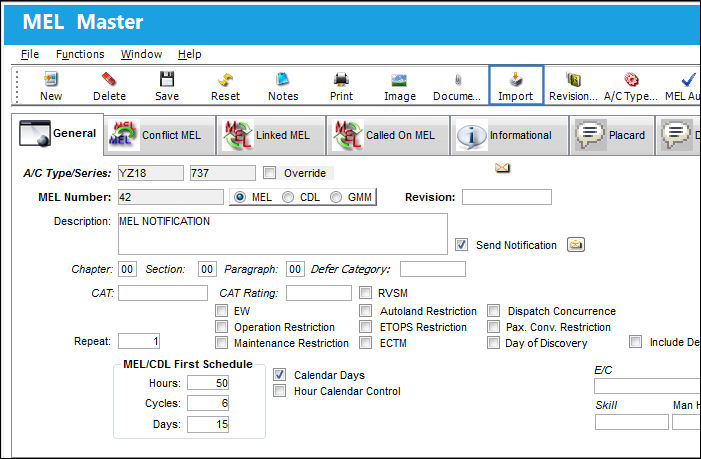
Complete all of the Import steps.
For information regarding how to Import a file, refer to Importing a File via Import Button of the System Standards Training Manual.
After import, user may return to the MEL Master to view what has been imported.
The imported MELs appear in the MEL Master as shown below:
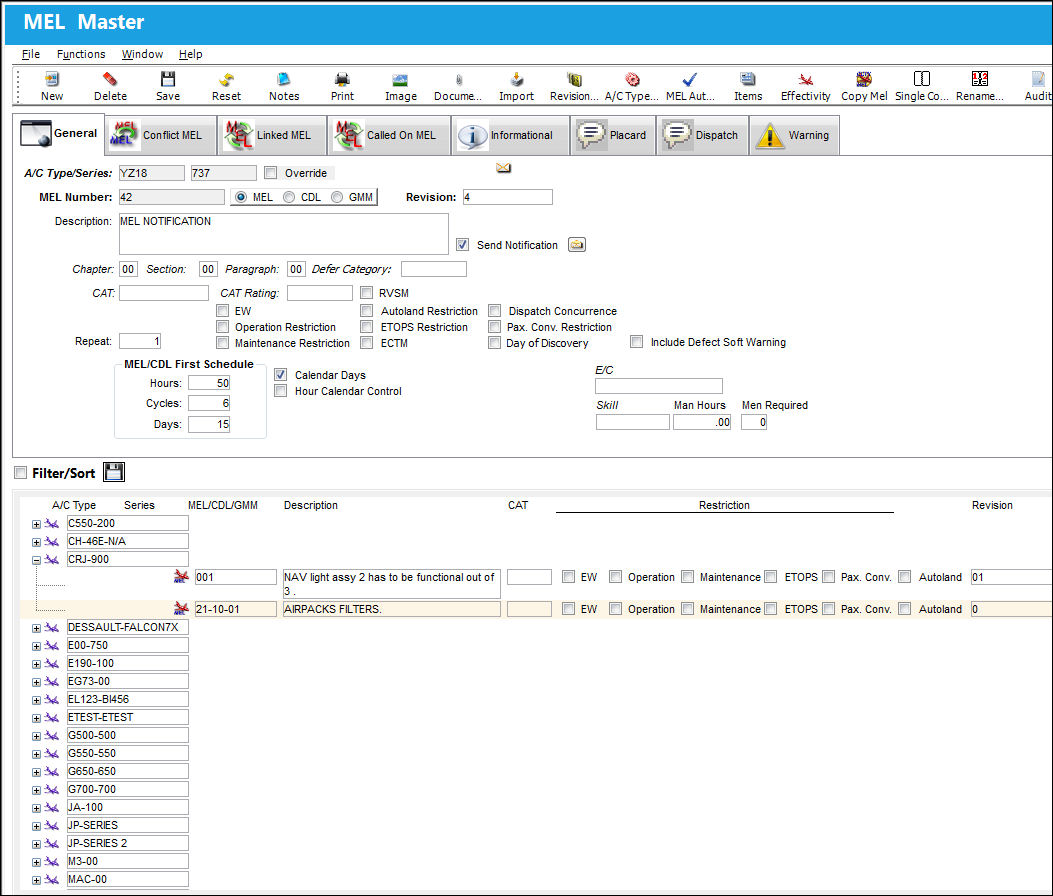
Defect MEL Effectivity is created depending on the A/C Type, A/C Series, MEL Number, and MEL Sub radio button specified through the import file.
Share
Print
|
©1997-2026 Trax USA Corp. All rights reserved. This manual may not be copied, photocopied, reproduced, translated, or converted to any electronic or machine-readable form, in whole or in part, without prior written approval from Trax USA Corp. |
 |