
 Share
Share
 Print
Print
|
|
|
|
|


Functions Tab
The Functions tab provides users with the options to change informational and password/access settings.
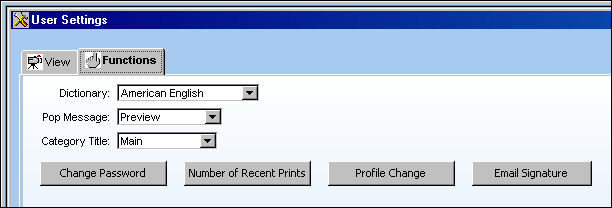
The Function options are as follows:
_____________________________________________________________________________________
Dictionary drop down
Allows users to select which language the Spell Check function will be based upon. For more information refer to the topic Spell Check.
Pop Message drop down
Allows users to choose different options to view messages.
Pop Up - When a message is received into the Inbox, a pop-up message will appear in the center of the TRAX screen making the user aware that a note has been placed on the queue.
Audio - Messages received will be accompanied with audio.
Preview - This is a hypertext functionality that allows users to view the information related to a selected item without having to enter into the item. When enabled, a descriptive box containing information about the selected item will appear on the window.
Category Title
Allows users to display modules and window names by their main title or secondary title. These titles are entered via System Administration/Update/Control Panel. For more information refer to the topic Control Panel.
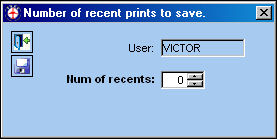
Change Password
Allows users to change their TRAX sign-on password.
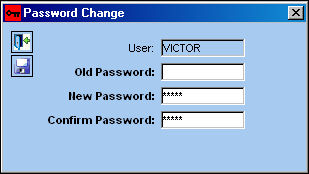
Number of Recent Prints
Enter the number of most recently selected prints to appear in the list of all reports within the TRAX Print menus.
Email Signature
The Email Signature function allows the user to create an email signature to be used when sending an email.
For additional information, refer to Email Signature via the File Menu View of the System Standards Training Manual.
_____________________________________________________________________________________
Select the Save  button to save the changes.
Select the Apply to All  button to save the changes for all users within the database.
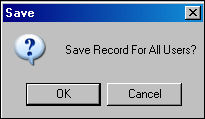
Select the Reset  button to revert all of the fields to their original settings.
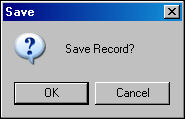
If changes are made but not saved, when exiting a prompt will ask the following:
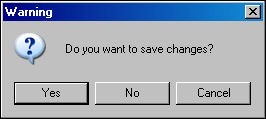
Select 'Yes' to save and exit, 'No' to not save and exit, or 'Cancel' to remain in the window.
Share
Print
|
©1997-2026 Trax USA Corp. All rights reserved. This manual may not be copied, photocopied, reproduced, translated, or converted to any electronic or machine-readable form, in whole or in part, without prior written approval from Trax USA Corp. |
 |