
 Share
Share
 Print
Print
|
|
|
|
|


Color Tab
The Color tab provides users with the option to change the color scheme of the TRAX database.
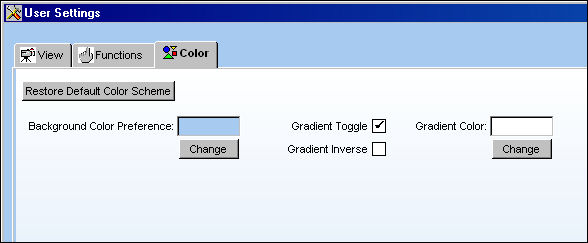
Select from the following options:
Button |
Description |
Restore Default Color Scheme button |
Reverts any changes to the color scheme back to the original settings. (The original settings are displayed above.) |
Background Color Preference button
|
Users can choose which color to be the primary color throughout their database. (In the above example the background color is pale blue.)
|
Gradient Toggle checkbox |
This creates a fade effect from the background color to the gradient color in the individual window screens. (The gradient color in the above image is white.) When this checkbox is not selected, the Gradient Inverse checkbox and the Gradient Color Change button will not be displayed. |
Gradient Inverse checkbox |
This option flips the background color and the gradient color. Instead of the background color being on the bottom of the window and the gradient at the top, the gradient will be at the bottom and the background on the top. |
Gradient Color Change button |
Users can choose which color to be the additional color that the background color fades into within each window.
|
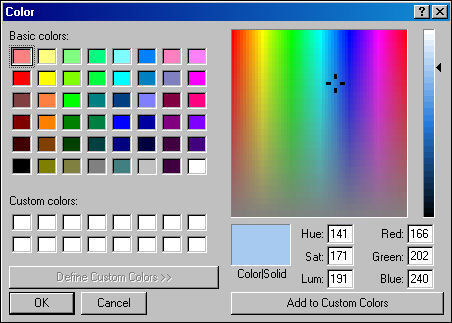
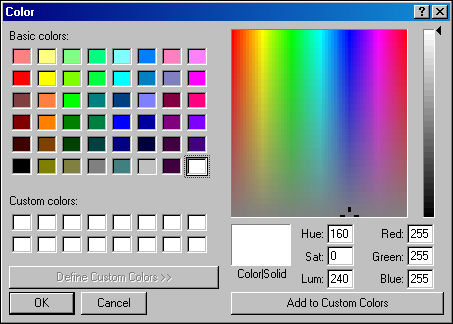
Select the Save  button to save the changes.
Select the Apply to All  button to save the changes for all users within the database.
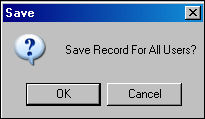
Select the Reset  button to revert all of the fields to their original settings.
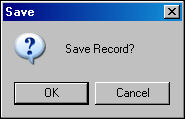
If changes are made but not saved, when exiting a prompt will ask the following:
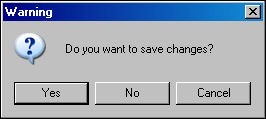
Select 'Yes' to save and exit, 'No' to not save and exit, or 'Cancel' to remain in the window.
Share
Print
|
©1997-2026 Trax USA Corp. All rights reserved. This manual may not be copied, photocopied, reproduced, translated, or converted to any electronic or machine-readable form, in whole or in part, without prior written approval from Trax USA Corp. |
 |