
 Share
Share
 Print
Print
|
|
|
|
|


From the W/O Gantt detail window, the Task Cards tab will appear by default. To the left of the window, information for each Task Card will be displayed along with a graphical view spanning over a calendar period to the right. Each Task Card is represented by a horizontal bar in the calendar graph to the right of the Task Card information. They are laid out across the date and time in which they encompass. The graph also includes a red vertical line that represents the current date and time as a point of reference.
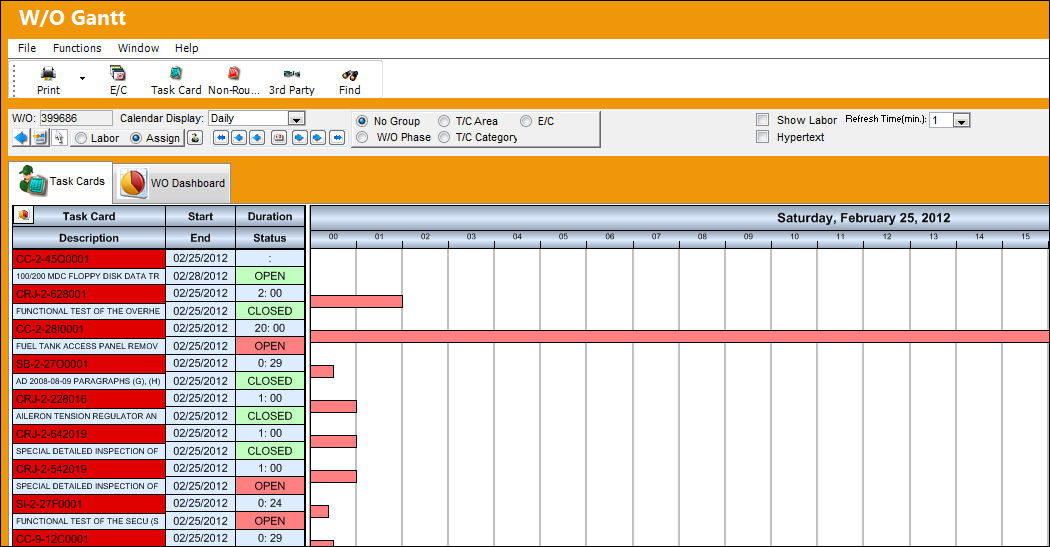
On the top of the window users can perform various actions and/or edit the display of information.
_____________________________________________________________________________________
W/O
The Work Order used to categorize, manage, and schedule work requirements for aircraft maintenance.
Back to W/O View  button
Returns users to the previous screen where they can choose between the other Work Orders if available.
New Predecessor Link  button
Allows users to create links between Task Cards that need to be performed prior to a selected T/C. When selected, users must click on one Task Card then hold and drag the cursor to the other Task Card. This will create the Predecessor link. For more information refer to the New Predecessor Link Button.
Click  button
Allows users to use the cursor to select and edit Task Cards. This is chosen by default.
Calendar Display drop down
Displays the chart in Days, Weeks or Months. The Day view is zoomed in to an hour by hour format as is the Week view with the hourly format compressed while the Monthly view contains a day by day view. The Day view is set as default.
Users can zoom into and out of the chart by holding the Control button on the computer's keyboard and scrolling up and down with the scroll wheel on the computer's mouse. Along with the Calendar Display options, this can help users adjust their view of the Work Orders.
Labor radio button
When selected several Labor-related options are available to the user. The options are the Labor Reservation button, the Auto Recalculation checkbox and the Look for Predecessors checkbox which are described below. When the Labor checkbox is not selected, these options will not be available.
Labor Reservation  button
Select this button to assign labor to employees. Labor reservations can be placed on Work Orders to reserve personnel against available capacity. The system will automatically provide a report of any shortfall in the available labor. For more information refer to the Labor Reservation Button. (This button is only available when the Labor radio button is selected.)
When labor is reserved, Task Cards will be arranged by Phase. Task Cards with preliminary Phases will be prioritized followed by T/Cs with the next sequential Phases.
When labor is reserved, the Task Card times in the Gantt window are based on the elapsed time required for the W/O Task Cards, not the total man hours time. For example, if one T/C requires 5 hours of work by 2 people each, the elapsed time is 5 hours for the Task Cards, not 10 hours which would be the total man hours required.
Calendar buttons 
These buttons allow users to change the displayed date.
Day Forward  - Moves the display date forward one day.
Month Forward - Moves the display date forward one month.
Year Forward  - Moves the display date forward one year.
Select Date  - Click to select a specific date to view.
Day Backward - Moves the display date backward one day.
Month Backward - Moves the display date backward one month.
Year Backward  - Moves the display date backward one year.
Group radio buttons
When either of the radio buttons are selected the Task Cards are separated into collapsible groups. The available options are:
- No Group (does not group the Task Cards; set as default)
- W/O Phase
- T/C Area
- T/C Category
Auto Labor Recalculation checkbox
When selected, any changes made to the Task Card will automatically adjust any related labor. For instance, if a Task Card is moved forward or backward on the calendar graph the labor will be recalculated. (This checkbox is only available when the Labor radio button is selected.)
Look for Predecessors checkbox
TRAX will check for linked predecessors when Task Cards are adjusted. For more information refer to the New Predecessor Link Button. (This checkbox is only available when the Labor radio button and the Auto-Recalculation checkbox is selected.)
Assign radio button
When selected the Auto-Assignment button will appear and the Labor options (as described above) will not be available.
Auto-Assignment  button
The Task Card Resource Assignment window appears. (This button is only available when Assign radio button is selected.) For detailed information refer to the Work Order Task Card Assignment.
Show Labor checkbox
When this checkbox is selected the Resources tab is available. This tab displays all users and their work schedules. For more information refer to the W/O Gantt, Resources Tab.
Hypertext checkbox
Provides users with information on the Skills attached to the Task Cards when the cursor hovers over the T/C. The text field is displayed. The hypertext pop-up lists each of the Skills as well as the following information for each:
- Man Hours
- Reserved Hours
- Elapsed Hours
Refresh Time (min.) drop down
Users can choose the refresh rate for the Gantt window. The refresh rate can be set to a certain amount of minutes. Additionally, it will automatically be refreshed when a user activates the window.
Today timeline
Marks the current time of the user's TRAX session.
_____________________________________________________________________________________
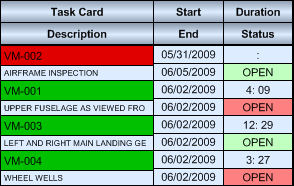
The following information is listed for each Task Card:
_____________________________________________________________________________________
Task Card
The Task Card / Job Card that details the scheduled maintenance work.
Description
The description of the Task Card.
Start / End
The start and end dates for the Task Cards.
Duration
The amount of time taken in hours and minutes by the Task Cards.
Status
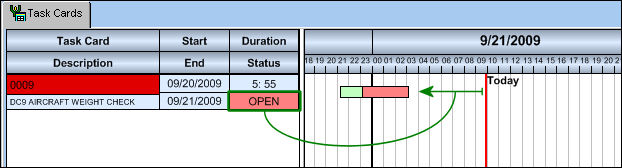
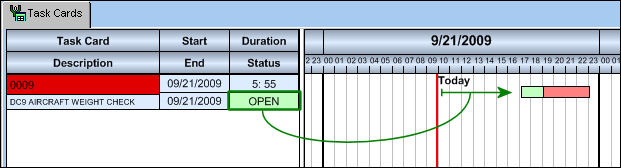
The status of the Task Card. The Task Card Status is either 'Open' or 'Closed.' This field is displayed in either red or green depending on the current time of the Task Card on the calendar in reference to the Today timeline.
_____________________________________________________________________________________
When the current timeline has surpassed the Task Card (T/C listed in the past), the Status field is red:
When the current timeline is prior to the Task Card (T/C listed in the future), the Status field is green:
Aside from the options available on the top of the window, users will have several other options from within the W/O Gantt window.
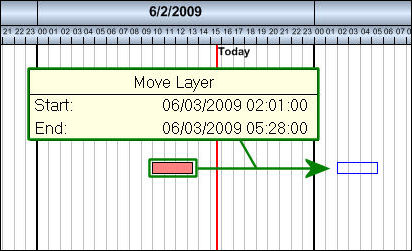
Users can adjust the time settings of a Task Card by selecting the T/C with the cursor then dragging and dropping the T/C on a desired time. The Move Layer hypertext field will pop-up while the Task Card is dragged to notify the user of the modified Start and End times.
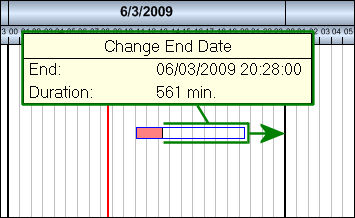
The Duration of the Task Card can be altered by selecting the right or the left end of the T/C then dragging and dropping it wherever desired. The End time can be lengthened or shortened making the Duration greater or smaller moving the right end of the T/C. While altering the End Time, the Change End Date hypertext pop-up will appear to notify the user of the modifications. This alteration will also affect the Task Card End/Duration field to the left of the detail window.
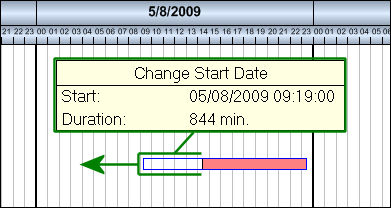
The Start time can also be lengthened or shortened making the Duration greater or smaller moving the left end of the T/C. While altering the Start Time, the Change Start Date hypertext pop-up will appear to notify the user of the modifications. This alteration will also affect the Task Card Start/Duration field to the left of the detail window.
When the Assign  radio button is selected (see above), the Task Card Resource Assignment pop-up window will appear by right-clicking over a Task Card. For detailed information refer to the Work Order Task Card Assignment.
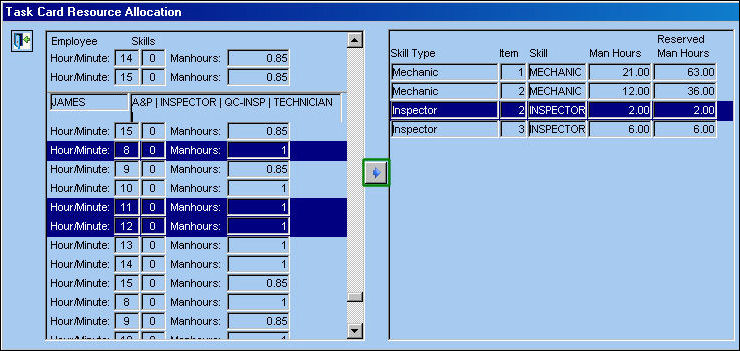
When the Labor  radio button is selected (see above), by right-clicking on a T/C the Task Card Resource Allocation window will pop-up. Here users can assign personnel to different Items by their Skills.
For example, select a from available employees who have been reserved for this W/O on the left then select the desired Skills for the Task Card to the right. Select the Allocate  button to manually assign the man hours.
After allocating, the following prompt will appear.
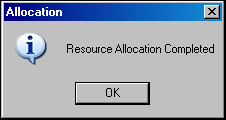
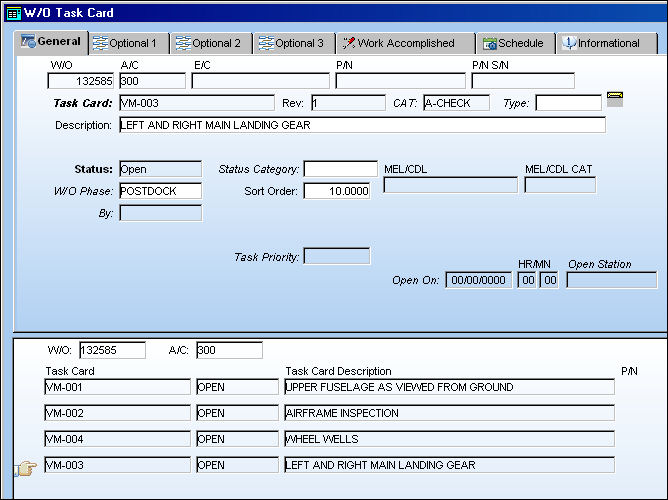
While the field to the left of the window (described above) provides information regarding each of the Task Cards, users can access the W/O Task Card window by double-clicking on the Task Card. For more information refer to the W/O Task Card, General Tab.
Task Cards cannot be re-Opened once the associated W/O Engineering Control has been reset. However, Non-Routine Task Cards can be re-opened if the W/O E/C has been reset.
Share
Print
|
©1997-2026 Trax USA Corp. All rights reserved. This manual may not be copied, photocopied, reproduced, translated, or converted to any electronic or machine-readable form, in whole or in part, without prior written approval from Trax USA Corp. |
 |