
 Share
Share
 Print
Print
|
|
|
|
|


Through the New W/O  button of the MTC functional A/C Controller Panel, users can create new Work Orders for individual or multiple Defects based on information from the MTC Opportunities window which displays the ground time required for MTC in the schedule. This window will also display the available ground time in between two flights at different locations (this available ground time is also know as Turn Time).
 Note: This MTC New W/O button is ONLY applicable to certain customized Aircraft Controllers and therefore may not be available for your company. Customized interfacing properties are required for this functionality. For more information on the basic New W/O button refer to the New W/O Button, via A/C Controller Panel Buttons via the Technical Records Training Manual.
For example, select Defects that are not attached to W/Os then select the New W/O button.
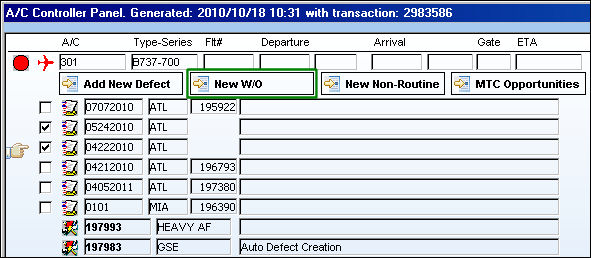
The Opportunities window appears as follows.
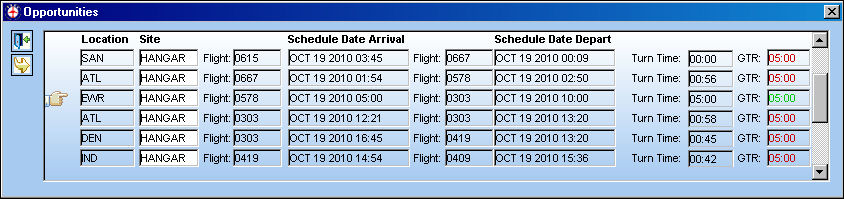
The following information/options are available in this window:
_____________________________________________________________________________________
Location
The Location for maintenance events, inventory stores, orders, transactions, or training events.
Site
The Site where the work is to be carried out (if applicable).
This field can be set to a default Site through the configuration of Switch  MTCDEFSITE. For more information refer to that switch via the Technical Records Switches Manual.
Flight (arrival)
The number of the flight that will be landing in the above location. This flight arrival marks the start of the Turn Time period.
Schedule Date Arrival
The scheduled arrival date and time for the arriving flight. This time marks the start of the Turn Time period.
The maximum amount of days that can be listed in this window can be controlled depending on the configuration of Switch MTCOPPDAYS. For more information refer to the Technical Records Switches Manual.
Flight (departure)
The number of the flight that will be departing in the above location. This flight departure marks the ending of the Turn Time Period.
Schedule Date Depart
The scheduled departure date and time for the departing flight. This time marks the end of the Turn Time Period.
Part Status Indicator  icons
icons
The green status icon indicates that all spares required are available in inventory. The yellow status  icon indicates that some, but not all spares are available in inventory. The red status
  icon indicates that no spares are available in inventory. If no icon is displayed, parts are not required for the task.
Turn Time
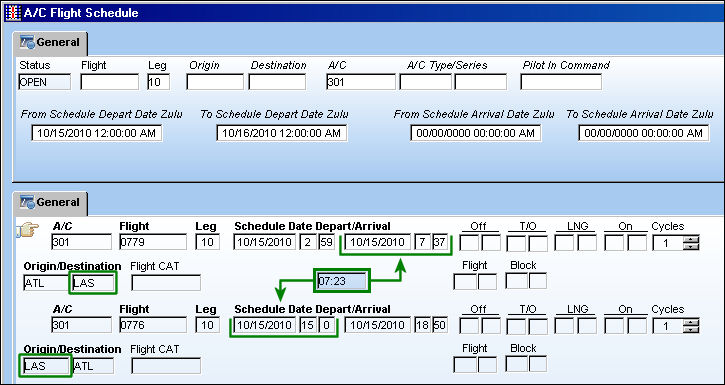
The amount of time that an aircraft will be on ground in between scheduled flights at a given location. This field is composed of the time between the Schedule Date Arrival and the Schedule Date Departure. For example, notice the time between flights 0779 and 0776 for aircraft 301 at location LAS. The arrival time is 07:37 and the departure time is 15:00. This produces a Turn Time of 07:23 hours.
GTR
The Ground Time Required to complete the Work Order. This time is based on the amount of time between the W/O's schedule start date/time and the W/O's scheduled completion date/time. This number will be displayed in red if the GTR exceeds the Turn Time available at a location; the number will be displayed in green if the GTR fits within the Turn Time available at a location.
This field can be set to a default GTR depending on the configuration of Switch MTCMINGTR. For more information refer to the Technical Records Switches Manual.
_____________________________________________________________________________________
Click the Select  button from the MTC Opportunities window to create a Work Order based on the information provided in the MTC Opportunities window. The information provided includes the Location, Site, Flight number, W/O Schedule Start Date/time and the W/O Schedule Completion Date/time. The W/O Schedule Start Date/time is based on the arrival flight date/time, and the Schedule Completion Date/time is based on the arrival flight date/time plus the GTR (Ground Time Required).
For more information on how the W/O fields are automatically populated based on the information provided in the MTC Opportunities window, refer to the MTC Opportunities Button (Existing W/Os).
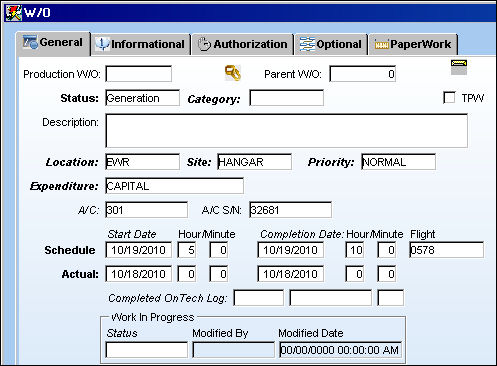
Once the W/O is saved, a Defects Added prompt appears detailing the Non-Routine Task Cards that have been created for the Defects through the W/O.
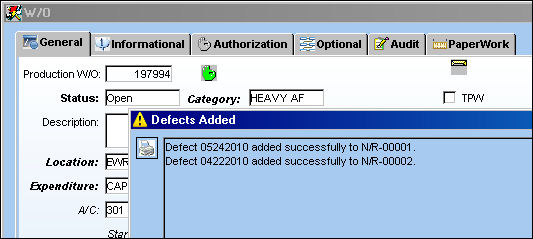
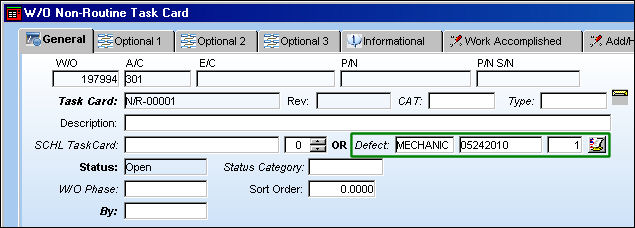
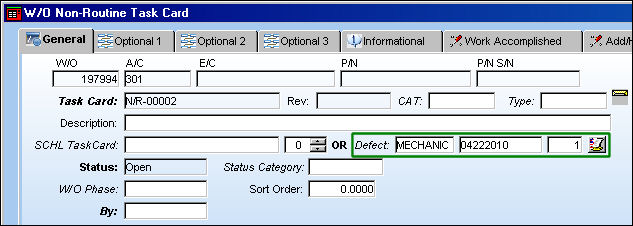
Select the N/R Task Card  button to view the Defects.
Share
Print
|
©1997-2026 Trax USA Corp. All rights reserved. This manual may not be copied, photocopied, reproduced, translated, or converted to any electronic or machine-readable form, in whole or in part, without prior written approval from Trax USA Corp. |
 |