
 Share
Share
 Print
Print
|
|
|
|
|


Import A/C Authorized Software Configuration, via Manufacturer Data Import

The ‘Import A/C Authorized Software Configuration’ allows customers to import an aircraft’s P/N Software Configuration into the system. The aircraft manufacturer provides the ‘As-delivered Converted Auth Config’ XML file (commonly referred to as the 'As-Delivered' file), which specifies the P/N Software loaded on the aircraft as delivered from the factory. When the ‘As Delivered’ file is imported, the Equipment Reference Designator (ERD), P/N Software number, Software Location Identifier (SLID), and the hardware P/N, populates the P/N Software Configuration window, creating a master template for the aircraft’s software configuration. The ‘Import As Flying Software Configuration’ is then used to import the manufacturer’s 'As-delivered Airplane Config' XML file (commonly referred to as the ‘As Flying’ file) to import the serial numbers that are actually installed on the aircraft.
 In TRAX Version 15, when Settings Switch
  PNSOFTEC is set to Yes, the system tracks aircraft software using only the P/N Software and SLID; for this reason, only the ‘Import A/C Authorized Software Configuration’ import will be required. The customer must identify reference points (tags) from the manufacturer-provided XML file and populate them in the A/C Type/Series Software tab; these tags will serve as markers during the Manufacturer Data Import, providing the system the key reference points needed to correctly populate the P/N Software Configuration window. The XML file must also include the aircraft tail number or registration number (depending on the manufacturer and file provided). When the XML file is imported via the ‘Import A/C Authorized Software Configuration’, the P/N Software number and SLID populates the P/N Software Configuration window; no physical inventory will be created because software is tracked against the aircraft. Please contact Trax for assistance before changing the configuration of this switch.
Each aircraft’s import should only be run once, at implementation of the aircraft software configuration. All other edits to the software configuration should be done via revisions.
From the Manufacturer Data Import window, select 'Import A/C Authorized Software Configuration' and use the Browse  button to find the XML file to import.
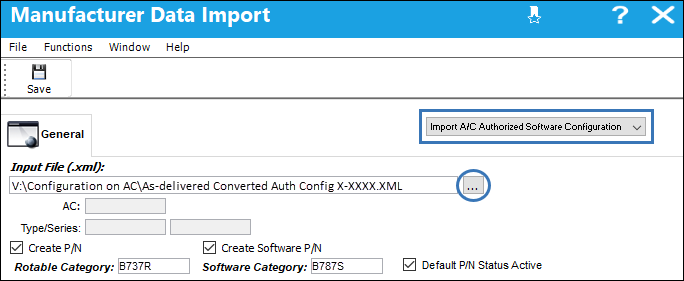
The following information/options are available in this window:
_____________________________________________________________________________________
Input File (.xml)
The XML that contains the software configuration. This configuration becomes the template that will populate the P/N Software Configuration window. For this import, the configuration imported is not necessarily the installed components on the aircraft.
 When Switch PNSOFTEC is set to Yes, only one import is required to load the P/N Software Configuration - 'Import A/C Authorized Software Configuration'. The import will only work if the XML file includes the aircraft tail number (or registration number – depending on aircraft manufacture and file provided), and the XML tags must be entered in the A/C Type/Series Software tab.
A/C
The Aircraft that is being configured via this import. This field cannot be edited manually as the import file will contain the aircraft being configured.
Type/Series
The type and series of the aircraft that is being configured via this import. This field cannot be edited manually as the import file will contain the aircraft being configured.
Create P/N checkbox
Select this checkbox if the hardware parts in the configuration are to be created automatically via the import. If any of these parts already exist in the P/N Master, then those parts will not be re-created. Do not select this checkbox if the parts will be or have been created manually.
Rotable Category
If the Create P/N checkbox is selected, the P/N Category must be entered for the rotable parts being created via the import. This field is only available when the Create P/N checkbox is selected.
Create Software P/N checkbox
Select this checkbox if the software parts in the configuration are to be created automatically via the import. Do not select this checkbox if the parts will be or have been created manually.
Software Category
If the Create Software P/N checkbox is selected, the P/N Category must be entered for the software parts being created via the import. If any of these parts already exist in the P/N Master, then those parts will not be re-created. This field is only available when the Create Software P/N checkbox is selected.
Default P/N Status Active checkbox
Select this field if the parts being created via the import are to be set to Active or Inactive in the P/N Master. This checkbox is only available when either the Create P/N checkbox and/or the Create Software P/N checkbox are selected.
_____________________________________________________________________________________
Once all settings have been entered, select the Save  button.
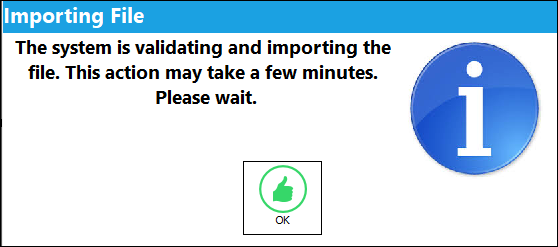
The following informational prompt comes up. Select OK.
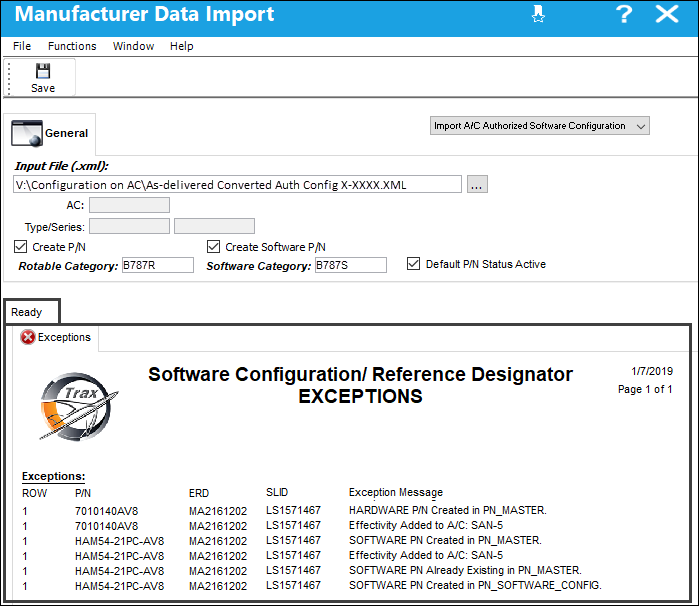
When the import is complete, the exceptions report will be listed at the bottom of the window. This report lists all of the part-specific information that was imported.
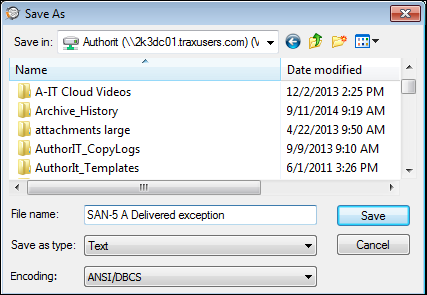
The following prompt appears to save the exceptions list.
From the P/N Master, notice that the following hardware part was created via the import.
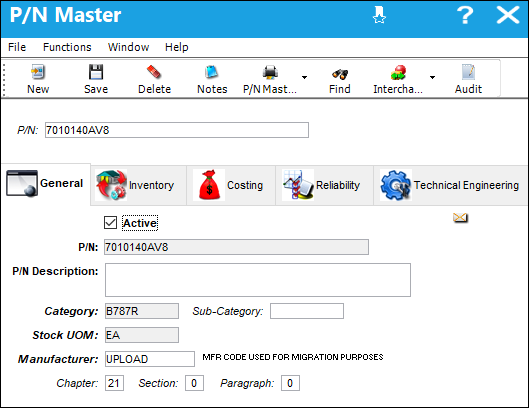
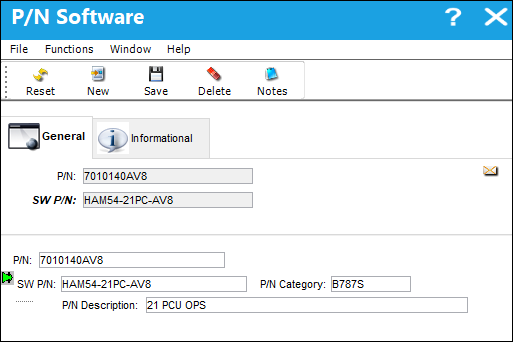
By selecting the Software  button, notice that the following software part was also created and linked to its corresponding hardware part automatically.
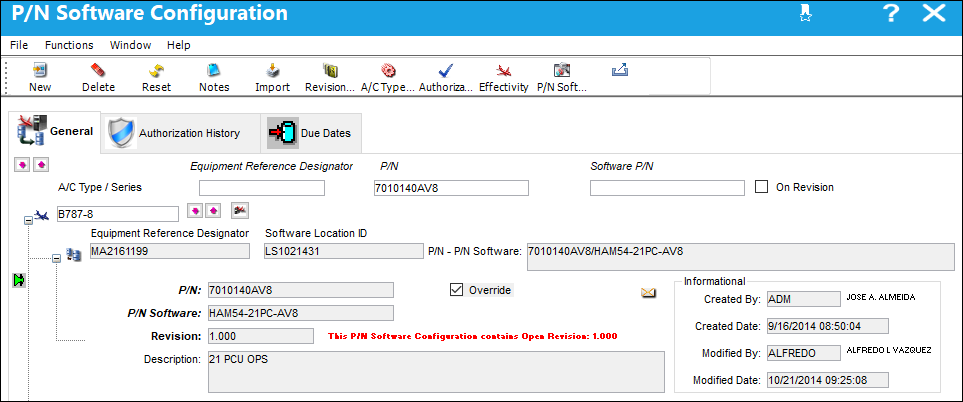
From the P/N Software Configuration, notice that the configurations brought in via the import (including the above hardware and software parts) have been configured with a new revision. Notice that the ERD and SLID for each part has also been imported.
These newly imported part revisions must be authorized via the P/N Software Configuration Management window of the Setting module.
Share
Print
|
©1997-2026 Trax USA Corp. All rights reserved. This manual may not be copied, photocopied, reproduced, translated, or converted to any electronic or machine-readable form, in whole or in part, without prior written approval from Trax USA Corp. |
 |