
 Share
Share
 Print
Print
|
|
|
|
|


System Transaction Configuration

System Administration/ Explorer/ System Transaction Configuration
The System Configuration Explorer is designed to improve the user's experience locating specific switches by switch name or description through two separate and optional user views. The following two views are available: Classic View and Quick View.
The user can alternate between views and choose which view fits the user's needs best in terms of search efficiency and switch format.
The following section explains how to use both configuration views.
Classic View:
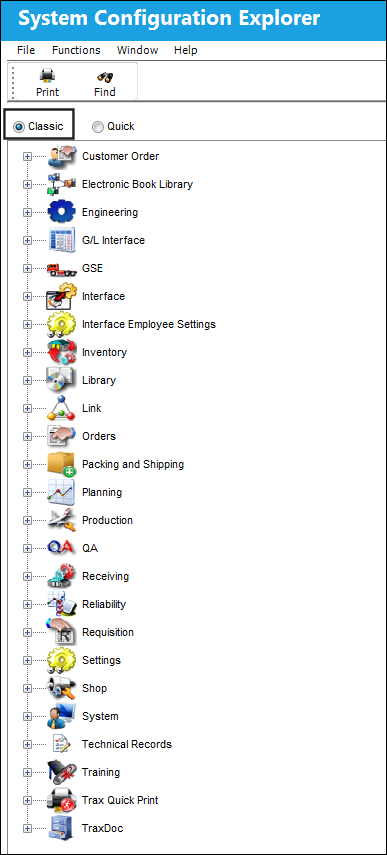
The Classic view displays a list of all modules in the application.
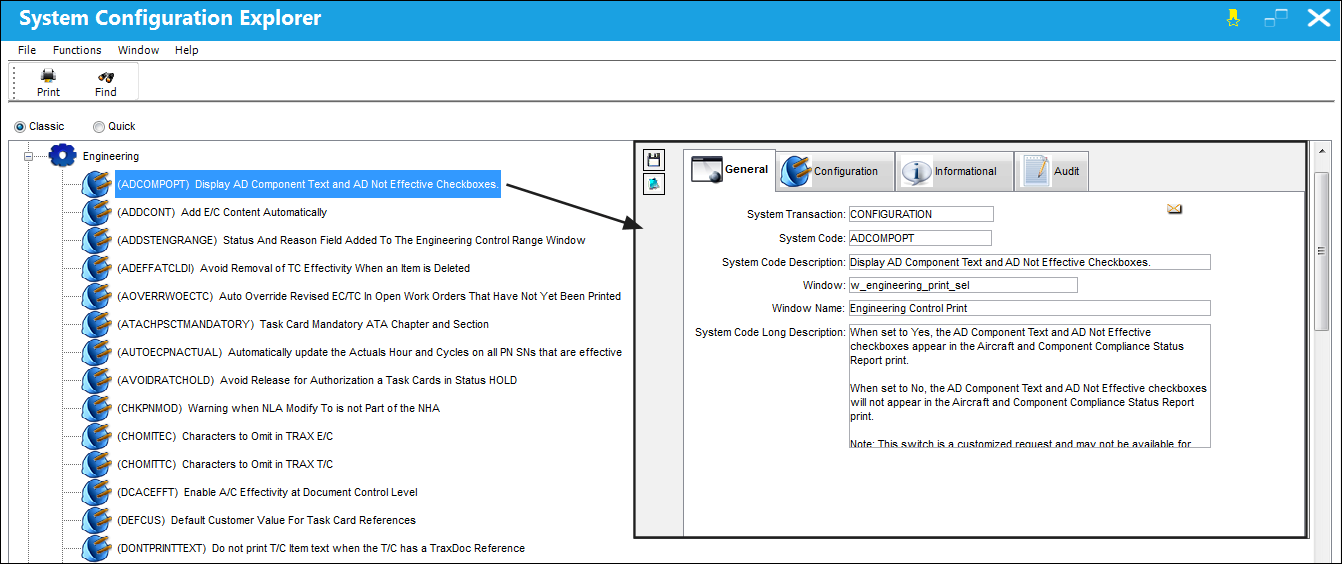
Upon selecting a module, a list of switches will become available. A preview window containing the switch information will pop up and will remain fixed upon the switch selection.
Quick View:
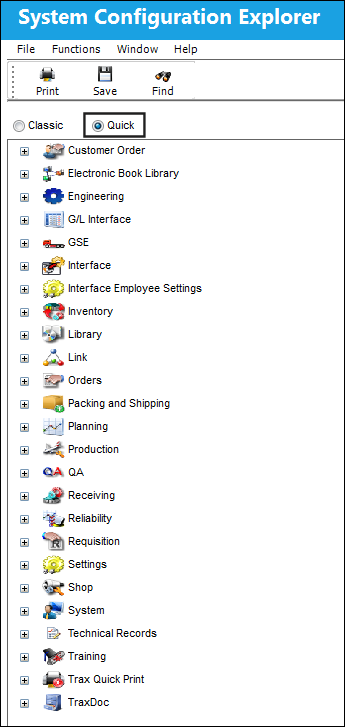
The alternative switch view is the Quick View. Select the Quick radio button and the view changes to a condensed list of all modules in the application.
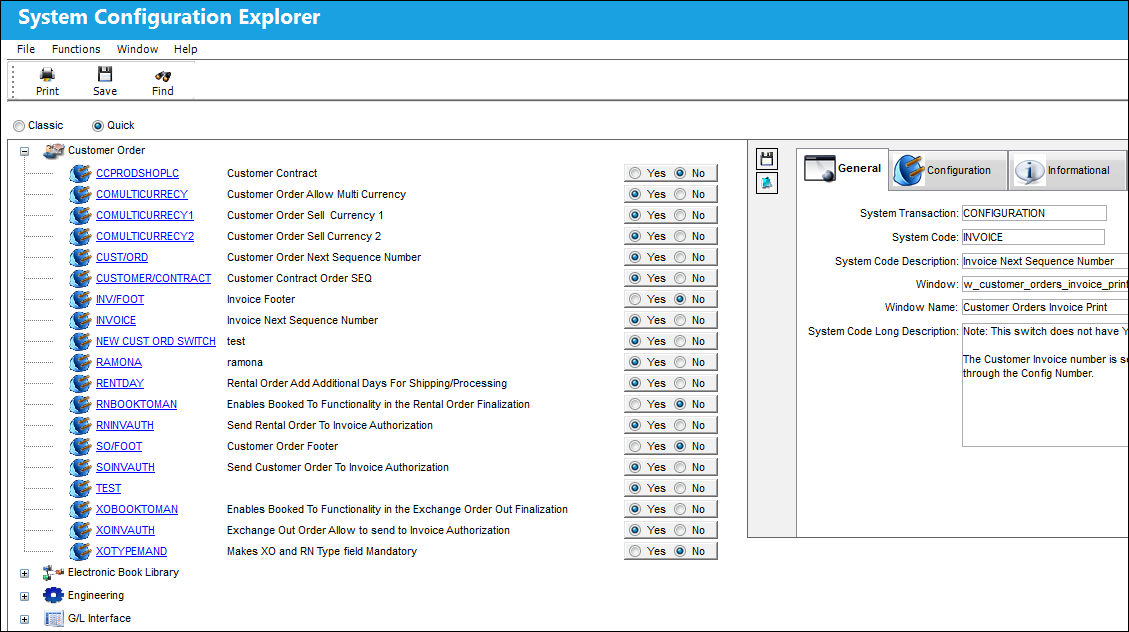
Upon selecting a module, a list of switches will become available. Note that all switches under that module will now have a short description available and the option to set one or all switches to either Yes or No. Each switch will also have a hyperlink. Upon selecting the hyperlink, a pop up will display with the switch preview.
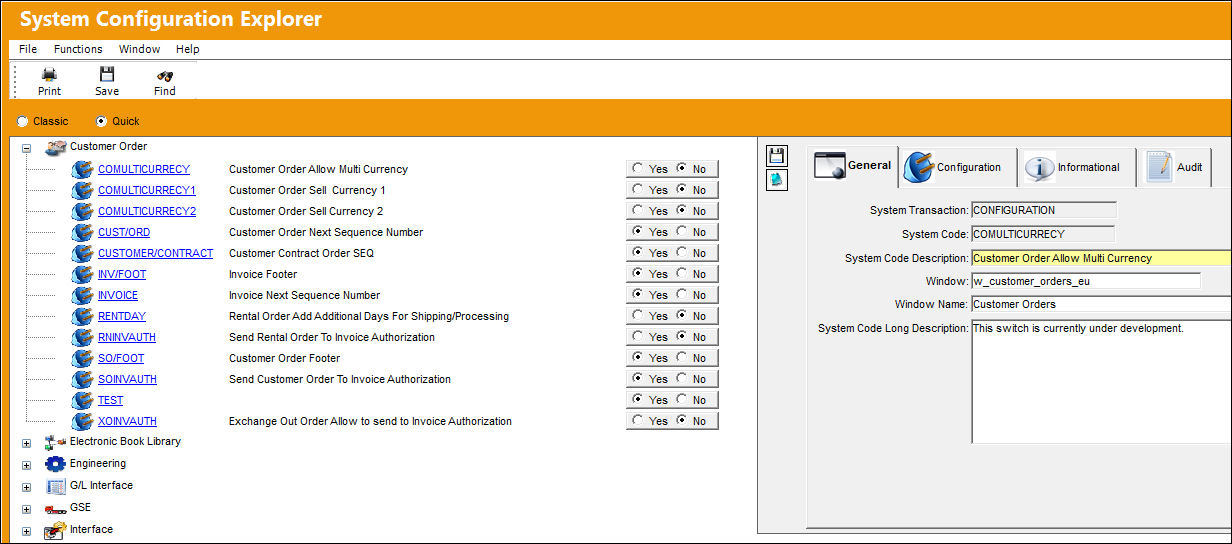
Locating a Switch:
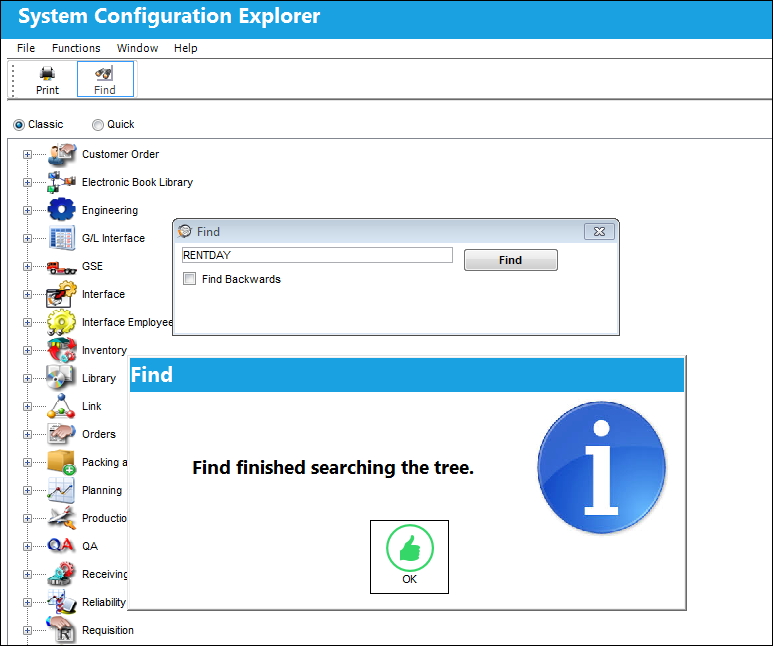
To find a specific switch in the System Configuration Explorer, in the Classic View the user must select the module first in order to locate the switch. If the module is not known or is not selected the system will not be able to locate the switch and the the following information box will appear:
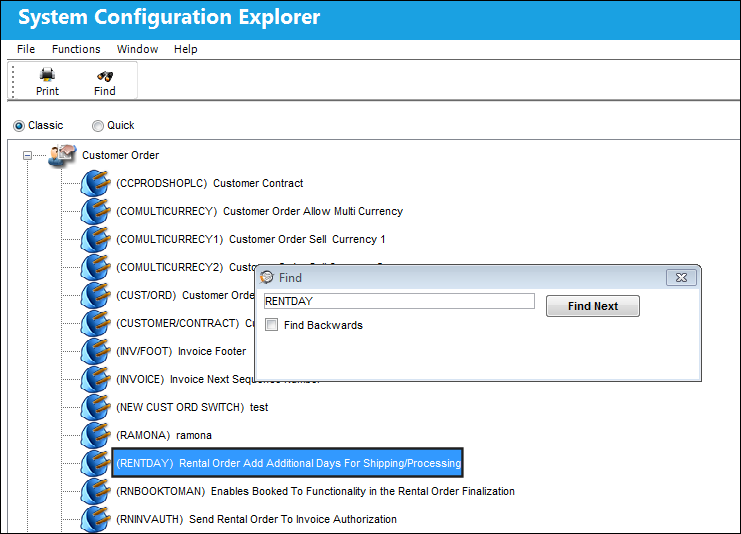
Once the correct module is selected and the user enters the switch description in the Find field, the system automatically locates the switch in the module:
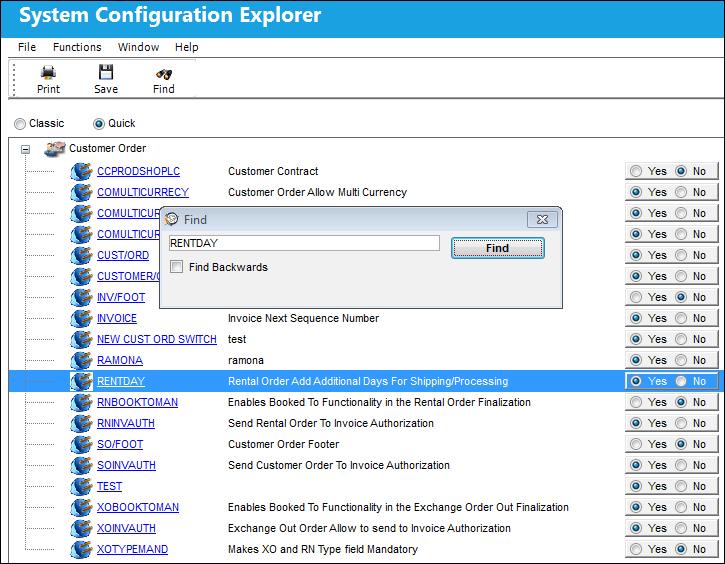
In the Quick View, the user does not have to select the module in order for the system to locate the switch. Once the user enters the switch description in the Find field and selects Find, the system will automatically open the module where the switch is located and highlight the switch.
Share
Print
|
©1997-2026 Trax USA Corp. All rights reserved. This manual may not be copied, photocopied, reproduced, translated, or converted to any electronic or machine-readable form, in whole or in part, without prior written approval from Trax USA Corp. |
 |