
 Share
Share
 Print
Print
|
|
|
|
|


Query Area, via Dent Mapping

The Query Area allows the user to filter for defects depending on the criteria entered.
From the Query Area, enter an aircraft and select the Find  button.
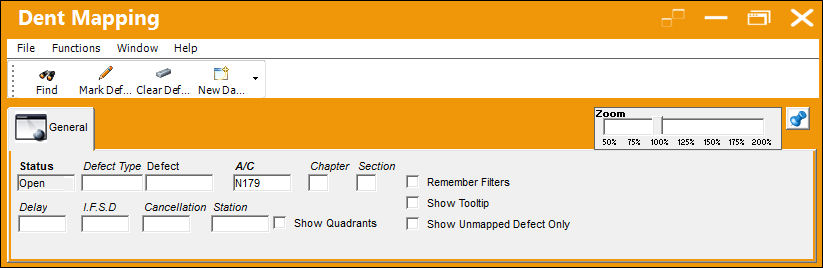
The following information/options are available in this window:
_____________________________________________________________________________________
Status
The status of the defect.
Defect Type
The type of defect found on the aircraft (for example, Pilot Report, MX Report). For additional information, refer to the Defect Type Transaction Code, via the Technical Records Transaction Code Manual.
Defect
The defect number (or log book number).
A/C
The individual aircraft tail number.
Chapter/Section
The ATA Chapter/Section classification of the Defect. The Chapter/Section information must be set up against the Intelli Forms button. If no Chapter/Section is set up against the aircraft, the query will return images for all Chapter/Sections of the aircraft. For additional information, refer to the Intelli Forms Button, via A/C Type/Series of the Settings Training Manual.
Delay
The Delay Code (i.e. Equipment Failure, Scheduled Ground Time). For additional information, refer to the Delay Transaction Code, via the Technical Records Transaction Code Manual.
I.F.S.D.
The Engine In-Flight Shut Down code (i.e. Foreign Object Debris, Lightning Strike). These codes can be set up via the Technical Records Transaction Codes. Go to Settings/ Explorer/ System Transaction Code/ Technical Records.
Cancellation
The flight cancellation code if applicable (i.e. Maintenance Repairs, Ground Servicing). These codes can be set up via the Technical Records Transaction Codes. Go to Settings/ Explorer/ System Transaction Code/ Technical Records.
Station
The station where the defect was worked on.
Show Quadrants checkbox
Select the Show Quadrants checkbox to display the four quadrants of an image.
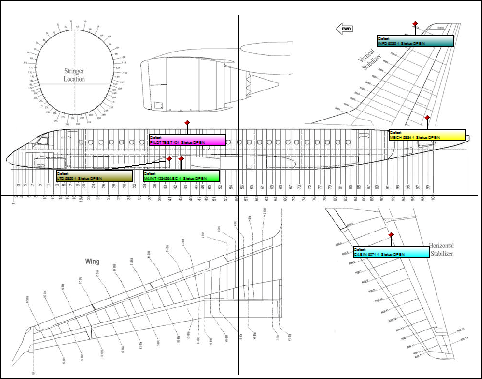
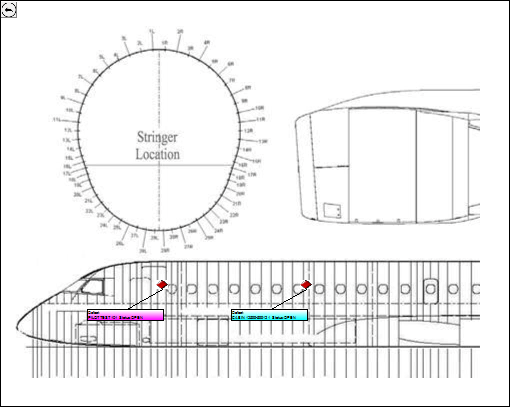
The user may select one quadrant to be displayed for a more detailed view. The user may zoom in/out of one quadrant.
Remember Filters checkbox
Select the Remember Filters checkbox to have the system remember and display the filters specified by the user when they exit and enter the Dent Mapping window.
Show Tooltip checkbox
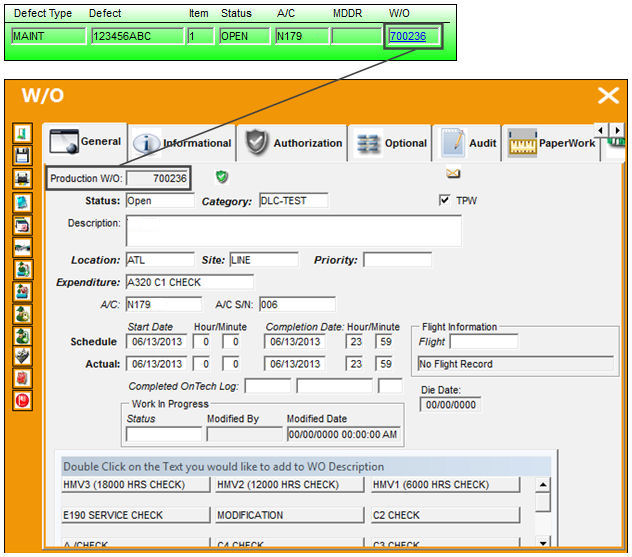
Select the Show Tooltip checkbox to view additional details regarding the defect when the user hovers over each mark illustrated on the image. The user may select the Work Order reference to display the Work Order details. The following Work Order window will appear upon selection of the Work Order reference:
Show Unmapped Defect Only checkbox
Select the Unmapped Defect Only checkbox to display only defects that have not yet been mapped on the image.
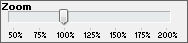
Zoom dial
The Zoom dial allows the user to zoom in and out of the image(s) in the Work Area.
_____________________________________________________________________________________
Share
Print
|
©1997-2026 Trax USA Corp. All rights reserved. This manual may not be copied, photocopied, reproduced, translated, or converted to any electronic or machine-readable form, in whole or in part, without prior written approval from Trax USA Corp. |
 |