
 Share
Share
 Print
Print
|
|
|
|
|


Order Receiving
The Order Receiving General tab search selection via Receiving/ Update/ Order Receiving is used to search for open order receiving transactions in the system. As with the majority of the query selections on the system, it is better to select as many parameters as required to minimize your search result. Below is a listing of the search criteria that can be used:
Selected the criteria, and click on the Find  button.
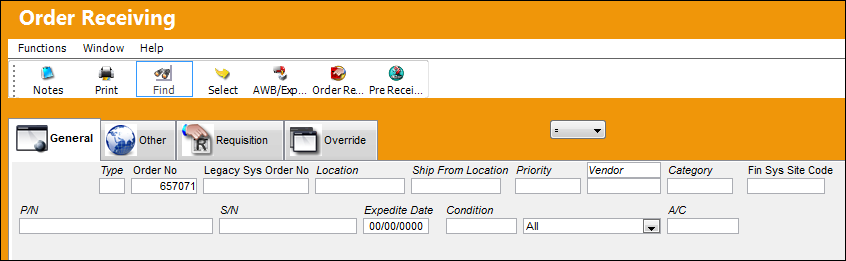
Enter/update the following information:
Release |
Field |
Function |
|
Type |
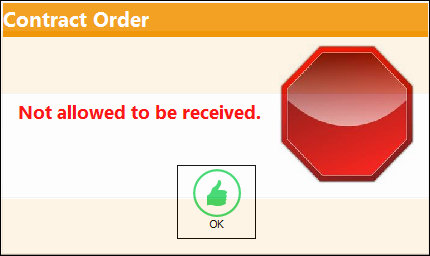
The type of order being received. Based upon the order type, certain receiving, financial, and inventory behaviors will be assigned to the part at receiving. The order types exist under the Orders or Customer Orders Modules exclusively. All order types are hard coded into the TRAX programming syntax. Note: Contract orders (CO) and Sales orders (SO) are the only order type which may not be received. If a user attempts to received a contract order the following warning will appear:
|
|
Order No. |
An auto-generated unique sequential number is assigned to each Order. All Order Types will receive this number for the following configuration. See below:
Customer Orders will receive this number for the following configuration. See below:
|
|
Legacy Sys Order No |
The Legacy P.O. related to the order is typically used for implementing TRAX customers to cross reference their old systems Order Number to the newly generated Order Number generated by TRAX as per data conversions. Note: This does not apply to CO, MO or WC order types. |
|
Location |
The Location for maintenance events, inventory stores, orders, transactions, or training events. |
|
Ship From Location |
The location where the part will be shipped from. All locations are defined in the Location Master. All ship locations must be identified as an inventory location in the Location Master. |
|
Priority |
The priority that will be placed on this transaction (critical, normal, etc.). For additional information, please refer the System Transcodes Training manual, Priority. |
|
Vendor/customer Drop Down |
The code of the vendor or customer who the order is placed with. The vendors are defined in the Vendor Master. |
|
Company |
Enter the name of the G/L Company the P/N was assigned to to query by. Note: This field ONLY becomes available when the |
|
Category |
The appropriate category for this transaction. This also works with authorization process mapping as defined against the order type. For additional information, please refer to the System Trans Codes Training manual, Order Type. Note: The following configurations apply to the Category field:
|
|
P/N |
The Part Number reference for the aircraft part. |
|
S/N |
The Serial Number for the specific serialized part. |
|
Expedite Date |
The expedite date of this order. The expedite date may be defaulted as defined in the Order Priority System Transaction Code. |
|
Condition |
The condition of the received part. |
|
Maintenance/General Inventory/ GSE Inventory |
Choose either maintenance inventory, general inventory, or GSE inventory depending on what kind of inventory the user is creating the order for. Please refer to the Settings manual for additional information regarding maintenance, general, or GSE inventory if required. |
|
|
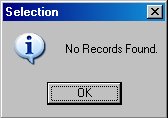
Note: If a part cannot be located matching any of the above enter search criteria or any combination of the above entered search criteria, the following message will be displayed:
Select OK to exit message window. |
|
A/C |
The aircraft associated to the Order the user would like the receive. |
|
Unlock Receiving |
The Unlock Receiving
|


 button
 button in the Order Receiving search window allows users to access and update the Order Receiving record in the event that the record has been locked in error. This button is only available for records that are currently In User or locked by error. Further, when a record is in use, the user who is utilizing the record will be listed in the In Use By field. If one user attempts to receive an order record in the Order Receiving window that is currently being received by another user, a warning will prevent the second user from receiving the same order.
 This button is security-controlled via Receiving/ Update/ Order Receiving/ Unlock Button. For more information refer to the
 The search result will appear as shown below:
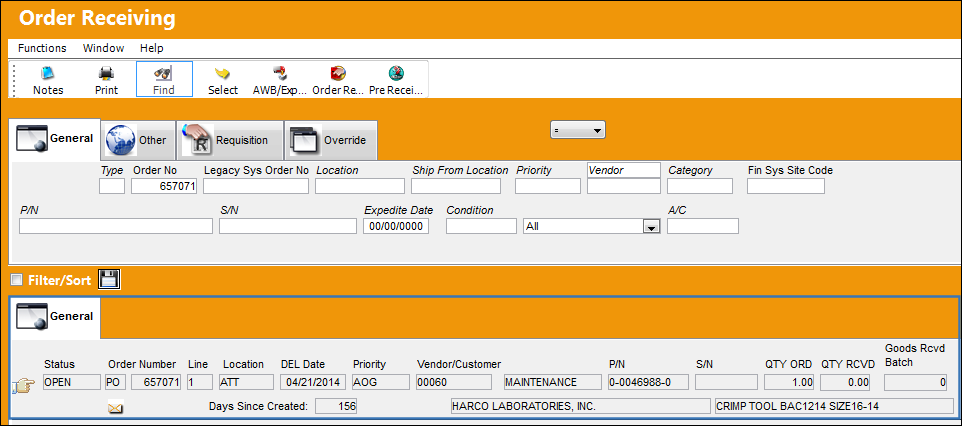
Scroll to the right:
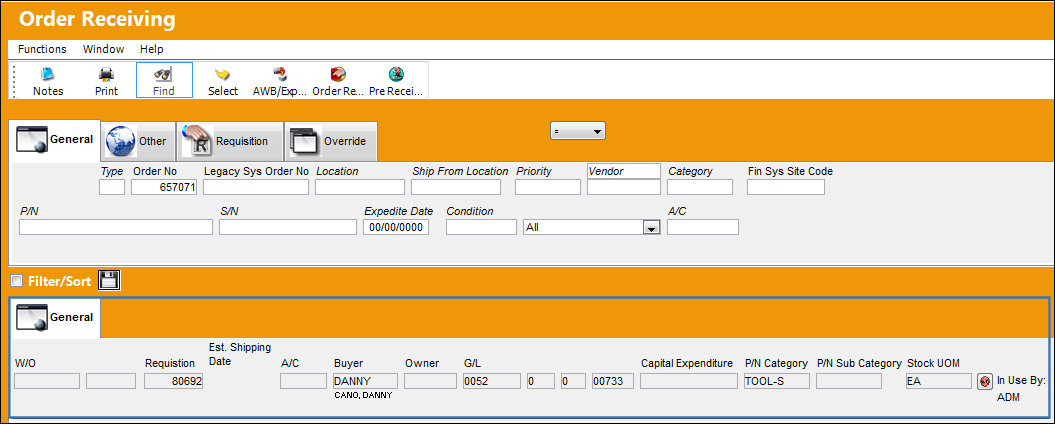
Notice that each line on the order appears as an individual record on this window. The user should receive one line (part number) at a time.
The user should select the line (part number) that they want to receive so that the Hand  points at it. Click the Select
  button (or double click on the record).
Share
Print
|
©1997-2026 Trax USA Corp. All rights reserved. This manual may not be copied, photocopied, reproduced, translated, or converted to any electronic or machine-readable form, in whole or in part, without prior written approval from Trax USA Corp. |
 |