
 Share
 Print
|
|
|
|
|


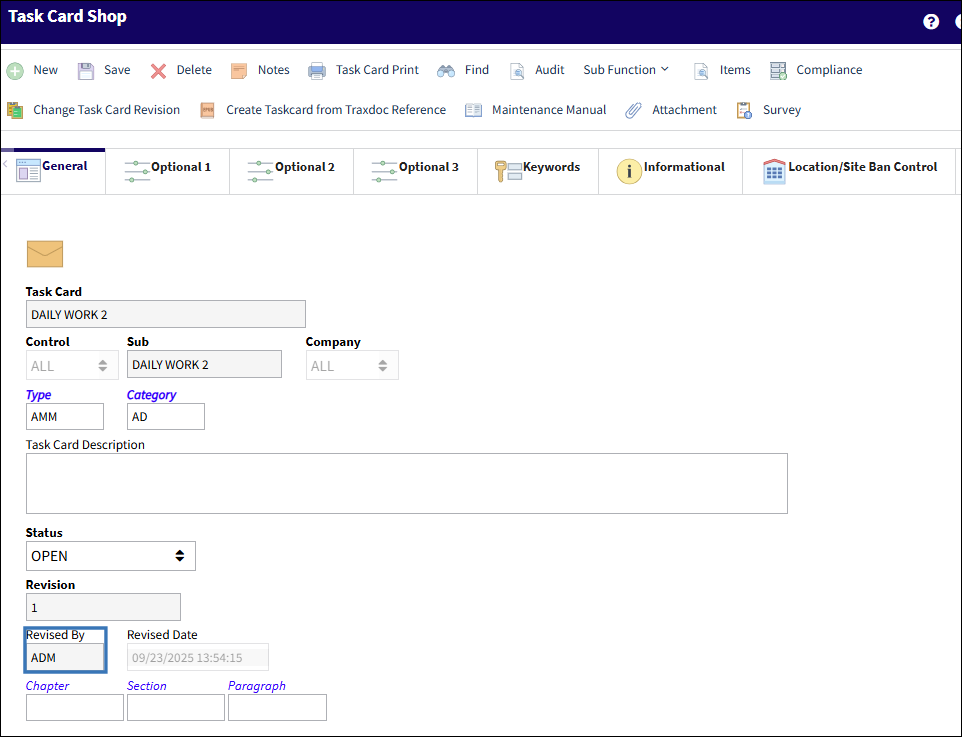
To apply a revision to a Shop Task Card, go to Engineering/Update/Task Card Shop, bring up the Shop Task Card that requires a revision, then select the Revision Control  button.
Note: Engineering Switch  REVAUTH (Task Card Authorization Revision) must be set to Yes in order for this functionality to work correctly. When set to Yes, newly created or revised Task Cards will require authorization and will be placed in the Task Card Authorization queue (as displayed below). When set to No, new or revised Task Cards do not require authorization. Also, the Delete button in the Task Card Revision window can be removed by applying the appropriate security settings via System Administration/ Explorer/ Security Explorer. (The Task Card Revision window is only accessible when this switch is set to No.) For more information refer to Switch REVAUTH via the Engineering Switches Manual.
From the Task Card window, select the Revision Control button.
The system displays the Revision Control Window. Update the Revision and save.
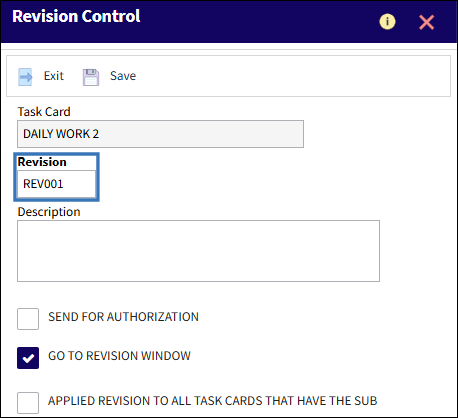
The following information/options are available in this window:
_____________________________________________________________________________________
Task Card
The Task Card / Job Card that details the scheduled maintenance work.
Revision
The Task Card's most recent authorized revision number.
Description
The description of the reason for the revision. This can be edited at a later time, but not after it has been authorized.
Send For Authorization checkbox
Check to send the record directly to its Authorization Explorer queue awaiting authorization (with a status of 'Pending'). If unchecked, the record must be released for authorization via the Authorization Management option.
Go To Revision Window checkbox
The user must have proper security access to the Authorization Management option in order to use this checkbox. If the user selects the Go To Revision Window checkbox, the user will be presented with the Authorization window after saving. The information from the record that is being revised will appear on the window for editing, if required.
Users must have proper security access to the Task Card Authorization Management option in order to view this checkbox. The revision must then be released for authorization using the Release Authorization  button. If the user does not have the proper security settings to access the Task Card Authorization Management option, this checkbox will be disabled.
Applied Revision To ALL Task Cards that have the Sub checkbox
If selected, all Task Cards containing the same Sub and Control of the Task Card in use will be updated with the same Revision.
_____________________________________________________________________________________
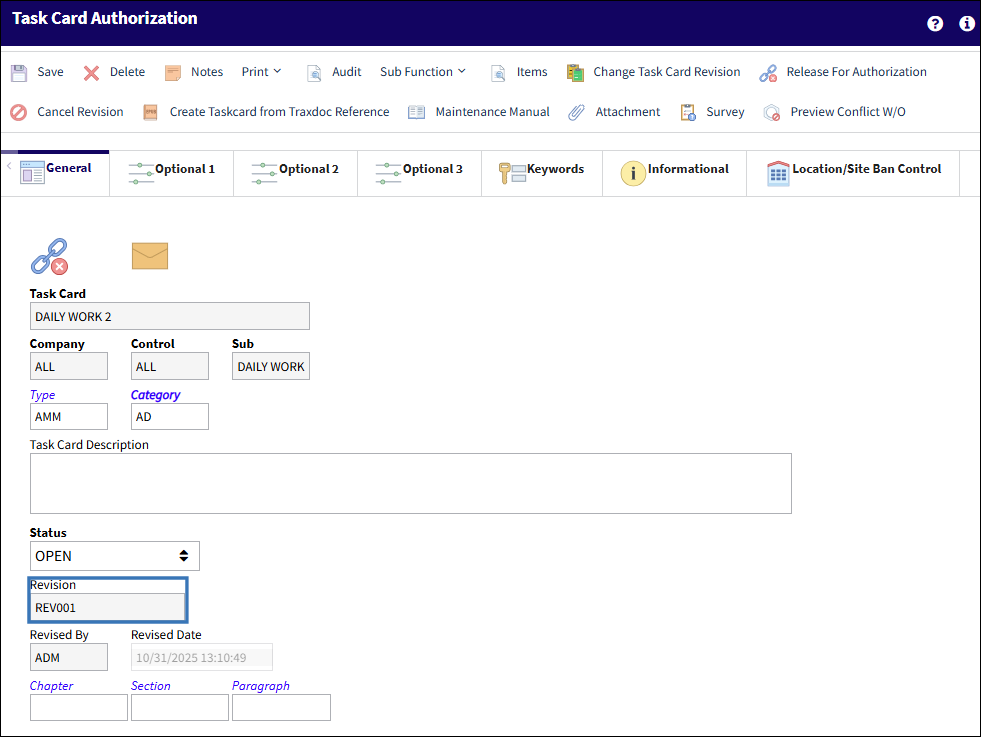
The Task Card is now under revision:
Note: When a Task Card is under revision, that Task Card will indicate as such (via an alert message in red text) on the General tab.
Share
Print
|
©1997-2026 Trax USA Corp. All rights reserved. This manual may not be copied, photocopied, reproduced, translated, or converted to any electronic or machine-readable form, in whole or in part, without prior written approval from Trax USA Corp. |
 |