
 Share
 Print
|
|
|
|
|


Select the Engineering Control  button to open the Engineering Task Card Control Window. Shop Task Cards can be attached to E/Cs, so that when an E/C is added to a Shop Work Order the Shop Task Cards are also copied into the Shop Work Order. This window illustrates which E/Cs this Shop Task Card is attached to, and allows the user to attach this Shop Task Card to other E/Cs.
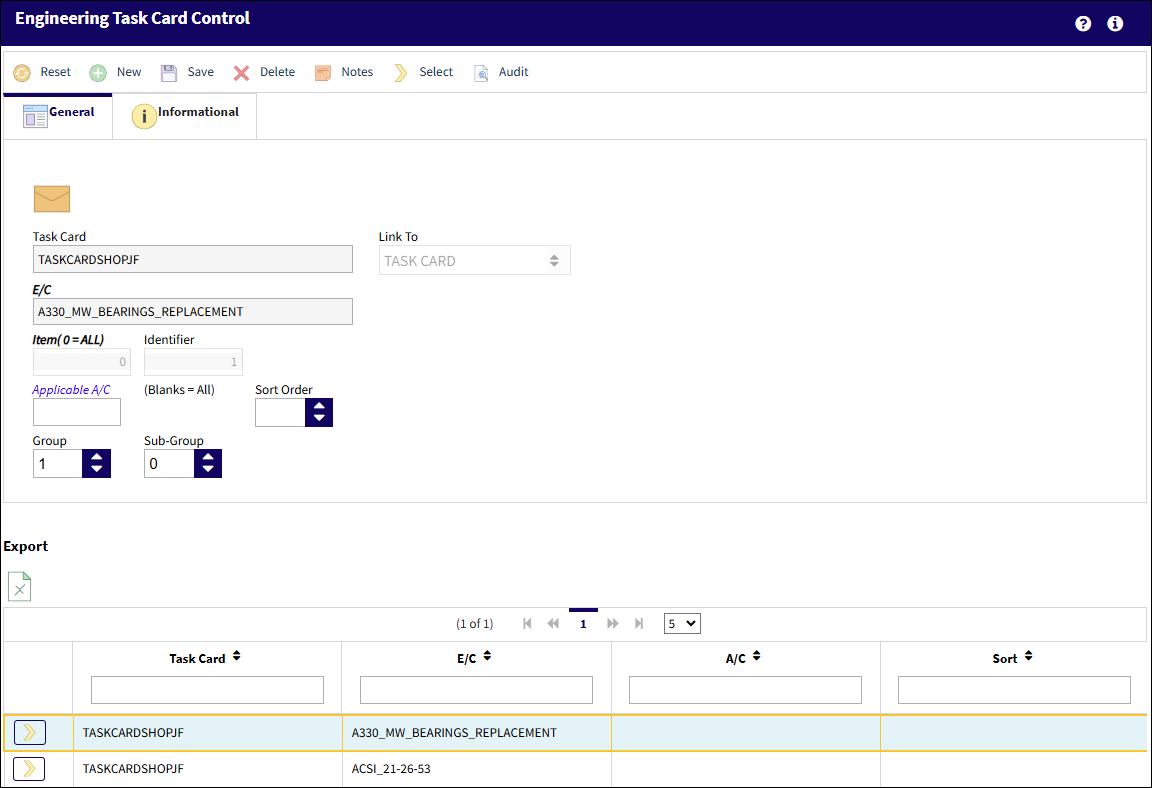
The following information/options are available in this window:
_____________________________________________________________________________________
Task Card
The Task Card / Job Card that details the scheduled maintenance work.
Link To
Whether the Task Card is linked to a Task Card or E/C.
E/C
The Engineering Control that specifies aircraft or component scheduled maintenance intervals.
Item (0 = ALL)
The specific item number on the Task Card that this record is to be associated with. Leave default '0' to have this record associated with all item numbers on the Task Card.
Identifier
When a user saves, deletes or re-sequences, a history is added to the audit table and a new Identifier number is assigned to the Task Card for revision tracking purposes.
Applicable Aircraft
Enter an aircraft if it is the sole effective aircraft, leave blank for all.
Sort Order
Allows the user to specify the order that the E/C's Task Cards will be sorted in. These sequence numbers are sorted according to their numeric values.
Group/Sub Group
Grouping and Sub-Grouping allows for the automatic creation of Work Orders for Task Cards that share the same E/C.
_____________________________________________________________________________________
Note: Refer to Switch  ECTCLINK for additional information regarding associating E/Cs to Task Cards.
If the Task Card is 'Pending Authorization', an error indicating that the E/C is not authorized will appear.
To associate the E/C to a Task Card "Pending Authorization," it must be done through Engineering Authorization Management or Task Card Authorization Management while either are pending authorization depending on the configuration of Switch ECTCLINK.
Additionally, relevant information can be entered through the Notes  button. Past information related to the record can be viewed through the (T/C) Engineering Task Card Control, Informational tab and the Audit
 button.
Share
Print
|
©1997-2026 Trax USA Corp. All rights reserved. This manual may not be copied, photocopied, reproduced, translated, or converted to any electronic or machine-readable form, in whole or in part, without prior written approval from Trax USA Corp. |
 |