 Download Online Help
 Print
|
|
|
|
|


Select the Material  button to apply sell configurations for each type of material linked to the contract. Rules are established on how to handle the materials by their P/N Category, and they can be specified for certain Conditions or all Conditions. These available configurations include markups percentages, handling fees, sell amount limits, and more. These rules serve as a baseline for materials that may then be subject to additional flat rate rules for Task Cards and their Non-Routines (via the Flat Rate Task Card option).
Steps:
1. Click the Material button.
2. Choose whether the terms will be applied to individual Conditions or to ALL Conditions.
3. Select a P/N Category to set its terms for the contract. (Repeat this step for all desired P/N Categories.)
4. If a single Condition was selected, repeat the steps for each additional Condition.
Choose the applicable Conditions
When the Materials button is selected, a drop down selection window appears.
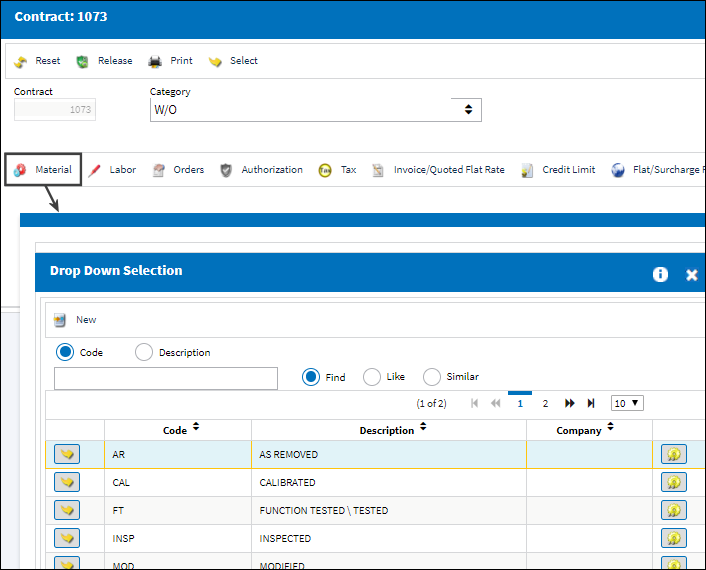
Users have two options:
Single Condition: select a Condition to apply the contract terms to that single Condition.
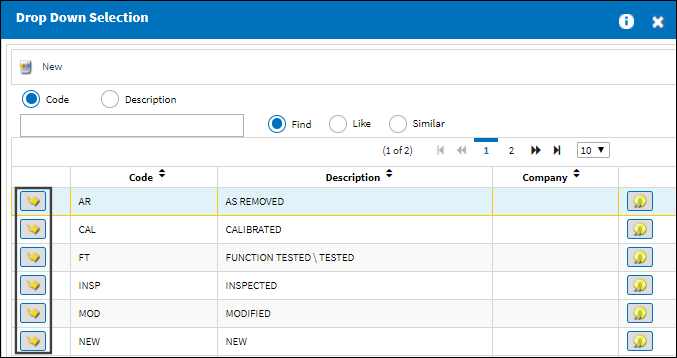
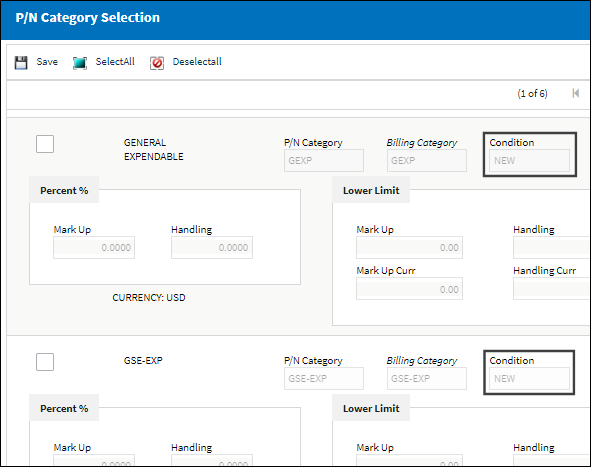
Notice that the selected Condition is listed. This means that the terms for the selected P/N Categories will be applied to a single Condition.
ALL Conditions: exit the window to apply the terms of the contract to ALL Conditions.
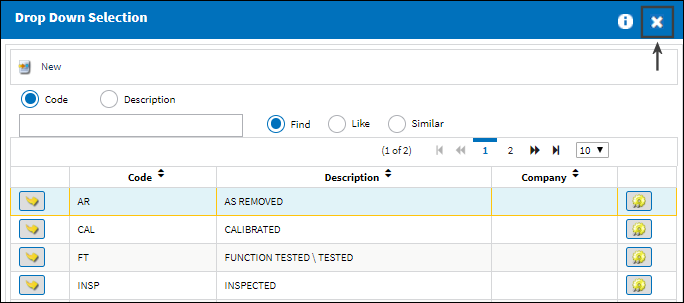
Notice that no Conditions are listed. This means that the terms for the selected P/N Categories will be applied to ALL Conditions.
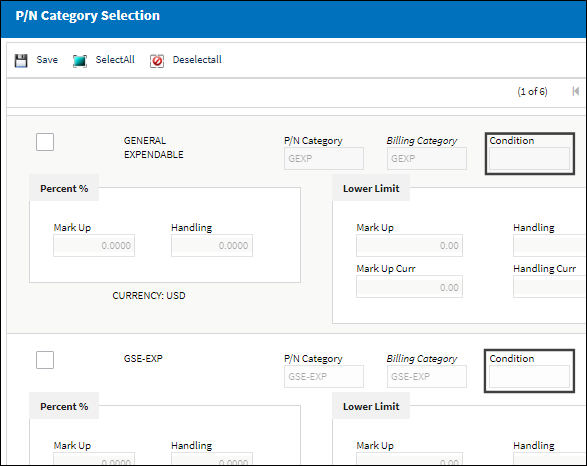
Set the rules for the P/N Categories
From the P/N Category Selection window, terms are applied to Materials for specific P/N Categories. Each P/N Category can have unique terms.
To edit the rules for a P/N Category, select the P/N Category.
Users can select and edit the Billing Category, Mark Up percentages, and all other applicable fields for the selected P/N Category.
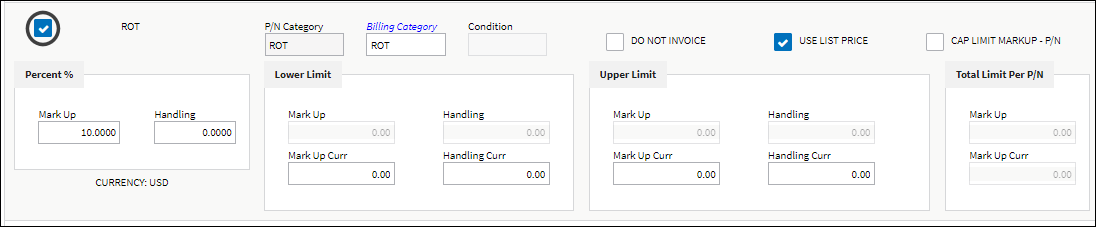
All fields will be greyed out until the P/N Category is selected. Multiple P/N Categories can be configured for the contract, but this information must be configured for each individual P/N Category manually.
The following options/information is available in this window:
_________________________________________________________________________
Select checkbox
Select a P/N Category to establish its rules for this contract. Each Category that requires rules for the contract must be selected individually to have its rules applied.
Note: Only the selected P/N Categories can have their fields edited. Otherwise all fields for the deselected Categories will be greyed out.
P/N Category
The category of the part as defined in Settings/ Explorer/ System Transaction Code Explorer/ Settings/ P/N Category (e.g. Rotable, Consumable, Repairable) and entered for the particular part in the P/N Master. When the P/N is applied to the P/N Category classification, the associated Billing P/N Category will appear on the Customer Work Order invoice.
Billing Category
P/N Category classification for customer contracts that do not necessarily exist in the system P/N Master but will appear on the Customer Work Order Invoice for all parts issued for that part category. For example, the P/N Category in the system may be 'expendable,' however materials in the invoice may appear as 'supplies', as defined in this field in the Customer Contract.
Condition
The Condition of the material part involved in the order. Each P/N Category's rules for the contract can either be set up for specific Conditions or for all Conditions. When the Materials button is selected, the Condition selection pop-up window appears. If a Condition is selected, then that condition will be listed in this field; if the pop-up window is closed and no Condition is selected, then the Condition field will be blank and the rule will apply to all conditions.
Do Not Invoice checkbox
When selected, the material or labor specified will be displayed in the invoice, but the customer will not be charged for the material or labor specified. For example, this could include materials such as gloves, or labor such as washing or towing of an aircraft that should be listed in the invoice but the customer may not be required to pay for.
Refer to Do Not Invoice Checkbox for more details and an example.
Use List Price checkbox
When selected, the system will use the Sell Price from the P/N Master. If the checkbox is not selected, the system will use the Average Cost of the from the P/N Master.
Note: It is highly recommended to establish the Sell price for parts early on in implementation as this will be useful for Customer Contracts later on.
Percent % section
Mark Up - The percentage the materials have been marked up against the cost of the part used to establish a profit margin. The markup percentage will never be lower than the Lower Limit, or higher than the Higher Limit.
Handling - The percentage being charged for handing fees (i.e., shipping costs, receiving). This percentage will be applied to the sell price of the material.
Lower Limit section
These fees are minimum amount that the customer will be charged.
For example, if a part costs $400 but the Lower Limit is set at $500 (either the Mark Up or Handling fee), then the customer will be charged $500 because that is the minimum charge. If the part costs $600, then the Lower Limit threshold will be ignored and the full $600 will be charged.
Mark Up Curr - The minimum amount of markup that will be charged. This is a specific value and not a percentage to allow for the Lower Limit to be a set value. This is in the local currency.
Handling Curr - The minimum amount to be charged for handling fees in the currency of the contract. For example, if the currency of the contract is in EUR and the target handling fees is 15 USD, the handling fees currency should be 12 EUR which is the equivalent of 15 USD.
Upper Limit section
The Upper Limit fees are the maximum amount fees that the customer will be charged.
For example, if a part costs $110,000 but the Upper Limit fee is set at $100,000, then the the customer will only be charged $100,000 because that is the maximum cost threshold. If the part costs $95,000, then the Upper Limit threshold will be ignored and the $95,000 will be charged.
Mark Up Curr - The maximum amount of markup that will be charged. This is a specific value and not a percentage to allow for the Upper Limit to be a set value. This is in the local currency.
Handling Curr - The maximum amount to be charged for handling fees in the currency of the contract. For example, if the currency of the contract is in EUR and the target handling fees is 500 USD, the handling fees currency should be 400 EUR which is the equivalent of 500 USD.
Total Limit Per P/N
The cost, plus the markup percentage, (or mark up value) plus the handling fees = Total Limit.
_________________________________________________________________________
Download Online Help
Print
|
©1997-2018 Trax USA Corp. All rights reserved. This manual may not be copied, photocopied, reproduced, translated, or converted to any electronic or machine-readable form, in whole or in part, without prior written approval from Trax USA Corp. |
 |