 Download Online Help
 Print
|
|
|
|
|


The Flat Rate Task Card  button allows the vendor to designate a cap limit for material and/or labor captured on a Non Routine Task Card. For all material or labor costs that fall under the cap limit, there will not be any additional charges. But if these limits are exceeded, then the specified overage fees will be charged to the customer at the rates specified through this option. Once the caps are exceeded, these configurations will override the rules set up through the Material and Labor buttons.
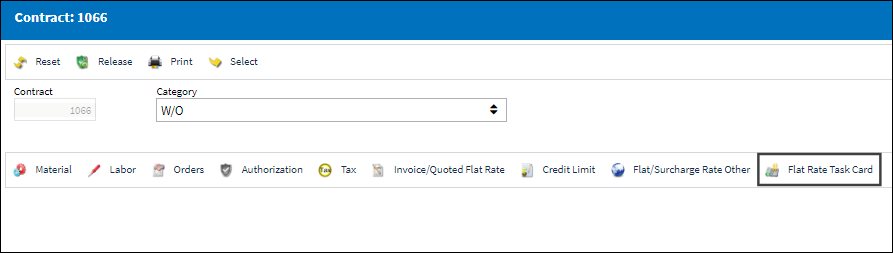
The Flat Rate window opens as follows.
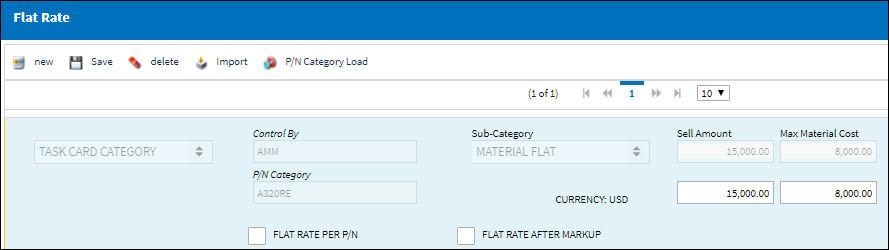
The following options/information is available in this window:
_________________________________________________________________________
Control By drop down
These rates can either be applied to specific Task Card or to all Task Cards for a certain T/C Category. As such, the options are Task Card or Task Card Category:
Task Card - If Task Card is selected, enter the specific Task Card that these rates will be applied to in the Control By field.
Task Card Category - If Task Card Category is selected, enter the T/C Category that these rate will be applied to in the Control By field. All Task Cards with this Category will be applicable to this rate.
Sub-Category drop down
This option determines whether this Cap Limit will affect Non-Routine labor or materials. As such, the options are Labor Flat or Material Flat:
Labor Flat - If Labor Flat is selected, then manual Labor hours will be tracked. The Sell Amount price will be charged to the MRO's customer if the amount of Labor Hours is under the amount of Max Hours. If the amount Max Hours is surpassed, then HRS Rate will be applied. See the Apply Full Amount checkbox for more information.
Material Flat - If Material Flat is selected, then the sell prices of Material components issued to Non-Routine Task Cards will be tracked. The Sell Amount price will be charged to the MRO's customer if the sell price is under the Material's Unit Sell. If the Max Material Cost is surpassed by the material component's Unit Sell, then the difference in sell price will be charged.
Sell Amount
The minimum amount that customers will be charged for the Labor or Material costs that was necessary for the Non-Routine work to be completed by the MRO.
Labor Flat - If Labor Flat is selected, the Sell Amount will be applied to the total amount of manual labor hours until the amount of hours defined by the Max Hours field is surpassed. If the Max Hours are surpassed, then the HRS Rate will be applied (refer to the Apply Full Amount checkbox).
Material Flat - If Material Flat is selected, the Sell Amount will be applied to any Material components used for the Non-Routine work. If the Max Material Cost is surpassed by the Material components, then the difference in price will be applied to the invoice.
Max Material Cost
This field signifies the cap limit for Material components and is only available when Material Flat is selected. If the cost of Material components is below this Max Material Cost, then only the Sell Amount will be applied. If the cost of Material Components is above this Max Material Cost, then the difference between the Max Material Cost and the actual cost of the material component must be paid by the customer.
Max Hours
This field signifies the cap limit hours for manual labor and is only available when Labor Flat is selected. If the amount of labor hours required for the Non-Routine work is below these Max Hours, then the Sell Amount will be the hourly rate applied. If the Max Hours are surpassed, then the HRS Rate will be the hourly rate applied.
HRS Rate
The Labor rate for each labor hour on a Non-Routine Task Card occurring after the Max Hours have been used up. In other words, the initial Max Hours are charged at the rate indicated by the Sell Amount; each hour after those Max Hours will be charged at the HRS Rate until the labor is completed. This field is only available when the Sub Category drop down is set to Labor Flat. For more information refer to Flat Rate Labor HRS Rate via the Production Training Manual.
Billing Category
P/N Category classification for customer contracts that do not necessarily exist in the system P/N Master but will appear on the Customer Work Order Invoice for all parts issued for that part category. For example, the P/N Category in the system may be 'expendable,' however materials in the invoice may appear as 'supplies', as defined in this field in the Customer Contract.
Currency
The primary currency used to specify the sell amounts. The field above these amounts may be set to secondary currencies.
Flat Rate Per N/R checkbox
When selected, the overage fees are applied to each Non-Routine Task Card that exceeded the Man Hours. Only the overages for each Non-Routine will be billed individually. For example, if one N/R T/C goes 2 hours over the Max Hours limit and another N/R T/C goes 1 hour over the Max Hours, then only 3 hours will be billed at the HRS Rate. When not selected, the overages fees for each Non-Routine Task Card are combined and applied to the routine Task Card. Once the cap limit Sell Amount is reached for all N/R T/Cs, the total amount of overage hours for all N/R T/Cs will be billed. For example, if the total hours of two N/R T/Cs is 15 but the Max Hours limit is 6, then the totaled 9 overage hours will be billed at the HRS Rate. This checkbox is only available for Labor Flat cap limits.
Apply Full Amount checkbox
When selected, the HRS Rate is applied to the total amount hours (all hours leading up to the Max Hours and all hours exceeding the Max Hours). When not selected, the HRS Rate is applied only to the amount of hours that went over the Max Hours. For instance, assume that the checkbox is selected, the Max Hours is 10 and the HRS Rate is 20. The Labor hours comes in for 12 total hours. Because the checkbox is selected, the labor charge is 240 because all 12 hours are being charged the HRS Rate of 20. If the checkbox were not selected, only the 2 hours that went over would be charged the HRS Rate (the charge would be 40).
P/N Category
The specific P/N Category that is affected by this cap limit. This field is only available when Material Flat is selected.
Note: This specific P/N Category must also be selected in the Material  button of the Customer Contract.
Flat Rate Per P/N checkbox
When selected, individual parts that exceed the cap limit will trigger the overage. (For example, if two parts have a Sell Amount of 1000 each and the Max Material Cost is 1200, an overage will not be triggered because neither of the individual parts surpass the cap limit.) When not selected, the flat rate cap limit will consider the total of all parts issued to the N/R T/C. (Therefore, if two parts have a Sell Amount of 1000 each and the Max Cost is 1200, the total cost for both parts will be added and will trigger an overage. If this sum does not surpass the cap limit, then a cap limit overage will not be triggered.) This checkbox is only available for Material Flat cap limits.
Flat Rate After Markup checkbox
When selected, a separate charge will be added in the Actuals for the Markup price. When not selected, the markup price will be included within the existing Actuals for the cap limits/cap limit overage. This checkbox is only available for Material Flat cap limits.
Import  button
Select this button to import an excel file with multiple cap limit entries into the Flat Rate Task Card Customer Contract. This import file should include all of the data options listed in this window. Once this button is clicked, the import .txt file must be selected to import the data.
P/N Category Load  button
Select this button to add a Material Flat cap limit for a specific P/N Category. Multiple P/N Categories can be selected when through this button. This button offers one option on how to do this; for more information refer to the P/N Category Load Button. The other option is detailed below in the Material Flat section.
_________________________________________________________________________
Select the New  button to create a new Cap Limit entry. Each Cap Limit could be for either Labor or Material Flat fees and each could vary for different Task Cards, Task Card Categories, or P/N Categories (when applicable).
Select the Delete  button to delete the selected cap limit entry.
Select the Save  button to save the new or updated cap limit entry.
Refer to the following processes for examples on how the Material Flat and Labor Flat cap limits trigger overage fees.
Material Flat Cap Limit Overage:
Cap Limits for materials issued to Non-Routine Task Cards can be configured by selecting the Material Flat option in the Sub-Category dropdown. Notice the data entered: cap limits will be applied to T/C Category 'JC,' P/N Category 'ROT,' a Sell Amount of 1000, and a Max Material Cost of 1500.
From the Material button of the Customer Contract, notice that P/N Category 'ROT' has been selected. Also notice that the Use List Price checkbox has been selected; this checkbox must be selected in order for a cap limit overage to be triggered for this P/N Category. The Use List Price checkbox indicates that the Customer Contract will refer to the component's P/N Sell price.
Note: Alternatively, a Material Flat cap limit can be created by selecting the P/N Category Load Button.
Once the Customer Contract is active, it can be linked to a Third Party Work Order.
Notice that the following scheduled Task Card, with the same Category as the one specified in the customer contract ('JC'), has been linked to the W/O.
As the scheduled T/C is being completed, a non-routine issue is discovered. At that point, a Non-Routine Task Card is created and linked to the W/O as well as to the Scheduled W/O Task Card.
For the N/R Task Card to reflect the cap limits specified in the customer contract, the Scheduled T/C must be linked and the Additional Work checkbox must be selected.
To complete the N/R Task Card, the following part is required. This part has the same P/N Category as specified in the customer contract ('ROT'), and the part has a registered Unit Sell price of 1800.
Note: This Unit Sell price will be linked to the customer contract because the Use List Price checkbox was selected from the Material button. To access the part's Unit Sell price, select the P/N Sell  button from the P/N Master.
At this point, the required part was issued from inventory to the N/R Task Card.
Now notice the W/O Actuals that have been triggered based on the Customer Contract specifications. The following are the Actuals that capture the Material costs.
- MATERIAL - Indicates that a material component was issued from inventory to the N/R Task Card. In this example, only one part was issued to the N/R Task Card.
- TCCAT/CAP/PN/PER - Indicates that the cost of the component issued to the N/R Task Card surpasses the Max Material Cost cap limit of 1500, as specified in the contract. Because the Unit Sell of the part was 1800 (as listed above in the P/N Sell window) and the Max Amount in the contract is 1500, the difference of 300 must be paid by the customer.
- If the Flat Rate Per P/N checkbox were not selected in the contract, then the TCCAT/CAP/PN/MAX actual would be triggered. When the Flat Rate Per P/N checkbox is selected, individual parts that exceed the cap limit will trigger the overage. When not selected, the flat rate cap limit will consider the total of all parts issued to the N/R T/C. (Therefore, if two parts are issued to the N/R T/C and each part costs under the Max Cost [800 each], the total cost for both parts will be added [1600 total]. If this sum surpasses the cap limit [which is 1500], then the cap limit overage will be triggered [by 100].)
- TCCAT/FLAT/MAT - Indicates the flat cost of the material component issued to the N/R Task Card. This amount was specified in the contract's Sell Amount.
The Customer Contract can now be invoiced. The Invoice number will be listed in each Actual.
Labor Flat Cap Limit Overage:
Cap Limits for Non-Routine Task Card Labor can be configured by selecting the Labor Flat option in the Sub-Category dropdown. Notice the data entered: cap limits will be applied to T/C Category 'MP,' with a Sell Amount of 250, a Max Hours of 6, and an HRS Rate of 60 applied for each labor hour over the Max Hours.
From the Skill Master, Cost/Sell tab, notice that the Regular Sell fields have been populated.
Once the Customer Contract is active, it can be linked to a Third Party Work Order.
Notice that the following scheduled Task Card, with the same Category as the one specified in the customer contract ('MP'), has been linked to the W/O.
As the scheduled T/C is being completed, a non-routine issue is discovered. At that point, a Non-Routine Task Card is created and linked to the W/O as well as to the Scheduled W/O Task Card.
For the N/R Task Card to reflect the cap limits specified in the customer contract, the Scheduled T/C must be linked and the Additional Work checkbox must be selected.
The Manual Labor required to complete the non-routine work was then added to the N/R Task Card. Notice that 8 hours were required.
Now notice the W/O Actuals that have been triggered based on the Customer Contract specifications. The following are the Actuals that capture the Labor costs.
- LABOR - Indicates that a manual labor was performed for the N/R Task Card. This labor charge notes the Unit Cost per hour (Standard Cost + Burden Cost) as defined in the Skill Master; the Unit Sell is not listed because the Customer Contract is overriding this Sell price.
- TC/CAP/LAB/OVR - Indicates that the cost of the labor performed for the N/R Task Card surpasses the Max Hours cap limit of 6, as specified in the contract. Because the labor hours (8) surpassed the Max Hours (6) for the cap limit, the customer is charged the overage 2 labor hours at the HRS Rate (2 hours x 140 HRS Rate = 280).
- If the Apply Full Amount checkbox were selected in the contract, then the HRS Rate would have been applied to the total amount of performed labor hours (8), not only the overage hours (2) that exceeded the Max Hours cap limit (6). Therefore, the HRS Rate (140) would have been applied to all 8 hours for a Total Sell of 1120.
- TC/FLAT/LAB - Indicates the flat cost of the labor performed against the N/R Task Card. This amount was specified in the contract's Sell Amount (750).
The Customer Contract can now be invoiced. The Invoice number will be listed in each Actual.
Download Online Help
Print
|
©1997-2018 Trax USA Corp. All rights reserved. This manual may not be copied, photocopied, reproduced, translated, or converted to any electronic or machine-readable form, in whole or in part, without prior written approval from Trax USA Corp. |
 |