
 Share
Share
 Print
Print
|
|
|
|
|



The Cancel Self Assignment  button allows an employee to cancel an assignment that they self assigned to themselves.
From the A/C Planning Query, select a Work Order that has already been self assigned. The Self Assignment  icon is highlighted below.
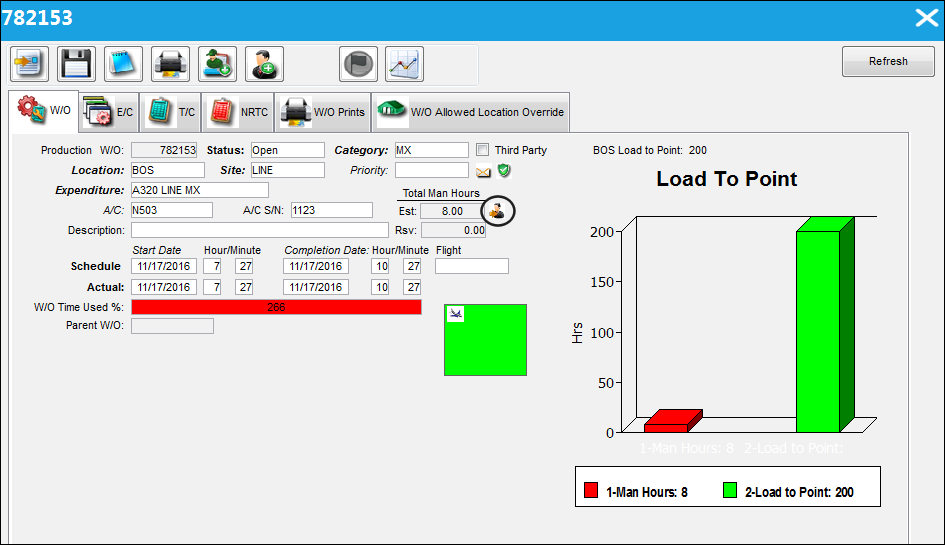
From the Sub Selections  button, select the Cancel Self Assignment
  button.
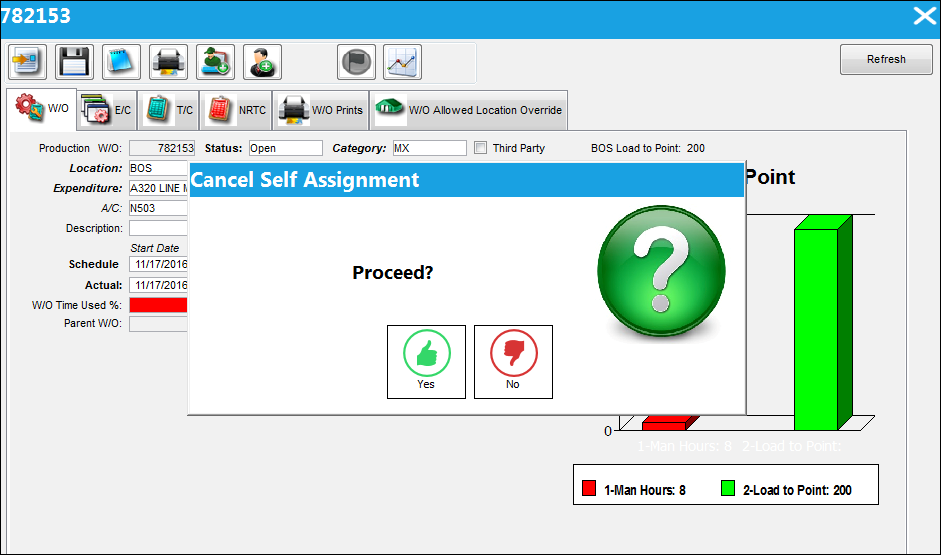
The Cancel Self Assignment pop up will appear. Select 'Yes' to proceed with canceling the self assignment.
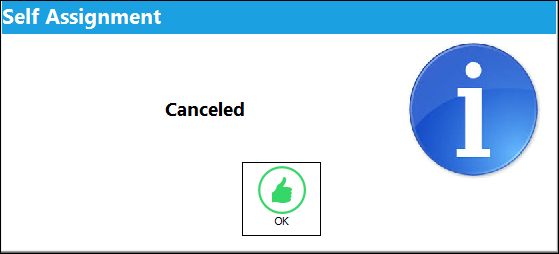
The following information box appears ensuring that the employee would like to cancel the assignment.
Select 'OK.'
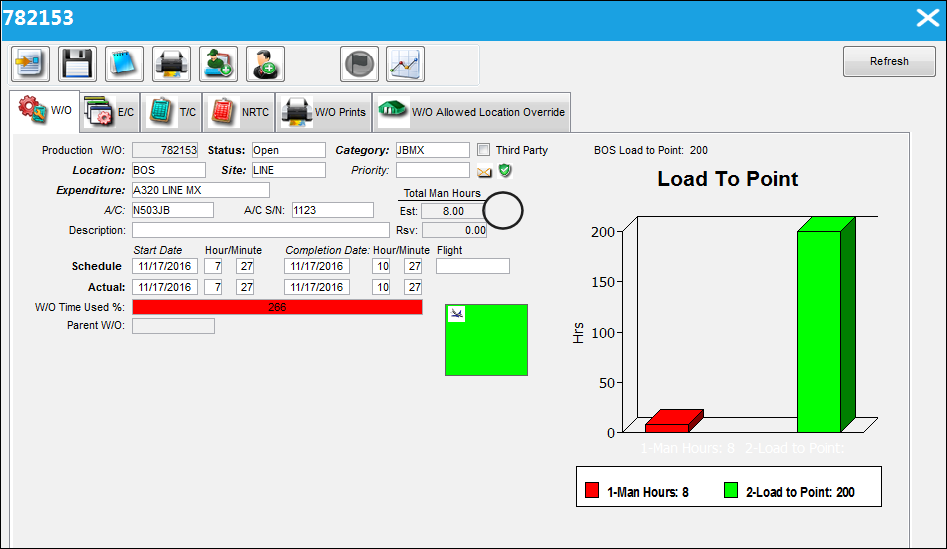
The Self Assignment  icon has been removed from the Work Order tab illustrating to the employee that the self assignment has been canceled.
Share
Print
|
©1997-2026 Trax USA Corp. All rights reserved. This manual may not be copied, photocopied, reproduced, translated, or converted to any electronic or machine-readable form, in whole or in part, without prior written approval from Trax USA Corp. |
 |