
 Share
Share
 Print
Print
|
|
|
|
|



The Reset Manually Overridden Flag  button allows the user to remove the 'Manually Overridden' red text that appears directly under the Task Priority field. This allows the user to view at a glance all Task Priorities that have been manually overridden and will be excluded when the Calculate Remainings button is selected via the HyperText window.
 This button is security controlled via Planning/ Query/ Interactive Planner/ Reset Manually Overridden Flag button. For additional information, refer to the Security Explorer via the System Administration Training Manual.
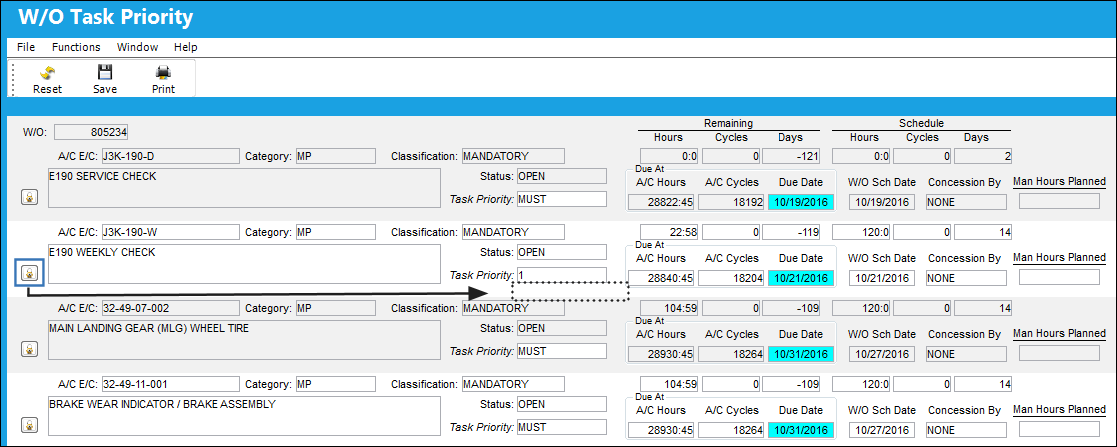
From the W/O Task Priority window, the Task Priority for A/C E/C J3K-190-W is going to be manually overridden.
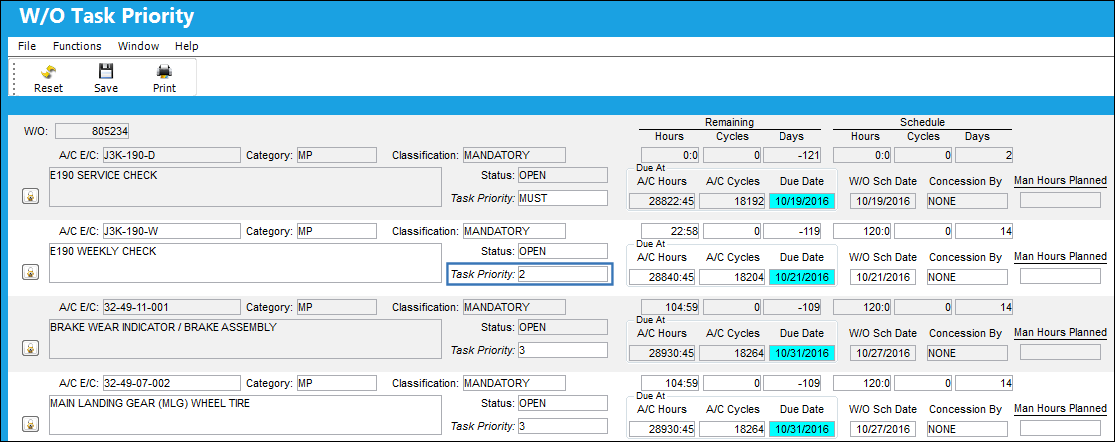
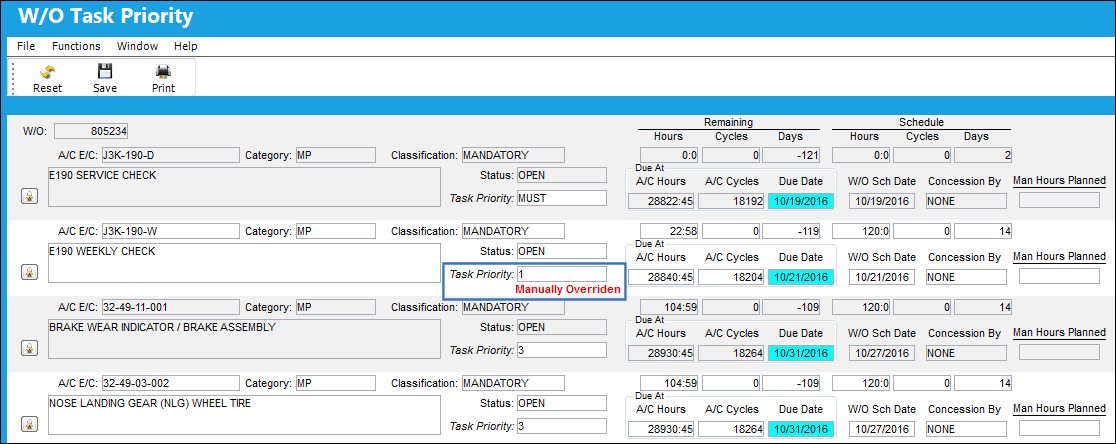
The Task Priority is overridden from a level 2 to a level 1. Notice the red text that now appears under the Task Priority field 'Manually Overridden'.
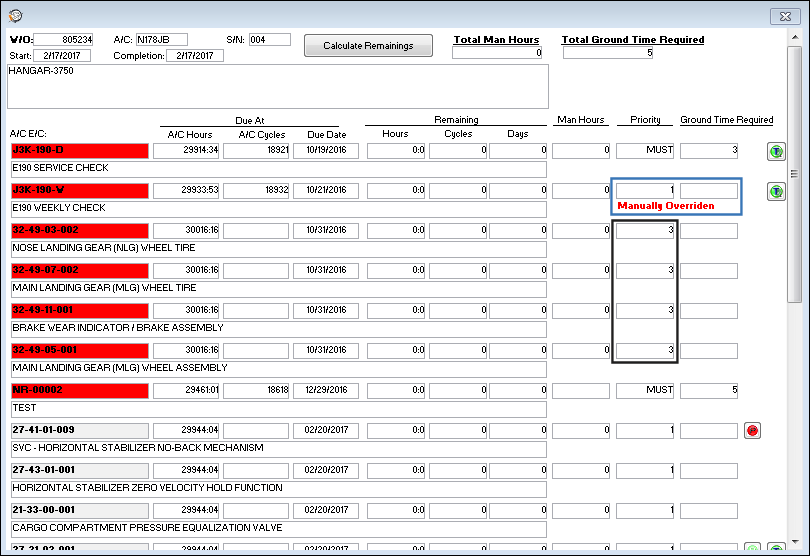
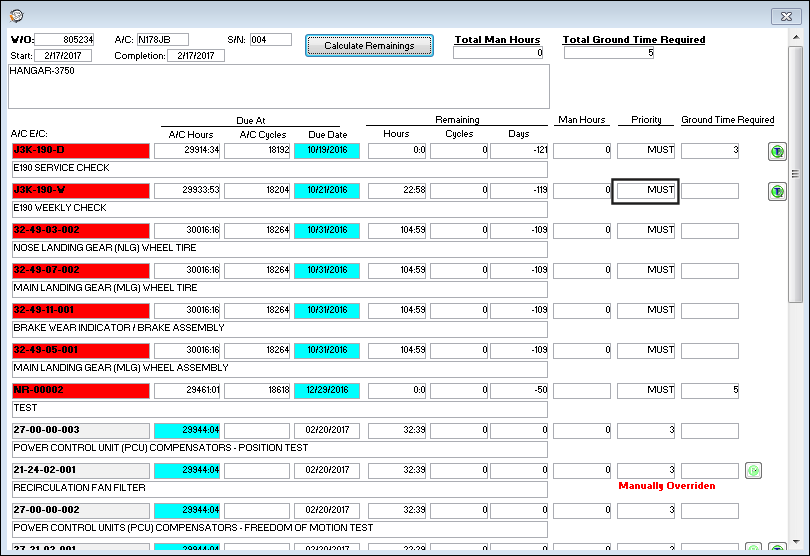
From the HyperText window, the 'Manually Overridden' text appears directly below the Task Priority for the A/C E/C. This indicates that this Task Priority will be excluded when the Calculate Remainings button is selected.
Select the Calculate Remainings  button.
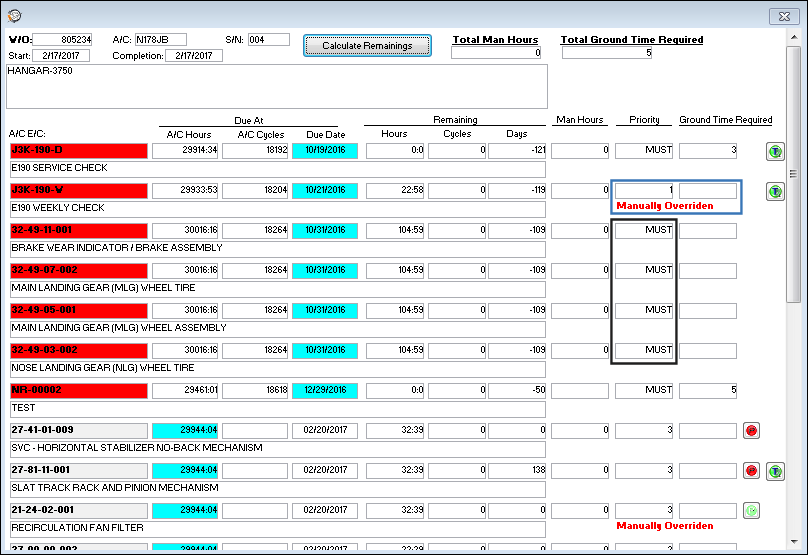
The Task Priority for the manually overridden task was excluded from the calculation updates applied in this window.
Return to the W/O Task Priority window and select the Reset Manually Overridden Flag button. The "Manually Overridden' text in red is removed from the Task Priority.
The text is also removed from the HyperText window and when the Calculate Remainings button is selected again, the highlighted Task priority is included in the calculation updates.
Share
Print
|
©1997-2026 Trax USA Corp. All rights reserved. This manual may not be copied, photocopied, reproduced, translated, or converted to any electronic or machine-readable form, in whole or in part, without prior written approval from Trax USA Corp. |
 |